2026-02-07
How to Transcribe Lectures to Text A Practical Guide
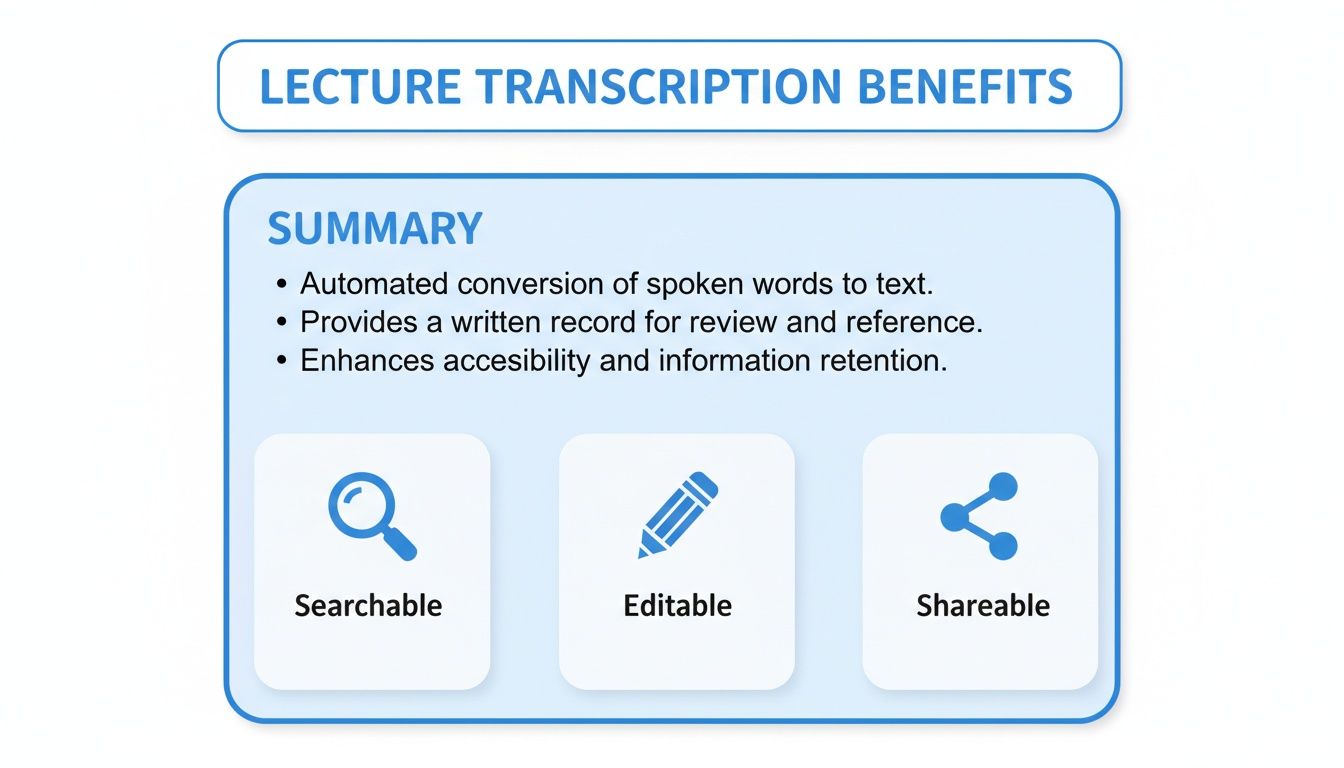
Instead of trying to manually type everything a professor says, you can just upload an audio or video file of the lecture to an AI transcription service. These tools use some seriously impressive speech recognition technology to automatically turn spoken words into a text document you can edit and search. It's done in minutes and is a huge step up from taking notes by hand.
Why Transcribing Lectures Is a Study Game Changer
Ever walk out of a two-hour lecture and realize a key concept has already vanished from your brain? We've all been there. The old way of frantically scribbling notes often means you're so focused on writing that you're not actually listening or understanding. This is where transcription completely changes the game.
When you transcribe a lecture, you're not just getting a few scattered ideas; you're creating a perfect, word-for-word record of the entire class. This digital document is more than just notes—it's an interactive study tool. It transforms the spoken lecture into a knowledge base you can search, edit, and share.
From Passive Listening to Active Learning
The real magic happens when you change how you interact with the material. With a full transcript in hand, your study habits get a major upgrade.
You can now:
- Pay full attention during the actual lecture, knowing you won’t miss a thing because it's all being recorded.
- Instantly find specific topics by searching for keywords instead of scrubbing through hours of video.
- Easily copy and paste exact quotes and tricky definitions straight into your study guides or essays.
- Review complicated subjects on your own time, reading and re-reading until it clicks.
This isn't just a niche idea; it's a massive shift in educational tech. The market for lecture capture systems is projected to jump from USD 17.44 billion in 2026 to an incredible USD 59.39 billion by 2031. That kind of growth is fueled by the worldwide move to online and hybrid classes, where having reliable digital resources is a must. If you're curious, you can explore more about the lecture capture systems market to see just how big this trend is.
Think of it this way: by turning lectures into text, you're not just taking notes. You're building a personal, searchable library of your entire academic journey. It's the ultimate tool for deep revision and true understanding.
At the end of the day, using AI to get a text version of a lecture helps students learn smarter, not harder. It also gives educators a simple way to make their content more accessible, making sure every student has a chance to succeed.
Get Your Lecture Recordings Ready for Transcription
The secret to a great transcript? It all starts with a great recording. Before you even get to the transcription part, a little prep work can be the difference between a near-perfect result and a document riddled with errors. Think of it as setting the stage for the software to do its best work.
The biggest reason for bad transcriptions is almost always poor audio. If you can’t clearly hear what the speaker is saying, neither can the AI. The good news is you don’t need a professional recording studio to get fantastic results.
Find Your Quiet Space
Your first mission is to kill the background noise. A bustling coffee shop or a classroom with an open window next to a busy street will introduce competing sounds that just confuse transcription software. Even small things like an air conditioner hum, loud keyboard clicks, or shuffling papers can muddy the audio.
Find the quietest spot you can. If you're recording a live lecture, try sitting closer to the front, away from doors or classmates who like to chat. This one simple move helps make sure the professor's voice is the star of the show.
This infographic shows just how valuable a good transcript can be, turning a lecture into a searchable, editable, and easy-to-share study tool.
Of course, unlocking these benefits depends entirely on getting a clean recording that the AI can understand in the first place.
A Better Mic Makes a Better Transcript
Let’s be honest: your laptop or phone's built-in microphone is okay for calls, but it’s not designed to capture high-quality audio. Spending a little on an external microphone is probably the single best thing you can do to improve your recordings.
- Lavalier (Lapel) Mics: These tiny mics clip right onto a shirt. They stay a consistent distance from the speaker's mouth and dramatically cut down on room echo. They're perfect for recording a single person.
- USB Microphones: If you're recording at a desk, a USB condenser mic is a great choice for crisp, clear sound. For best results, place it about 6-12 inches from the speaker.
A clean audio signal is the bedrock of an accurate transcript. A $20 external microphone will almost always beat a $1,000 laptop's built-in mic because it has one job: capture voice clearly.
A Quick Soundcheck and The Right File Format
Finally, always do a quick soundcheck. Record a few sentences and play it back with headphones. Can you hear everything clearly? Is the volume too low, or is it "peaking" with loud, distorted sounds? Adjust your recording levels so the audio is strong but not crackly.
When it's time to save, stick with common formats like MP3, MP4, or WAV. Pretty much every transcription platform supports them. While a WAV file is uncompressed and technically the highest quality, a well-recorded MP3 is more than good enough and has a much smaller file size, which means faster uploads.
If you want to dig deeper, our guide on has more tips for handling different file types. This prep work only takes a few minutes, but it will save you a ton of editing time down the road.
How Audio Quality Impacts Your Transcript Accuracy
It's easy to talk about "good" vs. "bad" audio, but what does that actually look like in practice? The table below breaks down how specific recording factors can dramatically affect the accuracy of your final transcript.
| Recording Factor | Poor Quality Example | Good Quality Example | Impact on Accuracy |
|---|---|---|---|
| Microphone Placement | Mic is across the room, picking up echo and other sounds. | Mic is 6-12 inches from the speaker, or a lapel mic is used. | High: Proper placement isolates the voice and eliminates room noise, leading to far fewer errors. |
| Background Noise | Recording in a cafe with clattering dishes and chatter. | Recording in a quiet office with the door closed. | High: Competing sounds confuse the AI, often resulting in nonsensical or missed words. |
| Speaker Volume | Speaker is mumbling or too far from the microphone. | Speaker's voice is clear, consistent, and at a good volume. | Medium: Low volume can cause the AI to miss words. The system might misinterpret soft speech as background noise. |
| File Compression | A heavily compressed, low-bitrate MP3 file. | A high-bitrate MP3 or an uncompressed WAV file. | Low to Medium: Extreme compression can create digital artifacts that affect clarity, but modern AI handles this well. |
As you can see, the physical environment and your microphone setup play the biggest roles. A few small adjustments here can save you hours of cleanup work later on.
My Simple Workflow for Transcribing Lectures with AI
Alright, this is where the magic happens. Let's walk through the whole process, from that lecture file on your computer to a perfectly searchable text document. Honestly, modern AI tools have made this so straightforward it feels more like uploading a photo than doing any real technical work. You really don't need to be a tech wizard for this.
The entire process is designed to be quick and intuitive. Most platforms I've used have a simple drag-and-drop box right on the page. You just find your audio or video file, drag it over, and let go. That's it. The upload starts, and the AI gets to work.
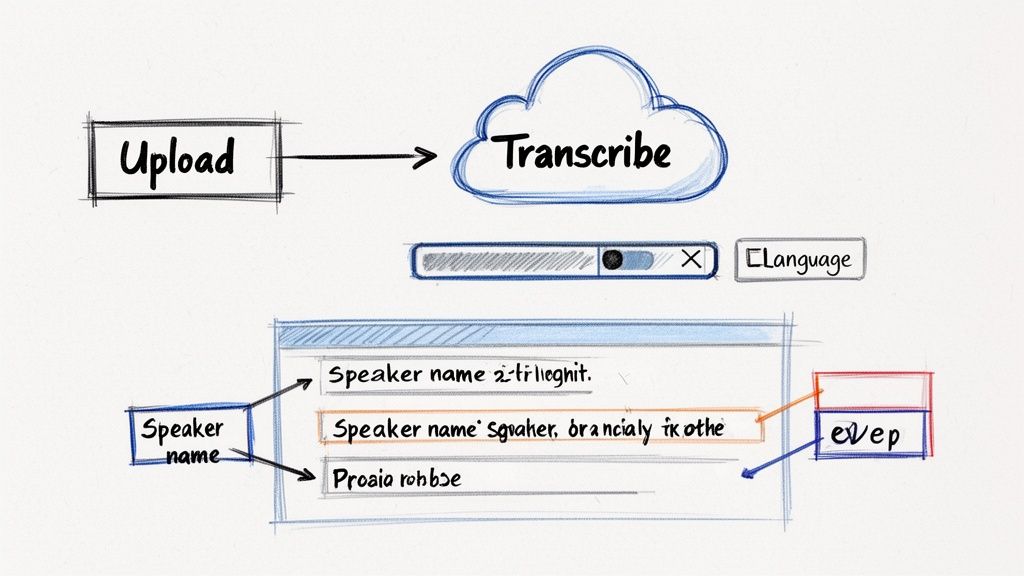
This level of simplicity is a big reason the AI transcription market is exploding. Projections show it ballooning from $4.5 billion in 2024 to a staggering $19.2 billion by 2034. It makes sense—why wait days for a manual transcription when an AI can deliver a full transcript in just a few minutes? If you're a data person, you can .
Getting Your Transcription Job Set Up Right
Before you hit "Go," you'll usually see a small pop-up with a couple of quick questions. These settings are small but have a huge impact on the final accuracy, so don't just click through them.
First, you'll be asked to specify the language in the recording. Some newer systems can auto-detect this, but I always select it manually (e.g., "English - United States"). It removes any guesswork and gives the AI a head start on getting things right.
Next up is speaker labeling, sometimes called diarization. Trust me, you want to turn this on. It's a game-changer for lectures that have a Q&A section or any kind of discussion.
When you enable this, the AI intelligently separates the different voices it hears.
- What you'll get: The first draft will have generic labels like "Speaker 1" and "Speaker 2."
- What you can do: You can easily click on those labels and rename them to something useful, like "Professor Davies" or "Student Question."
This one feature makes your transcript infinitely more readable. You'll never be confused about who said what. Our guide on dives a bit deeper into how these features actually work behind the scenes.
A personal tip: Never skip that initial setup screen. Taking just ten seconds to confirm the language and flip on speaker labels will save you a ton of editing headaches later. It makes the final document so much more useful.
From Upload to A Usable Document
Once your settings are locked in and the file is uploaded, the AI takes over. It's always impressive how fast this part is. For a standard one-hour lecture, I usually have a full, time-stamped transcript ready to go in just a few minutes.
You’ll typically get an email letting you know when it’s finished. Clicking the link takes you into an interactive editor where you can see your text synced perfectly with the audio.
The heavy lifting is done. Now you’re just a few clicks away from having a polished, perfect digital record of the entire lecture.
How to Edit and Polish Your AI Transcript
The AI has done the heavy lifting, getting your lecture about 95% of the way there. Now it’s time for that final human touch that elevates a good transcript into a perfect one. Don't worry, this isn’t about re-typing the whole thing. It's more of a quick polish to ensure total accuracy and readability, and modern tools make this part surprisingly fast.
Most transcription platforms, like , come with a built-in interactive editor. Think of it less as a simple text file and more as a smart workspace where every single word is linked directly to the audio. If a sentence feels a bit off, you just click on it, and the editor instantly plays that exact moment from the recording. This makes hunting down and fixing any little errors incredibly intuitive.
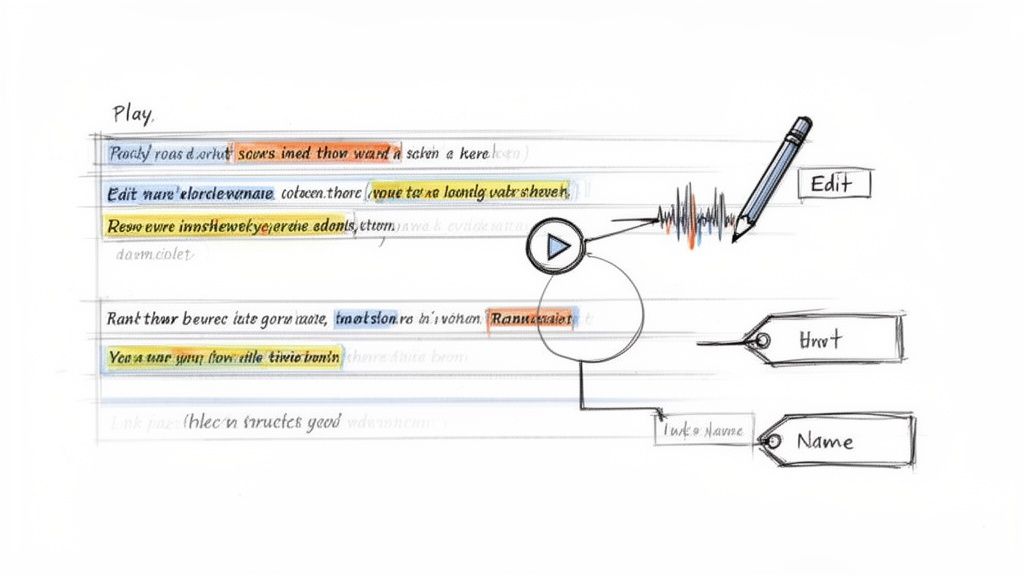
This level of precision is a big reason why academic transcription has become such a vital part of the U.S. transcription market—a sector expected to jump from $30.42 billion in 2024 to $41.93 billion by 2030. With over 60% of higher education courses now featuring a digital component, universities and research centers are driving this demand. You can learn more about and its effect on academia.
Fine-Tuning Your Lecture Transcript
When you first open up the editor, your main goal is to scan for the typical mistakes AI is prone to making. Luckily, these usually fall into a few common categories that a human eye can spot in seconds.
Keep an eye out for these:
- Specialized Terminology: An AI can easily get tripped up by jargon. In a chemistry lecture, for instance, it might spit out "for mull hide" instead of the correct term, "formaldehyde."
- Proper Nouns: Names of people, specific places, or even unique theories can get jumbled. A quick scan makes sure "Professor Joule" wasn't accidentally transcribed as "Professor Jewel."
- Punctuation and Flow: The AI usually gets the basics right, but you’re the best judge of clarity. You might want to break up a long, rambling sentence from the speaker into two shorter, more readable ones.
This process is less about rewriting and more about making small, surgical corrections that make the final document look professional and polished.
The real game-changer with an interactive editor is the speed. Instead of wasting time scrubbing through audio to find one mistake, you just click the word. This simple feature can cut your review time from hours down to just a few minutes.
Managing Speakers and Final Checks
Did your lecture have a Q&A session? You’ll probably see generic labels like "Speaker 1" and "Speaker 2." The editor makes cleaning this up a breeze. Just click on a label and rename it to something that makes sense, like "Professor Evans" or "Student Question." You can also merge paragraphs if the AI mistakenly split a single person's thought into two separate blocks.
For example, imagine you're editing a dense organic chemistry lecture. The professor mentions "chiral centers" and "enantiomers." The AI might fumble these, but with the synchronized audio, you click, listen, and correct the terms in a snap. You see "Student 1" and easily rename it to "Sarah's Question."
This final review is what truly makes the difference when you transcribe lectures to text. It guarantees your transcript isn't just a jumble of words, but an accurate, reliable study resource you can count on.
Now, Put Your Transcript to Work
Once you've cleaned up your transcript, you’ve done more than just take notes. You now have a seriously flexible asset. The real magic happens when you start using this text in different ways—turning it from a static document into something you can use for studying, creating new content, or making your lectures accessible to everyone.
Think of a polished transcript as a launchpad, not a finish line. Its true power comes from knowing how to export it and use smart tools to analyze it.
Choose the Right Format for the Job
Good transcription tools don't just dump a wall of text on you. They let you export it in different formats, each designed for a specific task. This is where you can really start plugging your lecture content into different workflows.
Here are the formats I find myself using most often:
- .DOCX (Word Document): This is my go-to for creating study guides, pulling quotes for a paper, or writing reports. It's easy to copy, paste, and reformat text, letting you grab key definitions or arguments without any hassle.
- .TXT (Plain Text): Simple, clean, and universal. This format is perfect for when you just need the text itself—maybe for sharing quick notes or importing into an app that chokes on fancy formatting.
- .SRT (SubRip Subtitle File): This one is absolutely essential if you're dealing with video. An SRT file isn't just text; it contains precise timestamps that sync the words to the video, creating perfect closed captions.
For anyone creating video content—educators, students, you name it—exporting to SRT is a total game-changer. You can burn subtitles directly onto your lecture recordings. Research has shown this helps everyone focus and understand the material better, not just viewers with hearing impairments.
Make Your Content Accessible and Easy to Find
Adding captions to a lecture video with an SRT file does more than just help people follow along. It makes your content far more discoverable. Search engines can't watch a video, but they can read the text in a caption file. This means your video has a much better chance of showing up when someone searches for a relevant topic.
Making your lectures accessible isn't just a nice thing to do; in many educational settings, it's a requirement. If you want to get into the nuts and bolts, our guide on how to transcribe video to text online walks through the steps for creating and adding captions. It’s a simple step that makes your material more inclusive and helps it reach a much bigger audience.
Go Beyond Plain Text with AI Analysis
Here's where things get really interesting. The latest transcription platforms don't just give you text; they let you interact with it using AI. Instead of manually scanning page after page, you can literally "ask" your transcript questions and get answers in seconds.
Picture this: you have an entire semester of lectures transcribed. Instead of racking your brain to remember which class a specific topic came up in, you can just ask.
A physics student, for example, could ask their collected transcripts: "Find every time Professor Harris mentioned 'quantum entanglement' and summarize the main points." The AI would instantly pull every relevant segment from every single lecture. That's hours of searching saved right there.
These tools can also:
- Generate Instant Summaries: Distill a two-hour lecture down to the key takeaways in a few short paragraphs.
- Create Automatic Chapters: Break a long recording into logical, timestamped sections based on the topics being discussed.
- Identify Key Topics: Automatically pull out the most important themes and keywords from the text.
This layer of analysis turns your archive of lectures from a static record into a smart, searchable knowledge base you can tap into anytime.
Common Questions About Transcribing Lectures
Even with the best tools, you probably have a few questions before you dive into transcribing your lectures. Let's walk through some of the most common ones I hear from students and educators. Getting these sorted out will help you get started with confidence.
Most people want to know one thing right away: Can I really trust an AI with complex, technical lecture content? The short answer is yes, but the quality of your audio is key.
How Accurate is AI for Academic Lectures?
Modern AI transcription can hit 95% accuracy or even higher, but that number hinges on your recording quality. If you have a clear speaker, a quiet room, and a decent microphone, the transcript you get back will be remarkably close to perfect.
Of course, some things can trip it up. Accuracy might dip a bit if you're dealing with:
- Highly technical jargon, like you’d find in a medical or engineering course.
- Multiple people talking over each other during a heated classroom debate.
- Strong accents or exceptionally fast speakers.
Even in these less-than-ideal scenarios, a good AI transcription service does the heavy lifting for you. The beauty of it is that the few mistakes that pop up are usually quick and easy to fix in the editor, often taking just a few minutes of your time.
Can It Handle a Lecture with a Q&A Session?
Absolutely. This is exactly what a feature called speaker diarization (or speaker labeling) is for. It's a standard part of any solid transcription platform. The AI is smart enough to detect when a new person starts speaking and automatically separates their dialogue.
Initially, your transcript will have generic labels like "Speaker 1" and "Speaker 2." You can then jump into the editor and quickly rename them to "Professor Allen" or "Student Question." This small step makes following the flow of a Q&A or group discussion incredibly simple.
Think of speaker diarization as an automated scriptwriter. It doesn't just capture the words; it captures who said them, preserving the natural back-and-forth of the conversation.
What File Format Should I Choose for My Transcript?
The best format really boils down to what you need to do with the text. There's no one-size-fits-all answer, so pick the one that fits your goal.
- For taking notes or writing a paper: Your best bet is a .docx (Microsoft Word) or .txt (Plain Text) file. They work everywhere and are perfect for copying, pasting, and searching for keywords.
- For creating video content or captions: The .srt (SubRip) file is the industry standard. It contains all the timestamps needed to sync the text perfectly with the video, which is a huge boost for both accessibility and viewer engagement.
How Does Lecture Transcription Improve Accessibility?
Transcription is one of the most powerful tools for building an inclusive learning environment. It creates a text-based version of audio and video, which is non-negotiable for students who are deaf or hard of hearing.
But the benefits go much further. Transcripts are a game-changer for students with learning disabilities, auditory processing disorders, or anyone who isn't a native speaker. Having the text lets them follow along, review complex topics at their own speed, and truly absorb the material. By providing transcripts, schools can meet crucial accessibility standards and give every student a better chance to succeed.
Ready to turn your lecture recordings into powerful, searchable study guides? At Kopia.ai, we make it fast, simple, and incredibly accurate.