Blog

Discover insightful resources and expert advice on AI-powered transcription

How to Translate Video to English Subtitles in 2026
Featured

How to Translate Video to English Subtitles in 2026

Ever feel like your amazing videos are stuck in a bubble? You're getting great feedback from your local audience, but the view count has hit a wall. If your content isn't in English, there's a good chance you’re accidentally ignoring a massive global audience just waiting to find you. The solution is simpler than you think: **translate your video to English subtitles**. This isn't just a technical task; it's a core growth strategy that turns your local content into an international asset. ## Why English Subtitles Unlock a Global Audience Think about it. You’ve already done the hard work of creating incredible content. Now, by adding a simple text file, you can break down the language barrier and connect with viewers across the globe. This one change can completely alter your channel's trajectory. Imagine you're a French chef whose cooking tutorials are a local favorite. By adding English subtitles, you're suddenly inviting millions of food lovers from the U.S., UK, and Australia into your kitchen. This isn't just about a small bump in views—it's your ticket to new markets, bigger sponsorship deals, and a truly diverse community. ### From Local Creator to Global Influencer The internet may be borderless, but language is still a real barrier. English subtitles are the simplest, most effective way to tear that wall down. Take a Korean beauty vlogger who shares detailed reviews of local skincare. With English subtitles, their expertise is suddenly available to a massive worldwide audience hungry for K-beauty secrets. That directly translates into more brand partnership opportunities and a much larger, more engaged following. > The numbers really put this opportunity into perspective. By 2025, over **360 hours** of video were being uploaded to YouTube every single minute. Here’s the key: **40% of YouTube views come from outside the US**, proving there’s a massive, underserved audience looking for content just like yours. ### The Tangible Benefits of Translation Adding English subtitles delivers real, measurable results that go far beyond just being more inclusive. It's a strategic move that directly impacts your channel's growth and profitability. Here’s what you actually gain: - **Massive Audience Expansion:** English acts as a bridge language, connecting you with viewers from hundreds of countries who may not speak your native tongue but are fluent in English. - **Improved SEO and Discoverability:** Search engines like Google and YouTube can't "watch" your video, but they absolutely read your subtitles. An English transcript makes your content searchable for a much wider pool of keywords, helping new fans find you. - **Enhanced Engagement and Watch Time:** It’s simple: viewers stick around when they can understand what’s happening. Subtitles keep them glued to the screen, which boosts the critical metrics that algorithms love. - **Increased Monetization Potential:** A larger, more diverse audience is a magnet for advertisers and sponsors. This opens up revenue streams that were completely out of reach before. You can even apply this thinking to other platforms by checking out our guide on [content repurposing strategies](https://kopia.ai/blog/content-repurposing-strategies). ## Choosing the Right Subtitle Translation Method Alright, before you jump into translating your video, let's talk strategy. Picking the right workflow from the get-go is the difference between a smooth process and hours of frustration. There are really three main ways to get English subtitles for your videos: automated AI tools, using YouTube’s built-in features, or going the old-school manual route with SRT files. What it boils down to is a classic trade-off: speed, cost, and accuracy. Are you churning out a dozen social media clips that need to go live yesterday? Or are you polishing a single, high-stakes training video where every word has to be perfect? Knowing the answer to that will tell you exactly where to start. This isn't just a technical task; it's a strategic move to grow your audience. Think of it like this: ![Flowchart illustrating a video growth strategy, guiding from local video to global audience reach and monetization.](https://cdnimg.co/90481e44-b387-48dd-872f-14aa8e8d755d/6157c239-00dd-4d8c-874b-5d2082d7e8af/translate-video-to-english-subtitles-video-strategy.jpg) As you can see, adding English subtitles is a key step in taking your content from a local market to a global stage, which is how you really start to multiply your views and impact. So, let’s figure out which path makes the most sense for you. ### Assess Your Project's Needs First things first, take a quick look at what you’re working with. For instance, if I’m chopping up a long webinar into 15 short, punchy clips for social media, speed is everything. I’ll turn to an AI tool every time because it can transcribe and translate the whole thing in just a few minutes. But if I'm producing an emotional brand story for a major client, I’ll likely handle it manually. An AI might miss the subtle phrasing or cultural nuances that make the story connect. In those cases, I need total control. > **My two cents:** Don't get stuck on just one method. I personally use a fast AI tool like [Kopia.ai](https://kopia.ai) for 90% of my content—it's perfect for bulk work. But for my most important videos or key client projects, I still build the SRT file by hand to ensure the brand's voice is absolutely flawless. ### Comparing Video Subtitle Translation Methods To make this decision easier, it helps to see how the different approaches stack up against each other. Each one has a time and a place, and seeing the pros and cons side-by-side can make your choice obvious. This table breaks down the key differences between Automated AI, YouTube's tools, and Manual SRT creation to help you choose the best workflow for your project. | Method | Best For | Speed | Cost | Accuracy | | :

Read article

Recent

47 posts
English to German Translation Audio A Practical Guide

English to German Translation Audio A Practical Guide

Turning your English audio into a top-notch **english to german translation audio** file does more than just make your content available to a new audience—it makes it _resonate_. It’s about creating something that sounds natural and captures the real feeling of your original recording. Done right, this unlocks a whole new world of connections and opportunities. ## Why High-Quality German Audio Translation Matters Now ![Laptop and phone transmitting sound waves to a European map, targeting a German audience.](https://cdnimg.co/90481e44-b387-48dd-872f-14aa8e8d755d/e35e10ad-ebce-4441-a334-9c0f99c6d847/english-to-german-translation-audio-audio-localization.jpg) In a world where content spreads like wildfire, just slapping translated text on your work doesn't cut it anymore. The German-speaking market is huge, with over **130 million** people. If you want to genuinely connect with them, you have to speak their language, and I mean that literally. Moving from plain text to dynamic audio completely changes the game. It’s the difference between reading a dry instruction manual and having an expert personally walk you through the steps. That shift makes a world of difference. ### Unlocking New Audiences and Opportunities Think about a YouTuber with a loyal English-speaking audience. By adding a professional German audio track, they can instantly connect with a massive, untapped viewership in Germany, Austria, and Switzerland. This goes way beyond simple subtitles; it's about giving them an experience that feels like it was made just for them. Or consider a company with a suite of online training courses. Using an **english to german translation audio** file makes that training far more effective for their German-speaking employees. People simply absorb and remember information better when they hear it, which leads to a smarter team and a more inclusive company culture. > The best content always meets the audience on their own terms. For the German market, that means speaking their language with a clear, natural voice. It builds a level of trust and professionalism that text alone can't touch. ### The Growing Demand for Audio Technology You can see this shift in the market trends. The global language translation device market, which is all about audio, was valued at **USD 1.37 billion in 2024**. Analysts expect it to soar to **USD 3.49 billion by 2032**, which shows just how much demand there is for breaking down language barriers. You can dig into the full market projections on SNS Insider to see the explosive growth for yourself. This isn't just about pocket translators, either. The AI tools that power these translations are getting more powerful and accessible every day. For content creators, this is fantastic news. It means you can now produce high-quality audio translations for all kinds of projects: - **Podcasts:** Launch a German version of your show to find new listeners. - **E-learning:** Make your courses accessible to students across German-speaking countries. - **Business Meetings:** Send out multilingual audio summaries of recorded calls so no one misses a beat. Ultimately, investing in quality audio translation isn’t just another expense. It's a smart, strategic move that expands your reach, makes your content more engaging, and gives you a serious competitive edge. It shows you care enough about your audience to speak to them in their own voice. ## Preparing Your English Audio for Flawless Translation ![A sketch of a studio microphone with a sound waveform and a checklist for clear, noise-reduced audio.](https://cdnimg.co/90481e44-b387-48dd-872f-14aa8e8d755d/101f0df6-1675-4557-b41d-f46cc1bf0f19/english-to-german-translation-audio-audio-quality.jpg) Let’s talk about the single most important part of this whole process: your original English audio. Everything hinges on its quality. Think of it this way—if you start with a fuzzy, noisy recording, you’re just asking for an inaccurate, frustrating translation. Trust me, putting in a little effort here saves you a mountain of headaches later on. A clean audio file is the secret weapon for getting a great **english to german translation audio**, especially with AI. These tools are smart, but they aren't magic; they need clear input to give you great output. ### How to Get Crystal-Clear Audio Your main job is to make sure the AI can clearly distinguish every word you say. You don't need a fancy studio, either. Your smartphone can work wonders if you just pay attention to your surroundings before you hit record. A few simple tweaks can make a world of difference: - **Kill the Noise:** Find the quietest room you can. That means turning off the rumbling air conditioner, the buzzing fridge, and your desktop fan. Rooms with carpets and curtains are your friends—they soak up that annoying echo. - **Get a Better Mic:** Your laptop's built-in microphone will do in a pinch, but that's about it. An external USB mic or even the one on your headphones is a huge upgrade. This one change can have a massive impact. - **Talk Normally:** Speak clearly, but don't overdo it and sound like a robot. Just use a natural, steady pace. This helps the AI capture not just the words but also the cadence of your speech. > Here's a rule of thumb I always follow: if a person would have trouble understanding the audio, the AI definitely will. A clean recording is everything. ### The Technical Details That Matter Beyond how you record, the file format itself can play a role. While a service like [Kopia.ai](https://kopia.ai/) is built to handle most common formats, I've found that uncompressed files often give the AI a slight edge. For instance, a **WAV file** contains all the raw audio data, unlike a compressed MP3 or M4A. If your recording is already in another format, no worries. You can easily [convert M4A to WAV with our free tool](https://kopia.ai/free-tools/m4a-to-wav), giving the AI the maximum amount of information to analyze. What if you're recording a podcast or an interview with multiple people? Don't merge their audio into a single track. Modern transcription tools are smart enough to identify and separate different speakers, which is a lifesaver for getting an accurate transcript and, eventually, a coherent German translation. Just make sure each person’s audio is as clear as possible. ## A Realistic Workflow for English to German Audio Translation Alright, let's get practical. I'm going to walk you through the entire process, from a raw English audio file to a polished German translation that’s ready for your audience. The goal here isn't some complex, technical procedure. It's about a straightforward, repeatable workflow that you can actually use. We'll use an AI platform like Kopia.ai as our home base to keep everything simple and in one place. Think of this less like a rigid set of rules and more like a smart assembly line. You’ll see firsthand how the right tools can take a project that seems daunting and break it down into a few manageable steps. By the end, you'll know exactly how to get a high-quality **english to german translation audio** file without needing a whole team of specialists. ### From Upload to Initial English Transcript First things first: you need to get your audio into the system. This is as simple as it sounds. Just upload your prepared English audio file. It doesn't matter if it's an M4A you recorded on your phone or a high-quality WAV from your podcasting mic; modern platforms are built to handle just about any format you throw at them. Once it's uploaded, the AI gets to work. It listens to your file and spits out a complete, time-stamped English transcript. This transcript is the foundation for everything that follows. Its accuracy directly affects the quality of your final German translation, which is exactly why getting clean audio at the start is so important. The interface you see above is a great example of how a good tool presents this initial transcript. The text is synced right up with the audio playback, which is absolutely critical for the next stage. It lets you easily check the AI's work against the actual spoken words. Before you jump to translating, take a minute to scan the English transcript. This is a step people often skip, but it saves so much time later. Look for any glaring errors—misspelled company names, industry jargon, or words the AI fumbled because of an accent or background noise. Fixing these small mistakes now gives the translation AI the cleanest possible source material to work from. You can find out more about the whole process by exploring our guide on [converting audio to text](https://kopia.ai/tools/audio-to-text). ### One-Click Translation into German With a clean English transcript locked in, the next part is almost laughably easy. Instead of the old-school method of copying the text, opening a new tab, and pasting it into a separate tool, modern platforms have translation built right in. You’ll usually see a "Translate" button that brings up a list of languages. You just pick "German," and the AI does its thing, translating the entire text in seconds. What’s really happening behind the scenes is that the system is translating each segment while keeping the original timestamps perfectly intact. This is the secret sauce for creating frame-perfect subtitles later on. > This one-click process is a massive time-saver. It eliminates the tedious copy-and-paste routine and keeps your entire project—audio, English transcript, and German translation—all in one organized workspace. For most general content, this initial AI-generated translation will be surprisingly good. It provides a very literal, word-for-word translation that serves as a fantastic first draft. This captures the core meaning of your audio and gets you **90%** of the way there. For quick checks or brainstorming, an effective [online translator](https://www.polychatapp.com/translator) can also be a handy tool to have in your back pocket. But for a truly professional result, a little human touch is still needed to nail the nuances, idioms, and cultural context. The next step is all about refining this draft, and that's where the real magic happens. Using an interactive editor, you can polish the German text to make it sound completely natural—which we'll dive into in the next section. This simple workflow—upload, transcribe, correct, and translate—is an incredibly powerful way to get your content ready for a German-speaking audience. ## How to Refine and Verify Your German Translation You’ve run your audio through the AI and have a German translation ready to go. That first draft is a massive time-saver, but let's be honest—it's rarely perfect right out of the box. Think of the AI as your incredibly fast but sometimes socially awkward assistant. It gets the job done, but it needs a final human polish to sound natural and connect with a real audience. This is where you transform a good translation into a great one. Fortunately, you don't have to be a professional translator to handle this. Modern tools like Kopia.ai have made the review process incredibly straightforward. The editor syncs your original English audio with the newly generated German text, side-by-side. You can click on any German phrase, and it will instantly play the corresponding English audio. It’s an intuitive way to catch awkward phrasing or mistranslations without constantly switching between files. The whole workflow is really that simple: upload, translate, and then export your finished file. ![Infographic showing the three-step audio translation process: upload, translate, and export.](https://cdnimg.co/90481e44-b387-48dd-872f-14aa8e8d755d/a6215bf7-c48c-4b3b-a987-14091a3fbdf6/english-to-german-translation-audio-process.jpg) This middle step—the review—is what separates content that’s merely understood from content that truly resonates. ### Catching Common Errors During Your Review When you're reviewing the translation, you’re doing more than just spell-checking. You’re listening for flow, intent, and cultural context. Does the German text _feel_ like the original English? AI is fantastic with literal, one-to-one translations, but it often stumbles over the uniquely human parts of language, like idioms or cultural references. This is where you'll want to focus your attention. Keep an eye out for these specific issues: - **Idiomatic Expressions:** A phrase like "It's raining cats and dogs" doesn't work when translated literally. You need a German equivalent, like _Es schüttet wie aus Eimern_ (It's pouring as if from buckets). - **Cultural Nuances:** Will a joke or a pop culture reference from an English-speaking country make sense to a German audience? Sometimes, it’s better to replace it with a more culturally relevant example. - **Industry Jargon:** Make sure technical terms specific to your field are translated correctly and consistently throughout the entire audio. - **Tone and Formality (Sie vs. Du):** This is a big one in German. Are you addressing a colleague informally (**du**) or a client formally (**Sie**)? A good AI will let you set this, but it's crucial to double-check that the tone is right for your audience. ### A Quick Guide to German Translation Pitfalls To help you spot these issues faster, I've put together a quick reference table. These are some of the most common mistakes I see when people are finalizing an **english to german translation audio** file. | Pitfall Type | English Example | Literal (Incorrect) German Translation | Correct German Translation | Correction Tip | | :

Top 12 Tools to Extract Audio From Video Freeware in 2026

Top 12 Tools to Extract Audio From Video Freeware in 2026

Whether you're a student capturing lecture audio, a podcaster repurposing video interviews, or a YouTuber creating accessible content, the need to separate audio from video files is a common task. The challenge isn't just _how_ to do it, but how to do it without paying for expensive software. This guide is your definitive resource for the best **extract audio from video freeware** available today. We've done the heavy lifting for you, testing and evaluating a dozen of the most powerful and reliable free tools. Before diving into the technical details of each tool, think about the powerful applications. For instance, extracting the audio track is the first crucial step if you want to [turn your YouTube channel into a show](https://howtocontact.net/blog/how-to-create-a-podcast-from-youtube-turn-your-youtube-channel-into-a-show), making your content available to a wider audience on audio platforms. This article cuts straight to the chase, providing practical, actionable information to help you find the right tool for your specific needs. Forget sifting through forums or watching outdated tutorials. Here, you will find a curated list of software that gets the job done efficiently and for free. Each entry includes: - **A quick overview** of what the tool does best. - **Step-by-step instructions** with screenshots to guide you. - **Clear pros and cons** based on real-world testing. - **Supported platforms and file formats.** - **Ideal use-cases**, so you can match the tool to your project. From command-line powerhouses like FFmpeg to user-friendly editors like Audacity and all-in-one media players like VLC, we’ll show you exactly how to pull high-quality audio from any video file. Let's get started. ## 1. FFmpeg FFmpeg is not a website in the typical sense but a foundational, open-source software project that provides a complete, cross-platform solution for recording, converting, and streaming audio and video. It operates via the command line, making it the most powerful and flexible tool for developers, video professionals, and tech-savvy users who need to **extract audio from video freeware** with surgical precision. Its power comes from its direct control over media streams. ![FFmpeg website homepage showing its command-line nature and documentation access.](https://cdnimg.co/90481e44-b387-48dd-872f-14aa8e8d755d/screenshots/3ae7e571-ad80-4aae-896b-e103aa57880b/extract-audio-from-video-freeware-ffmpeg-website.jpg) Unlike GUI-based tools, FFmpeg allows for lossless audio extraction. This "stream copy" function directly pulls the audio track from a video container without re-encoding, preserving original quality and finishing in seconds. This is ideal for podcasters or researchers who need the highest-fidelity audio for editing or analysis. Once you have a clean audio file, the next logical step for many is creating a written record. You can get a better sense of this process by exploring how to transcribe video to text, turning your audio into an actionable document. ### Extraction with FFmpeg Getting started requires downloading the appropriate binary for your OS (Windows, macOS, or Linux) from the official website. Because there is no graphical interface, you will interact with it using a command prompt or terminal. Here’s a basic command to copy an audio stream without re-encoding: ffmpeg -i input_video.mp4 -vn -acodec copy output_audio.aac - **-i input_video.mp4**: Specifies your source video file. - **-vn**: Tells FFmpeg to ignore the video stream. - **-acodec copy**: Copies the audio stream without changing it. **Pros:** - **Lossless Quality:** Stream copying is incredibly fast and preserves 100% of the original audio quality. - **Ultimate Control:** Perfect for handling multi-track audio, selecting specific language tracks, or batch-processing hundreds of files with a simple script. - **Free & Open-Source:** Completely free with no ads, watermarks, or limitations. **Cons:** - **Steep Learning Curve:** The command-line interface is intimidating for beginners. - **No GUI:** Requires users to learn and type commands, which can lead to trial and error. **Website:** [https://ffmpeg.org](https://ffmpeg.org) ## 2. HandBrake HandBrake is a widely respected, open-source video transcoder that doubles as a powerful tool to **extract audio from video freeware**. While its primary function is converting video formats, its detailed audio controls make it an excellent choice for users who want a graphical user interface (GUI) with advanced options. It bridges the gap between simple online converters and complex command-line tools, offering presets and batch processing for handling multiple files efficiently. ![HandBrake software interface showing its video and audio encoding options.](https://cdnimg.co/90481e44-b387-48dd-872f-14aa8e8d755d/screenshots/aff944b5-4ed1-4365-be5d-fc02913f97c5/extract-audio-from-video-freeware-handbrake-software.jpg) Unlike single-purpose tools, HandBrake provides granular control. You can select specific audio tracks from a video, such as a director's commentary or a different language, and export them. The "Audio Passthru" feature is particularly useful, as it functions like FFmpeg's stream copy, pulling the original audio track without re-encoding to preserve its exact quality. This makes it ideal for archivists or audio editors who need a high-fidelity source file. ### Extraction with HandBrake After installing HandBrake for your OS (Windows, macOS, or Linux), you will be greeted by its user-friendly interface. The process involves loading a video, selecting an audio track, and choosing an output format. 1. Open your video file in HandBrake. 2. Under the "Summary" tab, select an audio-only format like MP3 or an MP4 container for audio. For the highest quality, go to the "Audio" tab. 3. In the "Audio" tab, select your desired track and choose an "Audio Passthru" codec if available to avoid re-encoding. 4. Add the job to the queue and click "Start Encode." **Pros:** - **Friendly GUI with Deep Controls:** Offers a visual interface with advanced audio options, including track selection and passthrough. - **Reliable for Large Batches:** The queue system is perfect for converting or extracting audio from many video files at once. - **Free & Open-Source:** No ads, subscriptions, or limitations on its features. **Cons:** - **Not a Dedicated Demuxer:** Primarily a video tool, so its "audio only" function is less direct than specialized audio extractors. - **Heavier Install:** The application is larger than minimalist, single-function tools. **Website:** [https://handbrake.fr](https://handbrake.fr) ## 3. Audacity Audacity is a legendary, free, and open-source audio editor that also serves as a powerful tool to **extract audio from video freeware**. While not a dedicated video converter, its strength lies in its ability to import video files directly (with the help of an optional FFmpeg library) and place the audio onto its timeline. This makes it the perfect choice for users who want to not only extract the sound but also immediately begin editing it. ![Audacity's audio editing interface showing a waveform ready for editing.](https://cdnimg.co/90481e44-b387-48dd-872f-14aa8e8d755d/screenshots/9c0b130c-6803-4b47-a4d6-157ec8dbebc9/extract-audio-from-video-freeware-audio-software.jpg) Unlike simple online converters, Audacity provides a full suite of editing tools. Once your audio is extracted, you can trim silence, normalize volume, apply effects, or clean up background noise. For instance, if you encounter echo in your recording, you can learn how to [audio remove echo](https://lesfm.net/blog/audio-remove-echo/) using the software's built-in features. After editing, a high-quality audio file is ready, and for those needing a written version, you can explore options to [transcribe audio for free](https://kopia.ai/blog/transcribe-audio-for-free). ### Extraction with Audacity First, download and install Audacity. For the broadest video file support (like MP4, MOV, and MKV), you'll also need to install the FFmpeg library, which Audacity's documentation guides you through. Once set up, the process is simple. 1. Go to **File > Open** and select your video file. 2. Audacity will automatically import just the audio track and display its waveform. 3. Perform any desired edits, such as trimming or noise reduction. 4. Go to **File > Export** and choose your desired format (e.g., Export as MP3, WAV, or OGG). **Pros:** - **Edit-Ready Extraction:** Perfect for users who need to immediately trim, clean, or enhance the audio. - **High-Quality Exports:** Supports lossless formats like WAV and FLAC, preserving audio integrity. - **Free & Feature-Rich:** A complete audio workstation at no cost with a massive support community. **Cons:** - **Extra Setup:** Requires installing the separate FFmpeg library to handle most modern video formats. - **Not a Simple Converter:** More steps are involved than a dedicated one-click extraction tool. **Website:** [https://www.audacityteam.org](https://www.audacityteam.org) ## 4. Shotcut Shotcut is a free, open-source, and cross-platform video editor that offers a straightforward way to **extract audio from video freeware** through a familiar graphical interface. Built upon the powerful FFmpeg framework, it simplifies the extraction process for users who prefer not to use the command line. It’s an excellent middle ground, offering more control than a simple online converter without the steep learning curve of a tool like FFmpeg. ![Shotcut's interface showing a video loaded on the timeline and export presets available.](https://cdnimg.co/90481e44-b387-48dd-872f-14aa8e8d755d/screenshots/ad072347-afb8-4fc7-b6aa-f310754a8b24/extract-audio-from-video-freeware-video-editor.jpg) Its primary strength is providing a visual workflow. You can import your video, see the audio waveform on a timeline, make simple cuts or trims, and then export just the audio track. This is perfect for creators who need to isolate a specific segment of audio from a longer video before converting it. For instance, if you have a .MOV file and need an MP3, Shotcut handles this easily, a process you can learn more about by exploring how to convert MOV to MP3. ### Extraction with Shotcut Using Shotcut for audio extraction involves its export function. After downloading and installing the application for Windows, macOS, or Linux, you can get started right away. 1. Open Shotcut and drag your video file into the playlist or directly onto the timeline. 2. Click the **Export** button to open the export panel. 3. In the **Presets** list, scroll down to the "Audio" section. 4. Select your desired format, such as **MP3**, **FLAC**, or **Ogg Vorbis**. 5. Click **Export File** and choose where to save your new audio file. **Pros:** - **Straightforward GUI:** The visual timeline and export presets make audio extraction simple for non-technical users. - **Pre-Export Trimming:** Ideal for cutting your video down to the essential audio segment before exporting. - **Free & Open-Source:** No cost, ads, or watermarks, providing a full-featured editing experience. **Cons:** - **Slight Overkill for Simple Extraction:** As a full non-linear editor (NLE), it can be more than what’s needed for a quick task. - **Export, Not Demux:** It re-encodes the audio rather than copying the stream, which may affect quality slightly and takes longer. **Website:** [https://shotcut.org](https://shotcut.org) ## 5. Avidemux Avidemux is a free, open-source video editor designed for simple cutting, filtering, and encoding tasks. Its straightforward and lightweight nature makes it a great choice for users who need a quick and easy way to **extract audio from video freeware** without the complexity of a full-featured video editing suite. The user interface is functional, prioritizing speed and direct access to essential tools over a polished design. Its main advantage is the ability to perform "stream copy" operations similar to FFmpeg but through a graphical interface. This means you can save the audio track directly from a video file without re-encoding, which preserves the original quality and finishes the job in just a few seconds. This is ideal for quickly stripping audio from downloaded lectures or meeting recordings for listening on the go. ### Extraction with Avidemux After installing and opening Avidemux, the process is incredibly simple. You don't need to navigate complex menus or timelines. 1. Open your video file by dragging it into the window or using `File > Open`. 2. Go to the main menu and select `Audio > Save audio...`. 3. Choose a name and location for your new audio file. Avidemux will automatically suggest the correct file extension (e.g., .mp3, .aac, .ac3) based on the source. **Pros:** - **Extremely Fast:** Saving an audio stream directly is a near-instant process. - **Minimal Setup:** Small download size and simple installation with no complicated dependencies. - **Lossless Option:** Copies the audio track without re-encoding, ensuring zero quality loss. **Cons:** - **Utilitarian UI:** The interface looks dated and can feel unintuitive for first-time users. - **Limited Features:** It's not a comprehensive editor and lacks advanced audio manipulation tools. **Website:** [https://avidemux.org](https://avidemux.org) ## 6. MKVToolNix (mkvextract) MKVToolNix is not a general converter but a specialized toolkit designed for the Matroska (MKV) multimedia container. For users working with MKV files, its command-line tool, `mkvextract`, is one of the most efficient ways to **extract audio from video freeware**. Its primary function is to pull individual tracks-be it audio, video, or subtitles-directly from an MKV container without any re-encoding, ensuring the original quality is perfectly preserved. ![MKVToolNix GUI showing its multiplexer options for Matroska files.](https://cdnimg.co/90481e44-b387-48dd-872f-14aa8e8d755d/screenshots/71ca951a-9c58-4230-be61-9543790aae1e/extract-audio-from-video-freeware-software-news.jpg) While the project includes a graphical user interface (mkvtoolnix-gui), the GUI's main purpose is for combining or "muxing" tracks into an MKV file. Audio extraction itself is handled via the command line, similar to FFmpeg but with a focus on simplicity for the MKV format. This makes it a go-to for media archivists or home theater enthusiasts who need to demux audio tracks from MKV movies or TV shows, for instance, to isolate a specific language or commentary track. ### Extraction with MKVToolNix First, download the complete MKVToolNix suite for your operating system. To extract an audio track, you will use the `mkvextract` command in a terminal or command prompt. You first need to identify the track ID of the audio you want. You can do this with the `mkvmerge -i` command on your file. If the audio track ID is `2`, the command would look like this: mkvextract tracks input_video.mkv 2:output_audio.mka - **tracks input_video.mkv**: Specifies the source file and that you are extracting tracks. - **2:output_audio.mka**: Tells the tool to extract track ID `2` and save it as `output_audio.mka`. **Pros:** - **Lossless & Fast:** Extracts the original audio stream without re-encoding, which is extremely quick and maintains 100% quality. - **Specialized for MKV:** Perfect for managing multi-track audio and subtitles within Matroska files. - **Free & Open-Source:** A completely free, powerful tool with no ads or limitations. **Cons:** - **MKV-Specific:** Primarily designed for the Matroska container; you would need other tools to convert to MKV first if your source is a different format. - **Command-Line for Extraction:** The core extraction function requires command-line use, which can be a barrier for some users. **Website:** [https://mkvtoolnix.download](https://mkvtoolnix.download) ## 7. LosslessCut LosslessCut is a free, open-source, and cross-platform GUI built for one primary purpose: extremely fast, lossless operations on video and audio files. It serves as a user-friendly front-end for the powerful FFmpeg, allowing users to **extract audio from video freeware** without touching a command line. Its core strength lies in its ability to directly cut, merge, or extract media streams without any re-encoding, preserving the original quality completely. ![LosslessCut](https://cdnimg.co/90481e44-b387-48dd-872f-14aa8e8d755d/screenshots/df0a4635-8d62-4b5e-9e07-943013ed1a05/extract-audio-from-video-freeware-github-repository.jpg) Unlike complex video editors, LosslessCut focuses on speed and simplicity for trimming and extraction tasks. This makes it a perfect tool for quickly snipping out a specific audio segment from a long recording or pulling an entire audio track from a movie file. The process is visual, intuitive, and takes mere seconds because it is simply copying data, not processing it. ### Extraction with LosslessCut After downloading the application for your OS (Windows, macOS, or Linux), you can get started immediately. The interface is clean and centers around a simple timeline. 1. Drag your video file into the LosslessCut window. 2. Go to the "Tracks" tab on the right-hand panel. 3. Deselect the video track and any other unwanted tracks (like subtitles). Keep only the desired audio track selected. 4. Click the "Export" button. The audio track will be saved as a separate file in its original format. **Pros:** - **Incredibly Fast:** Since there is no re-encoding, extraction finishes almost instantly. - **Preserves Original Quality:** The audio is a direct copy, meaning there is zero quality loss. - **Intuitive GUI:** Easy for anyone to use without needing to learn commands. **Cons:** - **Not a Full Editor:** Its functions are limited to lossless cutting, merging, and extracting. - **Playback Can Be Choppy:** Playback smoothness depends on your computer's codecs and is not the tool's main focus. **Website:** [https://github.com/mifi/lossless-cut](https://github.com/mifi/lossless-cut) ## 8. Shutter Encoder Shutter Encoder is a powerful, donation-supported video converter that acts as a user-friendly front-end for the FFmpeg engine. Created by video editors, it is designed with practical workflows in mind, making it an excellent tool to **extract audio from video freeware** without touching a command line. It stands out by offering both simple, one-click extraction and a deep set of professional audio tools for more demanding projects. ![Shutter Encoder](https://cdnimg.co/90481e44-b387-48dd-872f-14aa8e8d755d/screenshots/1cbae00d-0996-47f4-bb2f-5bacdbb514d2/extract-audio-from-video-freeware-video-converter.jpg) The platform’s "Extract" mode is its key feature for this task, performing the same lossless stream copy as a complex FFmpeg command but with a simple menu selection. This ensures you get the original audio track in seconds, without any quality loss from re-encoding. Beyond simple extraction, it provides robust features like batch processing, audio replacement, and even loudness analysis, making it a go-to for creators who need more than just a basic audio file. ### Extraction with Shutter Encoder To get started, download and install the application for Windows, macOS, or Linux. The interface presents all options upfront, which can seem busy but is logically organized. 1. Drag your video file into the application window. 2. Under the "Choose function" dropdown menu, select "Extract." 3. Click "Start function" to begin the process. The audio file will be saved in the same location as the source video. You can also choose an audio codec like WAV or MP3 from the menu if you need to convert the audio instead of just extracting the original stream. **Pros:** - **Practical Presets:** Offers sensible presets and many power-user options, catering to both beginners and professionals. - **Free with No Limits:** It is completely free donationware with no watermarks, ads, or feature restrictions. - **Lossless Extraction:** The "Extract" function is a fast, no-quality-loss stream copy. **Cons:** - **Requires a Brief Learning Time:** The UI exposes many options at once and can be slightly overwhelming for first-time users. - **Heavier Than Single-Purpose Tools:** As a full-featured converter, it's a larger application than a simple audio demuxer. **Website:** [https://www.shutterencoder.com](https://www.shutterencoder.com) ## 9. MediaHuman Audio Converter MediaHuman Audio Converter is a straightforward and elegant freeware application designed for one primary purpose: converting audio. Its capabilities explicitly include the ability to **extract audio from video freeware**, making it a perfect tool for users who need a simple, reliable method to turn video files into high-quality audio formats like MP3, M4A, or FLAC. It shines with its clean interface and focus on a direct, no-fuss workflow. ![MediaHuman Audio Converter interface showing its clean drag-and-drop area and output format settings.](https://cdnimg.co/90481e44-b387-48dd-872f-14aa8e8d755d/screenshots/d8f9f7a8-8c73-4b19-8046-0b1e3884a954/extract-audio-from-video-freeware-audio-converter.jpg) Unlike complex video suites, this tool is built for speed and simplicity. You can drag and drop multiple video files, choose an output profile, and start the conversion in just a few clicks. It also offers helpful features like batch processing, automatic CUE splitting for breaking up long tracks, and direct integration with Apple's Music app, making it easy to organize your newly extracted audio files. ### Extraction with MediaHuman Audio Converter Using the software is incredibly intuitive. After downloading and installing the application for Windows or macOS, the process is self-explanatory. 1. Drag your video file(s) into the main window or click the '+' button to add them. 2. Click the format button on the toolbar to select your desired audio output (e.g., MP3, WAV, FLAC). You can also adjust bitrate and other quality settings. 3. Press the "Start conversion" button (two circling arrows) to begin the extraction. **Pros:** - **Extremely User-Friendly:** The drag-and-drop interface is perfect for beginners and quick, one-off tasks. - **Batch Processing:** Easily handles multiple files at once, maintaining your folder structure if desired. - **Good Format Support:** Covers all essential audio formats, including lossless options like FLAC and WAV. **Cons:** - **Audio-Only Focus:** Lacks any video editing or advanced demuxing tools found in more comprehensive software. - **Freeware Limitations:** While free, there is a paid "Turbo" mode for faster conversions. **Website:** [https://www.mediahuman.com/audio-converter/](https://www.mediahuman.com/audio-converter/) ## 10. XMedia Recode XMedia Recode is a long-standing and robust freeware media converter designed exclusively for Windows. While it's known for its powerful video transcoding capabilities, it's also an excellent tool to **extract audio from video freeware** thanks to its detailed audio controls and broad format support. It offers a more traditional, software-based approach, making it ideal for users who prefer working with a dedicated desktop application for their media tasks, especially when handling multiple files at once. ![XMedia Recode software interface showing its format profiles and conversion queue.](https://cdnimg.co/90481e44-b387-48dd-872f-14aa8e8d755d/screenshots/f24a8d7b-34f8-4e4e-8603-6ab920e45de7/extract-audio-from-video-freeware-software-homepage.jpg) Its strength lies in the familiar profile-based workflow that gives you granular control over the output. You aren't just pulling the audio; you can specify the exact codec, bitrate, sample rate, and channels. This makes it a great choice for preparing audio for specific platforms or devices that have strict format requirements. The ability to queue up multiple videos for batch processing is a significant time-saver for anyone dealing with a large library of content. ### Extraction with XMedia Recode The process involves selecting a profile and customizing the output to be audio-only. After installing and opening the software, you can begin processing your files. 1. Drag your video file into the main window or use the "Open File" button. 2. In the "Format" tab, select your desired audio output format (e.g., MP3). 3. Under the "Output stream type" dropdown, choose "Audio Only". 4. Switch to the "Audio" tab to adjust settings like codec, bitrate, and sample rate if needed. 5. Click "Add to Queue" and then "Encode" to start the extraction. **Pros:** - **Batch Processing:** The job queue makes it easy to process hundreds of files in one session. - **Detailed Control:** Provides specific options for audio codec, bitrate, and channel configuration. - **Wide Format Support:** Handles a vast range of input video formats. **Cons:** - **Windows-Only:** Not available for macOS or Linux users. - **Dated Interface:** The UI can feel cluttered and less intuitive than modern applications. **Website:** [https://www.xmedia-recode.de/en/](https://www.xmedia-recode.de/en/) ## 11. OpenShot Video Editor OpenShot is a popular open-source, non-linear video editor (NLE) that also serves as a simple tool to **extract audio from video freeware**. While its primary function is video editing, its FFmpeg-based backend includes a straightforward "audio only" export option. This makes it perfect for users who already use it for editing or need to trim a video clip before saving just the soundtrack. ![OpenShot Video Editor showing its interface with the export dialog open.](https://cdnimg.co/90481e44-b387-48dd-872f-14aa8e8d755d/screenshots/ebd40690-67e9-47dc-acbe-b7848eeded1b/extract-audio-from-video-freeware-video-editor.jpg) Unlike dedicated audio extractors, OpenShot lets you perform basic edits first. You can easily cut out unwanted sections, isolate a specific part of a clip, or even combine audio from multiple video files before exporting a single audio file. This pre-export editing capability within a user-friendly graphical interface is its main advantage over more direct, single-purpose tools. ### Extraction with OpenShot First, download and install OpenShot for your operating system (Windows, macOS, or Linux). Drag your video file onto the project timeline. If you only need a portion of the audio, use the razor tool to make cuts and remove the unwanted parts. When you're ready, click the red "Export Video" button and follow these steps: 1. Navigate to the "Advanced" tab in the export window. 2. Under the "Video Settings" section, find the "Video Codec" dropdown and select "none (video disabled)". 3. Under "Audio Settings," choose your desired audio codec (like libmp3 for MP3) and sample rate. 4. Click "Export Video" to generate the audio-only file. **Pros:** - **GUI-driven and Beginner-Friendly:** Exporting audio is straightforward through its visual interface. - **Pre-Export Editing:** Allows you to trim, split, or combine video clips before extracting the final audio. - **Cross-Platform:** Works consistently across Windows, macOS, and Linux. **Cons:** - **Re-encodes by Default:** Exports are not lossless stream copies, which can affect quality and take longer. - **Heavier Software:** As a full video editor, it’s overkill if you only need a quick, simple extraction. **Website:** [https://www.openshot.org](https://www.openshot.org) ## 12. VLC media player More than just a media player, VLC is a versatile, open-source powerhouse that many people already have installed. What most don't realize is that its built-in "Convert / Save" wizard is a simple and effective tool to **extract audio from video freeware**, making it one of the most accessible options available. It leverages its massive codec library to handle nearly any video file you can play. ![VLC media player](https://cdnimg.co/90481e44-b387-48dd-872f-14aa8e8d755d/screenshots/8652b483-b2a7-4001-9e41-df59c21cc412/extract-audio-from-video-freeware-vlc-website.jpg) VLC's main advantage is convenience. For users who need a quick audio rip without downloading new software, the process is straightforward. By selecting an audio-only profile like MP3 or FLAC, the player re-encodes the video file and outputs a standalone audio track. This is perfect for students saving a lecture's audio or a podcaster grabbing a soundbite for their show without needing specialized tools. ### Extraction with VLC media player Using the Convert/Save feature is a simple, menu-driven process that requires no command-line knowledge. You can find it under the "Media" menu in the desktop application. Here’s the basic workflow: 1. Open VLC and go to `Media > Convert / Save...`. 2. Add your video file and click "Convert / Save". 3. In the new window, select an audio profile from the "Profile" dropdown (e.g., "Audio - MP3"). 4. Choose a destination file, making sure to name it with the correct extension (e.g., `output_audio.mp3`). 5. Click "Start" to begin the extraction. **Pros:** - **Already Installed:** Many users have VLC, eliminating the need to find and install new software. - **Simple GUI Process:** The wizard-based approach is user-friendly for quick, one-off extractions. - **Broad Codec Support:** If VLC can play it, it can almost certainly convert it. **Cons:** - **Less Control:** Lacks the fine-grained control over audio streams found in dedicated tools like FFmpeg. - **Can Be Finicky:** The conversion module sometimes struggles or fails with certain non-standard files. **Website:** [https://www.videolan.org/vlc/](https://www.videolan.org/vlc/) ## Top 12 Free Audio‑From‑Video Tools Comparison | Tool | Core functionality | Ease & workflow | Unique selling point (value) | Best for / target audience | Price | |

A Simple Guide to Convert VTT to SRT

A Simple Guide to Convert VTT to SRT

If you’ve ever tried to convert a **VTT** file to **SRT**, you might think you could just change the file extension. It seems simple enough, but it won't work. The real difference is tiny but critical: VTT uses a period (`.`) in its timestamps, while SRT uses a comma (`,`). This small formatting detail, along with some extra metadata in VTT files, is exactly why you need a proper conversion method. It's all about making sure your subtitles show up correctly, no matter where your video is played. ## Why Converting VTT to SRT Is a Must Working with video means you'll inevitably run into different subtitle formats. While VTT and SRT look almost identical at a glance, they're built for different purposes. Using the wrong one can lead to everything from wonky formatting to your captions not appearing at all—a surefire way to frustrate your viewers. The main reason to convert from VTT to SRT comes down to one word: **compatibility**. Think of SRT as the trusty workhorse of the subtitle world. It’s a simple, no-frills format that’s been around for ages, and because of that, it’s supported by just about everything. - Social media platforms like **YouTube**, **Facebook**, and **LinkedIn** - Video editing software like **Adobe Premiere Pro** and **Final Cut Pro** - Nearly all desktop media players, including the ever-popular **VLC Media Player** VTT (or WebVTT), on the other hand, is the modern, web-focused format. It was designed for HTML5 video players and supports cool styling options like custom colors, fonts, and on-screen positioning. But here’s the catch: all that fancy styling often breaks or gets completely ignored when you try to use a VTT file outside of a web browser. For a deeper look at the technical side of these formats, check out our [guide on common subtitle file formats](https://kopia.ai/blog/subtitle-file-formats). To help you decide which format is best for your situation, here's a quick comparison. ### VTT vs SRT at a Glance This table breaks down the key differences between VTT and SRT, making it easier to see why one might be a better fit than the other for your specific project. | Feature | VTT (WebVTT) | SRT (SubRip) | |

How to Download Audio from YouTube Safely and Legally

How to Download Audio from YouTube Safely and Legally

Of course, here is the rewritten section with a more natural, human-written tone.

Mastering Premiere Pro Subtitles Your Complete 2026 Guide

Mastering Premiere Pro Subtitles Your Complete 2026 Guide

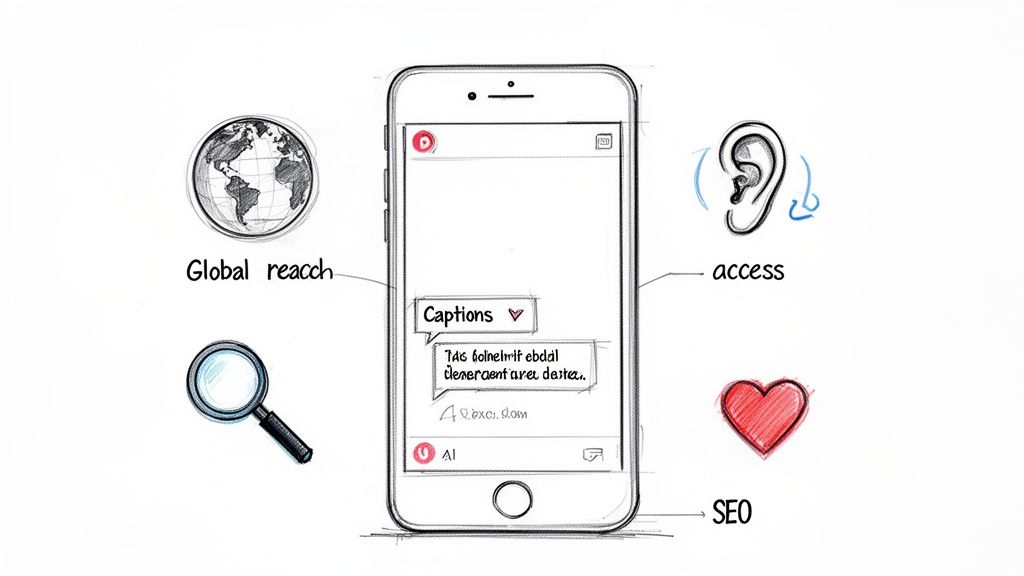
Adding subtitles in **Premiere Pro** used to be an afterthought, something you did purely for accessibility. Not anymore. Today, it’s one of the smartest things you can do to get more people to watch and understand your videos. In a world where most of us scroll through social media with the sound off, captions are what make people stop and pay attention. ## Why Great Subtitles Are a Non-Negotiable for Modern Video ![Hand-drawn illustration of a smartphone and laptop displaying subtitles, with icons for audio, growth, and a globe.](https://cdnimg.co/90481e44-b387-48dd-872f-14aa8e8d755d/f057fca1-ef66-467e-8451-daa0a930aad6/premiere-pro-subtitles-online-media.jpg) Let's be real—the way we watch video has completely changed. People are tuning in from everywhere: on a loud train, in a quiet office, or just scrolling on the couch while something else is on TV. As a video editor, getting your subtitle workflow down in Premiere Pro can make or break your content's performance. This isn't just a hunch; the numbers back it up. A surprising **70% of Americans** now watch videos with subtitles on a regular basis. They're using them to decipher tricky accents, stay engaged in noisy places, or just to focus better. For the **30 million** people using Premiere Pro worldwide, this shift makes the built-in captioning tools more important than ever. ### The Power Trio: Engagement, Access, and SEO Getting your subtitles right unlocks a powerful combination of benefits. They do a lot more than just put words on a screen. - **Hook Your Viewers Instantly:** On social feeds, captions are everything. They provide instant context when the audio is off, giving someone a reason to stop scrolling and watch what you’ve made. - **Open Your Content to Everyone:** Good subtitles make your videos accessible to viewers who are deaf or hard of hearing. They also help non-native speakers follow along, which instantly broadens your potential audience. You can learn more about specialized types like [SDH subtitles here](https://kopia.ai/blog/what-are-sdh-subtitles). - **Give Your SEO a Major Boost:** Search engines can't watch a video, but they can read text. When you export your subtitles as a separate file, search engines crawl that text. This helps your video show up in search results for relevant keywords, bringing in more viewers without you spending a dime on ads. > Think of subtitles as your video's silent narrator. They make sure your message is heard loud and clear, no matter how or where someone is watching. And while this guide focuses on Premiere Pro, understanding the fundamentals of [how to add subtitles to a video](https://www.mykaraoke.video/blog/how-to-add-subtitles-to-a-video) in general is a game-changer for any creator. It’s a skill that directly translates to better-performing content across the board. ## Creating Subtitles Manually in Premiere Pro AI transcription is a fantastic shortcut, but let's be real—sometimes you just have to do it by hand. For shorter videos, highly stylized content, or any project where every single frame counts, manually creating your captions in [Adobe Premiere Pro](https://www.adobe.com/products/premiere.html) gives you the ultimate control. It all starts with getting a new caption track onto your timeline. You can find this by heading to the "New Item" icon in your Project panel and picking "Captions." Or, even quicker, just open the Text panel (**Window > Text**) and hit the "Create new caption track" button. Once that track is sitting above your video clips, you're ready to start typing. ### Adding and Timing Your First Caption With your caption track ready, you'll see a blank block waiting for text. Click on it, and the Text panel will light up. Now, just listen to the first bit of dialogue, type it directly into the panel, and boom—your first subtitle is created. The next part is crucial: syncing it up. You can drag the edges of the caption clip on your timeline to set its start and end points. The goal is to have the text pop up the moment the person starts talking and vanish just after they finish. > **A Little Trick I Use:** Before I even start typing, I play through the sequence and tap 'M' to drop timeline markers wherever a new line of dialogue begins. These markers become visual guides, making it so much faster to time out all my captions later on. Getting this initial sync right is everything. You'll want to get comfortable with nudging these clips frame-by-frame on the timeline to achieve that polished, professional look. If you want a deeper dive into the different ways to approach this, our guide on [how to create subtitles for videos](https://kopia.ai/blog/how-to-create-subtitles-for-videos) covers even more ground. ### Building Out Your Captions Efficiently Once you’ve got your first caption dialed in, adding the next one is easy. Just click the plus icon (**+**) in the Text panel or on the caption track itself. Premiere Pro will automatically drop a new, empty caption segment right after the one you just finished. Now, you just repeat the process: listen, type, and tweak the timing. To really speed things up, you need to get these keyboard shortcuts into your muscle memory: - **Ctrl/Cmd + Alt + C:** Adds a new caption right at the playhead. - **Ctrl/Cmd + Arrow Keys:** Nudges the selected caption clip one frame left or right. - **Shift + Ctrl/Cmd + Arrow Keys:** Nudges it five frames at a time. As you work, always keep readability in mind. A good rule of thumb is to keep your lines to a maximum of **42 characters**. Also, make sure the caption stays on screen long enough for someone to read it comfortably twice. If you have a long, winding sentence, it’s always better to break it into two separate captions than to hit your audience with a wall of text. By combining these hands-on techniques with a few smart shortcuts, you can craft precise **Premiere Pro subtitles** that perfectly match your creative vision. ## Using AI Transcription to Work Smarter, Not Harder <iframe width="100%" style="aspect-ratio: 16 / 9;" src="https://www.youtube.com/embed/5Fv-JgazaNM" frameborder="0" allow="autoplay; encrypted-media" allowfullscreen></iframe> While typing out subtitles by hand gives you total control, it's a fast track to burnout on anything longer than a short social media clip. This is where AI transcription can be a lifesaver, handing you back hours of your day. The idea is to offload the most tedious work so you can focus on polishing the final result, leading to better **Premiere Pro subtitles** in a fraction of the time. [Adobe Premiere Pro](https://www.adobe.com/products/premiere.html) actually has a built-in "Speech to Text" feature. You'll find it in the Text panel, where it can analyze your audio and spit out a full transcript. With a click of the "Create captions" button, Premiere will turn that text into a caption track right on your timeline. For projects with crystal-clear audio, it's a decent starting point. But let's be real—most projects aren't that simple. When you're juggling multiple speakers, thick accents, or need translations, a more specialized tool is the way to go. ### A Better Workflow with an External AI Tool For content like podcasts, interviews, or documentaries, accuracy is non-negotiable. A far more efficient approach is to export your final audio, run it through a dedicated transcription service, and then import a nearly-perfect subtitle file back into Premiere. It might sound like a few extra clicks, but this process saves an incredible amount of time on corrections. Tools like [Kopia.ai](https://kopia.ai/) are built specifically for this. They deliver highly accurate transcripts that can even identify different speakers and let you make edits in a simple text editor that’s synced to your audio. The manual process, which AI automates, is really just three core tasks: adding a track, typing the words, and syncing it all up. ![A flow chart illustrating the manual subtitle creation process with three steps: add track, type text, and sync timing.](https://cdnimg.co/90481e44-b387-48dd-872f-14aa8e8d755d/393cb39c-57c6-4c14-a8a1-9a17d2d0e592/premiere-pro-subtitles-subtitle-process.jpg) AI transcription essentially handles the two most time-consuming parts—the typing and the timing—leaving you with a quick final review. The need for this efficiency is massive. Premiere Pro is an industry giant, with an estimated **30 million users** in 2024. For professional editors, integrating smart tools is just part of the job. Services like Kopia.ai fit perfectly into the Premiere ecosystem, offering quick AI transcription in over 80 languages, one-click translation, and clean SRT exports that make multilingual captioning surprisingly simple. ### From AI Transcript to Your Premiere Pro Timeline Once your audio has been transcribed by an AI tool, the magic happens when you export an SRT (**SubRip Text**) file. This simple text file contains all your captions along with the precise start and end timecodes for each one. Here’s how this workflow looks in practice: First, export your final audio mix from your Premiere Pro sequence. A WAV or MP3 file works perfectly. Next, upload that audio file to a service like Kopia.ai. Within minutes, the AI will generate a full transcript complete with timestamps and speaker labels. If you want a closer look at this process, we have a great guide on how to [transcribe video to text online](https://kopia.ai/blog/transcribe-video-to-text-online). Now for the review. Using the tool's synchronized editor, you can quickly read through and fix any mistakes. It's much faster than fiddling with caption blocks in Premiere because you can just click on a word to jump right to that spot in the audio. Once you’re happy with the text, export the corrected transcript as an SRT file. Finally, jump back into Premiere Pro. Go to **File > Import** and find your new SRT file. Just drag it from the Project panel onto your timeline, and it will snap into place as a perfectly synced caption track, ready for styling. > This workflow isn't just about moving faster; it's about accuracy and being able to handle larger projects without losing your mind. For a 60-minute podcast, this method can easily save you more than five hours of painstaking manual labor and deliver a more polished, error-free result. ## Styling Captions to Match Your Brand ![Sketch of 'Essential Graphics' design interface with font styles, color swatches, and effect sliders.](https://cdnimg.co/90481e44-b387-48dd-872f-14aa8e8d755d/31348def-e996-4944-ae05-2782355d3184/premiere-pro-subtitles-graphics-controls.jpg) Let’s be honest, Premiere’s default subtitles get the job done, but they’re completely forgettable. To make your captions feel like a deliberate part of your video’s aesthetic, you need to get comfortable with the **Essential Graphics** panel. This is where you’ll transform that bland text into a branded asset. Getting there is easy. Just select any caption clip on your timeline, and the Essential Graphics panel should pop up with all your styling options. If it doesn't, you can find it under **Window > Essential Graphics**. This is where the real design work for your **Premiere Pro subtitles** begins. ### Mastering Font Color and Readability Picking a font and color that matches your brand guide is a great start. But style is useless if people can't read the words. Your number one job is always **readability**. A thin, light-gray font might look elegant on a design mockup, but it will disappear instantly against a bright sky in your video. This is where a few simple effects become your best friends. - **Stroke:** Adding a thin, dark outline is the classic way to make text pop against any background. You rarely need more than a **2-4 pixel** stroke. - **Background:** A semi-transparent background box is my go-to for guaranteeing legibility. You can dial in the opacity and color to match your brand while ensuring the text is perfectly clear. - **Shadow:** A subtle drop shadow can add a bit of depth, helping lift the text off a busy background. Just keep it soft and gentle to avoid that dated, early-2000s PowerPoint look. Think about the context. A high-energy social media clip might call for a bold, sans-serif font with a heavy black stroke to grab attention. For a more buttoned-up corporate video, a clean, classic font with a soft, semi-transparent background box keeps things professional and easy to read. > The real secret to readable subtitles isn't one magic setting. It’s the combination of font weight, color, stroke, and background working in harmony. Always test your final style against the brightest and darkest scenes in your video to make sure it holds up everywhere. ### Create and Save Style Presets for Consistency Tweaking the look of every single caption segment one by one is an absolute nightmare. This is where Adobe Premiere Pro throws you a lifeline with style presets. They let you apply a custom look to your entire timeline—and all your future projects—with a single click. Once you’ve perfected your font, color, and effects in the Essential Graphics panel, look for the “Styles” section. Click **Create Style**, give it a memorable name like “Brand Social Subs,” and you’re set. Now for the magic. Select all the caption clips on your timeline, find your newly saved style, and click it. Instantly, every subtitle updates to match. This little feature is a massive time-saver and the key to ensuring your videos have a polished, consistent look every single time. ## How to Export Your Video with Subtitles ![Diagram illustrating the workflow of creating video captions: burn-in, SRT file generation, and upload to YouTube.](https://cdnimg.co/90481e44-b387-48dd-872f-14aa8e8d755d/cb819821-63dd-4747-b8f3-c2b0f94de1be/premiere-pro-subtitles-caption-workflow.jpg) You’ve put in the work to get your subtitles synced and styled perfectly. Now for the final step: getting your video and its captions out of Premiere Pro and into the world. How you export depends entirely on where your video is going. You have two main routes: burning the captions directly into the video or exporting them as a separate "sidecar" file. Let's break down what that means and how to do it. ### Burning In Captions for Social Media When you "burn in" captions, they become a permanent, un-hidable part of the video image itself. This is the best approach for platforms like Instagram, TikTok, and LinkedIn, where videos often autoplay on mute. You need that text on screen immediately to stop the scroll. To do this, just open the Export window (**File > Export > Media** or **Ctrl/Cmd + M**). In the settings, find the "Captions" tab. From the "Export Options" dropdown, choose **Burn Captions Into Video**. > This method guarantees your captions will look exactly as you designed them on any device. Since the text is baked into the video pixels, there are no surprises—what you see is what your audience gets. This is also where your visual branding comes into play. Choosing the **Best Font For Subtitles** is crucial when they’re burned in, as it directly impacts readability and how your brand is perceived. ### Exporting a Sidecar File for YouTube and Vimeo The other option is to create a sidecar file, which is just a small, separate text file that contains all your caption data. The most common format by far is **.SRT (SubRip Text)**. This is the standard for platforms like YouTube and Vimeo because it enables closed captions (CC), giving viewers the power to turn them on or off. It’s also a massive win for your video's discoverability. Think about it: **40% of global Netflix users** keep subtitles on all the time, and a staggering **80%** use them at least once a month. Captions are no longer just an accessibility feature; they’re a core part of the viewing experience. To export an SRT, go back to the Export window (**Ctrl/Cmd + M**). Under the "Captions" tab, select **Create Sidecar File**. Make sure the "File Format" is set to **SubRip Subtitle Format (.srt)**. Premiere Pro will then generate two files: your video (like `my_final_video.mp4`) and its corresponding SRT file (`my_final_video.srt`). When you upload to YouTube, you’ll upload both. This gives the platform's algorithm readable text, helping it understand—and rank—your video for relevant search queries. ## Common Questions About Premiere Pro Subtitles As you get more comfortable with the basics, you'll inevitably run into some specific roadblocks with subtitles in Premiere Pro. Knowing the general workflow is one thing, but troubleshooting the little quirks that slow you down is what really makes a difference. Let's tackle some of the most common questions editors ask. Can you import an existing subtitle file like an SRT into Premiere Pro? Yes, and honestly, it’s the best way to work. Simply go to **File > Import**, find your .SRT file, and bring it into your Project panel. From there, just drag it onto your timeline. Premiere will automatically generate a new caption track that’s already synced up, assuming the timecodes in your file are accurate. This is exactly why using an external transcription service like [Kopia.ai](https://kopia.ai) is so efficient. It lets you skip the tedious task of transcribing and syncing everything from scratch inside your editor. ### Open Captions vs Closed Captions So, what’s the real difference between open and closed captions? It's a crucial distinction that completely changes how your final video works. - **Open Captions** are burned directly into the video. Think of them as a permanent part of the picture—the viewer can't turn them off. This is perfect for social media clips on Instagram or TikTok, where videos often autoplay on mute and you need to grab attention immediately. - **Closed Captions (CC)** are a separate data stream that plays alongside the video. This gives the viewer the power to toggle them on or off. It's the standard for platforms like YouTube and Vimeo because it’s flexible and a cornerstone of accessibility. In short, use open captions when you need to force visibility and closed captions when you want to provide an accessible option. ### Editing and Translating Captions What happens if your AI-generated captions have a few mistakes? Cleaning them up is pretty straightforward. Just double-click on any caption clip in your Premiere timeline, and the **Text** panel will pop up. There, you can type directly to fix a typo or tweak the wording. If the timing is off, you can simply drag the edges of the caption clip to adjust its duration. A word of advice, though: if your transcript is full of errors, it’s much faster to fix them in your transcription tool _before_ importing the file into Premiere. > A smart subtitling workflow is less about creating the text and more about making the editing process painless. Spending five minutes cleaning up a transcript in an external app can easily save you an hour of tedious tweaks inside Premiere. And what about translating your subtitles? You could, in theory, create a brand-new caption track and manually translate everything line by line. But that approach is incredibly time-consuming and a recipe for mistakes. A much better workflow is to use a service that handles the translation for you. For example, after getting your primary English transcript, you could translate it to Spanish or French with a single click. You can then export a perfectly timed SRT file for each language, import them into Premiere as separate caption tracks, and offer multiple language options without all the manual grunt work.

How to Detect Language Audio A Practical Guide for 2026

How to Detect Language Audio A Practical Guide for 2026

So, you have an audio file, but you're not sure what language is being spoken. How do you figure it out? You could try to guess, feeding it into a transcription tool set to English, then Spanish, then French, hoping one of them sticks. Or, you can use software that’s built to do this automatically. The easiest path, by far, is using a platform like Kopia.ai that _automatically detects the language_ for you before it even starts transcribing. This completely sidesteps the guesswork and prevents you from wasting time on a failed transcription. ## Why Accurate Language Detection in Audio Matters ![Hand-drawn headphones connected to a colorful sound wave leading to language tags and a green checkmark, illustrating audio language detection.](https://cdnimg.co/90481e44-b387-48dd-872f-14aa8e8d755d/ff1e710a-b83e-4e05-ad23-1af48576c63d/detect-language-audio-language-detection.jpg) Have you ever tried to transcribe a recording, only to realize the tool was set to the wrong language? It’s a common frustration that creates garbled, useless text and wastes a ton of time. Getting the spoken language right from the get-go isn't just a minor detail—it's the foundation for everything that comes next. Think about it: if the language isn't identified correctly, accurate transcription is impossible. An AI trying to make sense of a Spanish lecture with an English-only model will just spit out nonsense. It’s that simple. ### The Real-World Impact of Precision Getting the language right from the start saves hours of rework and opens up your content to a much wider audience. We see this play out all the time in different fields: - **Podcasters with a global audience:** When a podcaster uploads an episode, auto-detection figures out the language, generates a perfect transcript, and then makes it easy to translate into subtitles for listeners worldwide. For podcasters looking to grow, this is a game-changer, and we explore more AI benefits for [podcasts on our blog](https://kopia.ai/usecases/podcasts). - **Businesses analyzing international customer calls:** Call centers need to know the language of each recording to perform accurate sentiment analysis or quality control. Automatic detection is the only way to do this at scale across different markets. - **Researchers and journalists:** Imagine sifting through dozens of interviews from sources around the world. Automatic detection means you get clean, reliable transcripts on the first try, keeping your data accurate and your project on track. The technology behind this has improved dramatically over the years. Back in 2001, speech recognition accuracy hit nearly **80%**, which was a huge deal. But the real leap came after the launch of Google's Voice Search in 2008. By processing voice data in the cloud, Google could tap into a massive dataset of **230 billion words** from user searches, pushing the technology forward at an incredible pace. > This rapid progress is why modern tools can now reliably identify languages even in noisy, real-world audio. It gives you a solid starting point for accurate transcription, translation, and analysis. For anyone using Kopia.ai—whether you're a student, a content creator, or part of a business team—this means you can count on dependable detection across more than **80 languages**. From there, translating your content into over 130 other languages is just a few clicks away. Getting that first step right unlocks everything from better SEO for your videos to deeper insights from multilingual meetings. ## Preparing Your Audio for Language Detection ![Illustration of audio noise reduction, showing a noisy waveform transforming into a clean signal with MP3 and WAV options.](https://cdnimg.co/90481e44-b387-48dd-872f-14aa8e8d755d/a680665a-a5d7-4c7c-b12f-15d096d42489/detect-language-audio-noise-reduction.jpg) Before you even think about hitting "detect," let's talk about the audio file itself. Garbage in, garbage out—it’s an old saying, but it’s the absolute truth when it comes to language detection. A clean, clear audio source is the single biggest factor for getting an accurate result. Think of it this way: a few minutes spent on cleanup now can save you a huge headache later. We call this process **audio preprocessing**, and it’s all about making sure the spoken words stand out. Even small tweaks here can make a world of difference for the AI. ### Clean Up Background Noise Your first job is to tackle any background noise. I’ve seen countless files where the hum of a fan, chatter from a nearby café, or even wind hitting the microphone was enough to throw off the entire detection process. These ambient sounds can easily mask the phonetic cues that language detection models rely on. For instance, if you're working with an interview recorded on a busy street, the car horns and passing conversations are competing directly with your subject's voice. Without cleanup, the AI might get confused or miss the primary language completely. Luckily, most audio editing tools have simple noise reduction features that can significantly improve clarity with just a few clicks. > Precise language detection starts long before the software gets involved. Understanding the basics of [high-quality audio production](https://thevoiceoverguy.com.au/audio-production-in-use-with-voice-overs-and-jingles) helps you capture better recordings from the very beginning. ### Choose the Right Format and Settings The technical specs of your audio file also matter. While most systems are pretty flexible, some formats and settings just work better than others. The goal is a perfect balance: preserve as much audio detail as possible without creating a gigantic file that’s a pain to upload. Here’s a quick rundown of what I always check: - **File Format:** **WAV** files are uncompressed, which means they contain every bit of the original audio data. This is the gold standard for quality, but the files can be huge. **MP3** is a compressed format, making files much smaller, but some data is lost in the process. For most language detection tasks, a high-quality **MP3** is the perfect middle ground. - **Bitrate:** This is all about data density. For clear speech in an **MP3**, you’ll want a bitrate of at least **192 kbps or higher**. Anything less, and you risk a muddy, garbled sound. - **Sample Rate:** This measures how many "snapshots" of the audio are captured per second. A rate of **44.1 kHz** is standard for CDs and is more than enough for any speech analysis. Once your audio is prepped and ready, the next step is a breeze. If you're looking to get a full transcript after detection, you can follow our simple guide to convert your [audio to text on our blog](https://kopia.ai/tools/audio-to-text). Taking care of the prep work first just makes everything that follows run that much smoother. Now that your audio is prepped and ready to go, you have to decide how you're actually going to figure out the language. When a machine "listens" to an audio file, it's not magic—it's technology. There are really two main ways this happens: through an **Automatic Speech Recognition (ASR)** system or with a purpose-built **Language Identification (LID)** model. Knowing the difference isn't just for tech nerds. It helps you pick the right tool for the job and understand what's happening under the hood. Think of it this way: you could identify a song by looking up the lyrics you hear (the ASR method), or you could recognize it just by its unique melody and beat (the LID method). ### ASR as a Language Detective An **Automatic Speech Recognition** system is, at its heart, a transcription tool. Its main purpose is to turn spoken words into text. But you can use this function in a clever, almost brute-force way to identify a language. The system basically tries to transcribe a short piece of the audio using several different language models, one after the other. It's asking itself a series of questions: - Does this sound like coherent English? - How about Spanish? Does that produce a logical transcript? - What if I try German? The language model that spits out the most sensible text with the highest confidence score is declared the winner. It figures out the language by successfully turning it into words. This works, but it can be a bit slow since transcribing is a much heavier lift than just identifying a language's sound. ### The Specialized LID Model Approach A dedicated **Language Identification (LID)** model, on the other hand, is a specialist. It’s been trained to do one thing and one thing only: listen for the unique phonetic sounds, tones, and rhythms of different languages and classify them. This type of model doesn't care _what_ is being said. It only cares _how_ it's being said. It can tell the difference between the "sound" of Portuguese and the "sound" of Japanese without understanding a single word, just by analyzing the core building blocks like phonemes and cadence. > **Key Takeaway:** LID models are almost always faster and more efficient for pure language detection. They skip the heavy work of transcription altogether, making them the sprinters in this race. If you're curious to learn more about the tech that actually powers the transcription part of the process, our guide on [what ASR is](https://kopia.ai/blog/what-is-asr) is a great place to start. So, which method is better? Honestly, it depends on the tool you're using. Many modern platforms actually use a hybrid approach. They might start with a super-fast LID model to get an initial read and then use an ASR system to confirm it, giving you a great balance of speed and accuracy. Once the language is nailed down, you can move on to the next steps, like getting a full transcript or even a translation. For those interested in taking it a step further, you can find great overviews on [AI tools for audio translation](https://swiftia.io/audio-english-to-german-translation/) that build directly on this initial detection process. ## A Step-by-Step Workflow Using Kopia.ai Theory is one thing, but let's walk through how this actually works in practice. I'll show you how to take a raw audio file and get a polished, ready-to-use transcript using [Kopia.ai](https://kopia.ai/)'s built-in workflow. The whole point is to make the process fast, simple, and accurate. This approach is all about taking the guesswork out of the equation. Instead of you having to guess the language and cross your fingers, the AI does the heavy lifting. It's incredibly useful whether you're a creator with a podcast, a student with a lecture recording, or a researcher with interview audio. ### The Upload and Auto-Detect Process Getting started is as simple as it gets: just drag and drop your file. The platform is designed to move you from upload to transcript as quickly as possible, and it all starts with automatic detection. ![A decision tree flowchart illustrating the audio language identification process, choosing between a dedicated LID model or an ASR system.](https://cdnimg.co/90481e44-b387-48dd-872f-14aa8e8d755d/dfa1aafa-5647-436d-92fa-8a7bcb23a8c4/detect-language-audio-language-identification.jpg) As soon as your audio is uploaded, the system's **auto-detect feature** gets to work. It scans the audio and figures out the language on its own from a list of over **80 options**. No dropdown menus, no manual selection. The AI just handles it. This is where the real power of modern speech recognition becomes clear. This level of automation wasn't always possible. It’s the result of huge advancements in deep learning over the past decade. Thanks to massive training datasets and sophisticated neural networks, word error rates have plummeted, allowing tools like Kopia.ai to nail language detection with impressive accuracy. If you're curious about the technical journey, you can [explore the history of speech recognition](https://awni.github.io/future-speech/) to see how far we've come. This flowchart gives you a peek behind the curtain, showing how a system might decide whether to use a dedicated language model or a broader transcription system. ![A decision tree flowchart illustrating the audio language identification process, choosing between a dedicated LID model or an ASR system.](https://cdnimg.co/90481e44-b387-48dd-872f-14aa8e8d755d/dfa1aafa-5647-436d-92fa-8a7bcb23a8c4/detect-language-audio-language-identification.jpg) The takeaway is that modern platforms often blend these methods to give you both speed and precision without you needing a degree in computer science. ### From Detection to Polished Transcript Once the language is confirmed, Kopia.ai automatically starts the transcription. In just a few minutes, you’ll have a complete, timestamped transcript waiting for you. But it doesn't just dump a wall of text on you. The real value is in the interactive editor. > The platform doesn’t just stop at providing raw text. It delivers an interactive experience. The synchronized editor allows you to click on any word in the transcript and instantly jump to that exact moment in the audio, making corrections simple and precise. This is your chance to make the transcript perfect. You can quickly fix any small mistakes, add speaker labels for clarity, and clean up the text. From there, you can do even more with the built-in AI tools: - **Summarize the content** to pull out the main points instantly. - **Create chapters** to break down long recordings, like lectures or podcast episodes. - **Detect topics** to get a high-level view of what was discussed. This seamless process—from automatic language detection all the way to AI-driven analysis—turns a simple audio file into a structured, searchable, and incredibly useful asset. It’s a practical solution for anyone who deals with audio and needs to get things done fast. ## Handling Complex Audio Scenarios If only all our audio files were perfectly clean, single-language recordings. But we know that's rarely the case. The real world is messy, and so is our audio. You might be dealing with multiple speakers, heavy accents, or even people switching languages mid-sentence. These are the situations where you find out just how good your language detection tools really are. For anyone creating content or doing research, this isn't a rare inconvenience—it's a daily challenge. Maybe you're editing an interview with a bilingual guest or trying to analyze a focus group with people from all over the world. Getting usable, accurate results from these files means you need a smart approach. ![Hand-drawn diagram of language detection and switching flows in speech bubbles, with a confidence gauge.](https://cdnimg.co/90481e44-b387-48dd-872f-14aa8e8d755d/bb5d6c58-8a17-40b5-9dbc-ace7423d3951/detect-language-audio-language-detection.jpg) ### When Speakers Switch Languages (Code-Switching) Ever had a speaker alternate between two languages, sometimes in the same sentence? That's called **code-switching**, and it's incredibly common in multilingual communities. For instance, someone might start a thought in English and drop in a Spanish phrase to finish it. This is a classic stumbling block for automated systems. A basic model locked into a single language will either fail completely or spit out a garbled mess. The more sophisticated platforms, however, are built for this. They work by segmenting the audio, identifying the point of the language change, and then applying the right model for that specific chunk of speech. Here's how I typically handle it: - **Lean on tools with code-switching support.** Platforms like [Kopia.ai](https://kopia.ai) are trained on huge multilingual datasets, which means they can often spot these language shifts automatically during the transcription process. - **Manually segment the audio if you have to.** If your tool is struggling, a surefire (though more labor-intensive) method is to split the audio file into single-language sections yourself before you process it. It's more work upfront but can save a ton of editing time later. ### Navigating Heavy Accents and Dialects Heavy accents and distinct regional dialects can also throw a wrench in the works. An AI model trained mostly on standard American English might have a really hard time understanding a speaker with a thick Scottish accent or a specific dialect from rural India. The phonetic patterns are just different enough to confuse the algorithm. The solution here comes down to the quality of the AI model itself. The best systems have been trained on an incredibly vast and diverse range of accents for every language they support. That exposure helps the AI make better guesses and recognize words even when the pronunciation isn't "standard." > **My Pro Tip:** If you're working with heavily accented audio, look for a **confidence score**. Many tools provide this metric, often for each word or segment, telling you how "sure" the AI is about its transcription. Low-confidence scores are your roadmap for where to double-check the text manually. ### Checking for Accuracy: Do You Trust the Transcript? Once the machine has done its work, how do you know if you can trust the output? For any professional project, blindly accepting what the AI gives you is a non-starter. Taking a few minutes to evaluate accuracy is a crucial final step, especially with tricky audio. I always start by spot-checking. I'll listen to a few short clips from the original audio while reading the transcript. I make a point to check the areas I suspected might be difficult—like where a new person started talking or where there was a lot of background noise. Keep an eye out for these red flags: - **Nonsensical phrases:** If you see a string of gibberish, it's a dead giveaway that the wrong language model was applied. - **Mixed-up speaker labels:** The AI might get confused and misattribute lines if speakers have similar vocal pitches. - **Botched proper nouns:** Names of people, companies, and places are notoriously hard for AI. They are a great place to start your review. By knowing how to tackle these messy, real-world audio files, you can confidently use language detection for any project, no matter how complex the source material gets. ## Your Questions on Audio Language Detection, Answered As you start working with audio language detection, a few questions always seem to pop up. Let's tackle some of the most common ones I hear, covering everything from accuracy to handling tricky, multilingual files. ### How Accurate Is Automatic Language Detection, Really? This is the big one, and the answer is: it depends, but it's gotten incredibly good. For clean audio with a single, clear speaker, modern tools like [Kopia.ai](https://kopia.ai) are often hitting **95-99%** accuracy. That’s a massive leap from where the technology was just a few years ago. But the real world is messy. Accuracy can take a hit when you introduce challenges like: - Heavy background noise (think coffee shops or trade show floors) - Very short audio clips, especially anything under **15 seconds** - Less common languages or unique dialects And what about audio where people mix languages? For that, you need specialized models. They do a great job, though their accuracy might be a notch below what you'd get with a straightforward, single-language recording. ### Can a Tool Figure Out Multiple Languages in the Same Audio? Yes, absolutely. The best platforms are built to handle this exact scenario, often called "code-switching." This is a must-have feature if you're dealing with content like bilingual podcasts, customer support calls in diverse regions, or international team meetings where people naturally switch between languages. > For instance, a platform like Kopia.ai is designed for this. It can identify that a speaker switched from English to Spanish mid-sentence, apply the right transcription model to each segment, and stitch it all together into one coherent transcript. ### What's the Difference Between Language Identification and Transcription? It’s easy to mix these two up, but they're fundamentally different tasks. Think of it as the difference between knowing _what_ language is being spoken and knowing _what_ is being said. - **Language Identification (LID):** This process has one job: to name the language. Its output is just a label, like 'French' or 'Japanese'. It's fast and efficient. - **Automatic Speech Recognition (ASR):** This is the heavy lifter. ASR, or transcription, takes the spoken words and turns them into written text. You _can_ use a transcription system to guess a language by seeing which model gives you a readable result, but that's the scenic route. A dedicated LID model gets you the answer much more quickly.

How to Take Meeting Notes Effectively in 2026

How to Take Meeting Notes Effectively in 2026

Taking good meeting notes boils down to a simple, three-part rhythm: **Prepare** before the meeting, **Capture** the important stuff during it, and **Act** on the results afterward. Mastering this flow is the key to turning scattered, forgotten notes into a real tool for getting things done. ## Why Your Meeting Notes Aren't Working ![Comparison of messy handwritten notes and an organized digital checklist for meeting minutes.](https://cdnimg.co/90481e44-b387-48dd-872f-14aa8e8d755d/60e08a97-6d70-43c2-8c1e-f5a6bafc82b7/how-to-take-meeting-notes-effectively-meeting-notes.jpg) Let's be honest. Most meeting notes are just a waste of time and digital space. They become forgotten files buried in a shared drive, somehow creating _more_ confusion instead of less. The problem isn't just messy handwriting or typing too slow. It's the chaos that erupts when five people leave a meeting with five different versions of what was decided. That's a silent project killer. When the notes are vague, action items get dropped, key decisions are misinterpreted, and all that hard-earned momentum just evaporates. ### The Staggering Cost of Bad Notes The numbers here are pretty shocking. Employees spend an average of **392 hours per year** stuck in meetings, but only **30%** of that time is actually productive. A huge reason for this is that bad notes lead directly to confusion and forgotten tasks. This isn't a small problem—it costs U.S. businesses an estimated **$37 billion a year**. Think about it: when **51%** of people in a meeting are all taking their own separate notes, you end up with multiple, conflicting versions of the truth. It’s a recipe for disaster. The fix isn’t just writing _more_, it’s writing _smarter_. To really get a handle on the problem, it helps to explore different approaches for taking [effective meeting notes](https://voicetype.com/blog/effective-meeting-notes). > The goal isn't to create a perfect transcript of the meeting. The goal is to create a clear, actionable record that drives progress and eliminates ambiguity. ### A Better Framework for Note-Taking It’s time to stop thinking of notes as a passive task and start seeing them for what they are: a powerful tool for driving projects forward. The rest of this guide is built around a simple but effective framework. Here’s how it works: - **Prepare:** Great notes actually start before the meeting does. This is all about setting up your document based on the agenda and knowing exactly what information you need to walk away with. - **Capture:** During the meeting, you switch from just hearing to actively listening. Your job is to grab only what’s essential—the decisions, the action items, and the key insights—using a method that makes sense for the conversation. - **Act:** Once the meeting is over, you’ll quickly clean up your raw notes and turn them into a clear, shareable summary. This is what keeps everyone on the same page and holds the team accountable for what comes next. This simple, three-phase approach is the roadmap we’ll follow. It will show you exactly how to take notes that people actually use. ## Prepare Your Notes Before the Meeting Starts Great meeting notes aren't written during the meeting; they're started long before anyone even joins the call. If you walk into a discussion cold, you're already behind. You'll spend the whole time just trying to keep up, and your notes will show it—a jumbled mess of thoughts with no clear structure. The real work begins with the meeting agenda. Think of it as the blueprint for your notes. It lays out the topics, sets expectations, and gives you a framework to build on. Without a solid agenda, you're just capturing chaos. ### Use the Agenda to Create a Template This is a simple trick I’ve used for years. Before the meeting, I copy the agenda items into my note-taking document and turn each one into a heading. Then I leave some space under each to jot down key points, decisions, and action items as they come up. This little bit of prep work does two huge things for you: - It helps you guide the conversation and keep everyone on track. - It gives you a designated spot for every piece of information, so you're not scrambling to categorize notes on the fly. Imagine you're heading into a project kickoff. Your pre-built template might already have sections for "Project Goals," "Scope Definition," "Team Roles," and "Initial Timeline." As people talk, you’re just filling in the details. You've gone from being a reactive stenographer to a proactive facilitator. > The most productive meetings are those where the note-taker's document is already 50% complete before anyone says a word. This structure prevents tangents from derailing the conversation and your notes. ### Define Objectives and Assign Roles It's shocking how often meetings happen without a clear purpose. Research shows that while **73%** of us agree agendas are critical, only **37%** of meetings actually have one. This gap leads to rambling, unproductive sessions that could have been up to **80%** shorter with just a little planning. To get a handle on this, you can [master the meeting planner workflow](https://notie.pro/blog/meeting-planner) and set your team up for success. Part of that setup should always include assigning one person to be the dedicated note-taker. When one person owns the notes, everyone else can relax and focus completely on the discussion. They can contribute their best ideas without also trying to type every word. If you're recording the meeting to share later, make that process easy for everyone. Our guide on [how to share Zoom recordings](https://kopia.ai/blog/how-to-share-zoom-recordings) walks you through how to do it securely. By setting up these roles and a simple template beforehand, taking notes becomes less of a chore and more of a strategic tool for driving real results. ## Find the Right Note-Taking Method for Any Meeting Let’s be honest: there’s no single “best” way to take meeting notes. The right method really depends on the kind of meeting you’re walking into. A free-wheeling brainstorming session needs a totally different approach than a formal quarterly review. If you try to use one method for everything, you’ll end up with notes that are confusing and, frankly, useless. Think of it like picking the right tool for a job. You wouldn’t use a hammer to turn a screw, right? In the same way, matching your note-taking style to the meeting’s goal helps you capture what actually matters without all the extra effort. This quick flowchart can help you figure out what you need to do _before_ the meeting even starts to make sure you're ready to take great notes. ![Flowchart illustrating pre-meeting preparation steps, covering agenda, roles, and template readiness checks.](https://cdnimg.co/90481e44-b387-48dd-872f-14aa8e8d755d/e3f264da-3f55-4db6-8f68-7bf07b39fe86/how-to-take-meeting-notes-effectively-meeting-preparation.jpg) A quick check for an agenda, a clear understanding of roles, and a prepared template can make all the difference. You’ll walk in feeling confident and ready to go. ### The Outline Method for Structured Meetings If you’re heading into a meeting with a clear agenda—like a presentation, training session, or a project status update—the **Outline Method** is probably your best friend. It’s a classic for a reason: it's incredibly intuitive and keeps everything neatly organized. You simply use the agenda topics as your main bullet points. Then, you nest sub-bullets underneath for key details, questions that pop up, and any decisions that are made. For instance, if an agenda item is "Q3 Marketing Campaign Review," your notes might look like this: - **Q3 Marketing Campaign Review** - Social media engagement was up **15%**. Great result. - Email campaign click-through rate was **2.1%**, which is below our **3%** target. - _Decision_: We'll A/B test new email subject lines for the next campaign. - _Action Item_: Sarah to draft three new subject lines by EOD Friday. The biggest advantage here is clarity. The structure creates a logical flow that makes your notes easy to scan and understand when you look back at them later. ### The Action-Item-First Method for Decision-Making Meetings For those fast-paced meetings where decisions are being made on the fly, you need a different approach. This is where the **Action-Item-First Method** shines. Instead of trying to write down every bit of the conversation, you focus entirely on the **outcomes**. Your whole goal is to capture the tasks, who’s responsible for them, and the deadlines. This method is all about cutting through the chatter. You're actively listening for phrases like "So, the next step is..." or "Can you take the lead on..." and immediately logging that action item. It bakes accountability right into your notes. > When you prioritize action items, your notes stop being a passive record of what was said. They become an active project plan that your team can actually use. ### The Cornell Method for Complex Discussions Originally designed for students in lectures, the **Cornell Method** is surprisingly powerful for complex strategy sessions or deep problem-solving meetings. It’s perfect for when you need to not just record information, but really process it. You divide your page into three distinct sections: - A large main column on the right for your raw notes. - A smaller, narrower column on the left for keywords and questions. - A summary section across the bottom of the page. During the meeting, you jot down notes as you normally would in the main section. Right after the meeting, you go back and pull out the most important ideas or questions and put them in the left-hand column. Finally, you write a one or two-sentence summary of the whole page at the bottom. This might sound like extra work, but that review process forces you to synthesize the information, which helps you remember it far better. While doing this manually from a recording can be a slog, technology can certainly speed things up. You can explore some options in our guide on the [top ways to transcribe audio to text](https://kopia.ai/blog/top-12-ways-to-transcribe-audio-to-text-free-in-2026).

Mp3 to text: Convert Audio to Text Fast

Mp3 to text: Convert Audio to Text Fast

Turning an **MP3 into text** used to be a real chore. Now, with modern AI tools like Kopia.ai, it's almost effortless. You just upload your audio file, and the AI works its magic to spit out a surprisingly accurate, editable document in minutes. ## Why Converting MP3 to Text Is More Than Just Words ![An audio waveform (MP3) converting to a text transcript, with icons for search, accessibility, and timing.](https://cdnimg.co/90481e44-b387-48dd-872f-14aa8e8d755d/00d6064e-51d0-412c-b848-eb8e67c063b2/mp3-to-text-audio-transcription.jpg) We're all drowning in audio content these days—podcasts, university lectures, important business meetings. Being able to convert that spoken audio into a searchable, editable text file isn't just a neat trick; it's a game-changer for unlocking the value hidden in those recordings. Think about it. For a student, a transcribed lecture becomes an incredible study guide. Instead of scrubbing through hours of audio, they can just search for keywords and jump right to the most complex topics. For podcasters, a transcript can be repurposed into a blog post, dramatically improving how easily people can find their content through Google. This really highlights the [hidden power of captions](https://www.cloudpresent.co/blog/the-hidden-power-of-captions-accessibility-seo-and-engagement) and transcripts for both accessibility and audience growth. The table below breaks down exactly who benefits from this and how. ### Key Benefits of MP3 to Text Conversion | Benefit | Who It Helps | Practical Example | | :

How to Transcribe Video to Text A Complete Guide

How to Transcribe Video to Text A Complete Guide

So, you've got a great video. Now what? The secret to getting more mileage out of your content is turning that spoken audio into written text. This single step opens up a ton of possibilities—from making your videos searchable with blog posts to adding captions for accessibility. It’s the foundation for repurposing one video into dozens of different assets. But how you get that transcript is a big decision. You're basically looking at three paths: a fast AI service, a precise human transcriber, or doing it all yourself. ![Diagram comparing three video transcription options: AI service (fast), human transcriber (accurate), and DIY (control).](https://cdnimg.co/90481e44-b387-48dd-872f-14aa8e8d755d/4762a326-ace8-4830-8662-16c2988d08eb/how-to-transcribe-video-to-text-transcription-options.jpg) For most people I work with—creators, marketers, and educators—AI is the clear winner. It hits the sweet spot between speed, cost, and "good enough" accuracy that you can polish up in minutes. Tools like our [video to text converter](https://kopia.ai/tools/video-to-text) are built for exactly this workflow. And it’s not just a niche trend. The AI transcription market is projected to jump from **$4.5 billion in 2024 to an incredible $19.2 billion by 2034**. Why? Because it turns a tedious, multi-hour task into something that takes less time than a coffee break. ### Choosing Your Transcription Method To figure out what’s right for you, you need to weigh your project's needs against your resources. It's a classic trade-off between speed, accuracy, and cost. This table breaks down the key differences to help you decide which path makes the most sense for your project. #### Choosing Your Transcription Method | Method | Best For | Average Speed (per video hour) | Typical Accuracy | Estimated Cost | | :

Top 10 Qualitative Research Analysis Methods for 2026

Top 10 Qualitative Research Analysis Methods for 2026

Qualitative research generates vast amounts of rich, nuanced data from interviews, focus groups, and observations. But how do you transform these walls of text and hours of recordings into clear, actionable insights? The key lies in choosing the right analytical lens. This guide dives deep into the 10 most effective **qualitative research analysis methods** used today by top researchers, podcasters, and businesses. We'll break down not just what each method is, but precisely when and how to apply it, turning your raw data into a compelling story. A crucial first step for any of these methods is converting your audio or video into accurate, workable text. Modern AI tools like Kopia.ai are essential here, creating searchable and analyzable transcripts in minutes. This process, complete with speaker labels and word-level timestamps, sets the stage for rigorous analysis. This foundation allows you to move from transcription to interpretation seamlessly. Instead of getting bogged down by manual transcription, you can focus on what truly matters: understanding the experiences, opinions, and motivations within your data. Whether you're a student analyzing interviews, a video creator categorizing user feedback, or a business team studying customer calls, the right method makes all the difference. In this article, you will learn: - The core principles behind 10 different qualitative analysis approaches. - Step-by-step instructions for applying each method to your own data. - Clear examples showing what the output of each analysis looks like. - Practical pros and cons to help you select the best fit for your project's goals. Let's explore the methods that will help you uncover the deeper meaning hidden within your qualitative data. ## 1. Thematic Analysis Thematic analysis is one of the most flexible and widely used qualitative research analysis methods. Its core purpose is to identify, analyze, and report patterns, or "themes," within a data set. This approach involves systematically organizing and describing your data in rich detail, moving from a broad collection of information to specific, insightful patterns. It's an excellent starting point for researchers new to qualitative analysis because of its accessibility and clear, step-by-step process. ![A hand holding a magnifying glass and pen over a complex sketched diagram with data boxes and a central circle, depicting research analysis.](https://cdnimg.co/90481e44-b387-48dd-872f-14aa8e8d755d/2d1b0146-4f5b-4bf6-ba2d-50739286ba48/qualitative-research-analysis-methods-data-analysis.jpg) Popularized by psychologists Virginia Braun and Victoria Clarke, thematic analysis doesn't require the complex theoretical commitments of methods like grounded theory or discourse analysis, making it a practical choice for many projects. ### When to Use Thematic Analysis This method is ideal when you want to understand a set of experiences, views, or behaviors across your data. You can use it to explore commonalities in interview responses, discover recurring issues in customer feedback, or identify key concepts in a series of lectures. **For example:** - **Business:** Analyzing customer call transcripts to discover recurring service complaints and pain points. - **Education:** Examining lecture transcripts to pinpoint key learning objectives and topics that students find confusing. - **Marketing:** Reviewing podcast interview transcripts to identify common listener needs or interests for content strategy. > The real power of thematic analysis is its ability to turn messy, unstructured data like interview transcripts into a clear, organized summary of key ideas. It helps you see the forest for the trees. ### A Practical Workflow A typical thematic analysis process involves several key steps. For an in-depth guide on the process, you can **[learn how to analyze interview data](https://kopia.ai/blog/how-to-analyze-interview-data)** from start to finish. **Actionable Tips:** - **Initial Coding:** Start by coding a small subset of your data (e.g., two or three transcripts) to develop an initial coding scheme before applying it to the entire dataset. - **Create a Codebook:** Keep a document that defines each theme and code, including examples of quotes that fit. This ensures consistency, especially when working in a team. - **Use AI for Suggestions:** Modern tools can accelerate your work. Use a feature like Kopia.ai's 'talk to your transcript' AI to ask questions like "What are the main themes in this conversation?" to get initial ideas. - **Verify with Source Media:** Always go back to the original audio or video. A transcript's searchable and word-level sync features allow you to click on a word and hear the original tone, which provides vital context. ## 2. Content Analysis Content analysis is a systematic method for analyzing the presence, meanings, and relationships of specific words, themes, or concepts within qualitative data. Unlike more interpretive qualitative research analysis methods, it often brings a quantitative element to the table by counting word frequencies or measuring how prominently a theme appears across transcripts. This makes it an excellent choice for objectively summarizing large volumes of text. ![A sketch illustrating text analysis with word lists, checkmarks, a bar chart, and a magnifying glass over 'tokens'.](https://cdnimg.co/90481e44-b387-48dd-872f-14aa8e8d755d/0c6455a3-9292-4a19-9b73-317cefc63f85/qualitative-research-analysis-methods-text-analysis.jpg) Popularized by foundational theorists like Klaus Krippendorff, content analysis is common in communication studies, journalism, and market research. It provides a reliable and transparent way to describe the explicit content of communication. ### When to Use Content Analysis This method is best when you need to quantify patterns in communication. Use it to measure how often certain topics are discussed, track the use of specific terminology, or analyze sentiment by counting positive and negative words. **For example:** - **Business:** Counting the frequency of keywords like "refund," "frustrated," or "broken" in customer call recordings to identify top issues. - **Education:** Measuring how much coverage specific course concepts receive across a semester's worth of lecture transcripts. - **Marketing:** Analyzing podcast transcripts to measure how much time is dedicated to discussing different product features versus competitor mentions. For a practical example of applying this to digital data, you can explore an ultimate guide to [YouTube comment analysis](https://beyondcomments.io/blog/youtube-comment-analysis). > Content analysis excels at transforming subjective text into objective, countable data. It helps you systematically document not just _what_ is being said, but _how often_ it is being said. ### A Practical Workflow A successful content analysis depends on a clear, repeatable process. The goal is to create a set of rules that anyone could follow to get the same results. **Actionable Tips:** - **Develop a Coding Manual:** Before starting, create a detailed manual that defines your categories and the rules for coding. This is essential for consistency. - **Use Search Functionality:** With your transcripts in a tool like Kopia.ai, use the search feature to efficiently find and count keyword occurrences across all your files. - **Test Inter-Rater Reliability:** Have two or more coders analyze a small sample of the data using the coding manual. Compare results to ensure your rules are clear and applied consistently. - **Create Frequency Tables:** Visualize your findings by creating simple tables or charts that show the distribution of words and themes. This makes your results easy to understand and present. ## 3. Narrative Analysis Narrative analysis focuses on how people construct and tell stories about their lives and experiences. Instead of just identifying themes, this qualitative research analysis method examines the structure of the story itself: the sequence of events, the characters involved, the conflicts faced, and the eventual resolutions. It reveals how individuals make sense of their world and present themselves through the narrative arcs they create. Pioneered by figures like psychologist Jerome Bruner, narrative analysis is a powerful way to understand human experience through the lens of storytelling. It operates on the idea that stories are a primary way we organize and communicate meaning. ### When to Use Narrative Analysis This method is perfect when your goal is to understand an individual's journey, perspective, or identity formation in depth. It works best with data that is rich in personal stories, such as long-form interviews or biographical accounts. **For example:** - **Business:** Analyzing customer success stories to identify compelling transformation narratives for marketing materials. - **Education:** Examining student interview transcripts to understand their learning experiences, personal challenges, and moments of breakthrough. - **Career Development:** Reviewing podcast interviews with entrepreneurs to map out their career journeys and identify pivotal moments of decision-making. > Narrative analysis goes beyond _what_ a person says to explore _how_ they say it. The structure of their story, the language they choose, and the emotions they convey are all part of the data. ### A Practical Workflow A narrative analysis requires a high-quality transcript that captures the nuances of speech. To start, you'll need to **[learn how to transcribe an interview](https://kopia.ai/blog/how-to-transcribe-an-interview)** accurately, as every word and pause can be significant. **Actionable Tips:** - **Map the Structure:** Create a visual map for each story, outlining the beginning (setup), middle (conflict/climax), and end (resolution). This helps visualize the narrative arc. - **Identify Turning Points:** Pay close attention to moments where the storyteller describes a significant change, decision, or realization. These are often the core of the narrative. - **Note Language and Metaphors:** Keep a running list of recurring words, phrases, and metaphors. These often reveal the speaker's underlying beliefs and worldview. - **Listen for Emotion:** A transcript is essential, but context is key. Use a transcript's word-level sync to click on a phrase and hear the original audio. The speaker's tone, pace, and emotion provide critical layers of meaning that text alone cannot capture. ## 4. Grounded Theory Grounded theory is a systematic methodology for developing a theory that is "grounded" in the data itself. Unlike methods where you start with a hypothesis, grounded theory involves an iterative process of collecting and analyzing data, allowing a theory to emerge organically. The goal is to build a new theoretical model that explains a social process or action. <iframe width="560" height="315" src="https://www.youtube.com/embed/tirZ7ktPW64" frameborder="0" allow="accelerometer; autoplay; clipboard-write; encrypted-media; gyroscope; picture-in-picture" allowfullscreen></iframe> Developed by sociologists Barney Glaser and Anselm Strauss, this qualitative research analysis method is defined by its simultaneous data collection and analysis. It is widely used in sociology, nursing, and organizational studies to create new explanations for real-world phenomena. ### When to Use Grounded Theory This method is best when little to no existing theory explains the phenomenon you are studying. It’s perfect for generating new theories about social processes, decision-making, or behavioral patterns from the ground up, based entirely on your participants' experiences. **For example:** - **Business:** Studying customer call transcripts to build a theory of how customers make purchasing decisions in a new market. - **Academia:** Analyzing research interview data to develop a theory of professional identity formation among recent graduates. - **Marketing:** Examining podcast listener interview transcripts to construct a theory of what drives long-term audience engagement. > Grounded theory moves beyond simply describing what is in your data; it seeks to explain the 'how' and 'why' behind it, creating a conceptual model of a process. ### A Practical Workflow The core of grounded theory is the constant comparative method, where you continually compare data with emerging categories and categories with other categories. **Actionable Tips:** - **Start with Open Coding:** Begin with an initial set of interviews and use a searchable transcript to perform open coding, breaking down the data into discrete parts and labeling them with conceptual codes. - **Write Memos:** Throughout your analysis, write memos to yourself. These are reflective notes where you explore your ideas about codes and the relationships beginning to form between them. - **Use Theoretical Sampling:** As a theory starts to emerge, deliberately select new interview subjects or data sources that can challenge, confirm, or extend your developing concepts. - **Create Concept Maps:** Visually map out the relationships between your codes and categories to help clarify your emerging theory and its structure. - **Reach Theoretical Saturation:** Continue collecting and analyzing data until no new properties, dimensions, or relationships emerge from your data. This is the point where your theory is well-developed. ## 5. Discourse Analysis Discourse analysis moves beyond simply what is said to explore _how_ language is used in social contexts. This qualitative research analysis method examines how language constructs meaning, power dynamics, and social reality. It involves a close look at language choices, conversational patterns, and underlying assumptions to reveal how speakers negotiate authority, build arguments, and shape understanding. ![Two outlined human heads face each other with speech bubbles showing various ideas and thoughts.](https://cdnimg.co/90481e44-b387-48dd-872f-14aa8e8d755d/6eace8e6-25c6-45c9-bf52-f73dd17fbf14/qualitative-research-analysis-methods-communication.jpg) Popularized by thinkers like Michel Foucault and Teun van Dijk, this method is prominent in linguistics, sociology, and cultural studies. It treats language not as a neutral tool for communication, but as a form of social action. ### When to Use Discourse Analysis This method is perfect when your research questions are about power, ideology, and the construction of meaning. It's used to uncover the subtle ways language shapes our social world, from political speeches to everyday conversations. When exploring this area, it can be useful to see how these techniques are applied to digital data, such as by leveraging [Discourse Analysis methods](https://youtubecommentsdownloader.com/blog/discourse-analysis-methods) to unlock insights from online comments. **For example:** - **Business:** Studying customer call transcripts to identify the persuasion techniques used by sales teams to close a deal. - **Media:** Analyzing a podcast host's language to understand how they establish credibility and connect with their audience. - **Education:** Examining lecture transcripts to understand how instructors frame complex topics and present knowledge to students. > Discourse analysis reveals the hidden rules of communication. It shows how our choice of words can build up or break down power structures, relationships, and shared beliefs. ### A Practical Workflow A robust analysis depends on having a precise record of the conversation. If you're starting with a video or audio file, the first step is always getting an accurate text version; you can **learn how to write a transcript of a video** to ensure you don't miss any crucial linguistic details. **Actionable Tips:** - **Focus on Specifics:** Pay close attention to metaphors, jargon, and specialized language. Use a transcript's word-level sync to examine specific choices in their original audio context. - **Note What Isn't Said:** Silences, topic avoidance, and interruptions can be just as meaningful as the words spoken. - **Document the Context:** Always document the broader social, cultural, and historical context of the conversation. The same words can have different meanings in different settings. - **Examine Positioning:** Look for patterns in how speakers position themselves and others as authoritative, naive, or adversarial. ## 6. Phenomenological Analysis Phenomenological analysis seeks to understand how individuals experience a particular phenomenon. Rather than looking for broad patterns across a group, this qualitative research analysis method dives deep into the lived, conscious experience of a person. It focuses on how people make meaning of events, emotions, and situations from their own first-person perspective. The goal is to identify the essential structures of an experience, or what makes an experience what it is. Pioneered by philosophers like Edmund Husserl and Martin Heidegger, this approach is deeply rooted in understanding consciousness and perception. It requires the researcher to set aside their own preconceptions to grasp the participant's reality as closely as possible. ### When to Use Phenomenological Analysis This method is best suited for studies aiming to capture the essence of an experience. It's powerful when you want to understand the subjective world of your participants, exploring the "what" and "how" of their personal encounters with a phenomenon. **For example:** - **Business:** Examining patient interview data to understand their lived experience with a chronic illness and its impact on their daily life. - **Education:** Studying student interview transcripts to understand the experience of learning in a new, challenging academic field. - **Marketing:** Analyzing podcast guest interviews to explore the lived experience of entrepreneurship, including its highs and lows. > Phenomenological analysis isn't about what happened; it's about what it was _like_ for the person it happened to. It values depth over breadth, seeking profound insight into a single, shared human experience. ### A Practical Workflow A phenomenological study involves an immersive engagement with the data, often requiring multiple readings to fully connect with the participant’s story. **Actionable Tips:** - **Practice Bracketing:** Before analyzing, consciously suspend your own assumptions and beliefs about the phenomenon. Write reflexive memos noting how your own experiences might be influencing your interpretation. - **Focus on Their Words:** Pay close attention to how participants describe their experiences. The language, metaphors, and descriptions they choose are central to the analysis. - **Create Detailed Transcripts:** Your transcripts should be rich with detail. Note pauses, emphasis, and emotional cues, as these are part of the lived experience. - **Replay Key Moments:** Use a tool like Kopia.ai to replay specific moments from the original audio or video. Hearing the tone and emotion behind a statement provides crucial context that text alone cannot convey. - **Engage in Dialogue with the Data:** Read and re-read transcripts multiple times. With each pass, you will move closer to identifying the essential structures of the experience being described. ## 7. Case Study Analysis Case study analysis is a qualitative research analysis method that involves an in-depth, multifaceted examination of a single instance or a small number of instances. It focuses on developing a comprehensive, contextualized understanding by integrating multiple data sources. The goal is to explore a real-life, bounded system (the "case") through detailed, in-depth data collection involving multiple sources of information. This method, shaped by researchers like Robert K. Yin and Robert E. Stake, is powerful for answering "how" and "why" questions about a particular phenomenon within its real-world context. It is especially popular in education, business, and program evaluation. ### When to Use Case Study Analysis This approach is best when you want to gain a holistic and deep understanding of a specific person, group, organization, or event. It shines when context is critical and the boundaries between the phenomenon and its context are not clearly evident. **For example:** - **Business:** Analyzing a company's successful product launch by examining meeting transcripts, marketing materials, sales data, and customer interviews. - **Education:** Studying a specific course's effectiveness by using lecture transcripts, student interviews, assignment submissions, and performance data. - **Marketing:** Documenting a single customer's entire journey with a product, using support call transcripts, survey responses, and user session recordings to map their experience. > Case study analysis allows you to build a rich, detailed narrative that no single data point could provide. It’s about weaving together different threads of evidence to see the complete picture of the case. ### A Practical Workflow A successful case study analysis depends on systematic data organization and integration. For guidance on preparing your interview data, you can **learn how to get a high-quality transcript**, a foundational step in this process. **Actionable Tips:** - **Define Case Boundaries:** Before starting, clearly define what your "case" is and what it is not. This ensures your analysis remains focused. - **Create a Case Database:** Organize all your data sources, including transcripts, documents, and observation notes, into a central database. Sort them chronologically and thematically. - **Integrate Transcript Data:** Combine insights from your Kopia.ai transcripts with other sources. Use the searchable transcript feature to quickly find and track specific evidence related to your research questions. - **Use Member Checking:** After your initial analysis, share your findings with the case participants. This step, known as member checking, helps validate your interpretations and adds credibility to your study. ## 8. Framework Analysis Framework analysis is a highly structured qualitative method that offers a systematic and transparent approach to managing and mapping data. It involves using a pre-defined or emergent coding framework to organize information, often using a matrix format. This makes it a great choice for applied policy research or projects with specific, pre-set questions. The method is both deductive and inductive, allowing researchers to apply initial themes while also being open to new ones that appear from the data. Developed by researchers Jane Ritchie and Liz Spencer, framework analysis is popular in evaluation and policy studies because it produces clear, auditable results. It balances the need for systematic comparison across cases with the flexibility to capture unique perspectives within the data. ### When to Use Framework Analysis This method is most effective when you have a clear set of research questions you need to answer across a large dataset. It's designed to compare and contrast data by theme and by case, making it perfect for team-based projects where consistency is key. **For example:** - **Research:** Organizing interview data using a framework that directly addresses the study's primary research questions. - **Business:** Categorizing customer call transcripts with a framework for inquiry types, specific concerns, and resolution outcomes to track service performance. - **Education:** Analyzing lecture transcripts using a framework to track content coverage, teaching methods, and indicators of student comprehension. > The core strength of framework analysis is its matrix-based output. It provides a single, powerful visual summary of the data, allowing you to quickly see patterns both within a single interview and across the entire project. ### A Practical Workflow A typical framework analysis process moves from familiarization to charting and mapping the data within the established framework. **Actionable Tips:** - **Create a Preliminary Framework:** Start by identifying key concepts and dimensions directly related to your research questions. This will form your initial coding framework. - **Test Your Framework:** Before a full analysis, apply your framework to a small subset of the data, like one or two transcripts, to check its relevance and make adjustments. - **Build a Matrix:** Use Excel or specialized qualitative software to create a matrix where rows represent participants (cases) and columns represent codes (themes). This is where you'll chart your summarized data. - **Stay Flexible:** Even with a pre-set framework, remain open to modifying it. If new, important patterns emerge from the data, add them to your structure. - **Use AI for Validation:** Tools like Kopia.ai can help. Use the 'talk to your transcript' feature to ask questions like, "What are the main topics related to [Framework Category]?" to quickly validate your framework's relevance to the source material. ## 9. Interpretative Phenomenological Analysis (IPA) Interpretative Phenomenological Analysis (IPA) is a qualitative approach dedicated to understanding how people make sense of their significant life experiences. It operates on a "double hermeneutic," where the researcher interprets the participant's own interpretation of their experience. This method prioritizes an in-depth, idiographic analysis, meaning it focuses on the particular details of individual cases before looking for broader patterns. Popularized by psychologist Jonathan Smith, IPA is widely used in psychology, health sciences, and counseling research. Its strength lies in its ability to produce a detailed and nuanced account of a specific lived experience from the perspective of those who have lived it. ### When to Use IPA This method is best suited for small-scale, in-depth studies where the goal is to explore personal experiences in rich detail. Use IPA when you want to understand the subjective reality of individuals, such as their feelings, thoughts, and perceptions related to a specific phenomenon. **For example:** - **Creative Careers:** Analyzing podcast interviews with artists to understand their lived experience of pursuing a creative path. - **Education:** Studying student interview transcripts to grasp their personal experience navigating significant academic challenges. - **Marketing:** Examining customer interviews to understand their lived experience with a product or service that profoundly changed their daily life. > IPA's core value is its commitment to honoring the participant's voice. It moves beyond simply identifying what people say to exploring how they say it and what it truly means to them. ### A Practical Workflow IPA requires a systematic and iterative process focused on close reading and deep reflection. The analysis is intensive and typically performed on a case-by-case basis. **Actionable Tips:** - **Listen While Reading:** Use a tool like Kopia.ai to play the original audio while you read the transcript. Hearing the participant's intonation, pauses, and emotional tone provides essential context for interpretation. - **Conduct Line-by-Line Coding:** Go through each transcript in detail, making initial notes and comments line by line. Complete a thorough analysis of one case before moving to the next. - **Write Reflexive Notes:** Keep a journal to document your own thoughts, assumptions, and biases as you analyze the data. This is crucial for acknowledging your role in the interpretative process. - **Use Participant Quotes:** Weave direct quotes from participants throughout your findings. This grounds your interpretations in the data and allows the participant's voice to be heard. ## 10. Mixed Methods Integration Analysis Mixed methods integration analysis bridges the gap between qualitative and quantitative research. Rather than analyzing qualitative data in isolation, this approach combines the depth from transcripts with the breadth of numerical data. The goal is to produce a more complete understanding by weaving together different types of evidence to corroborate, explain, or expand findings. This method is a key part of many qualitative research analysis methods where context from numbers is essential. Popularized by scholars like John Creswell and Abbas Tashakkori, mixed methods research offers structured designs (like convergent, sequential, or explanatory) for integrating data at multiple points in the research process. ### When to Use Mixed Methods Integration Analysis This method is perfect when you need to answer complex research questions that a single data type cannot fully address. It allows you to use quantitative data to identify broad patterns and then use qualitative data to explore the "why" and "how" behind those patterns. **For example:** - **Business:** Analyzing customer satisfaction scores (quantitative) alongside call transcript analysis (qualitative) to pinpoint the specific drivers of low or high ratings. - **Education:** Combining course grade data with student interview transcripts to understand the factors that contribute to academic success or struggle. - **Marketing:** Studying audience survey data from a podcast with qualitative listener interview transcripts to get a complete picture of audience satisfaction. > The power of mixed methods lies in triangulation. When findings from your interview transcripts and your survey data point to the same conclusion, your argument becomes exponentially stronger. ### A Practical Workflow A successful mixed methods study requires planning your integration strategy from the beginning. You must decide how, when, and why the two datasets will "talk" to each other. **Actionable Tips:** - **Plan Integration Points Early:** Before collecting data, decide if you'll use qualitative findings to build a survey (explanatory sequential) or collect both simultaneously to compare results (convergent). - **Quantify Your Qualitative Data:** Use searchable transcripts to generate simple quantitative metrics, such as the frequency of certain words or the prevalence of specific themes. This creates a new layer of data for comparison. - **Use Qual to Explain the Quant:** If your quantitative data reveals a surprising trend (e.g., a sudden drop in customer engagement), use your qualitative data (like feedback from interviews) to find the reason. - **Visualize Combined Data:** Create matrices or charts that display quantitative metrics alongside illustrative qualitative quotes for each theme. This makes integrated findings clear and compelling. ## Comparison of 10 Qualitative Analysis Methods | Method | Implementation complexity | Resource requirements | Expected outcomes | Ideal use cases | Key advantages | |

Recording Minutes at a Meeting: Master Efficient Note-Taking

Recording Minutes at a Meeting: Master Efficient Note-Taking

Recording meeting minutes is about more than just taking notes. It's the craft of turning a fast-moving conversation into a clear, official record of what was discussed, decided, and promised. These minutes become the single source of truth that keeps everyone accountable and on the same page long after a meeting wraps up. ![Visualizing the transformation of meeting ideas and discussions into structured, actionable meeting minutes.](https://cdnimg.co/90481e44-b387-48dd-872f-14aa8e8d755d/789ada08-b61b-494c-ae97-87e04cb2d73f/recording-minutes-at-a-meeting-meeting-minutes.jpg) ## Why Accurate Meeting Minutes Are a Game Changer We've all been in those back-to-back meetings where great ideas are flying around. But what happens to those ideas when the call ends? Without a clear, actionable record, they simply vanish. This is where meticulous minute-taking becomes an essential skill, saving teams from the chaos of lost decisions, missed deadlines, and a total lack of alignment. The problem is bigger than you might think. In the US alone, we sit through an estimated **36 to 56 million** meetings _every day_. When those meetings are ineffective, they waste an unbelievable **$37 billion** annually. If you've ever felt like your entire week is spent in meetings, you're not wrong—executives now spend nearly **23 hours a week** in them. You can dig into more of these mind-boggling meeting statistics on MyHours.com. > When minutes are neglected, the conversation's value evaporates the moment everyone leaves. Accurate recording turns that fleeting dialogue into a permanent, searchable asset. This is precisely why **recording minutes at a meeting** is so critical. It’s not about writing down every single word. It’s about creating a focused summary that delivers real value. - **It creates accountability.** When action items are clearly written down with names and deadlines, there's no confusion about who is doing what. - **It ensures continuity.** Anyone who missed the meeting can get up to speed quickly without needing a personal debrief. - **It provides legal protection.** For formal boards, minutes serve as a crucial legal record of decisions and diligence. - **It drives strategic alignment.** A good record helps ensure that every action and decision supports the company's broader goals. ### The Old Way vs. The New Way For years, recording minutes meant one person was tasked with frantically scribbling or typing, trying to keep pace with the conversation. I've been that person, and it’s a tough spot to be in. You’re so focused on capturing everything that you can’t fully participate, and it’s almost impossible not to miss details or let your own bias slip in. Thankfully, technology has offered a much better way. AI-powered tools like [Kopia.ai](https://kopia.ai) have completely changed the game. These platforms can record and transcribe the entire meeting for you with remarkable accuracy. This simple shift frees up the designated note-taker to actually think, contribute, and guide the conversation—a massive advantage, especially for remote and hybrid teams where clarity is everything. ### Minute Recording Methods at a Glance Choosing the right method can make a world of difference. Here’s a straightforward comparison to help you see the pros and cons of sticking with tradition versus embracing a more modern approach. | Feature | Manual Note-Taking | AI-Powered Recording (e.g., Kopia.ai) | | :

What Are SDH Subtitles and How Do They Work?

What Are SDH Subtitles and How Do They Work?

Ever tried watching a movie with the volume muted? You can follow the dialogue with standard subtitles, but you’re still missing half the story. The ominous music, the startling sound of a door slamming shut, a phone ringing just off-screen—all of that crucial context is lost. That’s the exact gap that **SDH (Subtitles for the Deaf and Hard of Hearing)** were created to fill. ### What Makes SDH So Important for Accessibility? Think of it this way: standard subtitles give you the dialogue, but SDH gives you the entire soundscape. They are designed from the ground up to provide a complete viewing experience for anyone who is deaf or hard of hearing. SDH subtitles don't just stop at spoken words. They also describe all the other important audio information that a hearing audience gets automatically: - **Sound Effects:** You’ll see descriptions like `[tires screeching]` or `[soft footsteps]`. - **Music Cues:** The emotional tone of the music is conveyed with text like `[♪ Upbeat pop music playing ♪]`. - **Speaker Identification:** To avoid confusion, especially when a character is off-screen, SDH identifies who is speaking, often using their name, like `MARIA:`. This approach ensures no one misses a critical plot point just because it was delivered through sound, not dialogue. ![A flowchart illustrates subtitle types: Closed Captions for hard of hearing/deaf, and SDH for audio and visual content.](https://cdnimg.co/90481e44-b387-48dd-872f-14aa8e8d755d/6c657350-2df2-417a-8fab-1dad9ca8f921/what-are-sdh-subtitles-subtitle-types.jpg) As you can see, SDH acts as a powerful hybrid, borrowing the best of both standard subtitles and closed captions to deliver the most comprehensive experience possible. ### SDH vs. Closed Captions vs. Standard Subtitles at a Glance To really get a feel for what makes SDH unique, it helps to see it side-by-side with the other common text formats: closed captions (CC) and standard subtitles. Each serves a different purpose for a different audience. This table breaks down the key differences. | Feature | SDH (Subtitles for the Deaf & Hard of Hearing) | Closed Captions (CC) | Standard Subtitles | | :

A Guide to Subtitle File Formats SRT VTT and ASS

A Guide to Subtitle File Formats SRT VTT and ASS

At its core, a **subtitle file format** is a simple text file that holds all the dialogue from a video. But it's the timing information—the **timecodes**—that really makes it work, syncing the text perfectly with the action on screen. You’ll often run into **.SRT** files for their sheer simplicity, **.VTT** for styled web video, and **.ASS** for complex visual effects in fan subs and creative projects. Each format was designed to solve a different problem, which is why picking the right one is so important for accessibility and reaching a wider audience. ![Illustrates SRT, VTT, and ASS subtitle file formats linking to a video player and world globe.](https://cdnimg.co/90481e44-b387-48dd-872f-14aa8e8d755d/b8652c5e-63d4-40e2-83cf-9037162e3147/subtitle-file-formats-global-subtitles.jpg) ## Your Guide to Subtitle File Formats If you want to make your videos more accessible, discoverable, and engaging, you have to get comfortable with subtitle formats. These aren't just transcripts. They are structured files that tell a video player exactly what text to show and when to show it. Getting this right is critical for making sure your message lands, no matter what device or platform your audience is on. Whether you're a YouTuber trying to boost engagement or a corporate trainer creating instructional videos, your choice of format has real consequences. It affects everything from the visual look of your captions to your video's **search engine optimization (SEO)**. That's because search engines can actually read the text in these files, turning your spoken dialogue into searchable content that helps your video rank higher. ### Why Choosing the Right Format Matters Different subtitle formats come with different features. A basic **SRT** file is the workhorse of the industry—it’s compatible with almost everything but offers virtually no styling options. If you need more control, a **VTT** file lets you change text color and positioning, which is perfect for keeping your captions on-brand when publishing to the web. Then you have advanced formats like **ASS**, which open up a world of creative freedom and are a favorite in communities like anime fan-subbing. Think of this guide as your go-to reference for breaking down the technical specs and practical uses of every major format. We’ll cover all the ground you need to make the right choice for your next project. - **Plain-Text Formats:** We'll start with the essentials, like **SRT** and **VTT**, which are easy to create and use everywhere. - **Advanced XML Formats:** We'll also dig into more powerful formats like **TTML**, which is built for professional broadcasting. - **Platform Compatibility:** You’ll learn which formats play best on [YouTube](https://www.youtube.com), [Vimeo](https://vimeo.com), and your favorite social media sites. By the end, you'll know exactly how to choose a format that not only helps you reach a bigger audience but also provides a better viewing experience for everyone—including people who are deaf, hard of hearing, or just watching with the sound off. ### Quick Reference Subtitle Format Comparison To get started, it helps to see the most common formats side-by-side. Think of this as your cheat sheet for making a quick decision based on your project's needs. | Format | Best For | Styling Support | Compatibility | | :

The 12 Best Software for Closed Captioning in 2026 (An In-Depth Guide)

The 12 Best Software for Closed Captioning in 2026 (An In-Depth Guide)

Adding captions to your video and audio content is one of the most effective ways to boost accessibility, engagement, and even search engine rankings. Whether you are a student transcribing lectures, a podcaster creating show notes, or a YouTuber aiming for a global audience, the right tools make all the difference. Manually creating and timing captions is a slow, difficult process. This is the problem that dedicated **software for closed captioning** solves. These platforms automate the heavy lifting, using artificial intelligence to generate accurate transcripts in minutes. From there, you can fine-tune the text, adjust timing, and export your captions in any format you need. To understand why this is so important, it helps to know what exactly [closed captions](https://www.webability.io/glossary/closed-captions) are and the role they play in making content universally accessible. This guide gets straight to the point. We've analyzed the 12 best captioning tools on the market, including Kopia.ai, Descript, and Adobe Premiere Pro, to help you find the perfect match for your specific needs. For each option, you'll find: - A breakdown of key features and pricing. - Honest pros and cons based on real use. - Specific recommendations for different creators (podcasters, educators, businesses). - Screenshots and direct links to get you started quickly. Our goal is simple: to help you choose the best software to make your captioning workflow fast, accurate, and efficient, so you can spend more time creating great content. ## 1. Kopia.ai Kopia.ai stands out as a powerful and well-rounded platform for creators and professionals looking for fast, accurate, and scalable closed captioning solutions. Its core strength lies in its high-speed AI transcription engine, which converts audio and video into editable text with impressive precision, supporting over 80 languages. This makes it an excellent choice for anyone needing to generate captions quickly, from podcasters and YouTubers to business teams recording meetings. ![Kopia.ai](https://cdnimg.co/90481e44-b387-48dd-872f-14aa8e8d755d/screenshots/5e84147c-1f08-4a66-a4c0-62dc0d0c419b/software-for-closed-captioning-transcription-software.jpg) The platform goes beyond simple transcription by offering a suite of tools designed to refine and deploy captions efficiently. A standout feature is the in-browser, word-level editor. It synchronizes the text directly with the media, allowing you to click any word in the transcript and instantly jump to that exact moment in the audio or video. This makes correcting minor errors or adjusting timing incredibly fast and intuitive. For video creators, Kopia.ai provides options to either download standard subtitle files (like SRT or VTT) or permanently burn the captions directly onto the video, ensuring accessibility across all platforms. ### Key Features and Use Cases - **Multi-Language Support:** With transcription in 80+ languages and one-click translation into over 130 more, you can easily broaden your content's reach to a global audience. - **Synchronized Editor:** Ideal for detailed quality assurance. Researchers and journalists can quickly verify quotes, and video editors can make precise timing adjustments without leaving the browser. - **Flexible Export Options:** Generate industry-standard .SRT or .VTT files for platforms like YouTube and Vimeo, or burn captions directly into your video for social media clips on Instagram or TikTok. - **AI Content Analysis:** Kopia.ai can automatically generate summaries, identify key topics, and create chapter markers from your transcript. This is particularly useful for podcasters creating show notes or students reviewing long lectures. Understanding the fundamentals can improve your output, so you may want to learn more about the meaning of closed captions and how they differ from subtitles. ### Practical Considerations Kopia.ai's pricing structure is designed to scale with your needs. It offers a free tier with one hour of transcription, making it easy to test the service. Paid plans like Starter ($14.99/month for 20 hours) and Pro ($31.99/month for 100 hours) provide generous allotments at a low per-hour cost, with an API available for automated workflows. While transcription accuracy is high, it is still dependent on clear audio quality. You should expect to perform minor manual edits, especially with strong accents or background noise. - **Pros:** Fast and accurate transcription, synchronized word-level editor, extensive language and translation support, built-in subtitle tools, and scalable pricing. - **Cons:** Accuracy is subject to audio quality, and high-volume enterprise users may need to request a custom quote for the best pricing. [Visit Kopia.ai](https://kopia.ai) ## 2. Rev Rev is a well-established player in the transcription and captioning market, often chosen for projects demanding high accuracy and broadcast compliance. It stands out by offering a tiered service that includes both fast AI-generated captions and meticulously reviewed human-verified captions, making it a flexible choice for various workflows. ![A screenshot of the Rev platform showing its services, including human and AI transcription and captioning, with a focus on legal and media industries.](https://cdnimg.co/90481e44-b387-48dd-872f-14aa8e8d755d/screenshots/2bf5176c-27de-4ad0-b33d-77227b8c3717/software-for-closed-captioning-legal-transcription.jpg) The platform’s key strength is its human-powered service, which guarantees a 99%+ accuracy rate. This is essential for professional broadcasters, legal teams, and academic institutions where precision is non-negotiable. Rev supports a wide array of file formats like SRT, VTT, and SCC, and offers burned-in captions as an add-on, a critical feature for content creators who need captions permanently embedded in their video files. ### Pricing & Use Case Rev operates on a per-minute pricing model, which can become costly for users with large volumes of content. - **Human Captions:** Start at $1.50 per minute. - **AI Captions:** Priced lower, offering a quick and budget-friendly alternative for less critical projects. This service is best for creators who need to meet strict FCC compliance for broadcast television or require guaranteed accuracy for professional web content. While the cost is higher, the quality and reliability provide peace of mind for enterprise-level work. If you're looking for more details on different transcription methods, you can find a helpful guide to [transcribe video to text online](https://kopia.ai/blog/transcribe-video-to-text-online). **Pros:** - Guaranteed 99%+ accuracy with human services. - Meets FCC and broadcast compliance standards. - Excellent customer support for complex projects. **Cons:** - Per-minute pricing can be expensive at scale. - Premium compliance features come at an additional cost. **Website:** [https://www.rev.com](https://www.rev.com) ## 3. Adobe Premiere Pro (Speech to Text) For video editors who need a fully integrated captioning solution, Adobe Premiere Pro’s native Speech to Text feature is a game-changer. It allows professionals to generate, edit, and style closed captions directly on their video timeline, eliminating the need to switch between different applications. This makes it a powerful piece of software for closed captioning within an established post-production pipeline. ![A screenshot of the Adobe Premiere Pro interface showing the Speech to Text panel, where a video's audio is being automatically transcribed and converted into caption blocks on the timeline.](https://cdnimg.co/90481e44-b387-48dd-872f-14aa8e8d755d/screenshots/c9d95bee-357e-4c78-b991-af4c18543dcf/software-for-closed-captioning-video-editing.jpg) The primary advantage is its seamless workflow. Editors can auto-transcribe sequences, then use the Essential Graphics panel to make frame-accurate adjustments and customize the appearance of captions to match brand guidelines. This level of control is ideal for creating professional, on-brand video content. Premiere Pro also supports exporting captions as sidecar files (like SRT) or burning them directly into the video for maximum compatibility. ### Pricing & Use Case Access to Speech to Text is included with an Adobe Creative Cloud subscription, but usage may be metered. - **Creative Cloud Subscription:** Starts at $22.99/month for Premiere Pro alone. - **Transcription:** Generous monthly limits are included, but extensive use may require additional credits. This tool is best for professional video editors and production houses already working within the Adobe ecosystem. The convenience of keeping the entire captioning process inside the NLE saves significant time. While there's a learning curve for newcomers, those familiar with Premiere will find it an indispensable feature for delivering accessible, polished video projects. **Pros:** - Fully integrated workflow inside a professional video editor. - Advanced styling and frame-accurate placement control. - Broad industry adoption simplifies project handoffs. **Cons:** - Requires a full Creative Cloud subscription and has a steep learning curve. - High-volume transcription may incur extra costs. **Website:** [https://www.adobe.com/products/premiere.html](https://www.adobe.com/products/premiere.html) ## 4. Descript Descript is an all-in-one editor that uniquely merges audio/video editing with transcription, making it a favorite among podcasters, educators, and social media creators. It functions by turning media into an editable text document, where deleting words or sentences directly cuts the corresponding audio or video. This text-based approach makes creating stylized, dynamic captions an integrated part of the editing workflow rather than a final step. ![Descript](https://cdnimg.co/90481e44-b387-48dd-872f-14aa8e8d755d/screenshots/2833b58b-a2d9-45cc-8467-5b494bb59cae/software-for-closed-captioning-ai-video-editor.jpg) The platform’s standout feature is its one-click dynamic captioning with attractive templates, perfect for creating engaging shorts or reels with word-by-word highlighting. Beyond captions, its powerful filler word removal ("um," "uh") and screen recording tools streamline content production from start to finish. This combination of features makes Descript excellent software for closed captioning when speed and visual flair are priorities. If you need a more general overview, you can learn more about [how to add subtitles to videos](https://kopia.ai/blog/how-to-add-subtitles-to-videos). ### Pricing & Use Case Descript offers a freemium model with tiered subscriptions that unlock more features and transcription hours. - **Free Plan:** Includes limited transcription and watermarked video exports. - **Creator Plan:** Around $12/month (billed annually) for 10 hours of transcription. - **Pro Plan:** Around $24/month (billed annually) for 30 hours of transcription and more advanced AI features. This tool is best for creators who want to edit content and generate captions simultaneously in a single, intuitive interface. It's not designed for broadcast compliance but excels at producing social-media-ready videos quickly. **Pros:** - Very fast workflow for creators with a minimal learning curve. - Attractive, stylized captions ideal for shorts and reels. - Combines text-based video editing and captioning in one tool. **Cons:** - Not a full broadcast captioning tool; lacks advanced specs. - Subscription plans have changed; users should confirm current inclusions. **Website:** [https://www.descript.com](https://www.descript.com) ## 5. VEED.IO VEED.IO is a browser-based video editor designed for speed and simplicity, making it a favorite among social media managers and marketers. It excels at generating automatic subtitles quickly and offers powerful styling and translation tools, perfect for teams needing template-driven caption workflows and cloud-based collaboration. ![A screenshot of the VEED.IO platform showcasing its automatic subtitle generation and video editing timeline within a browser.](https://cdnimg.co/90481e44-b387-48dd-872f-14aa8e8d755d/screenshots/de76a62c-02e5-40b6-a9b5-9fbcbb7f91dc/software-for-closed-captioning-ai-video-editor.jpg) The platform’s standout features include auto-subtitles that highlight low-confidence words for easy review and a unique script-based editor that lets you cut video simply by deleting words from the transcript. It supports exporting both burned-in captions for social media and standard SRT/VTT files for other platforms, providing flexibility for different distribution channels. ### Pricing & Use Case VEED.IO offers a free tier with limitations and several paid plans that unlock more features and remove watermarks. - **Free:** Includes watermarked exports and limits on features. - **Basic:** Starts at $12 per editor/month (billed annually), offering more export time and no watermarks. - **Pro & Business:** Higher-tiered plans provide access to AI features like translation, stock media, and brand kits. This software for closed captioning is best for content creators and marketing teams who prioritize quick turnarounds for social media content. Its intuitive interface and template-driven styling make creating on-brand, accessible videos straightforward without needing advanced video editing skills. **Pros:** - Fast, template-driven workflows for social content. - Easy translation and on-brand styling in a few clicks. - Cloud-based platform enables team collaboration. **Cons:** - Performance is dependent on your internet connection. - Daily or plan-based limits on some AI features can be restrictive. **Website:** [https://www.veed.io](https://www.veed.io) ## 6. Kapwing Kapwing is a web-based video editor with a powerful auto-subtitle tool, making it a favorite for creators, social media teams, and educators. It excels at quick turnarounds and browser-based collaboration, allowing users to generate and style captions without installing any software. Its focus is on ease of use and speed, which is ideal for modern content workflows. ![A screenshot of the Kapwing platform showing its video editor interface with a timeline, preview window, and options for adding text, subtitles, and effects.](https://cdnimg.co/90481e44-b387-48dd-872f-14aa8e8d755d/screenshots/c2adea81-7896-4104-aa17-b99e64b82c4c/software-for-closed-captioning-video-creation.jpg) The platform’s strength is its integrated approach to video editing and captioning. Users can auto-generate subtitles, edit them for accuracy directly on the video timeline, and then choose to export them as SRT/VTT files or burn them into the video. One-click translation is a standout feature, instantly repurposing content for global audiences. Brand kit styling and templates ensure that captions always match a creator’s visual identity. ### Pricing & Use Case Kapwing offers a freemium model with subscriptions for advanced features, making it accessible for casual users while serving professional needs. - **Free Plan:** Includes auto-subtitling for up to 10 minutes per month on videos under 7 minutes. - **Pro Plan:** Starts at $16 per month (billed annually) for longer videos, SRT downloads, and brand kit access. This tool is best suited for social media managers and YouTube creators who need to quickly add stylish, accessible captions to short-form content. Its browser-based nature also makes it perfect for educational settings and teams that require simple collaborative software for closed captioning. **Pros:** - Simple to learn and fast for short-form content. - Robust auto-subtitle tool with built-in translation. - Works from any modern browser with no software installation. **Cons:** - Lacks advanced features for broadcast captioning compliance. - Some key features are gated behind Pro and Business tiers. **Website:** [https://www.kapwing.com](https://www.kapwing.com) ## 7. Happy Scribe Happy Scribe offers a clean, user-friendly platform for transcription and subtitling, striking a balance between automated efficiency and human precision. It’s a strong choice for content creators, educational institutions, and teams who need reliable multilingual captions without a steep learning curve. The platform provides both fast AI-generated subtitles and a more accurate human-powered service. ![Happy Scribe](https://cdnimg.co/90481e44-b387-48dd-872f-14aa8e8d755d/screenshots/07ea5bd2-4d41-4275-a14d-02f32947a95d/software-for-closed-captioning-ai-transcription.jpg) Its main advantage is the intuitive visual subtitle editor, which includes a waveform display and Characters Per Second (CPS) indicator. This helps users ensure captions are not only accurately transcribed but also well-timed and easy to read. Happy Scribe supports exports to common formats like SRT, VTT, and STL, and also offers integrations with platforms like YouTube and Vimeo, making it a flexible piece of software for closed captioning workflows. ### Pricing & Use Case Happy Scribe uses a per-minute model for its AI service and also offers monthly subscriptions, which can be cost-effective for regular users. - **AI Transcription:** Starts around $0.20 per minute, with subscription plans available. - **Human-made Captions:** Start at $2.25 per minute for higher accuracy. This platform is ideal for YouTubers and educators who manage content in multiple languages and need an editor that provides good readability controls. The combination of AI speed for initial drafts and an optional human review for final polishing makes it a versatile tool for projects where both budget and quality are important considerations. **Pros:** - Good balance of price and quality for multilingual captioning. - Editor includes helpful timing and readability checks (CPS). - Human service is available for high-stakes projects. **Cons:** - Human services add significant cost and turnaround time. - Heavy team-wide usage can become expensive on a per-minute basis. **Website:** [https://www.happyscribe.com](https://www.happyscribe.com) ## 8. Sonix Sonix is an AI-powered transcription platform with a strong, integrated workflow for creating closed captions. It is particularly well-suited for teams and organizations that need predictable seat-based pricing combined with pay-as-you-go processing, offering a transparent and scalable model for collaborative projects. The platform supports multi-language AI transcription and provides a mature in-browser editor for reviewing and refining generated text. Its main appeal lies in its team-centric features, allowing multiple users to work within a shared workspace, comment on transcripts, and manage permissions. Sonix exports to standard subtitle formats like SRT and VTT for web use and NLEs, making it a flexible piece of software for closed captioning workflows. ### Pricing & Use Case Sonix uses a hybrid pricing model that combines a monthly subscription with per-hour processing fees, which can be confusing at first but offers clarity for managing team usage. - **Standard Subscription:** Starts at $10 per user/month plus $5 per hour of transcription. - **Premium Subscription:** $22 per user/month plus $5 per hour, adding advanced collaboration and administrative features. This service is ideal for business teams, academic departments, or production houses that record a lot of meetings, interviews, or lectures and need a central hub for transcription and captioning. The predictable seat cost and usage-based processing allow for controlled budget allocation across multiple projects. **Pros:** - Good for teams that want predictable seat pricing with usage-based processing. - Mature editor and integrations for a smooth workflow. - Clear documentation on storage, usage, and add-ons. **Cons:** - Separate per-hour fees can be confusing initially. - No human-captioning tier; AI quality varies with audio clarity. **Website:** [https://sonix.ai](https://sonix.ai) ## 9. Otter.ai Otter.ai is a meeting-focused AI notetaker that also serves as effective software for closed captioning, particularly in live environments. While its primary function is to generate real-time meeting notes, it supports importing audio and video files, making it a handy tool for creating searchable transcripts that can be exported as captions for classes, interviews, and webinars. ![Otter.ai](https://cdnimg.co/90481e44-b387-48dd-872f-14aa8e8d755d/screenshots/5bc238f1-cb61-475c-bb6c-193bec6d47bc/software-for-closed-captioning-ai-notetaker.jpg) The platform’s major advantage is its live transcription capability within Zoom, Google Meet, and Microsoft Teams. It automatically identifies different speakers and organizes the conversation into a clean, searchable transcript. This is perfect for students recording lectures or business teams needing an accurate record of discussions. Its mobile and web apps sync seamlessly, allowing you to highlight key points and collaborate with others on the transcript. ### Pricing & Use Case Otter.ai uses a freemium model with tiered subscriptions based on transcription minutes and features. - **Basic Plan:** Free, with limited monthly transcription minutes and a 30-minute limit per recording. - **Pro Plan:** Starts at $16.99 per month for more minutes and features. - **Business & Enterprise Plans:** Offer advanced administrative tools and higher usage limits. Otter.ai is best for educators, students, and professionals who need to capture live conversations and turn them into usable text. While it offers fewer advanced caption styling formats compared to dedicated video editors, it excels at producing accurate, speaker-differentiated transcripts quickly and affordably. **Pros:** - Excellent for live meetings and lecture capture. - Easy to search, highlight, and collaborate on transcripts. - Reliable and well-designed mobile apps. **Cons:** - Fewer advanced caption styling and format options. - Limits on monthly import and transcription minutes vary by tier. **Website:** [https://otter.ai](https://otter.ai) ## 10. Trint Trint is designed primarily for newsrooms and media production teams, offering a powerful blend of AI transcription and collaborative editorial tools. Its strength lies in workflows that involve multiple stakeholders reviewing, editing, and repurposing transcribed content for different formats. This makes it an excellent piece of software for closed captioning in fast-paced media environments. ![Trint](https://cdnimg.co/90481e44-b387-48dd-872f-14aa8e8d755d/screenshots/41b64e54-37c8-4848-9133-d0cc32761bd4/software-for-closed-captioning-ai-transcription.jpg) The platform’s collaborative features allow team members to highlight, comment on, and edit transcripts in real-time. A unique feature is the "Story Builder," which lets users pull key quotes from multiple transcripts to assemble a rough narrative or script. For captioning, Trint provides clean exports in standard formats like SRT and VTT, supporting over 30 languages for both transcription and translation, which is ideal for global news distribution. ### Pricing & Use Case Trint’s pricing is subscription-based, with plans designed for individuals and teams, reflecting its focus on professional workflows. - **Starter:** From $60 per month, includes 7 files transcribed per month. - **Advanced:** From $75 per month, includes unlimited transcriptions. - **Enterprise:** Custom pricing for larger teams needing advanced security and collaboration. Trint is best suited for journalists, documentary filmmakers, and marketing teams who need to transcribe interviews and quickly turn them into articles, video scripts, and captioned social media clips. While positioned at a premium compared to simpler AI tools, its integrated editorial features justify the cost for content-heavy production pipelines. **Pros:** - Built for editorial collaboration and team review. - Clean interface with easy caption export options. - Useful for interview-heavy workflows in newsrooms and documentaries. **Cons:** - Positioned at a premium price point. - Pricing plans can be complex; users should verify details before committing. **Website:** [https://trint.com](https://trint.com) ## 11. Subtitle Edit (open‑source, desktop) Subtitle Edit is a powerful, free, and open-source desktop application that gives creators complete control over the technical aspects of captioning. As a standout piece of software for closed captioning, it is less about transcription and more about the fine-tuning, synchronization, and format conversion of existing subtitle files. It is an essential companion tool for professionals who need to perform detailed quality control. The application’s strength lies in its precise editing capabilities, powered by visual waveform and spectrogram displays that make syncing text to audio intuitive. It supports an extensive list of subtitle formats (SRT, VTT, SCC, TTML, etc.), making it a go-to solution for converting files for different platforms. Features like automatic error checking, batch conversion, and built-in translation via Google Translate provide a robust toolset for technical subtitle work. ### Pricing & Use Case Subtitle Edit is completely free to download and use, though its setup can be complex for macOS and Linux users. - **Cost:** $0 (open-source) This tool is best for video editors, localization specialists, and broadcast professionals who need to meticulously adjust subtitle timing, check for compliance issues like characters per second (CPS), or convert caption files between formats. It is not an automated transcription service but rather a professional-grade editor for post-transcription workflows. Beyond dedicated desktop solutions like Subtitle Edit, many creators also seek [other free tools](https://framesurfer.com/free-tools) to integrate into their video production and accessibility workflows. **Pros:** - Free and extremely powerful for timing, QC, and format conversion. - Supports a vast number of subtitle formats for maximum compatibility. - Active community development ensures frequent updates and fixes. **Cons:** - Requires a separate transcription step; it is not an all-in-one tool. - The interface has a learning curve for beginners. - Can require workarounds (like Wine) to run on macOS or Linux. **Website:** [https://nikse.dk/SubtitleEdit/](https://nikse.dk/SubtitleEdit/) ## 12. Vrew Vrew is a script-style AI video editor that excels at creating auto-subtitles quickly, making it a favorite among YouTube and short-form content creators. Its design is focused on speed, allowing users to generate captions, perform light edits, and export burned-in videos in a streamlined workflow. ![Vrew](https://cdnimg.co/90481e44-b387-48dd-872f-14aa8e8d755d/screenshots/45ea74a5-fa7b-4626-bdaf-d114c1b0d225/software-for-closed-captioning-website-homepage.jpg) The platform’s standout feature is its text-driven editing, where deleting text from the transcribed script automatically cuts the corresponding video segment. Vrew provides auto-subtitles in multiple languages and offers one-click translation, which is perfect for creators looking to reach a global audience. Paid tiers include watermark-free exports and cloud storage, adding more flexibility for consistent content production. As a tool for creating **software for closed captioning**, its primary strength lies in its simplicity and efficiency for social media. ### Pricing & Use Case Vrew uses a freemium model with paid tiers that offer larger monthly quotas for transcription and translation. - **Free:** Provides a basic allowance for transcription and translation. - **Light/Standard/Premium:** Paid plans increase the monthly quotas, remove watermarks, and expand cloud storage. This tool is best for social media managers, YouTubers, and TikTok creators who need to quickly add stylish, burned-in captions to their videos without a complex editing process. The quota system requires users to monitor their usage, but the generous allowances on upper tiers accommodate heavy captioning needs for individual creators and small teams. **Pros:** - Extremely fast workflow for generating and editing captions. - Generous quotas on paid tiers for high-volume creators. - Simple burn-in export is ideal for social media platforms. **Cons:** - Not designed for complex broadcast or FCC compliance specifications. - The quota model requires monitoring monthly usage. **Website:** [https://vrew.ai](https://vrew.ai) ## Top 12 Closed Captioning Tools Comparison | Product | Core features | Editing & UX | Pricing & value | Best for / Unique selling point | |

How to Transcribe Audio Files to Text in Minutes

How to Transcribe Audio Files to Text in Minutes

If you need to turn spoken words into a written script, your best bet is an **AI transcription service**. It's by far the fastest way to get the job done, converting hours of audio into an editable document in minutes, often with more than **90% accuracy**. ## Why AI Is Changing the Game for Audio Transcription ![An hourglass illustrates AI converting audio represented by microphones into a text transcript, labeled 'Transcript'.](https://cdnimg.co/90481e44-b387-48dd-872f-14aa8e8d755d/c6957dd5-068d-4908-acb4-31495d5b6765/transcribe-audio-files-to-text-ai-transcription.jpg) Let's be honest—staring at a one-hour audio file knowing you have to type it all out is a dreadful feeling. For years, the only real option was to painstakingly pause, rewind, and type, which was a huge time-sink for creators, researchers, and just about everyone else. That world is thankfully behind us. The introduction of smart AI tools has completely flipped the script on transcription. What was once a chore that took hours of manual labor is now an automated process that’s nearly instantaneous. This isn’t just a small step forward; it’s a total change in how we can work with our audio and video content. ### It’s All About Speed and Making Content Usable Think about a podcaster who just wrapped up a great interview. In the old days, they'd have to wait days and shell out a fair bit of cash to get a human-transcribed script back. Now? You can upload that same audio file and get a complete, time-stamped transcript in your hands in under ten minutes. This kind of speed creates immediate opportunities. - **Repurpose Content Instantly:** That interview can become a blog post, a series of social media clips, or an in-depth newsletter before the day is over. - **Boost Your SEO:** By posting the full transcript with your episode, you make every word searchable, helping new listeners find you through Google. - **Make It Accessible:** A written version ensures that audience members who are deaf, hard of hearing, or simply prefer to read don't miss out. It’s the same story for a research team trying to analyze hours of focus group recordings. Instead of tediously listening through everything to find key insights, they can just search for terms like "customer feedback" or "new feature idea" and jump straight to that moment in the audio. > The real win with AI transcription isn't just the time you save. It’s about making your spoken content searchable, shareable, and far more valuable, right away. ### Powering a Multi-Billion Dollar Industry This isn't just a niche trend; the growth is massive. The global AI transcription market has exploded from **$4.5 billion in 2024 to a projected $19.2 billion by 2034**, growing at an incredible **15.6% compound annual growth rate (CAGR)**. This growth is a direct result of the soaring demand for fast, reliable speech-to-text tools in every industry imaginable. The engine behind this is a technology called **Automatic Speech Recognition (ASR)**, which is the core of services like Kopia.ai. If you're curious about the nuts and bolts, you can learn more about [what ASR is and how it works](https://kopia.ai/blog/what-is-asr). This tech is what allows tools to handle everything from complex podcasts to university lectures, often in dozens of different languages. To see the full picture of how this technology is making an impact, it’s worth understanding the broader field of [AI Transcription](https://www.tutorial.ai/ai-transcription). It has quickly moved from a "nice-to-have" tool to an essential part of any modern, efficient workflow. Want an incredibly accurate transcript? The biggest mistake people make is blaming the transcription software when the real problem is the audio they fed it. Think of it this way: you can’t expect a five-star meal from shoddy ingredients. A few minutes of prep work before you upload your audio can literally save you hours of painful editing on the other side. Let’s walk through the simple steps I take to get my audio ready for any AI, ensuring the best possible results when I need to **transcribe audio files to text**. ### Get Your Recording Environment Right Everything starts with the microphone. Your main goal is simple: capture the voice you want and nothing else. For anyone recording by themselves—think podcasters, educators, or students capturing a lecture—a **cardioid pickup pattern** is your best bet. A mic with this setting is designed to hear what's directly in front of it and ignore everything else. It’s like giving your microphone tunnel vision for your voice. Recording a two-person interview? Switch to a bidirectional (or figure-8) pattern. It picks up sound from the front and the back, which is perfect for capturing two people sitting across from each other, while rejecting noise from the sides. This one small change can make a massive difference in cutting down room echo. > **My Rule of Thumb:** Always keep the mic about **6-12 inches** from the speaker's mouth. Any closer and you'll get those jarring "p" and "b" sounds (called plosives). Any farther and you'll sound distant and echoey. ### A Little Post-Production Goes a Long Way Even with perfect mic technique, some unwanted noise always seems to find its way in. A low hum from an air conditioner or the rumble of a passing truck can easily throw off a transcription AI. Thankfully, there's an easy fix. Open your recording in a free audio editor like [Audacity](https://www.audacityteam.org/) and apply a **high-pass filter**. Setting it to around **80-100 Hz** will instantly get rid of that low-frequency mud without touching the quality of the human voice. It takes two minutes and dramatically boosts transcription accuracy. While you're in there, it's a good idea to quickly edit out any obvious non-speech sounds that could trip up the AI. Hunt down these little gremlins: - Loud coughs and sneezes - Doors slamming shut - Annoying phone notifications - Long, awkward silences By removing these distractions, you're giving the AI a clean, clear track to work with, focusing its "attention" only on the words you need. Before you upload, running through a quick checklist can make all the difference. I've put together this simple table to help you spot and fix the most common audio issues that hurt transcription accuracy. ### Audio File Quick-Fix Checklist | Check | Action | Why It Matters for Accuracy | | :

Add Subtitles to Video Online A Simple Guide for 2026

Add Subtitles to Video Online A Simple Guide for 2026

If you want to **add subtitles to video online**, the simplest and fastest method is using an AI tool to automatically transcribe your audio. With a platform like Kopia.ai, you can just upload your video, let the AI work its magic for a few minutes, and then either download a subtitle file or burn the captions right onto your video. ## Why Subtitles Are Essential for Modern Video Content Back in the day, adding subtitles was a painful, manual process. Thankfully, those days are long gone. By 2026, having captions on your videos isn't just a nice-to-have for accessibility; it’s a non-negotiable part of any solid video strategy. The data backs this up completely. Since 2021, the use of video captions has skyrocketed by an incredible **572%**. This isn't just a creator trend—in 2023 alone, **254%** more businesses started captioning their videos compared to the year before, showing just how crucial subtitles have become in the professional world. ### Grab Attention in Sound-Off Environments So much of our video viewing happens without sound. Picture someone scrolling their feed on a quiet bus, in a doctor's office, or just taking a quick break at their desk. If your video doesn't have subtitles, your entire message is lost. > Subtitles are your video's silent storyteller. They ensure your message lands with impact, even when the volume is off, transforming passive viewers into engaged followers. By adding subtitles, you give viewers instant context and a reason to stop scrolling. This is especially true for platforms like Instagram and TikTok, where most videos autoplay on mute. ### Boost Comprehension and Watch Time Beyond just grabbing attention, subtitles make your content easier to understand for _everyone_. - **Reinforce Key Messages:** When people can read along, they’re more likely to remember your key points, which is a huge benefit for complex tutorials or educational content. - **Aid Non-Native Speakers:** For anyone who isn't fluent in the video's language, subtitles are a lifeline that helps them follow along without getting lost. - **Improve Focus:** Even for native speakers, subtitles can help keep their attention locked on your video, leading directly to longer watch times. You can dive deeper into the different types of captions and their specific uses in our guide on the https://kopia.ai/blog/closed-caption-meaning. ### Unlock Significant SEO Benefits Here's one of the biggest, most overlooked perks of adding subtitles: a massive SEO boost. Search engines like Google can't "watch" your video to understand what it's about, but they absolutely can read text. When you add a subtitle file, you’re basically handing Google a keyword-rich transcript of your entire video. This article on [Unlocking Accessibility with AI Auto Captioning](https://www.medial.com/post/unlocking-accessibility-medial-v9-and-ai-auto-captioning) offers more great insights on this topic. Suddenly, your video becomes discoverable for a much broader range of search terms, driving more organic traffic your way. ## Getting Your First AI-Powered Transcript Before you can have subtitles, you need a transcript. This used to be a grueling process of typing out every single word. Thankfully, AI has turned hours of manual work into a task that's over in just a few minutes. Your first move is to upload your video file to an AI transcription tool. The software gets to work right away, listening to your audio and converting it into text. I’ve found that this first pass is usually about **95%** accurate, which is an incredible head start. It frees you up to focus on fine-tuning the details instead of getting bogged down by basic transcription. This isn't just about putting words on a screen; it's about making your video more effective. As you can see below, subtitles are essential for grabbing attention, ensuring viewers understand your message, and helping new audiences find your content in the first place. ![A diagram illustrating the video success process with three steps: Attention, Comprehension, and Discoverability, along with key metrics.](https://cdnimg.co/90481e44-b387-48dd-872f-14aa8e8d755d/e7c9173b-c905-4f73-ac5c-e5bdcd8af556/add-subtitles-to-video-online-video-process.jpg) Think of subtitles as a core part of the viewing experience, not just an accessibility feature. They drive engagement from start to finish. ### Getting the Best Possible AI Draft A little prep work goes a long way in maximizing the accuracy of that initial AI transcript. While clean audio is always king, you can give the AI a better shot even with imperfect sound. The most important thing? Tell the tool what language is being spoken _before_ you hit "transcribe." This seems obvious, but it's a critical step that prevents a whole slew of errors, especially if your video includes speakers with different accents. If you want to dive deeper into this, there's a fantastic [comprehensive video transcription guide](https://www.wikio.ai/en/blog/video-transcription-guide) that covers all the nuances. ### Working with Multiple Speakers and Accents What if you have a podcast interview or a panel discussion with several people talking? Most modern AI tools handle this surprisingly well. They can often detect who is speaking and automatically label the dialogue with "Speaker 1," "Speaker 2," and so on. This is a massive timesaver. Even strong accents aren't the dealbreaker they used to be. These AI models have been trained on an enormous diversity of voices from around the world, so they can typically parse different dialects with impressive accuracy. > A clean, AI-generated transcript with accurate speaker labels and timestamps is the perfect starting point. It transforms a tedious task into a quick review, allowing you to move directly to refining and perfecting your subtitles. You can see this workflow in action with a good [video-to-text conversion tool](https://kopia.ai/tools/video-to-text), which shows how the process unfolds from upload to finished transcript. ### The Magic of Automated Timestamps Here’s where AI really shines: it doesn't just give you the words, it gives you **word-level timestamps**. This is a game-changer for a few reasons: - **Perfect Sync:** Every single word in the transcript is timestamped to the exact moment it appears in your video. No more manual syncing. - **Easy Editing:** This feature lets you click on any word in the text and instantly jump to that spot in the video. It makes finding and fixing a mistake incredibly fast. - **Natural Pacing:** The timestamps automatically create a natural rhythm for your subtitles, so they appear on-screen just as the speaker says them. In a matter of minutes, you're left with a nearly perfect, fully timestamped document. All that's left is a quick human review, which is exactly where we're headed next. ## Polishing Your Subtitles: From Raw Transcript to Pro-Level Readability ![A sketch illustrates a video editing interface with a timeline, editable text transcription, and a hand pressing the play button, indicating subtitle work.](https://cdnimg.co/90481e44-b387-48dd-872f-14aa8e8d755d/4d9ad8b1-dd34-4978-9710-22bf7f806b65/add-subtitles-to-video-online-video-transcription.jpg) So, your AI transcript is ready. You're done, right? Not quite. That raw text is a fantastic starting point, but the real craft comes in the final polish. This is where you'll spend a few minutes turning a functional transcript into subtitles that are genuinely easy and enjoyable to read. Trust me, this small effort makes a huge difference. Thankfully, modern online editors have made this process incredibly simple. Forget wrestling with separate files and timestamps. Today's tools give you a slick, synchronized editor where the video playback is locked to the text. > I can't overstate how much of a game-changer this is. If you see a typo, you just click that word in the transcript, and the video player zips right to that spot. What used to be a frustrating hunt is now a quick, satisfying fix. This tight feedback loop is what lets you **add subtitles to video online** without tearing your hair out. It’s all about making precise changes quickly. ### First Pass: Names, Brands, and Jargon Your first editing pass should be a quick scan for the things AI almost always gets wrong: proper nouns. Think company names, people's names, or niche technical terms. For example, an AI might hear "Kopia.ai" and write "copia eye," or it might misspell a guest’s last name. These are small fixes, but they’re critical for looking professional and representing everyone correctly. Just read through and correct these obvious errors first. ### Next Up: Nailing Your Line Breaks With the words corrected, it's time to focus on how they appear on screen. Nothing makes viewers tune out faster than a giant, intimidating block of text. The goal here is to break up long sentences into bite-sized pieces that are easy to scan. Here’s my simple checklist for good line breaks: - **Stick to two lines:** Never have more than two lines of text on the screen at one time. - **Break logically:** Always try to split your lines at natural grammatical pauses, like after a comma or before a conjunction (like "and" or "but"). - **No lonely words:** Avoid leaving a single word on its own line. These are called "orphans" in typography, and they just look awkward. Tweak the line break to keep the word with its phrase. Getting this right makes your subtitles feel intentional, not just like a data dump. It guides the viewer's eye and makes your content far easier to absorb. This level of quality is becoming the standard, with the global captioning market valued at **USD 5.84 billion** in 2025 and expected to reach **USD 12.38 billion** by 2035. If you're curious about the tech driving this growth, you can dig into the numbers in this [in-depth market analysis](https://www.researchnester.com/reports/captioning-and-subtitling-solutions-market/6638). ### Final Polish: Fine-Tuning the Timing Last but not least, check the timing. Do the subtitles pop up too soon or hang around too long after the person has stopped talking? Most synchronized editors let you easily adjust this by dragging the edges of the subtitle blocks on your timeline. You’re aiming for a natural rhythm where the text appears just as the words are spoken and vanishes soon after. It’s a small detail, but getting the sync just right is the final touch that makes the whole experience feel seamless and professional. Alright, you've polished your transcript and it's looking perfect. Now you've hit a fork in the road: how do you actually get these subtitles onto your video? This is a crucial step, and you basically have two choices. You can either export a separate subtitle file that viewers can turn on or off, or you can permanently burn the captions right into the video image itself. There's no single "right" answer—it all depends on where your video will live and how people will be watching it. <iframe width="100%" style="aspect-ratio: 16 / 9;" src="https://www.youtube.com/embed/OLwBTyicplo" frameborder="0" allow="autoplay; encrypted-media" allowfullscreen></iframe> The first option gives you what are called **closed captions**. Think of it as handing control over to your audience. They get to decide if they want to see the text. The second route creates **open captions**. These are "burned in," meaning they become a permanent part of the video picture. Everyone sees them, every time, no exceptions. This guarantees your message is seen, even if the sound is off. ### When to Use a Separate Subtitle File For most traditional video platforms, exporting a separate subtitle file is the way to go. We're talking about formats like **SRT** or **VTT**, which are the industry standards for places like YouTube, Vimeo, and corporate learning sites. Once you’ve exported the file from your transcription tool, you just upload it right alongside your video. It’s a simple, clean process. This approach works best for: - **YouTube Tutorials:** It lets viewers toggle captions on or off and, just as importantly, feeds all that text to YouTube's algorithm. This is a massive boost for your video's discoverability and SEO. - **Educational Content:** Students appreciate having the choice. Some rely on captions to follow along, while others might find them distracting. This method caters to everyone. - **LinkedIn Videos:** On professional platforms, giving users the option to watch silently or with captions is just good etiquette. The huge win here is flexibility. You empower the viewer, and as a bonus, that text file acts as a treasure trove of keywords for search engines to find. ### When to Burn Captions Directly into Your Video So, why would you ever want to lock captions onto the screen permanently? The answer is one word: social. Platforms like Instagram, TikTok, and Facebook are built around a "sound-off" experience. Videos autoplay on mute, and if your hook is hidden behind a silent talking head, you've already lost the scroll. You can't expect people to fumble for the "CC" button—they'll just move on. > Burned-in captions are non-negotiable for short-form social content. They guarantee your message is delivered instantly in a sound-off environment, which is where a huge percentage of social video views happen. I make this call every single day. If I'm creating a quick promotional clip for Instagram Reels, the captions are always burned in. I even style them with brand colors to make them pop and feel like part of the creative. But for a detailed, **10-minute** YouTube guide? I always upload a separate SRT file. It's all about matching your delivery to the platform and how people actually behave there. Making this choice thoughtfully is what separates a video that gets ignored from one that gets results. ## Going Global: How to Translate Your Subtitles ![Diagram showing global content translation and transcription for multiple languages with a central globe.](https://cdnimg.co/90481e44-b387-48dd-872f-14aa8e8d755d/8d384f51-2926-4890-9c27-22bb4a51c13b/add-subtitles-to-video-online-video-translation.jpg) Once you've nailed down a perfect set of subtitles in your native language, you've already done the hardest part. The great news is that your accurate transcript is the perfect launchpad for reaching viewers all over the world. Why stop now? With today's AI tools, translating that transcript into dozens of other languages is often just a one-click affair. You can instantly convert your subtitles into Spanish, German, French, and many others, opening up your content to entirely new audiences with very little extra work. This isn't just a feel-good move; it's a smart one. While North America has historically been the biggest market for captioning, the real growth is happening elsewhere. The Asia-Pacific region, for instance, is projected to see its market share explode by an incredible **71.74%** by 2035. If you want to dig into the numbers yourself, the [internet captioning service market report](https://www.datainsightsmarket.com/reports/internet-captioning-service-1932657) paints a clear picture of this global shift. ### How to Choose Which Languages to Translate First With so many possibilities, the big question is: where do you start? The answer is hiding in your own data. Don't just guess. Pop open your YouTube or website analytics and head straight for the "Geography" or "Audience" report. See where your viewers are actually coming from. If you notice a solid chunk of your audience is from Brazil or Mexico, then translating your videos into Portuguese and Spanish is a no-brainer. I always recommend focusing on the top two or three non-English-speaking countries you see in your data. This lets you put your effort where it will make a real difference right away. ### AI vs. Human Translation: A Realistic Look Let's be honest—AI translation has its limits. If you're working on a high-stakes marketing campaign or a deeply artistic film, nothing beats having a native speaker review the subtitles. They'll catch the cultural nuances and subtle turns of phrase that an AI might miss. But for the vast majority of content—think tutorials, internal company meetings, or educational lectures—AI translation does a fantastic job. It gets you 95% of the way there, instantly. > Think of AI translation as a tool for massive scale. It makes your content accessible and understandable to a global audience immediately, even if it doesn't capture every last bit of linguistic flair. The trade-off for perfect nuance is instant reach. The sheer speed and affordability of AI make it a powerful ally. You can see just how many options are available by checking out the [supported translation languages](https://kopia.ai/resources/supported-translation-languages) on platforms like Kopia.ai. The ability to **add subtitles to video online** and then translate them in a matter of seconds is what multiplies your content's value, connecting you with viewers you never would have reached otherwise. ## Common Questions About Adding Subtitles to Videos Even after you've got a handle on the basic workflow, a few practical questions always seem to pop up. I get it. Let’s walk through some of the most common ones I hear from creators so you can get your subtitles looking and feeling just right. ### What Is the Difference Between Subtitles and Captions? This is a really common mix-up, but the distinction is pretty simple once you see it. They might look similar, but they're built for different audiences. **Subtitles** are for people who can hear the audio but don't understand the language. Think of watching a foreign film—the subtitles translate the dialogue for you. **Captions**, on the other hand, are for viewers who can't hear the audio at all. This means they include not just the spoken words but also crucial non-speech sounds that provide context. You’ll see these in brackets, like **[upbeat music]** or **[car horn honks]**. For most of us making videos online, where accessibility is a top priority, the terms get used interchangeably. But if you want to be technically correct, what you're probably making are **captions**. ### How Accurate Is AI for Generating Subtitles? Modern AI transcription has gotten shockingly good. For a video with clean, high-quality audio, you can expect top-tier tools to hit over **99% accuracy**. That's a massive time-saver, turning hours of manual typing into a quick proofread. Of course, the AI is only as good as the audio you feed it. Accuracy can take a hit from a few usual suspects: - **Lots of background noise:** Recording in a quiet space is your single biggest advantage. - **Thick or unique accents:** The AI is getting smarter, but strong accents can still trip it up. - **People talking over each other:** The software can get confused trying to separate different voices. > Think of AI as your super-fast assistant, not a perfect machine. It delivers a fantastic first draft that gets you 99% of the way there. Your job is to do that final 1% polish to catch any small errors and make it perfect. ### Can I Change How My Subtitles Look? Absolutely. Customizing your subtitles is a great way to make them match your brand and ensure they’re easy to read. You have a lot of control here. When you **burn captions** directly into your video, most online editors give you a full styling menu. You can change the font, size, color, and even add a background or outline to make the text pop against a busy background. This is a must-do for social media videos. If you export a separate file like an **SRT or VTT**, the video player itself (like on [YouTube](https://www.youtube.com) or [Vimeo](https://vimeo.com)) controls how they look. This is actually great for accessibility, as it lets viewers adjust the caption size and style to their own needs. ### Do Subtitles Actually Improve SEO? Yes, and it's one of the biggest and most underrated perks of subtitling. Search engines like Google can't "watch" your video, but they are world-class text readers. When you upload a subtitle file, you're essentially handing the search engine a complete, keyword-rich transcript. This lets it index everything you said in the video, not just the keywords in your title and description. Suddenly, your video can rank for all the specific, long-tail phrases you talked about. It's a total game-changer for getting discovered.

Top 12 Ways to Transcribe Audio for Free in 2026 (Tools & Guides)

Top 12 Ways to Transcribe Audio for Free in 2026 (Tools & Guides)

Converting audio files into written text is a common need for students, podcasters, researchers, and business professionals. Whether you're creating show notes from an interview, generating subtitles for a video, or simply making meeting notes searchable, the process can be time-consuming and expensive. This guide is built to solve that exact problem by showing you how to **transcribe audio for free** using a variety of powerful tools. We have gathered the best free options available, from user-friendly web apps to more technical open-source models. You don't need to sift through countless websites or sign up for disappointing "free trials" that barely work. Instead, this list provides a clear and direct path to getting your transcription done without opening your wallet. This article gives you everything needed to start immediately, including: - **A curated list** of the top free transcription tools and services. - **Step-by-step instructions** with screenshots for each option. - **Honest pros and cons** to help you manage accuracy expectations. - **Practical tips** to improve the quality of your automated transcripts. Each tool serves different needs. Some are perfect for quick, one-off tasks like transcribing a short voice memo, while others are suited for longer recordings like lectures or podcast episodes. The value of audio-to-text conversion is clear across many formats; for example, knowing [how to transcribe TikTok video](https://unfloppable.com/blog/transcribe-tiktok-video) can make short-form content more accessible and engaging. This comprehensive resource will help you find the right solution for your specific project, ensuring you can turn your spoken words into accurate, usable text. Let's find the perfect free tool for you. ## 1. Kopia.ai Kopia.ai earns its place as our featured choice by offering a powerful, well-rounded platform designed to not only transcribe audio for free but to help you act on that content immediately. It moves beyond simple speech-to-text, providing an integrated workflow perfect for podcasters, researchers, video creators, and business teams who need more than just a raw transcript. The platform combines high accuracy with a suite of tools that turn your recordings into usable assets in minutes. ![Kopia.ai transcription interface showing audio waveform and editable text](https://cdnimg.co/90481e44-b387-48dd-872f-14aa8e8d755d/screenshots/d89d9a45-fd35-49ef-a6d8-b54185ef7ad1/transcribe-audio-for-free-transcription-tool.jpg) What truly sets Kopia.ai apart is its interactive editor and built-in AI analysis. The transcript is linked directly to the audio with word-level timestamps. Clicking any word in the text instantly jumps the audio player to that exact moment, making corrections fast and precise. This feature alone drastically cuts down on the manual effort typically required to clean up automated transcripts. For those new to the process, the platform offers a helpful guide on [how to transcribe audio to text](https://kopia.ai/blog/how-to-transcribe-audio-to-text) to get you started quickly. ### Key Strengths and Use Cases Kopia.ai is more than just a transcription service; it's a content production tool. - **For Content Creators:** Instantly generate subtitles (SRT files or burned-in captions) and translate them into over 130 languages to broaden your video's reach. The "talk to your transcript" feature can automatically create show notes, pull out key quotes, and suggest chapter titles, saving hours of post-production work. - **For Researchers and Students:** Upload interviews or lectures and let the AI summarize key points, detect topics, and identify action items. The searchable text makes it easy to find specific information without re-listening to hours of audio. - **For Business Teams:** Quickly get searchable, accurate records of meetings. The tool can identify action items and create summaries, ensuring everyone is aligned on next steps. ### Plan Details and Limitations While Kopia.ai offers a generous free starter tier, it's important to understand its limits. The free plan is best for light or occasional use, as it has caps on the length and number of files you can process. Heavy users will find the paid plans, like Starter ($14.99/mo) and Pro ($31.99/mo), necessary for larger volumes and bigger files. One potential drawback is the lack of public-facing security compliance badges, so organizations with strict data governance policies should perform their own due diligence. **Website:** [https://kopia.ai](https://kopia.ai) ## 2. Otter.ai Otter.ai is one of the most recognized names in real-time transcription, positioning itself as an AI-powered meeting assistant rather than just a simple file transcriber. It excels at capturing live conversations, making it an excellent choice for students recording lectures, professionals in back-to-back Zoom calls, and journalists conducting interviews. Its core strength lies in its deep integrations with meeting platforms like Zoom, Google Meet, and Microsoft Teams. ![Otter.ai's interface showing a transcribed meeting with speaker labels and highlights.](https://cdnimg.co/90481e44-b387-48dd-872f-14aa8e8d755d/screenshots/299e6303-bc04-4d2f-b429-c5fd432e9158/transcribe-audio-for-free-ai-notetaker.jpg) The platform’s free tier is a great way to test its capabilities. You get access to the "OtterPilot" bot that can automatically join and transcribe your calendar meetings, providing a searchable transcript with speaker labels and timestamps. The user experience is clean, allowing you to highlight key points, add comments, and generate an automated summary. This makes it a fantastic tool if you want to **transcribe audio for free** with a focus on collaborative note-taking. ### Quick Start: Transcribing a Meeting 1. Sign up for a free Otter.ai account and connect your Google or Microsoft calendar. 2. In your settings, enable the **OtterPilot** to automatically join your scheduled meetings. 3. When a meeting starts, the Otter bot will join the call and begin transcribing in real-time. 4. After the meeting, access the transcript in your Otter dashboard to review, edit, and share. ### Pricing and Limitations The free plan is quite restrictive. It includes 300 monthly transcription minutes (with a 30-minute limit per conversation) and a cap of three audio or video file imports for your entire account lifetime. To unlock more minutes, unlimited imports, and advanced features, you must upgrade to a paid plan. Exploring different [audio to text transcription services](https://kopia.ai/blog/audio-to-text-transcription-services) can help you compare these limits against other options.

How to Create Subtitles for Videos A Guide for Modern Creators

How to Create Subtitles for Videos A Guide for Modern Creators

If you want the absolute fastest way to create subtitles, here's the secret: use an AI tool to get a solid first draft and then spend a few minutes editing it yourself. This hybrid approach gives you the speed of automation with the quality of a human touch. You can get professional-looking subtitles done in a fraction of the time it would take to do it all by hand. This guide will walk you through exactly how to do it. ## Why Your Videos Need Subtitles Right Now ![Sketch showing mobile and laptop displaying content, with icons for sound and hearing accessibility.](https://cdnimg.co/90481e44-b387-48dd-872f-14aa8e8d755d/298aba73-4748-4e5b-baf7-f413c8454f2d/how-to-create-subtitles-for-videos-digital-accessibility.jpg) Let's cut to the chase: subtitles aren't a "nice-to-have" anymore. They are a core part of any smart video strategy. If you're publishing videos without them, you are actively choosing to get fewer views, less engagement, and a smaller audience. The most obvious reason is **accessibility**. Subtitles open your content up to viewers who are deaf or hard of hearing, which is simply the right thing to do. But the real story is that the benefits go way beyond that. ### Maximize Reach in a Sound-Off World Just think about where and how people watch videos now. They're scrolling on a crowded train, in a quiet office, or next to someone sleeping. In all these "sound-off" situations, a video without subtitles is just moving pictures with no context. > The only way to get your message across when the audio is off is with subtitles. This is non-negotiable on mobile, where platforms like Facebook and Instagram autoplay videos on mute by default. Adding captions grabs a viewer's attention instantly and makes your video understandable from the get-go. This one change can dramatically improve how long people watch and how much they remember. The numbers back this up. The AI subtitle generation market reached **USD 1.12 billion in 2024** and is on track to hit a staggering **USD 8.13 billion by 2033**. This boom is happening because creators finally get it: **71% of online adults** actually prefer watching videos with subtitles, and doing so can lift your global engagement by **25%**. For a deeper dive into the numbers, check out this [detailed AI subtitle market report](https://dataintelo.com/report/ai-subtitle-generation-market). ### Boost Your Video SEO Here’s another huge win that many people miss: Search Engine Optimization (SEO). Search engines like Google can’t watch your video to understand its content, but they are fantastic at reading text. When you add a subtitle file (like an SRT), you’re essentially handing Google a perfect, word-for-word transcript. This helps it understand exactly what your video is about, making it easier for you to rank for all sorts of relevant keywords people are searching for. ### The Main Paths to Creating Subtitles So, how do you actually get it done? It really comes down to three main approaches, each with its own trade-offs in terms of speed, cost, and final quality. #### Subtitle Creation Methods at a Glance Here's a quick comparison of the three primary methods for creating subtitles, highlighting their key differences in speed, cost, and accuracy to help you choose the best approach for your needs. | Method | Speed | Cost | Typical Accuracy | |

Convert Video to Text Free with These 5 Simple Methods

Convert Video to Text Free with These 5 Simple Methods

Ever find yourself with a long video recording and a desperate need for written notes? Maybe it's a two-hour lecture, a key business meeting, or an interview packed with quotes. The easiest, no-cost way to handle this is to upload the video to YouTube as "private" and let its auto-captioning do the heavy lifting. You can get a full transcript without downloading any special software. ## Why Bother Turning Video Into Text? Getting a text version of your video is much more than a simple admin task—it's a smart move that completely changes how you can use your content. For anyone working with video, from students to marketing pros, a transcript unlocks all the valuable information trapped inside the video file. It magically turns spoken words into something you can search, edit, and share. Think about it. A marketing team can grab a powerful customer quote from a testimonial video and pop it right onto their landing page. A researcher can sift through hours of interview footage for key themes without having to re-watch and scrub through the timeline endlessly. It’s a massive time-saver. ### Make Your Content More Accessible and Discoverable A text transcript immediately makes your content available to a much wider audience. People who are deaf or hard of hearing can access it, and non-native speakers can follow along with the text, making sure they don't miss a thing. Plus, search engines like Google can't watch a video. They read text. By providing a transcript, you're giving them a goldmine of keywords to crawl and index, which can seriously boost your video's search ranking and help more people find your content organically. > A transcript is also your secret weapon for repurposing content. That one video can be sliced and diced into a blog post, a bunch of social media updates, a helpful guide, or even an email newsletter. You get a huge return from your initial effort. ### Different Goals Call for Different Methods The right way to get your transcript really depends on what you need it for. If you just want some quick notes, a simple copy-paste job from an automated tool might be all you need. But if you’re creating polished subtitles for a YouTube channel, you'll need a properly formatted file. This guide will walk you through five surprisingly simple methods you can start using today: - Using [YouTube's](https://www.youtube.com/) own powerful auto-captioning feature. - Trying out free online transcription tools. - Diving into open-source software for more control over the process. - Using the speech-to-text tools already built into your computer. We'll also cover those moments when you need near-perfect accuracy and it makes sense to look at a dedicated service like Kopia.ai for your most important projects. ## Five Free Ways to Convert Your Videos to Text Ready to get practical? This is where we break down five proven methods to turn your videos into text, all completely free. Each approach has its own strengths, and I'll walk you through them with real-world advice so you can pick the perfect one for your project. We'll cover everything from clever tricks to more advanced tools. We'll start with a classic: using YouTube's powerful auto-caption feature, even for your private videos. Then, we’ll explore a few reliable free online transcribers that get the job done fast. For those who are a bit more tech-savvy, I'll introduce an open-source option that gives you more control. We'll also uncover a neat hack using the voice typing tools already on your computer. Finally, I'll share a workflow for manual transcription when accuracy is everything. ### Method 1: The YouTube Auto-Caption Trick One of the most reliable and accessible ways to get a transcript for free is by using a platform you already know and trust: YouTube. Its automatic speech recognition is surprisingly good, making it a fantastic starting point for almost any project. Here’s the exact process I use all the time for lecture recordings and interviews: - **Upload Your Video:** First, log in to your YouTube account and upload your video. The key step here is to set the video's visibility to **Private** or **Unlisted**. This is crucial because it ensures only you (or people with the link) can see it. - **Let YouTube Work Its Magic:** Now, you wait. YouTube needs some time to process the video and generate the automatic captions. For a 10-minute video, this might take 15-30 minutes, but longer videos will naturally take more time. Just be patient. - **Grab the Transcript:** Once the captions are ready, head to your video's watch page. Below the video player, click the three dots (...) and select "Show transcript." A full, time-stamped transcript will pop up right next to the video. - **Copy and Paste:** From there, you can easily highlight all the text, copy it, and paste it into a text editor like Google Docs or Microsoft Word for editing and cleanup. This method is ideal for longer videos because YouTube's servers do all the heavy lifting. You don't have to keep a browser tab open or play the entire video in real time. If you want a more detailed walkthrough, there are some great guides available on how to [convert YouTube videos to text](https://recapio.com/blog/convert-youtube-videos-to-text). ### Method 2: Free Online Transcription Tools If you need a quick transcript and don't feel like going through the YouTube upload process, several free online tools can help. These websites let you upload an audio or video file directly and will spit out a text file for you. Tools like these are perfect for shorter clips, like a quick social media video or a brief voice memo. They're incredibly straightforward and fast. Just be mindful of privacy. Since you're uploading your file to a third-party server, I’d advise against using this method for sensitive or confidential content. The growth of these tools isn't surprising. Automated transcription technology now accounts for **54.3%** of the marketing transcription market, and speech-to-text specifically has captured an impressive **70.6%** market share. It’s clear that AI is significantly reducing the manual work needed to turn media into text. ### Method 3: Open-Source Transcription Software For those who want more power and control without a price tag, open-source software is an excellent path. Tools like MacWhisper (for macOS) and others built on OpenAI's powerful Whisper model offer incredibly high-quality transcription right on your own computer. The biggest advantages here are privacy and control. - **Totally Offline:** Your files are processed locally on your machine, so nothing ever gets uploaded to the cloud. This is perfect for confidential material. - **No Time Limits:** Unlike many free online services that cap your usage, you can transcribe very long files without any restrictions. - **Impressive Accuracy:** The AI models behind these tools are often cutting-edge, delivering accuracy that rivals some paid services. The trade-off? You'll need to install software, and it can be more demanding on your computer's resources. This route is best for people who are comfortable with technology and need to transcribe sensitive information or very large files on a regular basis. This flowchart can help you visualize which path might be best for you, depending on your role as a student, creator, or researcher. ![Flowchart illustrating a video to text decision aid for students, creators, and researchers.](https://cdnimg.co/90481e44-b387-48dd-872f-14aa8e8d755d/32ab848a-52c0-4baf-a43e-660d645495ba/convert-video-to-text-free-decision-aid.jpg) As you can see, students might prioritize speed for taking notes, whereas researchers often need the privacy of offline tools. Creators, on the other hand, usually have to balance speed with the need for high-quality content they can repurpose. ### Method 4: Your Computer’s Built-In Dictation Tool Did you know your computer already has a tool that can convert video to text for free? It’s true. Both Windows (Voice Typing) and macOS (Dictation) have speech-to-text features that you can creatively repurpose for transcription. The setup is a bit of a hack, but it works surprisingly well. The basic idea is to play your video's audio out loud through your speakers and have your computer's microphone listen to it and type out what it hears in a text document. > **Pro Tip:** For much better audio quality, you can use a virtual audio cable (like VB-Audio for Windows or BlackHole for Mac). This lets you route the audio output directly to the microphone input, completely avoiding room noise and dramatically improving accuracy. This approach is great for short-to-medium length videos when you're already at your desk. It’s not a great fit for a two-hour lecture, though, since you have to play the entire file in real-time. If you want to learn more about how our own tools can help with this, check out our [guide on converting video files to text](https://kopia.ai/tools/video-to-text). ### Method 5: A Streamlined Manual Workflow Finally, when accuracy is absolutely non-negotiable and automated tools just aren't cutting it, the best free method is still good old-fashioned manual transcription. But "manual" doesn't have to mean slow and painful. Here’s a streamlined workflow I've honed over the years: - **Use a Good Media Player:** Your choice of player matters. I recommend something that lets you control playback speed and use keyboard shortcuts for play/pause. VLC Media Player is a fantastic free option. - **Slow It Down:** Play the video at **0.75x speed**. This makes it so much easier to type along without constantly pausing and rewinding. It feels a little weird at first, but it’s a game-changer. - **Work in a Split Screen:** Keep your video player open on one side of your screen and your text editor on the other. This simple setup prevents you from constantly switching between windows, which saves a ton of time and frustration. This method gives you **100% accuracy** because you're in complete control. It's the best choice for short, critical clips—like getting a customer quote exactly right or transcribing a complex legal or medical term that AI would almost certainly get wrong.

How to Add Subtitles to YouTube Videos A Creator's 2026 Guide

How to Add Subtitles to YouTube Videos A Creator's 2026 Guide

Adding subtitles to your YouTube videos is done right inside [YouTube Studio](https://studio.youtube.com/). You’ve got a few options: you can clean up the **auto-generated captions**, **type them out yourself**, or **upload a ready-made subtitle file** like an SRT. Getting this right is a game-changer for making your content accessible and giving it a real performance boost. ## Why YouTube Subtitles Are No Longer Optional Let's be real—for a long time, subtitles felt like an afterthought. Many of us treated them as a "nice-to-have," something to get around to if we had a spare hour. But that mindset is holding a lot of channels back. On today's YouTube, captions are a core part of your strategy, not just a checkbox for accessibility. Why the change of heart? Think about how people actually watch videos now. They're on a noisy train, in a quiet office, or scrolling in bed while their partner sleeps. In all those cases, the sound is off. Without subtitles, your brilliant message is completely lost on them. And that doesn't even touch on international audiences, who rely on captions to discover creators from all over the world. ### Boosting Watch Time and Engagement The numbers don't lie. Videos with subtitles on YouTube get, on average, **20% more watch time**. That's a huge deal. It’s not just a vanity metric; it’s proof that captions keep people locked in and watching longer. With **2.85 billion people** using YouTube every month and over **1 billion hours** of video being watched daily, every second of attention counts. And since a whopping **69% of people** watch videos in public with the sound off, you're leaving views on the table without captions. ### Enhancing Discoverability and SEO Here’s something many creators miss: subtitles are a massive SEO win. When you add captions, you’re essentially handing YouTube’s algorithm a full, word-for-word transcript of your video. > Think of it this way: without subtitles, YouTube only understands your title, description, and tags. With subtitles, it understands _every single word you say_, turning your entire video into a searchable asset. Suddenly, the algorithm can index every keyword, phrase, and topic you mention, making it way more likely that your video will pop up in search results for all sorts of relevant queries. It’s like giving a search engine a detailed map to your content. This is also a fantastic shortcut for content repurposing. With a full transcript ready to go, turning your video into a blog post is a breeze. If you're looking for more ideas, check out our guide on [content repurposing strategies](https://kopia.ai/blog/content-repurposing-strategies). Here’s a quick overview of the most common methods creators use to add subtitles. We’ll cover each of these in detail throughout the guide. ### Quick Guide How to Add YouTube Subtitles | Method | Best For | Time Commitment | | :

12 Best Audio to Text Converter Tools of 2026 (Ranked)

12 Best Audio to Text Converter Tools of 2026 (Ranked)

Finding the **best audio to text converter** can feel like searching for a needle in a haystack. You need a tool that doesn't just convert speech, but does it accurately, quickly, and with features that actually match your workflow. Dealing with inaccurate transcripts, slow processing, or a confusing editor wastes time you simply don't have. Whether you're a student transcribing lectures, a podcaster creating show notes, or a business team documenting meetings, the wrong tool is more of a hindrance than a help. This guide cuts through the noise. We've tested and ranked the top 12 platforms for 2026 to help you find the perfect fit for your specific needs. Instead of just listing features, we provide a deep, practical analysis of what makes each tool stand out and where it falls short. Each review includes real-world screenshots, direct links to the platform, and a clear breakdown of its pros and cons. We evaluated each converter on a core set of criteria that truly matters for day-to-day use: - **Transcription Accuracy:** How well does it handle different accents, background noise, and technical jargon? - **Speed & Turnaround Time:** How quickly can you get a usable transcript? - **Editor & Usability:** Is the interface intuitive for correcting errors and formatting the text? - **Specialized Features:** Does it offer speaker labeling, timestamping, or custom vocabulary? When evaluating the capabilities of the best audio to text converters for 2026, we considered advanced features like the ability to [auto generate chapters on YouTube](https://timeskip.io/blog/how-do-i-auto-generate-chapters-on-you-tube), which greatly enhances content navigation. This list will show you which tools deliver on their promises, saving you from the frustration of trial and error. ## 1. Kopia.ai Kopia.ai earns its top spot as the best audio to text converter by combining exceptional accuracy with a suite of AI-powered workflow tools that accelerate content creation. It moves beyond simple transcription, offering a complete platform for turning raw audio and video into polished, publishable assets. Its core strength lies in its ability to quickly generate searchable, editable text from media files in over 80 languages, making it a powerful solution for creators with a global audience. ![Kopia.ai](https://cdnimg.co/90481e44-b387-48dd-872f-14aa8e8d755d/screenshots/e9217b8d-916c-4121-9ea8-fccce6787358/best-audio-to-text-converter-transcription.jpg) The platform is designed for efficiency. For podcasters, YouTubers, and researchers, the synchronized, in-browser editor is a standout feature. Clicking any word in the transcript instantly jumps the media player to that exact moment, which makes correcting errors precise and fast. This tight integration of text and audio saves considerable time compared to cross-referencing timestamps in separate applications. ### Key Strengths and Features What sets Kopia.ai apart are the integrated AI analysis tools that help you work with your transcript. The "talk to your transcript" feature allows you to ask questions, generate summaries, create chapter markers, and detect key topics directly from the text. This is especially useful for pulling key insights from long interviews, creating show notes for a podcast, or summarizing a lengthy business meeting. - **Multilingual Support:** Transcribe in 80+ languages and translate into 130+ languages with a single click, ideal for international content distribution. - **Synchronized Editor:** A word-level, interactive editor makes finding and fixing transcription errors straightforward and quick. - **AI Content Tools:** Generate summaries, chapters, and topic lists directly from your transcript to speed up editing and publishing. - **Advanced Export Options:** Get your transcript as a text file, SRT/VTT for subtitles, or even burn captions directly into your video for maximum accessibility. ### Practical Use and Considerations Kopia.ai is a versatile tool for students transcribing lectures, business teams documenting meetings, and creators producing accessible video content. Its flexible plans (Starter, Pro, and Business) are structured to accommodate everyone from individual users to high-volume teams. While the "millions of minutes transcribed" provides confidence in its reliability, detailed pricing information requires visiting the website. For organizations in highly regulated fields, it’s worth noting that information on enterprise-grade security certifications was not readily available in the provided materials. **Pros:** - Fast, accurate transcription with broad language support. - Interactive editor synced with media for precise corrections. - Built-in AI tools for summarization and chapter creation. - Excellent subtitle and captioning features. **Cons:** - Specific pricing and plan limits are not detailed upfront. - Lacks explicit mention of enterprise compliance or on-premise options. **Website:** [https://kopia.ai](https://kopia.ai) ## 2. Otter.ai Otter.ai is purpose-built to act as an AI meeting assistant, making it a top choice for professionals, students, and teams who need more than just a basic transcript. It shines in live environments by connecting directly to your calendar and automatically joining Zoom, Google Meet, or Microsoft Teams calls to record and transcribe in real time. This function makes it an excellent audio to text converter for anyone tired of manually taking notes. The platform excels at turning messy conversations into organized, actionable assets. While you’re in a meeting, you can highlight key points, add comments, and assign action items directly within the live transcript. After the meeting, Otter’s AI generates a concise summary, outlines key topics, and lists all assigned action items, saving significant review time. Its user interface is clean and centered around collaboration, making it easy to share and search through meeting notes with your team. ![Otter.ai](https://cdnimg.co/90481e44-b387-48dd-872f-14aa8e8d755d/screenshots/5e50c6f7-eee9-4b5f-b555-2fcaab53342a/best-audio-to-text-converter-ai-notetaker.jpg) ### Key Features & Use Case Otter.ai is best for anyone who needs to document and collaborate on live discussions. Its strength is not just transcription but the entire meeting workflow. - **Best For:** Business teams, students, and educators who need detailed, searchable meeting notes and automated summaries. - **Real-Time Transcription:** The "OtterPilot" joins your meetings to provide a live, collaborative transcript. - **AI Meeting Summary:** Automatically generates a 30-second summary, identifies action items, and creates an outline of the discussion. - **Speaker Identification:** Does a solid job of labeling different speakers, which is crucial for understanding meeting dynamics. - **Integrations:** Connects with calendars and major video conferencing tools, streamlining the entire recording process. ### Pricing & Limitations Otter offers a tiered pricing model, including a free plan with limitations. - **Free Plan:** Includes 300 monthly transcription minutes (30 minutes per conversation) and limited file imports. - **Pro Plan:** Starts at $10 per user/month (billed annually) for more minutes and features. - **Business Plan:** $20 per user/month (billed annually) for team features and admin controls. The primary limitation is its focus on English with specific accents (US and UK), making it less suitable for multilingual needs. Accuracy also depends heavily on clear audio without significant background noise. **Website:** [https://otter.ai](https://otter.ai) ## 3. Rev Rev offers a unique hybrid approach, combining a fast AI-powered transcription service with an on-demand network of human professionals. This makes it an ideal audio to text converter for users who need a quick draft but also require the option for near-perfect accuracy on critical files. Its platform is well-suited for professional content creators, researchers, and legal experts who can’t afford mistakes in their final transcripts. The primary advantage of Rev is its clear upgrade path. You can start with an automated transcript generated in minutes for a low cost, then, if needed, send that same file to a human transcriptionist for a 99% accuracy guarantee. The platform also includes a robust online editor for collaboration and making corrections, along with services for captions and global subtitles. For those needing a deeper dive into different options, understanding various audio to text transcription services can help clarify which model fits best. ![Rev](https://cdnimg.co/90481e44-b387-48dd-872f-14aa8e8d755d/screenshots/a9457c1e-134f-4bbf-b4a2-e72cc47f90ec/best-audio-to-text-converter-legal-transcription.jpg) ### Key Features & Use Case Rev’s dual AI and human model provides flexibility for a wide range of accuracy and budget requirements, from casual meeting notes to court-admissible evidence. - **Best For:** Podcasters, journalists, legal professionals, and video producers who need high accuracy and may require human verification. - **Hybrid Model:** Choose between fast AI transcription (around 90% accuracy) or human transcription (99% accuracy). - **Time-Coded Transcripts:** All transcripts, AI or human, include speaker labels and timestamps, making them easy to edit and sync with audio or video. - **Captions and Subtitles:** Offers services for creating video captions and foreign language subtitles, managed through the same platform. - **Collaboration Tools:** The interactive editor allows teams to review, edit, and share transcripts securely. ### Pricing & Limitations Rev’s pricing is based on the service selected, often per audio minute, which can become costly for bulk needs. - **AI Transcription:** Starts at $0.25 per minute. - **Human Transcription:** Starts at $1.50 per minute with a 12-hour turnaround. - **AI Captions:** $0.25 per minute. The main drawback is cost, especially for human services, which can add up quickly compared to subscription-based AI-only platforms. The turnaround time for human transcription, while fast, is not instant, making it less suitable for live transcription needs. **Website:** [https://www.rev.com](https://www.rev.com) ## 4. Descript Descript is a creator-focused tool that treats transcription as the foundation for media editing. Instead of just converting audio to text, it allows you to edit your audio or video files by simply editing the text document. This makes it an exceptional choice for podcasters, YouTubers, and educators who need to remove filler words, restructure sentences, or create clips without navigating a complex timeline editor. It turns the entire content creation process into something as simple as editing a Word document. The platform is designed as an all-in-one production studio. Beyond transcription, it offers powerful AI features like "Studio Sound" to remove background noise and enhance voice quality, Overdub to create a realistic clone of your voice for correcting mistakes, and automatic subtitle generation. Its workflow is built for content creators who need to move from a raw recording to a polished final product quickly and efficiently, making it more than just a simple audio to text converter. ![Descript](https://cdnimg.co/90481e44-b387-48dd-872f-14aa8e8d755d/screenshots/8460b2e0-9789-4142-9210-23ef7ff3ecc1/best-audio-to-text-converter-homepage.jpg) ### Key Features & Use Case Descript is ideal for content creators who need an integrated transcription and media editing workflow. Its text-based editing approach is a significant time-saver. - **Best For:** Podcasters, video creators, and educators who need to edit audio/video content alongside transcribing it. - **Text-Based Editing:** Edit your audio and video by cutting, pasting, or deleting words in the transcript. - **AI Audio Enhancement:** Features like Studio Sound clean up recordings, while Overdub allows for AI-powered voice correction. - **Filler Word Removal:** Automatically detects and removes words like "um," "uh," and other repeated words with a single click. - **Collaboration:** A project-based workflow makes it easy for teams to collaborate on scripts and edits. Podcasters especially benefit from this, and you can learn more about [how to transcribe a podcast](https://kopia.ai/blog/how-to-transcribe-a-podcast-a-podcasters-guide) using these tools. ### Pricing & Limitations Descript’s pricing is based on transcription hours and access to advanced features. - **Free Plan:** Includes 1 hour of transcription and limited access to its features. - **Creator Plan:** Starts at $12 per user/month (billed annually) for 10 hours of transcription. - **Pro Plan:** $24 per user/month (billed annually) for 30 hours of transcription and more advanced AI features. The main limitation is that it can be overkill for users who only need a basic transcript without any editing capabilities. The learning curve is also steeper than a simple transcription service due to its extensive feature set. **Website:** [https://www.descript.com](https://www.descript.com) ## 5. Trint Trint is a newsroom-grade audio to text converter designed for journalists, media houses, and content teams who need more than a simple transcript. Its core strength lies in its powerful browser-based editor, which combines an automated transcript with the original audio or video file. This setup allows users to verify and correct the text with ease, making it perfect for creating highly accurate, quote-ready content from interviews, press conferences, and recorded events. The platform is built around editorial workflows and collaboration. Multiple users can work on a single transcript simultaneously, highlighting key quotes, leaving comments, and assigning sections. This makes Trint a strong choice for teams working against a deadline. Its focus on turning raw audio into a searchable, editable, and collaborative asset sets it apart for professional content creation where accuracy and speed are critical. ![Trint](https://cdnimg.co/90481e44-b387-48dd-872f-14aa8e8d755d/screenshots/f03665de-233d-4b80-8f3e-d45e3376150c/best-audio-to-text-converter-transcription-software.jpg) ### Key Features & Use Case Trint is engineered for professionals in media and research who need to find and share important moments from audio and video fast. The collaborative editor is its standout feature. - **Best For:** Journalists, content marketers, researchers, and production teams needing verifiable transcripts and collaborative editing tools. - **Time-Coded Editor:** The interactive editor links every word to the original media, allowing for quick verification and precise edits. - **Live Transcription:** Captures audio in real-time, making it useful for live events, breaking news, or instant meeting documentation. - **Multilingual Support:** Transcribes accurately in over 40 languages, catering to global teams and international content. - **Collaboration Tools:** Allows teams to highlight, comment, and edit transcripts together, streamlining the post-production and fact-checking process. ### Pricing & Limitations Trint’s pricing is geared toward professional and team use, with plans structured around features and user count. - **Starter Plan:** Begins at $60 per user/month for individuals transcribing up to 7 files monthly. - **Advanced Plan:** $75 per user/month for unlimited transcriptions and more collaboration features. - **Enterprise Plan:** Custom pricing for larger teams needing advanced security and workflow integrations. The main limitation is its price point, which is higher than many other converters, making it less accessible for casual users or students. The trial also has strict limits on file duration and count. **Website:** [https://trint.com](https://trint.com) ## 6. Sonix Sonix is a fast and reliable audio to text converter designed for professionals who need high-quality transcripts, translations, and subtitles. Its major advantage is its powerful in-browser editor, which allows users to easily polish AI-generated text. The platform synchronizes audio playback with the text, highlighting words as they are spoken, which makes correcting errors simple and intuitive. This feature is particularly useful for journalists, podcasters, and video editors who require word-for-word accuracy and precise timing. The service stands out with its robust support for subtitling and captioning. Users can export transcripts in various subtitle formats like SRT and VTT, adjust character-per-line limits, and even burn captions directly into a video file. Sonix also offers automated translation into over 40 languages, making it an excellent choice for creators looking to expand their content's reach to a global audience. Its combination of speed, an interactive editor, and strong multimedia features makes it a top contender for content production workflows. ![Sonix](https://cdnimg.co/90481e44-b387-48dd-872f-14aa8e8d755d/screenshots/df98d7ec-4fb6-4b40-8be2-7c1137c349b4/best-audio-to-text-converter-transcription-software.jpg) ### Key Features & Use Case Sonix is ideal for media professionals and organizations that need more than just a basic transcript and require tools for editing, translating, and creating subtitles. - **Best For:** Podcasters, video creators, journalists, and researchers needing a polished transcript with precise timestamps and subtitle outputs. - **Pay-As-You-Go Transcription:** Offers a flexible pricing model based on the duration of the audio or video you need to transcribe. - **Advanced Web Editor:** Provides word-level timing, speaker labeling, and a suite of tools to review and refine the transcript. - **Subtitle and Caption Support:** Exports to popular formats (SRT, VTT) and offers subtitle burn-in capabilities for video. - **Team Collaboration:** Features like team workspaces and custom dictionaries make it suitable for organizational use. ### Pricing & Limitations Sonix uses a usage-based model that combines a subscription fee with per-hour rates for transcription. - **Standard Plan (Pay-as-you-go):** $10 per hour for transcription. - **Premium Plan:** Starts at $5 per month (plus per-hour rates) for access to more features and collaboration tools. - **Enterprise Plan:** Custom pricing for advanced needs. The main limitation is its pricing structure; the combination of a subscription fee plus per-hour charges can be more complex than a simple flat-rate plan. Some features, like automated translation, come with additional costs, which can increase the total expense for users needing the full suite of tools. **Website:** [https://sonix.ai](https://sonix.ai) ## 7. Happy Scribe Happy Scribe stands out as a versatile audio to text converter by offering both AI-powered and human-powered services under one roof. This hybrid approach makes it ideal for users who need the speed of automation for some projects but demand near-perfect accuracy for others. It caters to a global audience with extensive language support for transcription, subtitling, and translation, serving creators, universities, and multilingual teams. The platform is built for professional workflows, allowing users to create style guides and glossaries to ensure brand consistency and correct terminology across all transcripts. Its collaborative editor lets teams work together on perfecting documents, while numerous integrations with tools like YouTube, Zoom, and Google Drive make uploading and managing files simple. This flexibility between speed, accuracy, and collaboration solidifies its position as a go-to solution for high-stakes projects. ![Happy Scribe](https://cdnimg.co/90481e44-b387-48dd-872f-14aa8e8d755d/screenshots/c7429d26-117b-4bd1-9235-e64722a4d58e/best-audio-to-text-converter-transcription-services.jpg) ### Key Features & Use Case Happy Scribe is best for professionals and creators who need a flexible workflow, balancing the speed of AI with the option for human-verified accuracy, especially for multilingual content. - **Best For:** Podcasters, video creators, journalists, and researchers needing accurate transcripts and subtitles in multiple languages. - **Hybrid Service Model:** Choose between fast, affordable AI transcription or a human-made service for up to 99% accuracy. - **Extensive Language Support:** AI transcription is available in over 70 languages, with broad support for subtitles and translations. - **Advanced Subtitle Editor:** Provides powerful tools to edit, format, and export subtitles in various formats (SRT, VTT, etc.). - **Collaboration Tools:** Features like style guides, glossaries, and a shared workspace are excellent for teams. ### Pricing & Limitations Happy Scribe offers a tiered subscription model for its AI services and a per-minute rate for human services. - **Free Trial:** Includes a few minutes to test the platform. - **Basic Plan:** Starts at $10/month (billed annually) for 120 minutes of AI transcription. - **Pro Plan:** $17/month (billed annually) for 300 minutes and more features. - **Human-Made Service:** Starts at $1.75 per minute, with prices varying by language and turnaround time. The main limitation is that the human service can become expensive, particularly for large volumes of audio or less common languages. Additionally, some key features and the removal of watermarks are only available on higher-tiered subscription plans. **Website:** https://www.happyscribe.com ## 8. Deepgram Deepgram is a developer-focused audio to text converter that provides a powerful speech-to-text API for teams building voice-enabled applications. Unlike platforms with user-facing editors, Deepgram delivers the raw engine for developers to integrate transcription directly into their own products, such as voice assistants, analytics tools, or media workflows. It offers a choice between different AI models, allowing users to balance the need for speed against the demand for accuracy, depending on the specific application. The platform is designed for customization and scale, providing robust documentation for developers to get started quickly. Its strengths lie in its low-latency real-time streaming and ability to handle high volumes of pre-recorded audio. This makes it ideal for building features that require instant transcription, like live call analysis or in-app voice commands. For those curious about the technology, learning more about how Automatic Speech Recognition (ASR) works can provide helpful context. ![Deepgram](https://cdnimg.co/90481e44-b387-48dd-872f-14aa8e8d755d/screenshots/7023b94a-bf95-48f8-af98-3eaa31c48a2b/best-audio-to-text-converter-voice-ai.jpg) ### Key Features & Use Case Deepgram is best suited for product teams and developers who need to integrate a fast, reliable, and scalable transcription engine into their software. It is not an out-of-the-box tool for end-users. - **Best For:** Developers building voice agents, companies analyzing call center data, and media platforms that need to process audio at scale. - **Multiple AI Models:** Choose between models optimized for speed (Nova-2) or accuracy to fit specific needs like real-time conversation versus archival transcription. - **Real-Time Streaming:** Provides extremely low-latency transcription for live audio feeds, essential for interactive voice applications. - **Advanced Features:** Offers add-ons like speaker diarization, profanity filtering, redaction, and topic detection through its API. - **Language Support:** Supports transcription in over 30 languages and dialects. ### Pricing & Limitations Deepgram’s pricing is transparent and usage-based, making it easy to scale costs with usage. - **Free Plan:** A generous free tier offers $200 in credits to start building and testing the API. - **Pay-As-You-Go:** After using the free credits, pricing is calculated per minute of audio processed, with different rates for pre-recorded and streaming audio. - **Enterprise:** Custom plans are available for high-volume users requiring dedicated support and features. The main limitation is that Deepgram is not a standalone application; it requires technical knowledge to implement. It’s a tool for building, not a ready-made solution for an individual looking to transcribe a few files without coding. **Website:** [https://deepgram.com](https://deepgram.com) ## 9. AssemblyAI AssemblyAI is not a typical end-user application but a powerful API designed for developers and businesses that need to build audio intelligence features into their own products. It operates as an engine under the hood, providing a feature-rich speech-to-text service that goes far beyond basic transcription. For teams building media pipelines, analytics tools, or advanced meeting assistants, AssemblyAI offers a robust toolkit for extracting deeper meaning from audio data. The platform's strength lies in its "Audio Intelligence" models, which can automatically summarize content, detect topics, identify important entities, and even analyze sentiment. This makes it a great audio to text converter for developers who need to create searchable, analyzable, and actionable content from raw audio streams or files. Rather than just returning a wall of text, the API provides structured data that can power complex applications. ![AssemblyAI](https://cdnimg.co/90481e44-b387-48dd-872f-14aa8e8d755d/screenshots/2da9ce13-b9ef-4893-a80c-e6490c4f0fec/best-audio-to-text-converter-ai-notetaker.jpg) ### Key Features & Use Case AssemblyAI is built for technical teams that need a scalable, API-first transcription and audio analysis solution. Its value comes from the ability to automate post-transcription workflows. - **Best For:** Developers, product teams, and businesses building applications that require transcription plus deeper audio insights like summarization and topic detection. - **Audio Intelligence:** Offers a suite of models for summarization, sentiment analysis, topic detection, and identifying key phrases or entities. - **Developer-Focused:** Provides a well-documented API with both streaming and batch endpoints, making it flexible for various applications. - **High Accuracy:** Features universal and LLM-enhanced models designed for high accuracy across different audio qualities and accents. - **Compliance Options:** Supports HIPAA and offers EU data residency options, catering to businesses with strict compliance requirements. ### Pricing & Limitations AssemblyAI uses a pay-as-you-go model that varies based on the models and features used. - **Free Tier:** A generous free tier is available for developers to test and build with the API. - **Paid Usage:** Pricing is usage-based and can become complex depending on which models (Core, Audio Intelligence, etc.) are implemented. The main limitation is its target audience. It is not a tool for casual users seeking a simple interface to upload a file. It requires technical knowledge to implement and is best suited for integration into larger software projects. **Website:** [https://www.assemblyai.com](https://www.assemblyai.com) ## 10. Google Cloud Speech-to-Text (V2) Google Cloud’s Speech-to-Text V2 is not a user-facing application but a powerful, developer-focused API for integrating high-quality transcription into other products. Built on Google’s advanced Chirp AI models, it offers excellent multilingual accuracy for both real-time streaming and batch processing of pre-recorded audio files. This makes it a go-to solution for engineering teams building features that need a reliable audio to text converter at their core. Unlike consumer-grade tools, its strength lies in its scalability, deep integration with the Google Cloud Platform (GCP), and enterprise-grade security. Developers can connect it to services like Cloud Storage for audio files and BigQuery for data analysis, creating robust, automated transcription workflows. It's designed for technical users who require programmatic access to transcription and are comfortable working with APIs rather than a graphical interface. ![Google Cloud Speech-to-Text (V2)](https://cdnimg.co/90481e44-b387-48dd-872f-14aa8e8d755d/screenshots/ddbd300c-f812-42ce-8da9-bda16d1c8300/best-audio-to-text-converter-speech-to-text.jpg) ### Key Features & Use Case This service is ideal for developers and businesses that need to embed transcription capabilities directly into their own applications and systems at a massive scale. - **Best For:** Engineering teams, enterprise applications, and companies needing a scalable, API-driven transcription engine with broad language support. - **High-Quality AI Models:** Uses Google’s Chirp models for improved accuracy across 80+ language variants and dialects. - **Streaming & Batch Modes:** Supports both live, real-time transcription and processing of large volumes of stored audio files. - **Deep GCP Integration:** Natively connects with Cloud Storage, Pub/Sub, and other Google Cloud services for building end-to-end data pipelines. - **Enterprise-Ready:** Includes features like data residency controls, customer-managed encryption keys (CMEK), and detailed audit logging for compliance. ### Pricing & Limitations Google Cloud offers a pay-as-you-go model based on the volume of audio processed, with a free tier to get started. - **Free Tier:** Includes 60 minutes of free audio processing per month. - **Pay-As-You-Go:** V2 pricing starts around $0.016 per minute for batch processing, with prices varying based on features and volume. - **Multi-Channel Billing:** Be aware that audio with multiple channels is billed for each channel separately, which can increase costs significantly. The main limitation is its complete lack of an end-user interface or editor. It requires developer expertise to set up and is not a standalone tool for individuals looking to quickly transcribe a file. **Website:** [https://cloud.google.com/speech-to-text](https://cloud.google.com/speech-to-text) ## 11. Amazon Transcribe Amazon Transcribe is an automatic speech recognition (ASR) service from Amazon Web Services (AWS) designed for developers. Rather than being a user-facing application, it provides the powerful engine that developers can build into their own software for both batch and real-time transcription. This makes it an ideal audio to text converter for companies with existing AWS infrastructure looking to add transcription capabilities to their products, especially in contact centers or media workflows. The service stands out with its deep integration into the AWS ecosystem and its specialized features for business analytics. It can automatically redact personally identifiable information (PII) from transcripts, identify different audio channels (like in a two-person call), and works with Contact Lens to provide in-depth analytics for customer service calls. It’s a foundational tool for building custom transcription solutions rather than an out-of-the-box editor. ![Amazon Transcribe](https://cdnimg.co/90481e44-b387-48dd-872f-14aa8e8d755d/screenshots/e554e8c6-7ee4-42af-9726-bd9d70d3285e/best-audio-to-text-converter-speech-to-text.jpg) ### Key Features & Use Case Amazon Transcribe is built for developers and businesses that need to integrate a powerful transcription engine into their existing applications and workflows, particularly within an AWS environment. - **Best For:** Developers building applications, businesses with high-volume call centers, and media companies managing large-scale content pipelines. - **Batch & Streaming:** Supports both pre-recorded audio files (batch) and live audio feeds (streaming). - **Contact Lens Analytics:** Provides advanced analytics for contact centers, including sentiment analysis and call summarization. - **PII Redaction:** Automatically identifies and removes sensitive personal data from transcripts to help with compliance. - **Custom Models:** Allows you to train the engine with your own data to recognize specific terminology like product names or industry jargon. ### Pricing & Limitations Amazon Transcribe uses a pay-as-you-go pricing model that can be complex, as rates vary by region and feature usage. - **Free Tier:** A generous free tier is available for new AWS customers, typically including 60 minutes per month for the first 12 months. - **Standard Pricing:** Billed per second of audio processed. Rates differ for standard transcription, medical transcription, and call analytics. - **Pay-As-You-Go:** You only pay for what you use, which is cost-effective for variable workloads but can be hard to predict. The main limitation is its developer-first approach. It’s an API, not a user-friendly application with a text editor. This makes it unsuitable for individuals who just want to upload a file and get a quick transcript without any coding. **Website:** [https://aws.amazon.com/transcribe](https://aws.amazon.com/transcribe) ## 12. Microsoft Azure Speech to Text Microsoft Azure's Speech to Text service is an enterprise-grade solution designed for developers and businesses needing to integrate powerful transcription capabilities into their own applications and workflows. Rather than a standalone editor, it provides a robust set of APIs and SDKs that can handle everything from real-time streaming transcription to processing large batches of audio files. This makes it a powerful audio to text converter for organizations already invested in the Microsoft ecosystem. The service stands out for its deployment flexibility. It supports containerized deployment, allowing businesses to run the transcription models on their own infrastructure for enhanced data privacy and control. It also offers advanced features like language identification, custom model training, and detailed pronunciation assessments, which are critical for specialized use cases in education, call centers, and content moderation. ![Microsoft Azure Speech to Text](https://cdnimg.co/90481e44-b387-48dd-872f-14aa8e8d755d/screenshots/f8285d76-5369-4799-addb-6093a58c30ec/best-audio-to-text-converter-speech-pricing.jpg) ### Key Features & Use Case Azure Speech to Text is ideal for organizations that require a customizable, scalable, and secure transcription engine to build upon, rather than a simple out-of-the-box tool. - **Best For:** Developers, large enterprises, and businesses with specific compliance or data residency needs. - **Multiple Processing Modes:** Offers real-time, fast, and batch transcription to suit different application requirements. - **SDKs and REST API:** Provides extensive support for various programming languages, enabling deep integration. - **Enterprise Deployment:** Supports containerization for on-premises deployment and integration with other Azure Cognitive Services. - **Advanced Add-ons:** Includes speaker diarization, language identification, and pronunciation assessment for specialized analysis. ### Pricing & Limitations Azure uses a pay-as-you-go model that is highly scalable but can be complex for newcomers. - **Free Tier:** Offers a limited amount of free service hours per month for experimentation. - **Pay-As-You-Go:** Billed per audio hour, with prices varying based on the model (standard, custom) and region. Standard transcription typically starts around $1 per hour. - **Commitment Tiers:** Discounted rates are available for high-volume usage. The main limitation is its developer-centric nature. It lacks a consumer-friendly interface for direct file uploads and editing, requiring technical expertise to implement. Pricing can also be confusing, as rates vary by region and API version. **Website:** [https://azure.microsoft.com/en-us/pricing/details/cognitive-services/speech-services/](https://azure.microsoft.com/en-us/pricing/details/cognitive-services/speech-services/) ## Top 12 Audio-to-Text Converters Comparison | Product | Core features | Quality & UX | Value / Unique selling points | Target audience | Pricing model | |

The 12 Best Meeting Transcription Software Tools for 2026

The 12 Best Meeting Transcription Software Tools for 2026

Ever finish a meeting and immediately forget a key decision or action item? This common problem, often called 'meeting amnesia,' is where crucial details vanish the moment a call ends. While traditional note-taking captures some information, it often misses the nuance, context, and exact wording of important conversations. Automated transcription is the solution, turning spoken words into a searchable, permanent record. Good **meeting transcription software** does more than just type out what was said. It transforms your conversations into valuable, analyzable assets. This technology allows students, business teams, and creators to pinpoint specific moments, identify speakers, and extract actionable insights without having to re-listen to entire recordings. For podcasters and video producers, this means creating accessible content with subtitles and show notes. For businesses, it means a reliable system of record for client calls, interviews, and internal strategy sessions. This guide will help you find the best tool for your specific needs. We’ll explore a curated list of top platforms, complete with detailed summaries, key features, pricing, and honest pros and cons. Each review includes screenshots and direct links so you can see the software in action. Remember, high-quality audio is the bedrock of accurate transcriptions and powerful AI insights. Investing in tools that leverage [AI audio repair software](https://isolate.audio/articles/audio-repair-software) can significantly enhance the output of your meeting transcription. Our goal is to provide a clear, straightforward comparison to help you move beyond simple notes and start unlocking the intelligence hidden in your daily discussions. Let’s find the right software to make your meetings more productive and your follow-ups more effective. ## 1. Kopia.ai Kopia.ai stands as our top recommendation for meeting transcription software due to its exceptional balance of speed, accuracy, and advanced analytical features. It’s a powerful, well-rounded platform designed for anyone who needs to convert spoken words into actionable data, from business teams capturing meeting notes to creators producing accessible content. The platform quickly processes audio and video files, generating precise, searchable text in over 80 languages, making it a formidable tool for global collaboration and content localization. ![Kopia.ai transcribing a meeting with speaker labels and an interactive editor](https://cdnimg.co/90481e44-b387-48dd-872f-14aa8e8d755d/screenshots/cbd29a6c-5bd8-4d85-a002-883b53057ce9/meeting-transcription-software-ai-transcription.jpg) What truly sets Kopia.ai apart is its integrated, user-friendly workflow. The in-browser editor syncs every transcribed word to the original media, allowing you to click on any term and instantly jump to that exact moment in the audio or video. This feature makes reviewing and correcting transcripts incredibly efficient. Beyond simple transcription, Kopia.ai incorporates a powerful AI layer that can automatically summarize your meetings, create chapters, detect key topics, and even answer questions about your content. ### Key Features & Benefits - **High-Accuracy Transcription & Translation:** Supports transcription in over 80 languages and provides one-click translation into more than 130 languages, perfect for creating subtitles and reaching a global audience. - **Interactive Word-Level Editor:** The editor is synchronized with your media, enabling fast navigation and precise, frictionless edits. This drastically cuts down on post-transcription cleanup time. - **AI Content Analysis:** Go beyond text with features that summarize content, generate chapters, and allow you to "talk to your transcript" to pull out key insights, action items, and important decisions. - **Automated Subtitle Generation:** Create and burn-in captions directly onto your videos, boosting accessibility and improving SEO performance on platforms like YouTube. ### Who is Kopia.ai Best For? Kopia.ai is an excellent choice for a wide range of users. **Business teams** can use it to create searchable records of meetings, customer calls, and training sessions. **Podcasters and video creators** will find the automatic show notes, subtitle generation, and translation tools invaluable for content production and audience growth. It's also a strong asset for **researchers and students** who need to analyze interviews and lectures efficiently. ### Pricing - **Free:** Includes 1 hour of transcription (90-minute max file size). - **Starter:** $14.99/month for 20 hours (90-minute max file size). - **Pro:** $31.99/month for 100 hours (unlimited file size). - **Business:** Custom pricing for high-volume needs and API access. Annual plans offer significant savings. For those exploring different options, Kopia.ai provides a detailed comparison of various [meeting transcription services](https://kopia.ai/blog/meeting-transcription-services) to help you make an informed decision. ### Final Verdict With its robust feature set, intuitive editor, and scalable pricing, Kopia.ai offers a superior solution for turning spoken conversations into structured, usable information. The combination of high accuracy and built-in AI analysis makes it more than just a transcription tool; it's a complete productivity platform for anyone working with audio or video content. [**Visit Kopia.ai**](https://kopia.ai) ## 2. Otter.ai Otter.ai is a well-established and popular choice for real-time transcription, acting as an AI meeting assistant that takes notes automatically. Its main strength lies in its ability to join your live Zoom, Microsoft Teams, or Google Meet calls, providing a running transcript that participants can view and comment on as the meeting happens. This collaborative aspect makes it a standout tool for teams that need to ensure alignment and capture key moments without a dedicated human notetaker. ![Otter.ai showing a meeting transcript with speaker labels and highlights.](https://cdnimg.co/90481e44-b387-48dd-872f-14aa8e8d755d/screenshots/a35347e1-fe17-468e-b1a1-4a904057e7a9/meeting-transcription-software-ai-notetaker.jpg) Beyond live notes, Otter automatically generates summaries, outlines, and action items after the meeting concludes, making follow-ups quick and simple. The platform's powerful search function allows you to find specific information across all your past conversations, and its speaker identification is generally reliable. While the free plan is a good entry point, it has notable limitations, including a cap on transcription minutes per month and a limit on the length of individual recordings you can import.

How to Transcribe an Interview Quickly and Accurately

How to Transcribe an Interview Quickly and Accurately

At its core, transcribing an interview is just the process of turning spoken words from an audio or video file into written text. With modern AI tools, it's become surprisingly straightforward: you **upload your file, let the AI work its magic to create a first draft, and then you just need to polish it up** for accuracy. This simple process turns a conversation into a searchable, shareable, and incredibly useful document. ## Why Bother with an Accurate Interview Transcript? Before we get into the nuts and bolts of _how_ to do it, it's worth understanding _why_ a good transcript is so important. A high-quality interview transcript isn't just a block of text; it's a powerful tool that helps you squeeze every last drop of value out of your conversation. It becomes your go-to, permanent record. ![Illustration of an open interview transcript with highlighted quotes, searchable features, and a magnifying glass.](https://cdnimg.co/90481e44-b387-48dd-872f-14aa8e8d755d/1506c21d-d64b-42db-8ded-355576d92387/how-to-transcribe-an-interview-interview-analysis.jpg) If you're a journalist or writer, you know how critical it is to pull the perfect quote without accidentally misrepresenting what someone said. An accurate transcript makes finding that one killer soundbite in an hour-long recording as easy as a quick keyword search, saving you from scrubbing back and forth through the audio. ### Find Deeper Insights and Create More Content For researchers, precise transcripts are the bedrock of qualitative analysis. They allow you to systematically code themes, spot patterns in responses, and really dig into the data. And if you're a content creator or marketer? A single transcribed interview is a goldmine. You can easily spin that one conversation into all sorts of new content: - **Blog Posts and Articles:** The transcript gives you all the raw material you need to write multiple articles. - **Social Media Clips:** You can quickly find the most powerful snippets to turn into shareable video clips or quote graphics. - **Video Subtitles:** Generating SRT files for captions makes your videos more accessible and gives your SEO a nice boost. - **Podcast Show Notes:** Give your audience a detailed, searchable text version of the entire episode. > A great transcript transforms a fleeting conversation into a lasting, versatile resource. It ensures nothing gets lost and maximizes the return on the time you invested in the interview itself. It's clear that professionals are seeing the value. The global AI transcription market, currently valued at **$4.5 billion**, is expected to soar to **$19.2 billion by 2034**. If you want to dig deeper, you can check out more stats about [interview transcription trends on Sonix.ai](https://sonix.ai/resources/interview-transcription-trends/) and see how this is changing the game across different industries. Ultimately, learning how to transcribe an interview well is a fundamental skill for anyone who works with spoken content. ## Getting a Crystal-Clear Recording is Half the Battle Let's be honest, the real secret to a painless interview transcription isn't some expensive software—it's the audio quality you start with. A clean recording is the single most important factor for accuracy, regardless of whether a human or an AI is doing the transcribing. Just think about it: if you can barely make out what someone is saying, how can you expect an algorithm to? Putting in a little effort upfront will save you hours of headaches and tedious edits down the road. ### Find Your Quiet Space Your first job is to capture every word without any distracting background noise. That starts with picking the right environment. Find the quietest spot you can. That means closing the windows to block traffic noise, shutting off humming fans or air conditioners, and silencing all your phone notifications. You'd be surprised how easily even a quiet refrigerator can muddy up your audio. ### Pick the Right Mic and Do a Soundcheck You don't need a full-blown recording studio, but the microphone you use really does matter. The built-in mic on your laptop is fine for a quick call, but it's designed to pick up _everything_ in the room, including echoes and keyboard clicks. A small investment in an external microphone will make a world of difference. - **USB Microphones:** These are perfect for one-on-one virtual interviews. They plug right into your computer and give you a huge leap in quality over the default mic. - **Lavalier (Lapel) Mics:** For in-person interviews, these little clip-on mics are the gold standard. Clipping one near each speaker’s mouth isolates their voice and cuts out almost all the ambient room noise. Here’s what a typical lavalier mic looks like—they're a favorite in broadcasting for a reason. This simple gadget keeps audio levels consistent, even when people turn their heads. No matter what mic you choose, **always do a quick soundcheck**. Record yourself talking for 30 seconds and play it back through headphones. Listen for muffled audio, static, or volume levels that are way too low or peaking into the red. ### Set Some Simple Ground Rules Clean audio isn't just about tech; it's also about how people talk. Before you officially start, lay out a few quick guidelines for your guest(s) to make sure the recording doesn't become a jumbled mess. > A clean recording is about respect for the process. Taking five minutes to set expectations ensures you capture a conversation that's easy to follow, transcribe, and understand. First, ask each person to say their name the first time they speak. This is a massive help for speaker labeling later on. Most importantly, gently ask everyone to try not to talk over each other. **Cross-talk is the ultimate transcription killer**, making it nearly impossible to figure out who said what. If your interview is remote, managing the recording files afterward is another key step. For some helpful tips, check out our guide on [how to share Zoom recordings](https://kopia.ai/blog/how-to-share-zoom-recordings). A little bit of direction before you hit record goes a long way. Alright, you've got a fantastic, crystal-clear audio recording. Now for the big question: how are you going to turn that audio into text? You're standing at a crossroads. Do you roll up your sleeves and type it all out yourself, the old-fashioned way? Or do you let a smart AI do the heavy lifting? This decision isn't just about tradition versus technology. It really comes down to what your project needs—and what you value most: your time, your budget, or absolute perfection on the first pass. ### The Old School vs. New Tech Debate For the longest time, manual transcription was the only game in town. It's exactly what it sounds like: a person listens to the audio, often using a foot pedal to pause and rewind, and types out every single word. The biggest advantage here is the human touch. A person can pick up on sarcasm, decipher overlapping conversations, and understand complex, niche jargon that might fly right over an AI's head. Then, services like [Kopia.ai](https://kopia.ai/) came along and completely changed the landscape. You just upload your audio file, grab a coffee, and a few minutes later, you have a full transcript waiting for you. The speed is, without a doubt, a massive win. What used to take hours now takes minutes. No matter which path you take, getting the audio right from the start is key. This simple decision tree can help you think through the prep work. ![A flowchart showing a recording prep decision tree, guiding users through steps like checking environment, mic position, and audio levels.](https://cdnimg.co/90481e44-b387-48dd-872f-14aa8e8d755d/04a2da7f-40f2-4515-b264-bd48062aa0f4/how-to-transcribe-an-interview-recording-prep.jpg) As you can see, a quiet room and a good mic setup are your best friends. Clean audio is the secret ingredient for an accurate transcript, whether it's a human or an AI doing the work. ### Making the Right Call for Your Project So, when does it make sense to stick with manual? It’s perfect for very specific, high-stakes situations. Think legal depositions or sensitive medical interviews where every nuance and hesitation matters. If you're dealing with speakers who have heavy accents talking over each other, a human transcriber’s ability to interpret context is invaluable. For almost everything else, though, AI is the way to go. We're talking about interviews for academic research, podcast show notes, video content, or just getting minutes from a meeting. The technology has improved by leaps and bounds. In fact, top-tier automated services now boast **99% accuracy** on clear audio, which is right on par with human transcribers. You can see some of the data for yourself by checking out these [automated transcription statistics on Sonix.ai](https://sonix.ai/resources/automated-transcription-statistics/). > The conversation has shifted. It's no longer about _if_ an AI can handle the job, but about how much faster it can get you to the finish line. For most of us, the answer is: a lot faster. Let’s talk about the time commitment. It's an industry-wide rule of thumb that it takes a professional about **four hours** to manually transcribe **one hour** of audio. An AI service can process that same hour in under **10 minutes**. You’re left with a draft that’s nearly perfect and just needs a quick once-over from you. ### Manual Transcription vs. AI-Powered Transcription To help you decide, let's put them side-by-side. This table breaks down the key differences, helping you weigh the trade-offs and pick the method that fits your interview and your timeline. | Feature | Manual Transcription | AI Transcription (e.g., Kopia.ai) | | :

The Top 12 Ways to Convert Audio to Text Online Free in 2026

The Top 12 Ways to Convert Audio to Text Online Free in 2026

Welcome to our detailed guide for 2026, where we break down the best platforms that let you **convert audio to text online free**. Turning spoken words into a written format is a critical task for students transcribing lectures, podcasters creating show notes, and business teams documenting meetings. Finding a truly free tool can be a challenge. Many services advertise themselves as "free" but hide strict limits on file size, duration, or advanced features behind a paywall. This guide is designed to cut through that confusion and give you clear, honest assessments of your options. We have tested 12 of the most popular and useful tools available today, from dedicated AI transcribers like Kopia.ai and Otter.ai to video editors with powerful subtitle generators like Kapwing and Adobe Express. For each platform, you will find: - A quick overview of what it does best. - Simple, step-by-step instructions with screenshots. - A clear breakdown of its pros, cons, and limitations. - Direct links to get you started immediately. Our goal is to help you find the perfect solution for your specific needs, whether you need a one-off transcript or a permanent part of your workflow. To truly unlock your audio, understanding the [best free voice to text software](https://summarizemeeting.com/en/blog/the-best-free-voice-to-text-software-for-modern-teams) can be a game-changer for individuals and modern teams alike. Let's find the right tool for you. ## 1. Kopia.ai Kopia.ai stands out as a powerful and highly accurate platform to **convert audio to text online free**, serving as a robust solution for a wide range of users. It excels by combining high-speed transcription with a suite of intelligent features designed to make content more accessible and useful. The platform is built to handle everything from team meetings and academic lectures to podcasts and video production workflows with precision. ![An image showcasing the Kopia.ai interface with an audio file being transcribed into text, with speaker labels and timestamps visible.](https://cdnimg.co/90481e44-b387-48dd-872f-14aa8e8d755d/screenshots/9aac1a5b-d5b1-4385-9bc8-ed13ca555493/convert-audio-to-text-online-free-ai-transcription.jpg) What truly sets Kopia.ai apart is its advanced in-browser editor. This tool syncs the audio directly to the text at a word-by-word level. If you spot an error, simply click the word in the transcript, and the audio instantly jumps to that exact moment. This makes correcting mistakes remarkably fast and precise, a significant advantage over competitors where finding the right audio spot is often a clumsy process. ### Standout Features and Use Cases Kopia.ai goes beyond simple transcription by integrating AI analysis tools directly into its workflow. This makes it particularly valuable for users who need to do more than just get a text file from their audio. - **For Podcasters & Video Creators:** Automatic subtitle generation (.SRT, .VTT) and one-click translation into over 130 languages can dramatically expand your audience. The "burn-in" feature allows you to embed subtitles directly onto your video. - **For Students & Researchers:** The AI analysis can automatically generate summaries and chapters from long lectures or interviews. The ability to "talk to your transcript" lets you ask specific questions about the content, like "What were the main points about quantum mechanics?" and get instant answers. - **For Business Teams:** Quickly transcribe meeting recordings, identify speakers automatically, and export the text for records. The platform’s search function makes it easy to find key decisions and action items without re-listening to the entire call. For more technical details on the process, you can find a helpful guide that explains **how to transcribe audio to text**. ### Pricing and Limitations Kopia.ai offers a structured pricing model that accommodates various needs. The **Free tier** is an excellent starting point, providing one hour of transcription with most core features, although file uploads are limited to 90 minutes. For users needing more, paid plans offer substantial increases in transcription hours, access to the full suite of AI analysis tools, and larger file size limits. While the automated transcription is highly accurate, it’s not perfect and will likely require some manual review, a common factor for all AI-based services. **Website:** [https://kopia.ai](https://kopia.ai) ## 2. Otter.ai Otter.ai is a well-established name in transcription, specializing in real-time note-taking for meetings. It excels at capturing live conversations from platforms like Zoom, Google Meet, and Microsoft Teams, automatically identifying different speakers and generating a searchable, collaborative transcript. This makes it a fantastic tool for students in virtual lectures, teams needing accurate meeting minutes, or journalists conducting live interviews. While its strength is live transcription, it also allows you to **convert audio to text online free** by uploading pre-recorded files. The platform's editor is clean and user-friendly, allowing you to easily correct names, add highlights, and share the final text with others. Otter's polished interface and strong integrations give it a professional feel, even on the free plan. ![Otter.ai](https://cdnimg.co/90481e44-b387-48dd-872f-14aa8e8d755d/screenshots/cbcc67b3-bb50-480a-80ea-0fe4a0b700fd/convert-audio-to-text-online-free-pricing-plans.jpg) ### Key Features and Limitations The free "Basic" plan is quite generous for live meeting use but has clear boundaries for file uploads. You get 300 monthly transcription minutes, with a cap of 30 minutes per conversation. - **Pros:** - Excellent real-time transcription and speaker identification. - Integrates directly with popular meeting calendars and platforms. - Polished and collaborative transcript editor. - Reputable and reliable service. - **Cons:** - Free plan is limited to 3 audio or video file imports in total (not per month). - 30-minute limit per transcription can be restrictive for longer files. - Advanced features like custom vocabulary and bulk export are paid. **Website:** [https://otter.ai](https://otter.ai/pricing-2025?utm_source=openai) ## 3. Notta.ai Notta.ai offers a clean, straightforward way to get quick transcriptions, positioning itself as a strong contender for those who need to **convert audio to text online free** without committing to a complex platform. It supports both live transcription from meetings and uploads of pre-recorded files, syncing across devices via its web platform and mobile apps. The interface is minimal and focuses on getting the job done efficiently, making it ideal for students, journalists, or anyone needing to transcribe short audio clips on the fly. Its generous always-free plan is a major draw, providing a set amount of transcription minutes that reset each month. Unlike some competitors that limit total file uploads, Notta’s model is based on monthly minutes, which is more predictable for regular, light usage. This makes it a dependable tool for transcribing brief interviews, voice memos, or short meeting segments without worrying about hitting a hard paywall after just a few files. ![Notta.ai](https://cdnimg.co/90481e44-b387-48dd-872f-14aa8e8d755d/screenshots/20732b95-de3e-4c0d-888a-389f03ecdc63/convert-audio-to-text-online-free-pricing-plans.jpg) ### Key Features and Limitations The free plan provides 120 minutes per month, but it's important to note the per-recording limits. Uploaded files are capped at 3 minutes each on the free tier, while live transcriptions get a bit more leeway at 5 minutes. This structure makes it perfect for short-form content. The underlying technology is a form of automatic speech recognition, a process you can explore if you're curious about how ASR works. - **Pros:** - A generous free plan with 120 minutes that reset monthly. - Supports live meeting transcription (Zoom, Teams, etc.) and file uploads. - Includes basic AI summaries even on the free plan. - Clean, cross-device interface with a useful Chrome extension. - **Cons:** - The free plan’s 3-minute limit per file upload is very restrictive for longer content. - Advanced export options (like SRT or TXT) and custom vocabulary are paid features. - Speaker identification can be less accurate than more specialized tools. **Website:** [https://www.notta.ai/en/pricing/?utm_source=openai](https://www.notta.ai/en/pricing/?utm_source=openai) ## 4. Fireflies.ai Fireflies.ai operates primarily as an AI meeting assistant, designed to automatically join your calls on platforms like Zoom, Google Meet, and Teams to record and transcribe them. Its main draw is the ability to automate the entire process, creating a searchable library of all your spoken conversations. This is perfect for teams who need a reliable record of meetings or individuals who want to capture lectures without manual intervention. Beyond live meetings, you can also use it to **convert audio to text online free** by uploading existing audio or video files. The platform generates not just a transcript but also AI-powered summaries, action items, and other insights. What makes Fireflies.ai unique in the free tier is a setting that can provide unlimited meeting transcriptions, making it a powerful, cost-free option for those who primarily need to capture live conversations. ![Fireflies.ai](https://cdnimg.co/90481e44-b387-48dd-872f-14aa8e8d755d/screenshots/72e8c850-407e-43e8-a36c-088b64ad0346/convert-audio-to-text-online-free-pricing-plans.jpg) ### Key Features and Limitations The free plan offers a generous amount of transcription but channels users toward its primary function as a meeting bot. Uploads and advanced AI features are managed through a credit system, which can be limiting. - **Pros:** - Potentially unlimited transcription for live meetings on the free plan. - Broad support for major meeting platforms. - Generates AI summaries and action items in addition to the transcript. - Supports transcription in over 100 languages. - **Cons:** - The free plan uses a credit system for file uploads and advanced AI features. - Limited storage (800 minutes total) on the free tier. - Downloading transcripts and other advanced features may require a paid plan. **Website:** [https://fireflies.ai/pricing?utm_source=openai](https://fireflies.ai/pricing?utm_source=openai) ## 5. Fathom (AI Meeting Assistant) Fathom is a powerful AI meeting assistant designed to record, transcribe, and instantly summarize conversations from Zoom, Google Meet, and Microsoft Teams. It stands out by offering a completely free-forever plan for individual users, making it a top choice for students, solo creators, and independent professionals who primarily need to transcribe their virtual meetings without cost. The platform automatically generates searchable transcripts and highlights key moments, saving significant time on manual note-taking. While its core function is live meeting support, you can also use it to **convert audio to text online free** by leveraging its recording capabilities. Its main appeal is the generous free offering and the immediate value it provides through AI-generated summaries and action items. The user experience is simple and focused on getting you quick, digestible results from your calls. ![Fathom (AI Meeting Assistant)](https://cdnimg.co/90481e44-b387-48dd-872f-14aa8e8d755d/screenshots/9e609414-c7e7-487b-80c3-f9562f65ea42/convert-audio-to-text-online-free-pricing-plans.jpg) ### Key Features and Limitations Fathom's individual plan is genuinely free and unlimited for its intended purpose: transcribing your own meetings. This makes it one of the most generous offers available for its specific niche. - **Pros:** - Unlimited meeting recording and transcription on the free plan. - Provides instant AI summaries and action-item highlights. - Simple, fast user experience focused on meeting productivity. - Allows searching across all your recorded call transcripts. - **Cons:** - Primarily meeting-centric; not designed for uploading standalone audio files. - Advanced team features, CRM integrations, and analytics require paid plans. - Less suitable for users needing to transcribe pre-recorded lectures or interviews. **Website:** [https://www.fathom.ai/pricing?utm_source=openai](https://www.fathom.ai/pricing?utm_source=openai) ## 6. Tactiq Tactiq offers a unique approach by operating as a browser extension for Chrome and Edge, focusing on transcribing live meetings directly within your browser. It integrates seamlessly with Google Meet, Zoom, and Microsoft Teams, capturing captions in real-time without needing a separate app or bot to join your call. This makes it an incredibly discreet and efficient tool for professionals, students, and teams who want an instant, searchable record of their conversations the moment a meeting ends. Instead of uploading files, Tactiq works in the background during live calls to **convert audio to text online free**. Once the meeting is over, you are automatically directed to a complete transcript. The platform also offers AI-powered summaries and insights, helping you quickly pull out key action items and decisions. Its in-browser functionality makes it one of the most frictionless ways to get a transcript from a live virtual meeting. ![Tactiq](https://cdnimg.co/90481e44-b387-48dd-872f-14aa8e8d755d/screenshots/20049072-a1a4-4495-8270-cd6667ae5a9b/convert-audio-to-text-online-free-pricing-plans.jpg) ### Key Features and Limitations The free plan provides a great entry point for individuals, offering 10 transcriptions per month and 5 AI credits. For more frequent users or teams, paid plans are necessary to unlock unlimited transcriptions and advanced features. - **Pros:** - No bot joins your meetings, offering a more private experience. - Transcript is available instantly after the call ends. - Works directly inside the Google Meet, Zoom, or Teams interface. - Offers AI summaries and insights to identify key points. - **Cons:** - Free plan is limited to 10 meetings per month. - Relies on the meeting platform's closed captions, which must be enabled. - Primarily for live meetings, not for pre-recorded audio files. **Website:** [https://tactiq.io/buy](https://tactiq.io/buy) ## 7. YouTube Studio (Auto‑Captions + Transcript Download) YouTube offers a creative, albeit indirect, way to **convert audio to text online free** by using its powerful auto-captioning system. The process involves turning your audio file into a simple video (for example, by pairing it with a static image) and uploading it to your YouTube channel as either unlisted or private. Once processed, YouTube's speech recognition automatically generates a time-coded transcript. This method is surprisingly effective for those who already have a Google account. From the video's watch page, you can open the transcript panel and simply copy the entire text. It's an excellent workaround for students, creators, or anyone needing a no-cost transcription without signing up for a dedicated service. While not a conventional tool, its accessibility and the quality of its transcription AI make it a valid contender. ### Key Features and Limitations This free workflow has no hard minute limits, but its primary purpose is video captioning, not direct file transcription. The quality depends heavily on the audio clarity. - **Pros:** - Completely free with a standard Google/YouTube account. - No limits on file length or number of uploads. - Good accuracy for clear, single-speaker audio. - Useful for content you already intend to host on YouTube. - **Cons:** - Requires an extra step of converting audio into a video format. - Accuracy diminishes with background noise, multiple speakers, or accents. - The interface for accessing the transcript can change and isn't designed for quick downloads. - No native speaker identification. **Website:** [https://studio.youtube.com](https://studio.youtube.com) ## 8. Kapwing Subtitle Maker Kapwing is a powerful browser-based video editor that doubles as a capable tool to **convert audio to text online free**, with a specific focus on generating subtitles. Its main strength lies in integrating transcription directly into a video editing workflow, making it perfect for content creators who need to produce subtitled social media clips, YouTube videos, or educational content without juggling multiple applications. You can upload a video or audio file, and Kapwing’s AI will automatically generate a time-coded transcript that can be styled, edited, and burned into the video or exported separately. The platform is designed for creators, offering a full suite of editing tools like templates, effects, and trimming alongside its transcription features. This makes it more of an all-in-one content creation hub than a dedicated transcription service. The process is straightforward: upload your media, auto-generate subtitles, make corrections in the easy-to-use editor, and export your final product. ![Kapwing Subtitle Maker](https://cdnimg.co/90481e44-b387-48dd-872f-14aa8e8d755d/screenshots/6653c03c-8a4c-4fd0-b972-8a0620887fc5/convert-audio-to-text-online-free-pricing-plans.jpg) ### Key Features and Limitations Kapwing's free plan is built for short-form content. It provides 10 minutes of transcription per month and allows exports up to 4 minutes long, but a watermark is added to the final video. Exporting the text as an SRT, VTT, or TXT file is also possible. - **Pros:** - Full video editing suite integrated with transcription tools. - Excellent for creating and styling subtitles directly on a video. - Supports exporting plain text and standard subtitle files (SRT, VTT). - Very user-friendly web workflow designed for quick turnarounds. - **Cons:** - Free plan includes a watermark on exported videos. - Export length is limited to 4 minutes on the free tier. - Primarily geared toward video subtitling, not bulk audio transcription. **Website:** [https://www.kapwing.com/pricing//?utm_source=openai](https://www.kapwing.com/pricing//?utm_source=openai) ## 9. Adobe Express (Subtitle/Caption Generator) Adobe Express is a powerful, web-based design suite that includes a surprisingly effective video captioning tool. While its primary function is design and video editing, its ability to automatically generate subtitles from a video's audio track makes it a valuable resource for content creators. This tool is ideal for anyone looking to produce polished, social media-ready video clips with burned-in captions, all within the familiar and trusted Adobe ecosystem. The platform allows you to **convert audio to text online free** by uploading an MP4 file, automatically transcribing the dialogue, and placing it on a timeline. The real strength of Adobe Express lies in its design capabilities. You can customize the look of your captions with branded fonts, colors, and styles, ensuring your video content maintains a professional and consistent appearance. For a deeper dive into making your videos more accessible, you can learn more about how to create subtitles from audio. ![Adobe Express (Subtitle/Caption Generator)](https://cdnimg.co/90481e44-b387-48dd-872f-14aa8e8d755d/screenshots/e4d232c9-e996-40af-be1b-8cd37c5e87f9/convert-audio-to-text-online-free-video-captions.jpg) ### Key Features and Limitations The free plan is quite capable for generating and styling captions, but the platform’s focus is clear: it's a video editor first, not a dedicated transcription service for text analysis. - **Pros:** - Strong design and styling tools for polished, social-ready outputs. - No desktop software install is required (fully web-based). - Generous free plan available to get started. - Easy-to-use editor for adjusting caption text and timing. - **Cons:** - Focused on captioned video exports (MP4) rather than standalone transcript files (like .txt or .srt). - Requires a video file upload; you cannot upload audio-only formats. - Some stock assets, advanced templates, and features require a paid subscription. **Website:** [https://www.adobe.com/express/feature/video/add-caption?utm_source=openai](https://www.adobe.com/express/feature/video/add-caption?utm_source=openai) ## 10. VEED.IO (Auto Subtitles) VEED.IO is an online video editor first, but its powerful auto-subtitle generator makes it a unique tool for transcription. It’s primarily designed for video creators who need to add eye-catching captions to their content for platforms like Instagram, TikTok, and YouTube. The platform automatically generates a transcript from your video's audio, allowing you to style the text with different fonts, colors, and even dynamic animations. This makes it ideal for anyone whose end goal is a subtitled video, not just a plain text file. While it's built for video, you can **convert audio to text online free** by uploading an audio file, which VEED treats as a video with a black screen. The free plan is a great way to generate and style subtitles for short clips, but downloading the transcript as an SRT or TXT file requires a paid subscription. Its strength lies in the seamless integration of transcription and video editing, offering a complete workflow for content creators. ![VEED.IO (Auto Subtitles)](https://cdnimg.co/90481e44-b387-48dd-872f-14aa8e8d755d/screenshots/5857c9e1-92ec-4087-9721-3cd65431e686/convert-audio-to-text-online-free-auto-subtitles.jpg) ### Key Features and Limitations The free plan lets you export watermarked videos up to 10 minutes long and provides 30 minutes of monthly subtitle generation. However, crucial features like downloading the text file (SRT/TXT), removing the watermark, and translating subtitles are locked behind paid plans. - **Pros:** - Excellent for creating stylish, animated subtitles directly on videos. - Full-featured online video editor included in the workflow. - Easy-to-use interface designed for social media content. - Offers a complete solution from transcription to finished video. - **Cons:** - Cannot download the transcript file (SRT, TXT) on the free plan. - Free exports are watermarked and limited to 720p resolution. - Focus is on video captions, not plain text transcription for documents. - Heavy-use features require a subscription. **Website:** [https://www.veed.io/](https://www.veed.io/) ## 11. Sonix Sonix positions itself as a premium, accuracy-focused transcription service aimed at professionals who need reliable results. It offers a powerful in-browser editor that synchronizes text with audio, allowing you to click on any word and hear the corresponding sound, which makes corrections incredibly efficient. The platform is designed for a complete workflow, from transcription and speaker labeling to creating subtitles and even translating content into dozens of languages. While it is primarily a paid service, Sonix offers a compelling way to **convert audio to text online free** through its trial. New users get 30 free transcription minutes to test every feature without restriction. This is a great way to experience a professional-grade tool, including its collaborative editor and flexible export options (like SRT for captions or TXT for simple text), before committing to a paid plan. ![Sonix](https://cdnimg.co/90481e44-b387-48dd-872f-14aa8e8d755d/screenshots/a33ee722-ba79-4c07-b821-6d7692cffabc/convert-audio-to-text-online-free-pricing-features.jpg) ### Key Features and Limitations The 30-minute free trial is a one-time offer to evaluate the full platform. After that, Sonix operates on a transparent pay-as-you-go or subscription basis, which is ideal for those who need high-quality transcription regularly but want to avoid the limitations of many free tools. - **Pros:** - Generous 30-minute free trial with full access to all features. - Excellent word-level, time-stamped editor for precise corrections. - Supports speaker labeling and collaborative editing. - Transparent pay-as-you-go pricing after the trial. - **Cons:** - Ongoing use requires payment after the free trial is exhausted. - Advanced features like translation can incur additional costs. - Not a permanently free solution for continuous transcription needs. **Website:** [https://sonix.ai/pricing?utm_source=openai](https://sonix.ai/pricing?utm_source=openai) ## 12. Happy Scribe Happy Scribe is a robust transcription and subtitling platform designed for both individual creators and collaborative teams. It stands out with extensive language support and a strong focus on producing polished, ready-to-use text from audio and video files. The platform is particularly useful for podcasters, video editors, and researchers who need accurate transcripts and subtitles in multiple formats. While primarily a paid service, Happy Scribe offers a free trial that lets you **convert audio to text online free** for a short duration, typically around 10 minutes. This trial provides a full-featured experience of its powerful editor, which allows you to assign speaker labels, correct timestamps, and work alongside teammates in real-time. This makes it an excellent choice for testing a professional-grade workflow before committing. ![Happy Scribe](https://cdnimg.co/90481e44-b387-48dd-872f-14aa8e8d755d/screenshots/0a479f5d-d929-4cc2-92a4-ca96cbef25f1/convert-audio-to-text-online-free-pricing-plans.jpg) ### Key Features and Limitations The free trial is a one-time offer designed to showcase the platform's capabilities. It provides enough time to transcribe a short clip and explore the editor and export functions. - **Pros:** - Supports transcription in over 120 languages and dialects. - Powerful collaborative editor with speaker identification. - Wide range of export formats, including SRT, VTT, DOCX, and TXT. - Integrates with YouTube, Google Drive, and Dropbox for easy file import. - **Cons:** - Free access is limited to a short, one-time trial (e.g., ~10 minutes). - Watermarks may be present on exported files from the trial. - Continued use requires purchasing transcription minutes or a subscription. **Website:** [https://www.happyscribe.com/pricing?utm_source=openai](https://www.happyscribe.com/pricing?utm_source=openai) ## Top 12 Free Online Audio-to-Text Tools — Comparison | Product | Core features | Best for | Unique selling points (USP) | Pricing snapshot | Limitations | |

The 12 Best Transcription Software for Interviews in 2026

The 12 Best Transcription Software for Interviews in 2026

Turning audio and video interviews into accurate, usable text is a critical but often time-consuming task. Whether you're a journalist on a deadline, a researcher analyzing qualitative data, a podcaster creating show notes, or a student reviewing a lecture, manual transcription is a tedious process prone to errors. The right **transcription software for interviews** can save you countless hours, improve accuracy, and unlock new ways to interact with your content. This guide gets straight to the point. We've tested and reviewed the top 12 transcription tools available today, from AI-powered platforms like Otter.ai and Kopia.ai to hybrid services like Rev. Our goal is to help you find the perfect solution for your specific needs and budget, cutting through the marketing claims to show you what works in the real world. To dive deeper into the general process and technology of converting speech to text, you might find valuable insights on [Verbatik's transcription services](https://verbatik.com/transcription) page. For each tool on our list, you will find: - **Honest pros and cons** based on hands-on use. - **Clear pricing breakdowns** to avoid surprises. - **Screenshots and workflow examples** so you can see the software in action. - **Specific use-case recommendations** for different professionals. We will evaluate each platform on key factors like transcription accuracy, speaker identification, editing capabilities, export formats, and privacy policies. This comprehensive breakdown ensures you can confidently choose the best transcription software for your interviews and get back to the work that matters most. Let's find the right tool for you. ## 1. Kopia.ai Kopia.ai solidifies its position as a premier choice by combining high-speed, accurate AI transcription with a powerful suite of analytical tools. It's an exceptionally well-rounded platform for anyone who conducts interviews, from journalists and academic researchers to podcasters and hiring managers. The service quickly converts audio and video files into editable, searchable text, but its real strength lies in what it helps you _do_ with that text. Instead of just delivering a flat document, Kopia.ai offers an interactive experience. The word-synced editor allows you to click on any word in the transcript and instantly jump to that precise moment in the audio, which is critical for verifying quotes or clarifying ambiguous statements during an interview. This feature alone significantly cuts down on review time. Furthermore, its AI analysis can automatically generate summaries, create chapter breakdowns, and detect key topics, helping you distill hours of conversation into actionable insights almost instantly. ### Key Features and Use Cases Kopia.ai is more than just a transcription service; it's a complete content processing engine. For interview-heavy workflows, specific features stand out: - **Multilingual Support:** With transcription available in over 100 languages and one-click translation into more than 130, it’s ideal for international projects. Researchers conducting cross-cultural studies or journalists interviewing global sources can process all their material in one place. - **"Talk to Your Transcript" AI:** This function lets you ask questions directly about your interview content. For example, you can ask, "What did the interviewee say about Q4 projections?" and get a direct answer, saving you from manually searching the text. - **Integrated Subtitle Creation:** For video interviews destined for platforms like YouTube or internal training portals, Kopia.ai automates subtitle generation. You can export standard SRT/VTT files or burn the captions directly into the video to improve accessibility and engagement. - **Speaker Labeling:** The platform automatically identifies and labels different speakers in your interview, a non-negotiable feature for creating a clean, readable transcript of any conversation. ### Pricing and Access Kopia.ai offers a flexible pricing structure designed for different user volumes. A free trial provides one hour of transcription to test the platform's capabilities. Paid plans include: - **Starter:** $14.99/month for 20 hours of transcription. - **Pro:** $31.99/month for 100 hours and unlimited file sizes. - **Business:** Custom pricing for teams with high-volume needs, API access, and bulk upload support. Annual subscriptions offer a discount of around 30%. While lower-tier plans have a 90-minute per-file limit, the Pro plan removes this restriction, making it suitable for longer, in-depth interviews. **Website:** [https://kopia.ai](https://kopia.ai) ## 2. Otter.ai Otter.ai is a widely recognized AI transcription tool that excels at real-time note-taking, making it ideal for live interviews and meetings. It integrates directly with major video conferencing platforms like Zoom, Google Meet, and Microsoft Teams, providing live captions and a searchable transcript as the conversation happens. This live-capture capability is a significant advantage for journalists, researchers, and students who need to reference key moments immediately after an interview. ![Otter.ai pricing plans showing Free, Premium, and Business tiers](https://cdnimg.co/90481e44-b387-48dd-872f-14aa8e8d755d/screenshots/a6e40fe8-dc87-4520-8c15-5674e8b66b05/transcription-software-for-interviews-pricing-plans.jpg) The platform’s strength lies in its collaborative features. You can highlight sections, add comments, and share transcripts with team members, turning a simple text file into a dynamic workspace. Its "OtterPilot" automatically joins, records, and transcribes meetings, ensuring you never miss a detail. The custom vocabulary feature is particularly useful for interviews that involve specific jargon, product names, or acronyms, as it improves transcription accuracy over time. ### Key Features & Considerations - **Real-Time Transcription:** Get live transcripts for popular meeting platforms and in-person interviews using the mobile app. - **Speaker Identification:** Automatically detects and labels different speakers, which is essential for analyzing interview dialogue. - **Pricing:** A free plan is available with limits on import and conversation length (30 minutes per conversation). Paid plans, like Premium at $10/month billed annually, offer higher limits and more features. Education discounts are also available. - **Limitations:** The free and lower-tier plans have strict import limits and cap the length of individual transcriptions. The service does not offer built-in translation to other languages. > Otter.ai is a top choice for those who need a collaborative, searchable archive of their interview content and value strong live transcription performance. **Best for:** Journalists, students, and teams who conduct frequent virtual interviews and need instant, collaborative transcripts. [Visit Otter.ai](https://otter.ai/pricing-2025?utm_source=openai) ## 3. Rev Rev offers a unique hybrid model, combining both fast AI-powered transcription and a highly accurate human transcription service. This dual approach makes it a strong choice for users who need flexibility. You can start with a cheap, automated draft for quick reference and then, if necessary, upgrade to a 99% accurate human-verified transcript for publication, legal evidence, or critical research without leaving the platform. This is especially useful for interviews with poor audio quality, heavy accents, or complex terminology where AI alone might struggle. ![Rev pricing for AI and Human Transcription](https://cdnimg.co/90481e44-b387-48dd-872f-14aa8e8d755d/screenshots/04ff6a01-1731-4339-8660-61c85ba8fdc2/transcription-software-for-interviews-transcription-pricing.jpg) The platform is built around clear service-level agreements (SLAs) and transparent turnaround times. For its human service, you can add options like rush delivery, verbatim transcription (including filler words and non-verbal sounds), and precise timestamps, making it suitable for professional and academic contexts. Rev also provides services for captions and foreign subtitles, which is a significant benefit for video producers and global teams conducting interviews in multiple languages. Its mobile app also includes a voice recorder, allowing you to capture and submit interviews directly from the field. ### Key Features & Considerations - **Human and AI Options:** Choose between a low-cost automated transcript ($0.25/minute) or a professional human-powered one ($1.50/minute) with 99% accuracy. - **Guaranteed Turnaround:** Human transcription has clear delivery deadlines, with a rush option available for faster results, making it reliable for tight schedules. - **Specialized Services:** Offers verbatim transcription for detailed analysis and options for captions and subtitles, expanding its use for video interviews. - **Limitations:** The human transcription service is significantly more expensive than pure AI tools. Some advanced compliance and team features are locked behind higher-tier subscription plans. > Rev is the go-to solution when accuracy is non-negotiable and you need a human-verified transcript you can trust for important projects. **Best for:** Researchers, legal professionals, and journalists who need guaranteed accuracy for poor-quality audio or official records. [Visit Rev](https://support.rev.com/hc/en-us/articles/18893487380365-Pricing?utm_source=openai) ## 4. Descript Descript stands out as more than just a transcription tool; it's a complete audio and video editor built around the transcript itself. This unique approach allows you to edit media by simply editing the text, making it incredibly powerful for interviewers who need to turn raw recordings into polished content like podcasts or video clips. Instead of scrubbing through a timeline, you can delete a sentence from the transcript, and the corresponding audio or video is instantly cut. ![Descript pricing plans showing Free, Creator, and Pro tiers](https://cdnimg.co/90481e44-b387-48dd-872f-14aa8e8d755d/screenshots/6d03e021-7adb-488b-9190-6e83266b0cd0/transcription-software-for-interviews-pricing-plans.jpg) Its "Studio Sound" feature cleans up audio with a single click, removing background noise and enhancing voice quality to a studio-level standard. For a comprehensive understanding of the features offered by this software, explore our detailed overview of [Descript](https://www.revid.ai/blog/descript). The platform also automatically detects and removes filler words like "um" and "uh," saving significant editing time. This text-based editing model is a game-changer for content creators who are more comfortable working with documents than complex editing timelines. If you want to dive deeper into the process, you can find more information about how to [transcribe video to text online](https://kopia.ai/blog/transcribe-video-to-text-online). ### Key Features & Considerations - **Text-Based Media Editing:** Edit audio and video directly by manipulating the transcribed text. - **AI-Powered Cleanup:** Features like Studio Sound and filler-word removal drastically improve the quality of interview recordings. - **Pricing:** A free plan is available with 1 hour of transcription per month. Paid plans, like the Creator plan at $12/month billed annually, offer more transcription hours and access to advanced features. - **Limitations:** The editing-focused interface can have a learning curve for users who only need a simple transcript. Plan limits on transcription hours and AI features might feel restrictive for high-volume users. > Descript is the ideal solution for turning your interview recordings into polished, publishable content without needing advanced editing skills. **Best for:** Podcasters, video creators, and marketers who edit their interviews for public distribution. [Visit Descript](https://www.descript.com/pricing?utm_source=openai) ## 5. Sonix Sonix is a precise, security-minded AI transcription platform known for its polished browser-based editor and broad language support. It is a strong fit for researchers, journalists, and media teams that require high accuracy, compliance controls like SOC 2 and HIPAA, and the option for deeper qualitative analysis of their interview content. Its ability to generate verbatim transcripts with accurate speaker labels and timestamps makes it a reliable tool for detailed interview analysis. ![Sonix](https://cdnimg.co/90481e44-b387-48dd-872f-14aa8e8d755d/screenshots/9114a9be-c6f0-443d-9649-ca9683c0bf2c/transcription-software-for-interviews-transcription-software.jpg) The platform's editor is a key differentiator, synchronizing audio playback with the transcribed text word-for-word, which simplifies the review and correction process. Sonix also integrates directly with popular tools like Zoom, Adobe Premiere Pro, and Zapier, fitting smoothly into existing workflows. For users needing more than just a transcript, its optional AI Analysis feature can automatically generate summaries, thematic chapters, and sentiment analysis, adding a layer of insight to interview data. ### Key Features & Considerations - **Extensive Language Support:** Provides automated transcription in over 53 languages, dialects, and accents. - **Advanced Editor:** Features a word-synchronized editor that makes finding and correcting errors in interview transcripts straightforward. - **Pricing:** Offers a pay-as-you-go plan at $10/hour, with prorated billing by the second. Subscription plans start at $22/month (billed annually) for 10 hours and unlock more features like a custom dictionary. AI analysis is a paid add-on. - **Limitations:** Key features like unlimited exports, API access, and custom vocabulary are reserved for subscription tiers. The AI Analysis tools come at an extra cost. > Sonix excels for professionals who need a high-accuracy transcription service with a top-tier editor and the security assurances required for handling sensitive interview material. **Best for:** Researchers, media production teams, and legal professionals who prioritize transcript accuracy, security, and multi-language support. [Visit Sonix](https://sonix.ai/?utm_source=openai) ## 6. Trint Trint is a powerful AI transcription platform built with journalists and content creators in mind. It moves beyond simple transcription by integrating tools that support an entire editorial workflow, from capturing live interviews to publishing finished stories. Its emphasis on newsroom-grade security, including ISO 27001 certification and choices for data residency, makes it a trusted option for handling sensitive source material. The platform is designed to turn interview audio into verifiable, usable content quickly. ![Trint's interface showing its AI transcription and Story Builder features](https://cdnimg.co/90481e44-b387-48dd-872f-14aa8e8d755d/screenshots/fd519864-45bd-400a-aa26-203be5b49e93/transcription-software-for-interviews-ai-transcription.jpg) The platform’s standout features are its collaborative editor and the "Story Builder" tool. Teams can highlight key quotes, leave comments, and assemble different parts of an interview into a cohesive narrative draft, all within Trint. This makes it particularly effective for content teams that need to verify information and produce articles or scripts from interview transcripts. The mobile app also allows for field recording and live transcription, sending feeds directly to colleagues in the newsroom. ### Key Features & Considerations - **Editorial Workflow Tools:** Features like Story Builder and an AI Assistant help you find key moments and draft narratives directly from your transcripts. - **Strong Security & Compliance:** Offers ISO 27001 certification and US/EU data residency options, which is critical for journalistic integrity and data privacy. - **Pricing:** Plans are designed for professional use and start at $52/month per user (billed annually) for individuals, with custom pricing for teams. Pricing is often structured around minutes-based seats, which can be costly for casual users. - **Limitations:** The premium price point makes it less accessible for students or individuals with infrequent needs. Advanced features and API access are typically reserved for higher-tier Enterprise plans. > Trint is engineered for speed and accuracy in high-stakes environments, turning raw interview audio into polished, publishable content with strong collaborative and security features. **Best for:** Newsrooms, media organizations, and content production teams that need a secure, collaborative transcription tool integrated into their editorial process. [Visit Trint](https://trint.com/trint-for-newsrooms?utm_source=openai) ## 7. Happy Scribe Happy Scribe is a versatile transcription platform that excels in both AI and human-powered services, making it a strong choice for users who need to repurpose interview content for video. It stands out with extensive language support and a wide array of subtitle export formats (like SRT, VTT, and Final Cut Pro), which is ideal for journalists, researchers, and creators publishing interviews on platforms like YouTube or social media. ![Happy Scribe pricing plans for Basic, Pro, and Business tiers](https://cdnimg.co/90481e44-b387-48dd-872f-14aa8e8d755d/screenshots/f098fe7a-4b14-4616-b17a-367391a0ef96/transcription-software-for-interviews-pricing-plans.jpg) The platform offers a unique blend of automation and human oversight. You can get a fast, affordable AI transcript and then, if needed, order a human proofread version for 99% accuracy directly within the same interface. This flexibility is perfect for projects that range from internal notes to public-facing content. Integrations with Zoom, Google Meet, and Microsoft Teams allow for easy recording capture, and the collaborative editor lets teams work together to refine transcripts. ### Key Features & Considerations - **AI and Human Services:** Choose between fast AI transcription (up to 85% accuracy) or a professional human service for guaranteed 99% accuracy. - **Extensive Subtitle Support:** Exports to a broad range of subtitle and caption formats, simplifying the video production workflow. - **Pricing:** A free trial is available. Paid plans start with the Basic tier at €10/month billed annually, which includes 120 minutes of transcription. Human services are priced per minute. - **Limitations:** The free plan has watermarks on video exports and limits functionality. The per-minute billing for human services and overages can add up for users with high-volume needs. > Happy Scribe's strength is its dual-service model and superior subtitle format options, making it a go-to for turning audio interviews into polished video content. **Best for:** Video creators, podcasters, and researchers who need both fast AI transcription for drafts and high-accuracy human transcripts for publication, especially with subtitles. [Visit Happy Scribe](https://www.happyscribe.com/pricing?utm_source=openai) ## 8. Verbit Verbit is an enterprise-grade transcription and captioning platform designed for organizations with high-volume needs and strict compliance requirements. It stands out by offering a dual approach: a self-service AI platform for quick turnarounds and a full-service, human-powered option for guaranteed accuracy. This flexibility makes it a powerful choice for universities, legal firms, and large media companies that cannot compromise on quality or security when creating transcription software for interviews. ![Verbit pricing plans for self-service and full-service options](https://cdnimg.co/90481e44-b387-48dd-872f-14aa8e8d755d/screenshots/cec2eb18-e228-4f85-ac1a-543b71321587/transcription-software-for-interviews-pricing-plans.jpg) The platform is built for integration and scale, offering API access and centralized administrative tools for managing users and billing across departments. While its full-service plans require a custom quote, the self-service option provides a more accessible entry point for teams needing reliable AI transcription with unlimited file uploads. For interviews dealing with sensitive information or requiring adherence to accessibility standards like ADA, Verbit's human-in-the-loop workflow provides a level of quality assurance that purely AI-driven services often cannot match. ### Key Features & Considerations - **Hybrid Model:** Choose between a fast AI-only engine or a managed service that combines AI with professional human transcribers for near-perfect accuracy. - **Compliance and Security:** Focuses on meeting accessibility (ADA, FCC) and privacy (HIPAA, GDPR) standards, crucial for legal, medical, and educational interviews. - **Pricing:** The self-service plan has a free trial. Full-service and enterprise plans are based on custom quotes and require contacting their sales team. - **Limitations:** The full feature set and custom pricing model can be excessive and less straightforward for individual users or small projects with simple transcription needs. > Verbit excels in high-stakes environments where accuracy, accessibility, and compliance are non-negotiable, offering a robust solution that scales with organizational demands. **Best for:** Universities, legal professionals, and large enterprises that require a scalable, secure, and highly accurate transcription solution for sensitive interviews. [Visit Verbit](https://verbit.ai/pricing-package/?utm_source=openai) ## 9. NVivo Transcription (Lumivero) NVivo Transcription is an automated service designed specifically for qualitative researchers who already work within the Lumivero ecosystem. Its primary advantage is the seamless integration with NVivo, the popular qualitative data analysis software. This connection allows researchers to transcribe their interviews and immediately import the timestamped and speaker-identified text directly into their NVivo project, creating a smooth path from raw audio to in-depth coding and thematic analysis. ![A business woman analyzes data on a laptop, representing qualitative research with NVivo Transcription](https://cdnimg.co/90481e44-b387-48dd-872f-14aa8e8d755d/screenshots/8660dcbe-ef8c-4b2d-af14-09ce979063cd/transcription-software-for-interviews-business-woman.jpg) Unlike standalone tools, NVivo Transcription is built to support the first step of a larger analytical process. The platform is especially useful for university departments and research labs, offering centralized administration tools to assign and manage transcription hours across a team via the MyLumivero portal. This makes it an efficient choice for large-scale academic projects where budget and resource allocation are key considerations. For those just starting their research journey, it provides a valuable primer on [how to analyze interview data](https://kopia.ai/blog/how-to-analyze-interview-data) within a structured framework. ### Key Features & Considerations - **Direct NVivo Integration:** Transcripts are formatted for immediate import into NVivo, saving significant time on data preparation. - **Centralized Administration:** Ideal for academic and enterprise settings, allowing administrators to purchase and distribute transcription credits to team members. - **Pricing:** Operates on a pay-as-you-go credit system or an annual subscription (up to 50 hours). You must purchase credits through a MyLumivero account, and pricing is not fully public. - **Limitations:** Its greatest strength is also its main drawback; the service offers less value as a standalone tool if you are not an NVivo user. The credit-based pricing model can also be less predictable than a standard monthly subscription. > NVivo Transcription is the go-to service for academic researchers and teams already committed to the NVivo software for their qualitative analysis needs. **Best for:** Academic researchers, university labs, and qualitative analysts who use NVivo for coding and data analysis. [Visit NVivo Transcription](https://lumivero.com/products/nvivo-transcription/?utm_source=openai) ## 10. Fireflies.ai Fireflies.ai operates as an AI meeting assistant that records, transcribes, and organizes voice conversations, making it a strong contender for interview transcription software. It integrates directly with popular video conferencing platforms like Zoom, Google Meet, and Microsoft Teams by sending its bot to auto-join calls. This approach creates a searchable and collaborative workspace where interview transcripts are stored and analyzed. ![Fireflies.ai pricing plans showing Free, Pro, and Business tiers](https://cdnimg.co/90481e44-b387-48dd-872f-14aa8e8d755d/screenshots/db83cbb4-602f-4373-b00e-92b875a671c8/transcription-software-for-interviews-pricing-plans.jpg) The platform's key differentiator is its focus on "conversation intelligence." Beyond just a transcript, Fireflies provides AI-generated summaries, action items, and topic trackers, which can help a researcher or journalist quickly pull key insights from an interview. Its powerful search function allows users to find specific information across all their recorded conversations in seconds. For those who want a deeper dive, there are several meeting transcription services that offer similar automated features. ### Key Features & Considerations - **Automated Meeting Assistant:** The Fireflies bot can automatically join and record scheduled meetings on your calendar. - **AI Summaries & Analytics:** Generates concise summaries and tracks metrics like speaker talk time, which can be useful for analyzing interview dynamics. - **Pricing:** A free plan exists with limited transcription credits. The Pro plan at $10/month billed annually offers 8,000 minutes of storage, while the Business plan at $19/month offers unlimited transcription and storage. - **Limitations:** The bot-style recorder can raise privacy concerns for some interview subjects and may require explicit consent. The credit system on some plans for AI summaries can be confusing. > Fireflies.ai is an excellent tool for teams that want to centralize all their interview recordings and use AI to extract actionable insights and summaries automatically. **Best for:** Corporate teams, researchers, and recruiters who conduct interviews over video conferencing and need automated summaries and analytics. [Visit Fireflies.ai](https://fireflies.ai/pricing?utm_source=openai) ## 11. Fathom Fathom is an AI notetaker designed primarily for virtual meetings on Zoom, Google Meet, and Microsoft Teams, which makes it a strong contender for remote interviews. Its main advantage is its focus on creating instant, actionable summaries and notes from your calls. Instead of just providing a raw transcript, Fathom automatically generates a summary of the interview, identifies key action items, and organizes the conversation into a digestible format, saving significant post-interview processing time. ![Fathom pricing plans showing Free and Team Edition tiers](https://cdnimg.co/90481e44-b387-48dd-872f-14aa8e8d755d/screenshots/f9d5aa4f-eefc-44fd-8b5a-5c7ca399a0ff/transcription-software-for-interviews-pricing-plans.jpg) The setup is quick via its desktop app, Chrome extension, or direct Zoom integration. What sets Fathom apart is its generous free plan, offering unlimited recordings, transcription, and storage. It supports over 25 languages, making it a flexible choice for international interviews. While its core function is as a meeting assistant, its ability to quickly produce a searchable, summarized transcript of any recorded interview makes it a valuable piece of transcription software for interviews where speed and efficiency are key. ### Key Features & Considerations - **Generous Free Plan:** The free tier includes unlimited recordings, transcriptions, and storage, which is rare in this market. - **AI-Powered Summaries:** Instantly generates summaries, highlights, and action items from your interview, saving manual review time. - **Pricing:** The free version is fully functional for individuals. The Team Edition, at $19/user/month billed annually, adds features like centralized billing, CRM sync, and team-wide summary templates. - **Limitations:** The tool is heavily centered on live virtual meetings and lacks advanced features for uploading pre-recorded audio files. Its export options are less robust than dedicated transcription services. > Fathom is excellent for producing quick, actionable insights and summaries from live interviews, eliminating the need to manually sift through long transcripts. **Best for:** User researchers, hiring managers, and sales teams who conduct remote interviews and need fast, summarized notes over verbatim transcripts. [Visit Fathom](https://fathom.video/pricing?utm_source=openai) ## 12. Notta Notta is a powerful, cross-platform transcription tool that stands out for its deep integrations and AI-powered summaries. It’s designed for users who need their interview workflow to connect seamlessly with other business applications like Notion, Slack, or a CRM. By offering live and file-based transcription with reliable speaker identification, Notta provides an organized hub for all interview content, making it a strong option for business teams and researchers. ![Notta pricing plans showing Free, Pro, and Business tiers](https://cdnimg.co/90481e44-b387-48dd-872f-14aa8e8d755d/screenshots/8c20d4e4-7bf7-4d99-b750-226697368a52/transcription-software-for-interviews-pricing-plans.jpg) The platform is available across mobile, desktop, and web, ensuring flexibility for recording and transcribing interviews wherever they happen. One of its most practical features is the ability to generate concise AI summaries, pulling out key points, decisions, and action items from a long conversation. This saves significant time in post-interview analysis and reporting, moving beyond simple text conversion to provide actionable insights. ### Key Features & Considerations - **Broad Integrations:** Connects directly with calendars and video conferencing tools (Zoom, Meet, Teams) and offers hooks to CRMs and collaborative apps like Notion. - **AI Summarizer:** Automatically creates summaries of your interview transcripts, highlighting the most important information. - **Pricing:** A free plan exists but is limited to a few minutes per recording. The Pro plan ($8.25/month billed annually) provides much more capacity, while the Business tier offers generous limits and advanced administrative controls. - **Limitations:** The free tier is quite restrictive for any serious interview work. Pricing can also vary between the website and app stores, so it's best to compare before subscribing. > Notta is an excellent choice for professionals who need transcription software for interviews that integrates smoothly into their existing business and productivity workflows. **Best for:** Business teams, researchers, and project managers who need to automate their interview documentation and analysis process. [Visit Notta](https://www.notta.ai/en/pricing/?utm_source=openai) ## Top 12 Interview Transcription Tools — Comparison | Product | Core features | UX & accuracy | Target audience | Price & limits | Unique selling point | |

The 12 Best Free Transcription Software Options in 2026

The 12 Best Free Transcription Software Options in 2026

In today's content-focused environment, turning spoken words into text is vital for accessibility, searchability, and analysis. From podcasters and video creators to researchers and students, the need for fast, accurate transcription has never been greater. But professional services can be costly. The good news? A powerful ecosystem of free tools has emerged, driven by advancements in AI. This guide cuts through the noise to detail the **best free transcription software** available today. We'll explore everything from standalone apps and AI models to hidden features in platforms you already use, helping you find the perfect fit for your project without spending a dime. Understanding the importance of accurate transcription is the first step; for a practical guide on methods for successfully turning audio into text, you can explore the process of [turning your podcast into a transcript](https://blog.podbrief.io/podcast-to-transcript/). This article provides a direct comparison of the top free options, so you can make an informed choice based on your specific needs. We’ll analyze accuracy, language support, and key features like speaker identification. Each review includes a clear breakdown of pros and cons, screenshots, and direct links to get you started immediately. Our goal is to help you find the right software to convert your audio and video files into accurate text efficiently and for free. ## 1. Kopia.ai Kopia.ai earns its top spot as a powerful and well-rounded choice for the **best free transcription software** by delivering a suite of features that go far beyond basic speech-to-text conversion. It’s engineered for users who need not just a transcript, but a complete workflow tool to edit, analyze, and repurpose their audio and video content. The platform combines speed and high accuracy, positioning itself as a reliable solution for anyone from students transcribing lectures to podcasters creating show notes. ![Kopia.ai's interface showing an audio file being transcribed into text with timestamps and speaker labels.](https://cdnimg.co/90481e44-b387-48dd-872f-14aa8e8d755d/screenshots/1ae84b16-4e1d-4ab9-bbdf-3cf2ae1bfeff/best-free-transcription-software-transcription-software.jpg) What truly sets Kopia.ai apart is its integrated, word-level editor. Each word in the generated transcript is synchronized to the source media, so a simple click on a word instantly jumps the audio or video playback to that exact moment. This makes correcting minor inaccuracies incredibly efficient, eliminating the tedious process of scrubbing through files to find a specific phrase. This precision is invaluable for researchers, journalists, and video editors who require absolute accuracy. The platform also includes advanced AI analysis tools that provide significant value. With a single click, you can generate concise summaries, create chapter breakdowns, and detect key topics within your transcript. This "talk to your transcript" feature turns a flat text file into an interactive, searchable knowledge base, saving hours of manual review. For those with a global audience, Kopia.ai offers one-click translation into over 130 languages, making content accessible worldwide. If you want to dive deeper into the process, you can find a helpful guide on **[how to transcribe audio to text](https://kopia.ai/blog/how-to-transcribe-audio-to-text)** on their blog. ### Key Features & User Experience - **Transcription Accuracy & Speed:** High-quality AI delivers fast, dependable transcripts for clear audio. - **Synchronized In-Browser Editor:** Word-level timestamps allow for precise, rapid corrections directly in the platform. - **AI Content Analysis:** Automatically generate summaries, chapters, and topic lists from your transcript. - **Subtitle Generation:** Create and export subtitles (SRT, VTT) or burn them directly into your video for improved accessibility and SEO. - **Multi-Language Support:** Transcribe in multiple languages and translate the final text into over 130 others. ### Pricing and Plans Kopia.ai operates on a freemium model. The **Free plan** includes 1 hour of transcription, which is a great way to test its full capabilities. For more frequent use, paid plans offer significantly more hours and features: the **Starter** plan is $14.99/month for 20 hours, and the **Pro** plan is $31.99/month for 100 hours. The free tier and lower-paid tiers have a 90-minute maximum file length per upload. | Feature Highlights | Kopia.ai | |

How to Add Subtitles to YouTube Video A Complete Guide

How to Add Subtitles to YouTube Video A Complete Guide

Adding subtitles to your YouTube videos is one of the biggest wins you can get for the least amount of effort. It’s a total game-changer for accessibility, SEO, and keeping viewers hooked. You can do this right inside YouTube Studio using their tools, or you can speed things up with AI transcription services that get you a perfect caption file in minutes. ## Why Your YouTube Videos Need Subtitles ![Hand-drawn sketch featuring a mobile phone's music player, globe, and rising multicolored trend graph.](https://cdnimg.co/90481e44-b387-48dd-872f-14aa8e8d755d/76794da2-6207-4b4e-9d3e-f0318be0cc1c/add-subtitles-to-youtube-video-digital-trends.jpg) Let's get one thing straight: subtitles aren't just a 'nice-to-have' feature anymore. They're essential. If you think of them only as a tool for accessibility, you're missing out on their massive potential to grow your channel. Yes, they are absolutely crucial for deaf and hard-of-hearing viewers. But their benefits go so much further, touching almost every part of your video's performance. From grabbing silent scrollers to reaching a worldwide audience, adding subtitles is one of the smartest moves you can make as a creator. ### Expand Your Audience Reach Think about how people actually watch videos today. A wild **85% of social media videos** are watched with the sound off. That's huge. Without subtitles, you’re basically invisible to anyone scrolling through their feed in a quiet office, on public transit, or late at night. Captions make sure your message lands even when the audio is muted, which can dramatically boost how long people stick around. On top of that, subtitles demolish language barriers. A simple translated caption file can open your content up to a global audience, making your video accessible to non-native English speakers. It's a straightforward way to turn a local video into a resource for the entire world. ### Boost SEO and Discoverability Here's a benefit most people completely overlook: SEO. When you upload a caption file, you're essentially handing YouTube and Google a complete, word-for-word transcript of your video. That text is pure gold because it’s crawlable and indexable. > By adding a transcript, you’re giving search engines a crystal-clear understanding of your video's topic and context. This means your video starts ranking for all the specific keywords you mention, not just the ones crammed into your title and description. This little trick fits perfectly into a larger content strategy, too. For example, that video transcript can easily be polished into a full blog post, which is a cornerstone of many successful [content repurposing strategies](https://kopia.ai/blog/content-repurposing-strategies). ### Improve Viewer Comprehension and Engagement Subtitles don't just display words; they actually help people _understand_ your content better. They’re fantastic for clarifying complex ideas, defining technical jargon, or just driving home your main points. This all adds up to a better viewing experience, which directly impacts your channel's metrics. - **Increased Watch Time:** When viewers can easily follow along, they’re far more likely to watch your entire video. - **Better Comprehension:** Captions are a lifeline for viewers in noisy places and help people who learn better by reading. - **Enhanced Accessibility:** This is the big one. You're ensuring that everyone, regardless of their hearing ability, can get value from your work. ## Getting Started with YouTube's Own Subtitle Tools Right inside your YouTube Studio, you’ll find a handful of built-in ways to add subtitles. Each has its own quirks, so figuring out which one fits your workflow is the best place to start. It’s all about making your channel more accessible and easier for the algorithm to find. ### The Good, the Bad, and the Auto-Captions Let’s start with the most common one: YouTube's automatic captions. A little while after you upload a video, YouTube's speech recognition tech takes a crack at transcribing it for you. It’s a super convenient starting point, but don't expect perfection. Accuracy usually hovers between **60-80%**, and that can drop fast if you have background noise, strong accents, or use a lot of technical terms. Think of these auto-captions as a rough draft. They give you a foundation to work with, but you should never, ever publish them as-is. Trusting them blindly is a recipe for confusing or downright hilarious errors that can make your content look unprofessional. ### How to Polish Up YouTube's Automatic Captions Once YouTube has done its thing, you'll see a caption track labeled something like "English (automatic)." Now, it's your turn to get in there and clean it up. The process is pretty simple and lets you turn that messy AI-generated text into a polished script right inside the Studio. Just head to your video’s “Subtitles” tab and look for that automatic track. When you click "Duplicate and Edit," you'll open a simple editor where you can fix all the mistakes. Here's my checklist for what to look for: - **Punctuation and grammar:** Auto-captions are terrible with commas and periods. You'll find a lot of run-on sentences that need fixing. - **Spelling mistakes:** The AI often stumbles on proper names, brands, or niche-specific jargon. Keep an eye out for these. - **Who’s talking?** If you have multiple speakers, the AI won't know the difference. You’ll need to add labels yourself (like "- Sarah:") to avoid confusion. This cleanup method is great if you want a free, built-in solution and don't mind putting in a bit of elbow grease. For a 10-minute video, plan on spending about **20-30 minutes** to get it looking professional. ### For More Control: The Manual Options If you’d rather have full control from the get-go, YouTube gives you a few ways to bypass the auto-caption system entirely. #### Upload a Pre-Made File This is how the pros do it. If you already have a subtitle file ready to go, you can simply **Upload a file**. This is the best option for accuracy and perfect timing. YouTube supports a few formats, but these are the ones you'll see most often: - **.SRT (SubRip Subtitle):** The gold standard. It's a simple text file with numbered captions and precise timestamps. - **.SBV (SubViewer):** Another common format, also easy to work with. - **.TXT (Plain Text):** Just a basic transcript with no timing information. > **Pro Tip:** Using a professionally made **.SRT** file is the fastest and most reliable way to get pixel-perfect subtitles. This is what you'd use if you hired a transcription service or used a specialized tool to create your captions. #### Type It All Out by Hand For the true perfectionists, there's the **Type manually** option. This opens an editor where you can literally type out your captions line by line and set the timing yourself as you watch the video. It’s definitely time-consuming, but it gives you complete control over every word and pause. I'd only recommend this for really short videos (think under two minutes) or if you're working on something where the timing has to be absolutely perfect, like a music video or a cinematic piece. #### Let YouTube Handle the Timing with Auto-Sync Finally, you have **Auto-sync**. This is a fantastic middle-ground option. You just paste your full, corrected video script into a box, and YouTube’s tech listens to your video and matches the text to the right moments. It's way faster than typing everything manually but starts with a much more accurate script than the original auto-captions. Just paste your text, click a button, and let the platform do the heavy lifting on the timing. ## A Better Way: The Modern Workflow for Fast and Accurate Subtitles Let's be honest, YouTube’s built-in tools can be a real time-sink. While they get the job done for a quick-and-dirty caption, the auto-generated text is often riddled with errors, and the editor feels clunky. If you value your time and want professional-level accuracy, there's a much better way. The modern approach bypasses YouTube’s editor entirely, relying instead on specialized AI tools. Imagine uploading your video and getting a near-perfect transcript back in minutes. We're not talking about a rough draft that needs a ton of work. Today's AI models consistently hit **90-98%** accuracy right out of the box, which is a huge leap from what most built-in systems offer. This flowchart lays out the common paths creators take, from the simple auto-captions to the more polished, professional methods. ![Flowchart illustrating three YouTube subtitle methods: auto-captions, manual edit, and upload file.](https://cdnimg.co/90481e44-b387-48dd-872f-14aa8e8d755d/90021538-f350-4cbc-81de-b3034b8a1cc4/add-subtitles-to-youtube-video-subtitle-methods.jpg) As you can see, while auto-captions are a starting point, taking control with manual edits or uploading your own file is where you get truly professional results. ### The AI-Powered Process from Start to Finish This workflow sounds high-tech, but it's actually incredibly straightforward. You're basically taking the heavy lifting out of YouTube's hands and giving it to a tool built for the job. Here’s what it looks like in practice: - **Generate the Transcript:** First, you upload your finished video file to an AI transcription tool. The AI listens to the audio and spits out a text transcript, often identifying different speakers automatically. - **Quickly Fine-Tune:** No AI is flawless, so a quick proofread is always a good idea. But here's the difference: dedicated tools have interactive editors. You can click any word in the transcript, and the video player instantly jumps to that exact moment. This makes finding and fixing errors incredibly fast and intuitive. - **Export a Perfectly Synced .SRT File:** Once the text is perfect, you export it as an **.SRT (SubRip Subtitle)** file. This is the gold standard format for captions. It contains not just your text, but also the precise timestamps for when each line should appear and disappear, ensuring everything is perfectly synced with your video. All you have to do then is upload that single .SRT file to your video in YouTube Studio. YouTube reads the file and applies the perfectly timed captions. That's it. If you want a deeper look at this, you can learn more about how to [transcribe a video to text online](https://kopia.ai/blog/transcribe-video-to-text-online). To help you decide which path is right for you, here’s a quick comparison of the different ways to create subtitles. ### Subtitle Creation Methods Compared | Method | Typical Accuracy | Time Investment | Best For | |

What Is the Real Cost for Transcription Services?

What Is the Real Cost for Transcription Services?

The first question most people ask about transcription is, "How much is this going to cost me?" The short answer is: it depends. For a ballpark figure, **AI transcription services** typically run between **$0.10 to $0.25 per minute**. On the other hand, **human transcription services** are quite a bit more, usually costing between **$1.25 and $2.50 per minute**. The right choice for you boils down to a simple trade-off: speed and budget versus guaranteed accuracy. ### Breaking Down Transcription Pricing At its heart, the price you pay for transcription comes down to the method used to turn your audio into text. It’s a bit like choosing between a high-speed bullet train and a private chauffeur. Both will get you to your destination—a finished transcript—but they offer vastly different experiences in terms of cost, speed, and the level of detail you get. This is the fundamental split in the transcription world: automated AI transcription versus manual human transcription. One relies on smart algorithms, the other on the expertise of a trained ear. ### The Two Main Transcription Methods Automated AI transcription is the bullet train: it's incredibly fast, efficient, and light on the wallet. Services like [Kopia.ai](https://kopia.ai) use powerful speech-recognition technology to process audio and deliver a transcript in just a few minutes. This makes it a fantastic option for everyday needs like transcribing team meetings, lectures, or podcast interviews where speed and cost-effectiveness are key. Human transcription is your private chauffeur. It’s the premium choice where a professional transcriber listens carefully to every word, nuance, and pause in your recording. The result? Near-perfect accuracy. This meticulous approach is essential for high-stakes content where every detail matters, like legal depositions, medical dictations, or complex academic research. As you'd expect, that level of human attention comes with a higher price tag. This decision tree can help you figure out which path makes the most sense for your project. ![A decision tree showing how to choose between AI and human transcription based on budget and accuracy.](https://cdnimg.co/90481e44-b387-48dd-872f-14aa8e8d755d/ec17b4ac-1724-42e6-bf43-a3a27963c271/cost-for-transcription-services-transcription-methods.jpg) As you can see, your budget and how accurate the final transcript needs to be are the two biggest factors steering your choice. ### AI vs Human Transcription at a Glance To make the decision even easier, here's a direct comparison of the two approaches across the most important factors. | Feature | AI Transcription (e.g., Kopia.ai) | Human Transcription | | :

What Is ASR and How Does It Actually Work?

What Is ASR and How Does It Actually Work?

So, what exactly is ASR? Put simply, **Automatic Speech Recognition (ASR)** is the tech that turns spoken words into written text. Think of it as a digital stenographer that listens to your audio or video files and types out what it hears, word for word. It’s the engine behind your favorite voice assistant and the reason you see automatic captions on videos. ## Why ASR Technology Matters Now At its heart, ASR acts as a translator between our spoken world and the digital one. It takes our most natural form of communication—our voice—and converts it into something computers can read, search, and analyze: text. Suddenly, all the valuable information locked away in audio and video files is at your fingertips. Imagine you need to find a key decision made during a one-hour project meeting. Without ASR, you’d be stuck manually scrubbing through the recording. With a transcript, that meeting becomes a searchable document. A quick "Ctrl+F" and you've found what you need in seconds. That’s the game-changing power of ASR. ### The Growing Demand for ASR The need for this kind of technology is exploding. The speech and voice recognition market was valued at **USD 15.75 billion** in 2025 and is expected to rocket to **USD 143.20 billion** by 2035. That’s a compound annual growth rate (**CAGR**) of **24.7%**, which points to a massive change in how we all handle information. For a deeper dive into these numbers, you can check out the full SNS Insider report. What's fueling this growth? A few key things: - **Content Overload:** We’re creating more audio and video than ever before. ASR is really the only practical way to sort through it all. - **Accessibility Needs:** Making content accessible is no longer optional. Captions and transcripts are essential for including individuals who are deaf or hard of hearing. - **Major Efficiency Gains:** Let's be honest, manual transcription is slow, costly, and a total grind. ASR tools like [Kopia.ai](https://kopia.ai) automate the whole thing, saving teams a ton of time and money. > "ASR isn't just about turning voice into words; it's about making spoken information as useful and searchable as written text. It unlocks knowledge that was previously inaccessible." ### A Practical Solution for Everyday Tasks While the AI behind ASR is incredibly complex, using it is surprisingly straightforward. It’s not just for big tech companies. Students are using it to get notes from lectures, podcasters are creating show notes in minutes, and businesses are keeping perfect records of every meeting. This is where a tool like [Kopia.ai](https://kopia.ai) comes in. It takes all that powerful technology and puts it into a simple interface. You can upload an interview, a class lecture, or a client call and get back an accurate, editable transcript almost instantly. This transforms a passive recording into an active asset you can search, share, and pull insights from. It’s not just a convenience—it's a must-have tool for getting things done. ## How Modern ASR Systems Actually Understand Speech So, how does a machine learn to listen? To really get what ASR is all about, we need to peek under the hood. It’s complex, but the core idea is surprisingly intuitive. ASR systems don't just "hear" words; they're trained to break down speech into its fundamental sounds and then use context to predict what’s being said, much like we do. At the heart of it all are two key components working together: the **Acoustic Model** and the **Language Model**. You can think of them as the system's "ears" and its "brain." Each has a very different job, but they have to work in perfect harmony to turn a messy audio file into clean, accurate text. This simple diagram shows how it all flows from a sound wave into a finished transcript. ![Diagram illustrating the three-step Automatic Speech Recognition (ASR) process: Listen, Analyze, Transcribe, from audio input to text output.](https://cdnimg.co/90481e44-b387-48dd-872f-14aa8e8d755d/26199653-84ae-4610-829c-223ebb56b9a5/what-is-asr-asr-process.jpg) The entire process moves from capturing audio, to analyzing its sound patterns, and finally to spitting out structured text—often in just a few seconds. ### The Acoustic Model: The Ears of the System First up is the **Acoustic Model**. Its job is to listen to the raw audio signal and figure out what sounds it's hearing. It's been trained on thousands of hours of speech to identify **phonemes**—the tiny, distinct units of sound that make up a language. Take the word "cat." It’s made of three phonemes: the /k/ sound, the /æ/ sound, and the /t/ sound. The Acoustic Model analyzes the waveform and determines the most likely sequence of these phonemes. This first step is crucial. Think of it like learning to recognize individual musical notes before you can make sense of a song. The model isn't concerned with meaning yet; it’s just focused on identifying the basic building blocks of speech from the audio. ### The Language Model: The Brain of the Operation Once the Acoustic Model has a probable sequence of sounds, it hands them over to the **Language Model**. This is the brain of the operation. It provides the context, grammar, and statistical knowledge to make sense of it all. This is what allows an ASR system to tell the difference between phrases that sound nearly identical. For example: - "I scream" vs. "Ice cream" - "Recognize speech" vs. "Wreck a nice beach" - "Write a letter" vs. "Right a letter" The Language Model knows that in most conversations, the phrase "ice cream" is far more likely to appear than "I scream." It calculates the probability of different word combinations, helping the system make an educated guess and select the most logical transcription. It’s this predictive power that truly separates basic dictation software from a sophisticated ASR engine. > Modern ASR systems have made incredible strides, achieving near-perfect accuracy for many high-resource languages. The goal is to make this technology accessible for everyone, no matter what language they speak. ### Deep Learning: The Supercharger What gives both of these models their incredible power? **Deep learning**. These AI models, often called neural networks, are trained on massive datasets containing audio paired with human-verified text. The more data they see, the better they get at spotting sound patterns and predicting word sequences. This is why today's ASR is so astonishingly accurate. Top-tier systems, like the engine behind [Kopia.ai](https://kopia.ai), have been trained on millions of hours of diverse audio. We're talking about different accents, background noises, and speaking styles. This is what allows them to handle the unpredictability of real-world speech and turn it into clean, useful text. ## The Features That Make ASR Genuinely Useful A basic transcription is one thing, but modern ASR offers so much more than just a wall of text. It’s the advanced features that turn a simple transcript from a raw data file into something you can actually search, navigate, and work with. These are the capabilities that help you get real work done, faster. Let's break down the key features that make a high-quality ASR tool, like [Kopia.ai](https://kopia.ai), a must-have in any modern workflow. Each one adds another layer of context and usability, turning spoken words into structured, actionable information. ![A diagram illustrating ASR features: speaker diarization, automatic punctuation, multi-language support, and word timestamps.](https://cdnimg.co/90481e44-b387-48dd-872f-14aa8e8d755d/5f4a3968-05e1-48b1-95fa-b6bcdcfb217f/what-is-asr-asr-features.jpg) ### Speaker Diarization: Figuring Out Who Said What Ever tried reading a meeting transcript with more than one person? It's a confusing mess. You have no idea where one person's thought ends and another's begins. This is exactly the problem that **speaker diarization** solves. This feature automatically figures out when a new person starts talking and labels them, usually as "Speaker 1," "Speaker 2," and so on. It works by analyzing the unique vocal patterns of each individual to tell them apart. So, why does this matter so much? - **For Meetings:** You can instantly see who committed to which action item. No more guessing. - **For Interviews:** It cleanly separates the interviewer’s questions from the interviewee’s answers. - **For Podcasts:** Editing a show with multiple hosts becomes a breeze because you can see the conversational flow at a glance. Simply put, speaker diarization brings order to conversational chaos. ### Word-Level Timestamps: Pinpointing Moments in Your Audio Next up is one of the most practical features of any modern ASR system: **word-level timestamps**. This isn’t just about knowing the start and end time of a recording. It’s about linking every single word in the transcript to the exact moment it was spoken. This creates a truly interactive experience. In a tool like [Kopia.ai](https://kopia.ai), you can click any word in the transcript, and the audio player instantly jumps to that precise spot. This is a huge time-saver for anyone who needs to check a quote, review a specific section, or quickly make an edit. > Word-level timestamps are the bridge connecting your text and your audio. They get rid of that frustrating process of scrubbing back and forth through a recording just to find one little moment. This is also the magic behind perfectly synced subtitles and captions, which is critical for anyone making video content accessible and engaging. ### Automatic Punctuation and Formatting Early speech-to-text tools would often spit out a giant, unreadable block of lowercase words. It was technically a transcript, but it was almost impossible to make sense of. Modern ASR fixes this with **automatic punctuation and formatting**. Today’s AI models are smart enough to add periods, commas, and question marks right where they belong. They can even create new paragraphs. The system does this by listening for the speaker’s pauses, tone, and the grammatical structure of their sentences. A well-formatted transcript isn't just easier on the eyes; it's easier to understand. The difference is like getting raw data versus getting a clear, finished document. ### Multi-Language Support and Translation The world is obviously more connected than ever, and audio often needs to reach a global audience. The best ASR platforms are built for this, with support for dozens of languages and accents. This is about much more than just transcribing English. For instance, [Kopia.ai](https://kopia.ai) can accurately transcribe audio in over **80 languages**. The AI has been trained on massive, diverse datasets to understand different dialects and speaking styles, ensuring you get a good result whether the speaker is from Boston or Brisbane. Some platforms take this even further by adding one-click translation. After generating a transcript in the original language, you can translate it into many others. This is a huge advantage for businesses expanding into new markets, educators creating global course materials, or creators trying to grow their audience. It effectively breaks down language barriers and makes information accessible to everyone. ## Putting ASR to Work with Real-World Examples The theory behind ASR is interesting, but its real power becomes clear when you see it solving actual, everyday problems. Automatic speech recognition isn’t just some abstract tech; it's a practical tool that creates massive efficiency gains in all sorts of fields. From the lecture hall to the conference room, ASR is fundamentally changing how we capture and use spoken information. Let's dive into a few concrete scenarios where ASR technology, like the kind inside Kopia.ai, acts as a powerful problem-solver, turning hours of tedious manual work into a simple, automated task. ![Visualizing ASR real-world use cases for students, podcasters, and businesses for automatic notes and captions.](https://cdnimg.co/90481e44-b387-48dd-872f-14aa8e8d755d/15889109-b347-4c7c-9da2-a74c246b78d9/what-is-asr-asr-use-cases.jpg) ### For Students and Researchers **The Problem:** Picture this: you're a student with a **two-hour** lecture recording or a researcher with a stack of in-depth interviews. All the gold is in those audio files, but finding a specific quote or concept means listening to everything all over again. It's slow and painful. Your notes are a mess, and key insights are buried somewhere in those hours of audio. **The ASR Solution:** Upload those audio files to an ASR platform, and you get a full, accurate transcript back in minutes. That dense recording is instantly transformed into a searchable document. A quick "Ctrl+F" is all it takes to find every single mention of a specific theory, name, or keyword. This completely changes the game for studying and research: - **Efficient Review:** Forget scrubbing through audio. Now you can just scan the text to review key points before an exam. - **Accurate Citations:** Researchers can pull direct quotes from interview transcripts with total confidence, knowing every word is verbatim. - **Deeper Analysis:** With the text ready to go, you can copy and paste key sections into your notes, spot patterns in responses, and organize your findings more effectively than ever. It’s a simple shift from passive listening to active searching, and it saves countless hours while leading to a much richer understanding of the material. ### For Content Creators and Podcasters **The Problem:** You just wrapped up a killer podcast episode or a great YouTube video. Awesome! But now the real work begins. To get the most out of your content, you need show notes, a blog post, and accurate captions. Manually creating all of that can easily take more time than the recording itself. **The ASR Solution:** Here’s where ASR becomes a content creator's best friend. That single audio or video file can be quickly repurposed into a whole collection of valuable assets. An accurate transcript is the key that unlocks it all. > A transcript is the foundation for a robust content strategy. It allows you to turn a single recording into a dozen different marketing assets, dramatically increasing its value and reach. This is what it looks like in practice: 1. **Generate a Transcript:** Upload your episode's audio to get the full text version. You can see how this works with a powerful [audio to text converter](https://kopia.ai/tools/audio-to-text). 2. **Create Show Notes:** Pull key topics, memorable guest quotes, and important takeaways directly from the transcript to build out comprehensive show notes. 3. **Write a Blog Post:** Use the transcript as your source material for a detailed blog post, which is fantastic for your website’s SEO and for attracting new people through search engines. 4. **Produce Captions:** Export the time-stamped transcript as a subtitle file (like an SRT) for your videos. This makes your content more accessible and boosts engagement on social media. For creators, ASR is more than a time-saver—it's a strategic tool for growth. ### For Business Professionals and Teams **The Problem:** The team just finished a critical client call or a big project kickoff meeting. Everyone was locked in, but who’s tracking all the action items and key decisions? Relying on memory or scribbled notes is a recipe for missed deadlines and confusion. Important details fall through the cracks, and accountability slips. **The ASR Solution:** Recording and transcribing meetings creates a single source of truth that the whole team can rely on. An ASR platform with **speaker diarization** can even identify who said what, giving you a crystal-clear, unbiased record of the entire conversation. This brings a whole new level of clarity and productivity to the workplace: - **Perfect Recall:** No more wondering, "Wait, who agreed to handle that?" The transcript has the definitive answer. - **Actionable Insights:** You can instantly search for terms like "**deadline**," "**budget**," or "**next steps**" to pull out the most critical information. - **Share with Stakeholders:** Easily send a summary or the full transcript to anyone who couldn't make the meeting, ensuring everyone is on the same page. By creating a searchable and accurate record, ASR helps teams work smarter, cuts down on miscommunication, and makes sure the valuable insights from every meeting are captured and actually used. ## How We Measure ASR Accuracy: The Word Error Rate (WER) So, how do you tell a great ASR system from a mediocre one? The answer comes down to accuracy. In the world of speech recognition, we have a simple, powerful metric for this: the **Word Error Rate**, or **WER**. Think of WER like a golf score—the lower, the better. A low WER means the machine made very few mistakes turning your audio into text. A high WER, on the other hand, means you’re looking at a transcript riddled with errors that you’ll have to fix by hand. This single number makes it easy to compare different ASR tools. An engine with a **10% WER** is miles ahead of one with a **25% WER**. That difference can save you hours of manual cleanup. ### The Three Errors That Make Up a WER Score The WER formula is pretty straightforward. It just counts three specific kinds of mistakes the ASR can make, adds them all up, and divides that total by the number of words in the original, correct transcript. Here’s what it looks for: - **Substitutions (S):** This is when the ASR hears one word but writes down another. A classic example is transcribing "weather" when someone clearly said "whether." - **Deletions (D):** This one’s simple: the system just misses a word entirely. If the speaker says "a fast and easy way," the transcript might just say "a fast easy way." - **Insertions (I):** The opposite of a deletion. Here, the ASR adds a word that was never spoken, like turning "the big cat" into "the really big cat." The formula itself is `WER = (S + D + I) / N`, where N is the total number of words in the reference transcript. > A low Word Error Rate is the difference between a transcript that's ready to use in minutes and one that requires hours of tedious, word-by-word correction. This is why focusing on accuracy is so important when choosing a transcription tool. ### Let’s See WER in Action Let's make this real with a quick example. Imagine the speaker says this correct phrase: **"I need to book a flight"** (That's 6 words) But the ASR system spits this out: **"I need book flight"** Let's tally the mistakes: - Substitutions: 0 - Deletions: 2 (The words "to" and "a" are gone) - Insertions: 0 The total number of errors is 2. Now, we just divide the errors (2) by the number of words in the original phrase (6). **WER = 2 / 6 = 33.3%** A WER of **33.3%** is pretty high, signaling a transcript with some serious problems. Top-tier ASR systems, like the one we've built into Kopia.ai, are designed to achieve an extremely low WER, getting that first draft as close to perfect as possible. This matters because even tiny errors can completely change the meaning of a sentence. If you're exploring different tools, it's worth learning more about the best [audio to text transcription software](https://kopia.ai/blog/audio-to-text-transcription-software) and seeing how accuracy makes all the difference. At the end of the day, a lower WER means less work for you. ## Common ASR Challenges and How to Get Better Results <iframe width="100%" style="aspect-ratio: 16 / 9;" src="https://www.youtube.com/embed/o5m2YsmfodQ" frameborder="0" allow="autoplay; encrypted-media" allowfullscreen></iframe> While today’s ASR technology feels almost magical, it’s not immune to a simple rule: what you put in determines what you get out. Understanding the common things that can trip up a transcription AI is the first step to getting clean, accurate results you can count on. Real-world audio is rarely perfect. The hiss of an air conditioner, the clatter of a coffee shop, or even wind hitting your microphone can muddy the waters, making it tough for the AI to separate speech from static. This interference can cause words to be missed or misinterpreted, tanking the quality of your transcript. Another classic problem is when people talk over each other. When voices get tangled up in the audio file, even the smartest systems struggle to pull them apart and figure out who said what. ### Factors That Impact ASR Accuracy So, what are the biggest culprits behind inaccurate transcriptions? A few key things can directly impact that Word Error Rate (WER) we talked about earlier. Knowing them ahead of time helps you set realistic expectations and, more importantly, take steps to avoid them. Here’s what to watch out for: - **Background Noise:** This is the big one. Any sound that isn’t speech—traffic, music, office chatter—can confuse the acoustic model and make it harder to identify words correctly. - **Multiple Speakers:** While speaker labeling is a great feature, it works best when people aren't talking at the same time. Heavy crosstalk can make it nearly impossible to transcribe what anyone is saying. - **Strong Accents and Dialects:** Top-tier ASR systems are trained on huge, diverse voice datasets. Still, a very strong or uncommon accent might pose a challenge if the model hasn't heard enough of it before. - **Specialized Jargon:** If your audio is packed with technical, medical, or legal terms, the language model might stumble if it wasn't trained on that specific vocabulary. - **Poor Microphone Quality:** A muffled, distant, or distorted voice is a huge hurdle. Using a low-quality or badly placed microphone is one of the fastest ways to get a messy transcript. > The old saying "garbage in, garbage out" has never been more true. The cleaner your source audio, the cleaner and more accurate your final transcript will be. ### Practical Tips for Better Transcriptions The good news? You have more control over audio quality than you think. A few simple adjustments can dramatically improve your transcription accuracy and save you a ton of editing time down the road. **1. Use a Quality Microphone** This is the single most effective thing you can do. A decent external microphone, whether it's a simple lapel mic or a dedicated podcasting mic, will capture your voice worlds better than the one built into your laptop. **2. Minimize Background Noise** Find a quiet spot to record. Seriously. Close the door, shut the windows, turn off the fan, and try to avoid rooms with lots of echo. Every little bit helps. **3. Speak Clearly and Naturally** You don’t have to sound like a robot, but do try to speak clearly at a steady pace. Mumbling or talking a mile a minute is a recipe for errors. **4. Reduce Speaker Overlap** If you're recording a conversation or interview, encourage everyone to let one person finish before the next one starts. This gives the ASR clean, distinct audio for each speaker, making its job much easier. For anyone working with global teams, it also pays to use a tool built to handle different accents and speaking styles. You can check out our guide on the many [supported transcription languages](https://kopia.ai/resources/supported-transcription-languages) to see just how adaptable modern ASR has become. ## A Few Lingering Questions About ASR We've covered a lot of ground on what ASR is and how it works. Still, a few common questions always seem to pop up. Let's tackle them head-on. ### Is There a Difference Between ASR and Speech Recognition? Not really, at least not in the way most people use the terms. You'll see them used interchangeably all the time, and that's perfectly fine. If you want to get technical, **Automatic Speech Recognition** (ASR) is the formal name for the technology that turns spoken words into written text. "Speech recognition" can be a bit broader, sometimes including things like voice commands ("Hey Siri, what's the weather?"). But when we're talking about transcription, they both mean the same thing. ### Just How Accurate Is ASR These Days? It's gotten incredibly good. The best ASR systems can hit accuracy rates well over **95%** when they have clear audio to work with. Of course, things like background noise, multiple people talking at once, or very strong accents can still trip them up. > The real mark of a great ASR service isn't just its performance in a perfect studio setting, but how well it holds up in messy, real-world audio. That's what really saves you hours of manual editing. ### Can ASR Keep Up With Different Languages and Accents? Absolutely, and this is where modern ASR truly shines. The best platforms are trained on massive, diverse datasets, so they're built to understand a wide range of languages, dialects, and accents right out of the box. This is non-negotiable for anyone working with international teams or creating content for a global audience. An ASR system that can distinguish between a Scottish and a Texan accent, or handle Spanish spoken with a Chilean dialect, is essential for getting transcripts you can actually rely on.

How to Share Zoom Recordings Securely and Effectively

How to Share Zoom Recordings Securely and Effectively

Sharing your Zoom recording is pretty straightforward. You just need to find the file in your Zoom web portal under the **"Recordings"** tab, hit the **"Share"** button, and copy the link. From there, you can tweak settings like adding a passcode or setting an expiration date before you send it off. ## Why Getting Zoom Sharing Right Is a Big Deal In a world where we're all working from different places, knowing how to properly share a Zoom recording is more than just a nice-to-have skill—it's essential. It’s not about just flicking a file over to someone. It’s about making sure important information is easy to get to, stays secure, and remains useful long after the meeting has wrapped up. Think about it. For a project manager, it could be sharing a critical strategy session with team members scattered across different time zones. For a trainer, it's getting a workshop recording into the hands of new hires so they can get up to speed. When you get this process down, your recordings stop being just a digital file collecting dust and become a genuine communication tool. ### The Headache of Huge Video Files The move to remote and hybrid work has led to an explosion of recorded content. Back in April 2020, Zoom was seeing **300 million daily meeting participants**. That's a staggering amount of video being created every single day. The problem? Raw Zoom recordings aren't small. An average 52-minute meeting recorded in HD can easily swell to a few gigabytes. Trying to attach that to an email, with its typical 25MB limit, is a non-starter. ### Keeping Your Recordings on Lockdown Beyond the sheer size of the files, security is a massive concern. Without the right controls, sensitive details from a client call or a confidential internal update could end up in the wrong hands. This is where understanding Zoom's own security features becomes so important for protecting your information. If you're ever curious about the nitty-gritty of data privacy, you can always check out our guidelines at https://kopia.ai/resources/privacy-policy. ![Illustration of a laptop playing video, surrounded by user profiles, timestamps, and security symbols.](https://cdnimg.co/90481e44-b387-48dd-872f-14aa8e8d755d/c371950b-f6d3-4434-9fcb-cc9f12f2e199/how-to-share-zoom-recordings-data-tracking.jpg) This is a great look at the primary sharing settings right inside the Zoom portal. You can see how easy it is to add a passcode or set an expiration date, giving you real control over who sees your recording and for how long. ### Your Zoom Recording Sharing Options at a Glance Feeling a bit overwhelmed by the options? Don't be. This quick table breaks down the main ways to share your recordings, so you can pick the perfect method for your needs. | Sharing Method | Best For | Key Feature | Security Level | | :

Closed Caption Meaning: What "CC" Actually Means

Closed Caption Meaning: What "CC" Actually Means

Ever watched a video on mute in a crowded coffee shop? Those words appearing on screen—**[music]**, **[applause]**, **[laughter]**—are closed captions. "CC" stands for closed captions: timed text displayed on video that viewers can toggle on or off. Unlike subtitles, captions include non-speech audio cues that help viewers follow along without sound. ![Diagram comparing subtitles, closed captions, and transcripts](/blog-assets/closed-caption-meaning-illustration.png) ## Closed Captions in Plain English Closed captions are on-screen text synchronized with video audio, designed to make content understandable without hearing the sound. The word "closed" means viewers control whether captions appear. "Open" captions, by contrast, stay permanently embedded in the video. ## Closed Captions vs Subtitles People use these terms interchangeably, but the differences matter. | Feature | Closed captions | Subtitles | | :

Transcript Meaning: Definition and Examples

Transcript Meaning: Definition and Examples

What Does Transcribe Mean? Definition, Process, and Examples

What Does Transcribe Mean? Definition, Process, and Examples

What Is a Transcript? Definition, Types, and Real-World Uses

What Is a Transcript? Definition, Types, and Real-World Uses

You just finished a 45-minute client call. Now you need to find that one specific quote for your report. Do you rewatch the entire recording—or scroll through a transcript? A transcript transforms spoken words into written text. It captures conversations, meetings, interviews, and videos in a searchable, editable format. Unlike a recording, you can scan a transcript in seconds, search for keywords, and copy exact quotes. While the word "transcript" has different meanings across contexts—academic records in education, court proceedings in law—this guide focuses on audio and video transcripts. These turn speech from recordings into text that teams can edit, share, and repurpose. ![Diagram showing the four types of transcripts: verbatim, clean-read, timestamped, and speaker-labeled](/blog-assets/what-is-transcript-illustration.png) ## Transcript Meaning Across Different Industries The term "transcript" appears in several fields, which creates confusion. | Context | What "transcript" means | | :

Top 10 Content Repurposing Strategies That Maximize Reach in 2026

Top 10 Content Repurposing Strategies That Maximize Reach in 2026

Imagine turning a single one-hour video into a month's worth of high-performing content. It's not just possible; it's the most efficient way to scale your reach without burning out. Creating more isn't always the answer. The real key to growth is making your existing content work harder for you across multiple platforms. This is where effective **content repurposing strategies** come into play, transforming one core asset into a dozen different formats. This guide moves beyond generic advice. We will dive into 10 powerful and actionable **content repurposing strategies**, with a special focus on transcription-driven tactics. You will learn how to turn your spoken words from videos, podcasts, and meetings into a versatile arsenal of marketing and educational materials. Many of these methods leverage simple transcription tools, like Kopia.ai, to unlock a wealth of potential from audio and video files you already have. Forget the content creation treadmill. We provide a step-by-step framework for each strategy, complete with specific tool recommendations, real-world examples, and effort estimates. You'll learn how to turn a single interview into blog posts, social media clips, email newsletters, and even educational course content. Prepare to multiply your content's impact, improve accessibility, and reach new audiences you never thought possible, all by working smarter, not harder. ## 1. Strategy 1: Transform Transcripts into Authoritative Blog Posts One of the most efficient content repurposing strategies is to convert detailed audio and video transcripts into comprehensive, long-form blog posts. This method leverages the rich, unscripted dialogue from podcasts, webinars, and interviews, turning it into a valuable text-based asset that can attract a new audience through search engines. The core idea is to use an accurate transcript as the raw material for a fully-formed article. Instead of starting from scratch, you begin with a wealth of expert insights, quotes, and narratives already captured. This approach not only saves significant time but also ensures the final article is authentic and packed with value. ### How to Implement This Strategy 1. **Generate a High-Quality Transcript:** Start by uploading your audio or video file to a transcription service like Kopia.ai. An accurate, speaker-labeled transcript is crucial for a smooth editing process. 2. **Structure and Edit:** Clean up the raw text by removing filler words ("um," "ah") and conversational tangents. Organize the key themes and ideas into a logical flow using H2 and H3 headings. This is where you transform spoken language into readable prose. 3. **Enhance for SEO and Readability:** Infuse the content with relevant keywords, especially long-tail variations related to the topic. Break up long paragraphs, add bullet points, and include compelling quotes from the original recording in blockquote format to highlight key takeaways. 4. **Add Visuals and Context:** Embed the original video or audio player, and add relevant images, graphs, or screenshots to support the text. Include a brief introduction and a concluding summary to frame the content for readers. > **Pro Tip:** Pull the most impactful quotes directly from your transcript and use them as pull quotes or social media graphics to promote the blog post. This creates consistency across your content channels. ### Who Should Use This Method? This strategy is perfect for podcasters wanting to create detailed show notes, educators turning lectures into study guides, and marketers transforming webinar recordings into evergreen blog content. It effectively doubles the value of your original recording by catering to audiences who prefer reading over watching or listening, making it a cornerstone of any effective set of content repurposing strategies. ## 2. Strategy 2: Multi-Language Subtitle and Caption Distribution A powerful way to expand your content's reach is by distributing it with multi-language subtitles and captions. This strategy involves translating your video and audio transcripts into numerous languages, making your content accessible and understandable to a global audience. It breaks down language barriers, tapping into new markets that were previously unreachable. The core idea is to leverage technology to automate the translation process, transforming a single piece of content into a localized asset for dozens of countries. Instead of expensive manual translations, you can generate accurate subtitles in minutes. This approach dramatically increases your potential audience size while also improving accessibility and user engagement across different regions. ### How to Implement This Strategy 1. **Generate a Base Transcript:** Upload your video or audio file to a platform like Kopia.ai to create an accurate, time-stamped transcript in the original language. This transcript serves as the foundation for all translations. 2. **Translate with One Click:** Use an integrated translation feature to convert your transcript into multiple target languages. Services like Kopia.ai can translate content into over 130 languages instantly, generating corresponding SRT or VTT subtitle files. To see the full range of options, you can view the [list of supported translation languages](https://kopia.ai/resources/supported-translation-languages). 3. **Burn or Upload Subtitles:** You can either "burn" the translated captions directly onto the video, making them permanently visible, or upload the generated subtitle files to platforms like YouTube. This allows viewers to toggle their preferred language on or off. 4. **Localize Metadata:** To maximize visibility, translate your video titles, descriptions, and tags into the same languages as your subtitles. This helps your content appear in local search results on platforms like YouTube. > **Pro Tip:** When distributing on YouTube, upload each language's SRT file to the same video. YouTube's algorithm will automatically show the correct language subtitles to users based on their location and language settings, creating a seamless viewing experience. ### Who Should Use This Method? This strategy is ideal for creators like MrBeast who want to engage a massive international fanbase, global companies localizing webinar content, and educational channels like TED Talks aiming for worldwide impact. It is one of the most scalable content repurposing strategies for anyone looking to build a global brand presence and improve accessibility compliance with ADA and WCAG standards. ## 3. Generate Automated Show Notes and Episode Summaries A powerful way to extend the reach of your audio and video content is by automatically generating comprehensive show notes and summaries. This strategy transforms a simple transcript into a multi-faceted resource that enhances the listener or viewer experience, making your content more discoverable, accessible, and valuable. The core principle is to use AI analysis on your transcript to extract key information like timestamps, main topics, and actionable takeaways. Instead of manually re-listening to an entire episode, you can instantly produce structured summaries, chapter markers, and resource lists, which can be published alongside your content on podcast platforms, websites, and social media. ### How to Implement This Strategy 1. **Analyze Your Transcript with AI:** After transcribing your audio or video with a tool like Kopia.ai, use its AI analysis features. Prompt the AI to identify main themes, pull out key takeaways, and generate a concise summary of the entire episode. 2. **Create Timestamps and Chapters:** Instruct the AI to create chapter markers for different sections of the conversation. Review these timestamps and give them descriptive, clickable titles (e.g., "08:15 - The Biggest Mistake New Entrepreneurs Make"). 3. **Compile Key Resources:** Ask the AI to list all mentioned books, tools, or resources along with guest information. Organize this into a dedicated section within your show notes, including links to guest bios and social profiles. 4. **Publish and Promote:** Post the detailed show notes on your website in a dedicated blog post. Use the concise summary and key takeaways as captions for social media posts that link back to the full episode and show notes. > **Pro Tip:** Use the AI's topic detection feature to generate a list of relevant tags and categories for your episode. This improves your website's internal linking structure and helps new listeners discover content relevant to their interests. ### Who Should Use This Method? This is one of the most effective content repurposing strategies for podcasters like Pat Flynn and John Lee Dumas who want to provide immense value and improve episode navigation. It's also ideal for educators creating study guides from lectures and marketers looking to convert webinar recordings into scannable summaries for their audience. By providing this reference material, you cater to busy audiences who want to quickly grasp the core value of your content. To learn more about the first step in this process, you can explore this guide on how to transcribe a podcast. ## 4. Social Media Clips and Short-Form Content Creation One of the most powerful content repurposing strategies today is converting long-form audio and video into bite-sized clips for platforms like TikTok, Instagram Reels, and YouTube Shorts. This method capitalizes on the massive reach of short-form video by isolating the most impactful moments from your original content and presenting them in a format optimized for discovery and high engagement. The core idea is to find those "aha" moments, powerful quotes, or surprising statistics buried within a longer piece and give them a dedicated spotlight. Instead of expecting your audience to consume a full hour-long podcast or webinar, you deliver concentrated value in 15 to 60-second bursts, dramatically expanding your content's reach and attracting new followers who might otherwise never find your primary content. ![A sketch illustrating content repurposing: abstract colored bars transform into a social media video post on an iPhone.](https://cdnimg.co/90481e44-b387-48dd-872f-14aa8e8d755d/b2af1f70-e149-4163-baf8-d0a461bf20a8/content-repurposing-strategies-content-workflow.jpg) ### How to Implement This Strategy 1. **Identify Key Moments with Transcripts:** Upload your video or audio to Kopia.ai to generate a transcript. Use the search function to find compelling quotes, emotional highlights, or data-driven insights that would make for a great standalone clip. The word-level synchronization makes it easy to pinpoint the exact start and end times. 2. **Extract and Edit the Clips:** Isolate the selected segments from your original recording. Keep them short and punchy, focusing on a single, powerful idea. Add animated captions or text overlays directly within your editing tool to make the content accessible and engaging even with the sound off. 3. **Optimize for Each Platform:** Format your clips for the specific platform you’re targeting. This means using a vertical 9:16 aspect ratio for TikTok and Reels and adding relevant trending audio or hashtags to boost algorithmic visibility. 4. **Add a Clear Call-to-Action (CTA):** End each clip with a CTA that directs viewers to the full episode or your profile. This can be a simple text overlay saying "Link in bio for the full podcast" or a verbal cue at the end of the video. <iframe width="560" height="315" src="https://www.youtube.com/embed/bEGQmOhTXqo" frameborder="0" allow="accelerometer; autoplay; clipboard-write; encrypted-media; gyroscope; picture-in-picture" allowfullscreen></iframe> > **Pro Tip:** Create 3 to 5 different clips from a single piece of long-form content. A/B test them by posting at different times to see which hooks, topics, or formats resonate most with your audience, then double down on what works. ### Who Should Use This Method? This strategy is essential for any creator or brand with long-form video or audio content. Podcasters like Joe Rogan and Andrew Huberman use it to make their deep-dive conversations go viral. Business leaders turn keynote speeches into shareable LinkedIn videos, and educators transform lectures into quick, educational TikToks. It's one of the most effective content repurposing strategies for maximizing visibility in today's short-form-dominated digital landscape. ## 5. Build Educational Courses and Study Materials Another powerful approach among content repurposing strategies is to transform detailed audio-visual content into structured educational modules. This method takes raw materials like lecture recordings, webinars, or expert interviews and converts them into comprehensive learning resources, complete with study guides, quizzes, and searchable text. The central idea is to use a highly accurate transcript as the foundation for a complete educational experience. Instead of just offering a video, you create a multi-format learning package that caters to diverse learning styles, enhances accessibility, and provides deeper value for students or trainees. This turns a single piece of content into a robust course. ### How to Implement This Strategy 1. **Generate an Accurate Transcript:** Upload your lecture or webinar recording to a precise transcription tool like Kopia.ai. An accurate, speaker-labeled transcript is essential for creating reliable study materials. 2. **Structure the Transcript as a Study Guide:** Organize the transcript content into logical sections using H2 and H3 headings that align with learning objectives. Pull out key definitions, concepts, and data points to create a structured guide. 3. **Create Supplementary Materials:** Use the transcript to generate quizzes, discussion prompts, and flashcards. Highlight key terms to build a glossary. Timestamps can be included so students can easily refer back to specific moments in the original video. 4. **Package and Distribute:** Combine the original video, the formatted transcript (as a PDF or HTML page), and all supplementary materials into a cohesive course module. You can also offer translated transcripts to support international learners. > **Pro Tip:** Use the transcript to create a "quick reference guide" or a summary of key takeaways for each lecture. This gives students a high-level overview for revision and helps reinforce core concepts. ### Who Should Use This Method? This strategy is ideal for educators, corporate trainers, and online course creators who want to maximize the value of their video and audio lessons. It is also highly effective for institutions like universities and online learning platforms (e.g., Coursera, edX) aiming to provide accessible, comprehensive, and searchable educational materials for a global student body. ## 6. SEO-Optimized Content Hub and Pillar Pages A powerful content repurposing strategy involves creating comprehensive, SEO-optimized content hubs or "pillar pages" built around a central topic. This approach transforms a collection of related content, such as a podcast series or webinar recordings, into a single, authoritative resource that serves as a cornerstone for your search engine optimization efforts. ![Diagram showing how original content can be repurposed into blogs, clips, transcripts, and guides for growth.](https://cdnimg.co/90481e44-b387-48dd-872f-14aa8e8d755d/92da3350-9411-4675-b990-1b19509b34b6/content-repurposing-strategies-content-repurposing.jpg) The idea is to use transcripts from your core audio or video content to form a long-form pillar page targeting a broad, high-value keyword. Smaller, repurposed pieces like blog posts, social media clips, and show notes act as "cluster content," targeting more specific, long-tail keywords and linking back to the main pillar. This interconnected structure signals your topical authority to search engines like Google, improving your rankings and domain authority. ### How to Implement This Strategy 1. **Identify a Core Topic:** Choose a high-value topic you've covered extensively in a webinar series, podcast season, or set of interviews. This topic will be the foundation of your pillar page. 2. **Transcribe and Consolidate:** Use a service like Kopia.ai to transcribe all related audio and video content. Consolidate these transcripts to create a comprehensive draft for your pillar page. 3. **Structure the Pillar Page:** Organize the consolidated content logically around a primary keyword. Use H2 and H3 headings to structure the page, covering all major subtopics related to your core theme. 4. **Create and Link Cluster Content:** Repurpose smaller segments from your transcripts into individual blog posts, short video clips, or infographics. Each piece of cluster content should target a related, long-tail keyword and include an internal link back to the main pillar page. > **Pro Tip:** Use Kopia.ai's topic detection and chaptering features to quickly identify natural subtopics within your transcripts. These subtopics are perfect candidates for creating individual pieces of cluster content. ### Who Should Use This Method? This method is ideal for content creators aiming to establish topical authority and dominate search rankings for competitive keywords. It's particularly effective for businesses like HubSpot and Ahrefs that build resource libraries, B2B marketers turning webinar series into ultimate guides, and podcasters looking to create a definitive resource hub from their episode archives. This is one of the most advanced content repurposing strategies for long-term SEO success. ## 7. Podcast Guest Leverage and Interview Content Multiplication A powerful method among content repurposing strategies is to multiply the value of a single guest interview across numerous platforms. This approach transforms one expert conversation into a comprehensive content ecosystem, serving different audience segments and amplifying reach for both the host and the guest. The core idea is to treat an interview not as a single piece of content, but as the raw material for an entire campaign. By recording and transcribing an interview, you create a foundational asset from which you can extract blog posts, social media clips, email newsletters, and promotional graphics, maximizing the return on your time and your guest's expertise. ### How to Implement This Strategy 1. **Transcribe the Interview for Raw Material:** Record your interview and upload the audio or video file to a service like Kopia.ai. A clean, accurate transcript is the foundation for creating all subsequent content assets. 2. **Create a Pillar Blog Post:** Edit the transcript into a comprehensive article. Organize the conversation's key themes with H2 and H3 headings, add an introduction, and embed the full audio or video. 3. **Extract Social Media Snippets:** Use the transcript to identify the most compelling quotes, stories, and actionable tips. Create short video clips, audiograms, and quote graphics for platforms like Instagram, LinkedIn, and X (formerly Twitter). 4. **Develop an Email Sequence:** Use Kopia.ai’s summary feature to quickly generate key takeaways. Use these to craft an email sequence that promotes the interview, shares highlights, and drives traffic to the full episode and blog post. > **Pro Tip:** Create a "guest spotlight" package for your guest. Provide them with custom-made video clips and quote graphics featuring their insights, making it incredibly easy for them to share the content with their own audience. ### Who Should Use This Method? This strategy is essential for podcasters like Tim Ferriss and Pat Flynn who want to maximize the impact of their guest appearances. It's also ideal for marketers, coaches, and brand builders who use expert interviews to establish authority. This method turns a one-time collaboration into a long-lasting content engine that builds relationships and drives sustained audience growth. ## 8. Build High-Value Email and Newsletter Sequences Turning your long-form video or audio into a targeted email series is one of the most effective content repurposing strategies for nurturing an audience. Instead of just sending a link to your new episode, you can break down its key insights into a multi-part sequence that delivers value directly to your subscribers' inboxes. This method transforms a single piece of content into a powerful engagement tool. By using transcripts to pull out summaries, key takeaways, and memorable quotes, you can create a series of emails that builds anticipation, reinforces learning, and keeps your audience connected to your brand. ### How to Implement This Strategy 1. **Generate a Transcript and Summary:** Upload your video or audio file to a tool like Kopia.ai to get an accurate transcript. Use the platform’s AI-powered summarization and chaptering features to automatically identify the core themes and logical breaks in the conversation. 2. **Outline Your Email Sequence:** Plan a series of 3-5 emails based on the content. The first email could introduce the main topic with a compelling summary, subsequent emails can dive into specific chapters or insights, and the final one can share a complete recap with a call to action to watch the full episode. 3. **Draft Each Email:** Write each email using content directly from the transcript. Pull insightful quotes, rephrase key points into actionable tips, and use the AI summary to craft engaging subject lines. Each email should be focused on one core idea. 4. **Add Clear Calls-to-Action (CTAs):** Conclude each email with a clear CTA. This could be a link to the full audio/video, a prompt to reply with their thoughts, or a link to a related resource on your website. > **Pro Tip:** Use the AI chapter summaries from Kopia.ai as the foundation for each individual email in your sequence. This ensures each message is concise, focused, and provides a distinct piece of value. ### Who Should Use This Method? This strategy is ideal for business coaches turning webinar recordings into educational email courses, podcasters like Lenny Rachitsky who build entire newsletters around interview content, and marketers creating campaigns that drip-feed valuable insights to their subscribers over time. It’s a powerful way to maximize the value of your core content and build a deeper relationship with your email list. ## 9. Accessibility Compliance and Closed Captioning for Legal/Regulatory Compliance Repurposing your audio and video content into accurate closed captions and subtitles is not just a user-experience enhancement; it's a critical compliance strategy. This approach uses transcription to meet legal and regulatory accessibility requirements like the ADA, Section 508, and WCAG, making your content accessible to individuals with hearing impairments. This method transforms a compliance necessity into a powerful strategic advantage. By making your video content accessible, you not only avoid potential legal issues but also significantly improve your SEO, broaden your audience reach, and enhance the overall user experience. It turns a regulatory box-checking exercise into a core part of your content repurposing strategies. ### How to Implement This Strategy 1. **Generate a Precise Transcript:** Upload your video file to a highly accurate transcription service like Kopia.ai. For legal compliance, the transcript must precisely capture all spoken words, speaker identifications, and relevant non-speech sounds. 2. **Create Synchronized Subtitles:** Use the transcript to generate a subtitle file (like an .SRT or .VTT). Ensure the timing of each caption is perfectly synchronized with the audio. Many platforms, including Kopia.ai, can automate this process. 3. **Review and Refine:** Manually review the generated captions for accuracy in spelling, punctuation, and timing. This step is crucial for meeting strict accessibility standards (e.g., WCAG 2.1 AA) and ensuring a professional final product. 4. **Implement on Your Platform:** Upload the final caption file alongside your video on your website, YouTube, or learning management system. Confirm that users can easily toggle the captions on and off. > **Pro Tip:** Document your captioning process and standards. Keeping a record of your compliance efforts, including accuracy reviews and tool usage, can provide crucial legal protection and demonstrate your organization's commitment to accessibility. ### Who Should Use This Method? This strategy is essential for government agencies, educational institutions, and public-facing corporations required to comply with accessibility laws. It is also a best practice for any organization aiming to reach the widest possible audience, including large media companies like Netflix and corporate training platforms that prioritize inclusivity. ## 10. Research, Data, and Insight Extraction for Analysis and Thought Leadership This advanced strategy transforms raw interview and discussion transcripts into high-value research assets like whitepapers, case studies, and industry reports. Instead of simply converting a transcript into a blog post, you use it as a dataset to extract statistics, expert quotes, and thematic insights that establish your brand's authority and intellectual leadership. The goal is to turn qualitative conversations into quantitative and qualitative data that can fuel thought leadership content. By analyzing multiple transcripts on a similar topic, you can identify patterns, trends, and unique perspectives, creating original research that is highly valuable for lead generation, audience education, and establishing credibility. ### How to Implement This Strategy 1. **Gather Your Raw Data:** Conduct and record multiple interviews, expert panels, or focus group discussions on a specific industry topic. Use a tool like Kopia.ai to generate accurate transcripts for each session. 2. **Analyze and Extract Insights:** Use an AI analysis feature like Kopia.ai's 'talk to your transcript' to query the content. Ask questions like, "What are the most common challenges mentioned?" or "Pull all statistics cited by the experts." 3. **Synthesize Your Findings:** Organize the extracted data, quotes, and insights by theme. Look for commonalities, contradictions, and emerging trends across the different conversations. Document direct quotes with clear speaker attribution. 4. **Create Your Thought Leadership Asset:** Compile the synthesized findings into a structured format, such as a whitepaper, an industry report, or a detailed research article. Use data visualizations like charts and graphs to present your findings clearly and support your analysis with direct expert quotes. > **Pro Tip:** When conducting interviews for research, prepare a consistent set of core questions to ask each expert. This makes it easier to compare responses and identify statistically significant patterns during your analysis. ### Who Should Use This Method? This is one of the most powerful content repurposing strategies for B2B marketers, research firms like McKinsey or Gartner, and thought leaders aiming to publish original industry analysis. It is ideal for turning a series of expert interviews into a cornerstone content asset that supports business decisions, generates high-quality leads, and cements your position as a trusted authority in your field. ## 10-Point Content Repurposing Comparison | Strategy | Implementation complexity | Resource requirements | Expected outcomes | Ideal use cases | Key advantages | |

how-to-analyze-interview-data

how-to-analyze-interview-data

You've just wrapped up a series of insightful interviews. The conversations were rich, the participants were candid, and you’re sitting on a goldmine of qualitative data. Now what? Staring at a folder full of audio files can feel intimidating, but turning those raw conversations into clear, actionable insights is a well-defined process. It’s all about systematically moving from spoken words to powerful conclusions. This journey involves transcribing the audio, coding the text to spot recurring ideas, and then clustering those codes into broader themes that tell a story. ## Your Roadmap From Raw Audio to Rich Insights Let's be honest, many projects stall right here. You have hours of great conversation, but without a clear workflow, it's easy to get lost in the details. The key is to follow a structured path that takes you from messy transcripts to a polished, insightful report. This guide is your step-by-step plan for navigating the entire analysis process. We'll break down each stage so you know exactly what to do. Think of it as a three-part journey: Transcribe, Code, and Analyze. ![Flowchart showing the interview data analysis process with three steps: Transcribe, Code, Analyze.](https://cdn.outrank.so/90481e44-b387-48dd-872f-14aa8e8d755d/3d100315-5b52-4cc3-8f9b-dbe9391bc040/how-to-analyze-interview-data-data-analysis.jpg) Before we dig into the nitty-gritty of each step, this table gives you a bird's-eye view of the entire workflow. It’s a handy mental map to keep in mind as we go deeper. ### Core Stages of Interview Data Analysis | Stage | Primary Goal | Key Activities | | :

How to Write a Transcript of a Video A Practical Guide

How to Write a Transcript of a Video A Practical Guide

When it comes to writing a video transcript, you really have two options. You can either **manually type every word yourself**, which gives you total control but takes a lot of time, or you can use an AI-powered service to get a solid first draft in just a few minutes. Your choice really depends on your budget, how soon you need it, and how clear the audio is, but today's tools have made the whole process faster than it's ever been. ## Why Video Transcripts Matter More Than Ever ![Sketch of a laptop playing a video, magnifying glass on text, and an SEO icon, representing video content optimization.](https://cdn.outrank.so/90481e44-b387-48dd-872f-14aa8e8d755d/0094deff-2628-4ce3-bd0a-398b9f6aeea6/how-to-write-a-transcript-of-a-video-video-seo.jpg) Video is king, no doubt about it. But if there's no text version of your content, its message is trapped. A transcript unlocks the full potential of your video, turning spoken words into an asset that's searchable, accessible, and can be used in a dozen different ways. It’s not just an add-on; it's a strategic move for anyone creating content. Think about a detailed corporate webinar or an in-depth university lecture. Without a transcript, all that valuable information is locked inside the video file. Add a transcript, and it instantly becomes a permanent resource anyone can scan and reference. ### Unlocking Accessibility for All At its heart, a transcript makes your content inclusive. It’s essential for people with hearing impairments or auditory processing challenges to be able to engage with what you’ve created. This isn't just about being considerate—it's about reaching the largest possible audience and meeting accessibility standards. But the benefits go way beyond that. Plenty of people just prefer to read. They might be in a loud coffee shop, in a hurry, or just need to find one specific quote without having to scrub back and forth through the video timeline. > A transcript lets people engage with your content on their own terms. Some will skim it to see if the video is worth their time, while others will use it to copy and paste key quotes or data points. ### The Power of Search Engine Optimization One of the biggest wins you get from a transcript is the massive boost to your SEO. Search engines like Google can’t watch your video, but they are incredibly good at crawling and indexing text. When you post a transcript with your video, you’re essentially handing Google a keyword-rich document that it can fully understand. This means your video can start ranking for all the different phrases spoken in it, not just the few keywords you put in the title and description. It’s a game-changer for discoverability and drives way more organic traffic. Creating a video transcript is an investment in your content's long-term visibility. The market certainly reflects this, with the U.S. transcription industry hitting **$30.42 billion** in 2024. This growth is fueled by creators who are seeing up to **12% higher engagement** on their transcribed content. You can learn more about the growing importance of video transcription efficiency and why it's become so critical. ## 2. Choosing Your Transcription Method: AI vs. Manual So, you’re ready to get a transcript. Now comes the big question: do you hire a human or use an AI? There’s no single "best" answer here. The right choice really hinges on what you need the transcript for, how quickly you need it, and what your budget looks like. It’s a classic trade-off between speed, cost, and pinpoint accuracy. ### When a Human Touch is Non-Negotiable A professional human transcriber is still the gold standard for situations where every single word and nuance has to be perfect. Think legal depositions, medical records, or academic research where misinterpreting a single phrase could have serious consequences. People are just better at navigating the tricky stuff—like heavy accents, overlapping conversations, or highly specialized industry jargon. An AI might stumble, but a human can use context to get it right. Of course, that level of expertise comes with a higher price tag and a much longer turnaround time. ### The Case for AI-Powered Transcription For most content creators, podcasters, and marketers, an AI-powered service like [Kopia.ai](https://kopia.ai/) is the way to go. The speed is just incredible. A one-hour video that might take a human **4-6 hours** to transcribe can be done by an AI in less than **20 minutes**. This efficiency is what makes transcribing your entire video library or all your team meetings actually feasible. You get a solid draft back almost instantly, allowing you to move on to the next step in your workflow. Sure, the initial accuracy might be around **95-98%**, but for many uses—like pulling quotes for social media, creating internal meeting notes, or drafting a blog post—that’s often good enough to get started. And with a little bit of editing, you can easily clean it up to **99% accuracy** yourself. To make the decision clearer, let's break down the core differences. ### AI Transcription vs. Manual Transcription at a Glance | Feature | AI Transcription | Manual Transcription | | :

How to Create Subtitles from Audio A Practical Guide

How to Create Subtitles from Audio A Practical Guide

The best way to create subtitles from audio is to use a good AI-powered transcription service. These tools can automatically convert your spoken words into a time-coded text file, giving you a remarkably accurate first draft in just a few minutes. From there, you can clean it up, make edits, and export it as an **SRT** or **VTT** file that works on virtually any platform. It's a far cry from the old days of typing everything out by hand. ## Why Turning Audio into Subtitles Is a Must-Do Let's be clear: subtitles aren't just an afterthought anymore. They're a core part of any smart content strategy. When you convert the audio from your videos or podcasts into text, you're not just adding words to a screen; you're unlocking real, tangible benefits that help you grow your audience and keep them engaged. ![A sketch of a smartphone surrounded by icons representing captions, AI, global reach, access, and SEO.](https://cdn.outrank.so/90481e44-b387-48dd-872f-14aa8e8d755d/dcbc4ff7-4c76-44c4-843d-73d846cd4316/create-subtitles-from-audio-captions-features.jpg) This simple idea—turning sound into text—has a ripple effect, touching everything from basic accessibility and search engine optimization (SEO) to your ability to reach viewers around the world. ### Broaden Your Content's Reach At its heart, adding subtitles is about inclusivity. You're immediately making your content accessible to viewers who are deaf or hard of hearing, which is reason enough to do it. But the benefits don't stop there. Think about how people _actually_ consume content today. A huge number of videos on social media are watched with the sound off. If you don't have subtitles, your message is completely lost. Here’s what you gain: - **Make Your Content Accessible:** You instantly open your work to a much larger audience, including people with hearing impairments. - **Boost Engagement:** You can finally capture the attention of people scrolling on public transit, in quiet offices, or late at night. This directly leads to longer watch times. - **Improve Comprehension:** Subtitles help everyone, even native speakers, better understand complex topics, technical jargon, or just fast-talking presenters. ### The Shift to AI-Powered Subtitling The demand for tools that create subtitles from audio has exploded. The AI transcription market is already valued at **$4.5 billion** and is on track to hit a massive **$19.2 billion by 2034**. That's a **15.6%** compound annual growth rate, which tells you everything you need to know about where the industry is heading. This isn't just a trend; it's a fundamental shift. Moving from manual transcription to AI-powered services can cut your costs by up to **80%** and slash turnaround times from days to mere minutes. Suddenly, creating high-quality subtitles is something any creator can do at scale. You can find more data on automated transcription trends from our friends at Sonix.ai. > When you turn your audio into text, you're also handing search engines like Google a complete transcript of your content. This means your video or podcast can start showing up in search results for the actual words spoken in it, driving organic traffic long after you hit publish. ### Choosing Your Subtitle Format SRT vs VTT When you're ready to export your subtitles, you'll usually have to choose between two main file formats: SRT and VTT. They look similar, but have some key differences. SRT is the classic, no-frills format that works everywhere, while VTT is a more modern standard that allows for styling and more advanced features. Here's a quick breakdown to help you decide. | Feature | SRT (.srt) | VTT (.vtt) | |

How to Add Subtitles to Videos A Creator's Practical Guide

How to Add Subtitles to Videos A Creator's Practical Guide

There are really three ways to get subtitles on your videos: you can let **fast AI transcription tools** do the heavy lifting, create the subtitle file yourself for total control, or just use the built-in editors on platforms like [YouTube](https://www.youtube.com). For most people, AI is the clear winner—it's the quickest way to get from a finished video to accurate captions, often in just a few minutes. ## Why Your Videos Need Subtitles Right Now Before we jump into the step-by-step, let's talk about _why_ this is so important. Adding subtitles isn't just a small tweak anymore; it's a strategic move that seriously impacts how many people see your video, how much they engage with it, and how effective it is overall. Think of it less like a chore and more like a powerful upgrade for your content. The market data backs this up. The global captioning and subtitling industry was valued at around **USD 351.16 million in 2024** and is expected to nearly double by 2033. This explosion is driven by a massive **572% jump in caption usage since 2021**, which tells you one thing loud and clear: viewers now expect them. If you want to dive deeper, you can [find more details about the captioning and subtitling solutions market online](https://www.precedenceresearch.com/captioning-and-subtitling-solutions-market). To put the core benefits in perspective, here's a quick summary of how subtitles can transform your content's performance. ### The Impact of Subtitles At a Glance | Benefit | Description | Key Impact | | :

A Guide to Meeting Transcription Services for Teams

A Guide to Meeting Transcription Services for Teams

Let’s be real for a moment: how many meetings have you walked out of (or logged off from) feeling like you just produced more questions than answers? A few days later, the details get fuzzy. Who was supposed to handle that follow-up? What was the final call on the Q3 budget? It’s a familiar struggle, and that constant mental scramble to recall specifics is a massive productivity killer. This is why manual note-taking just doesn't cut it anymore. It forces at least one person to be half-present, splitting their focus between contributing ideas and furiously typing to keep up. Inevitably, key nuances, exact quotes, and brilliant off-the-cuff suggestions get missed. What you're left with is a single, often biased, set of notes that barely scratches the surface of the actual conversation. ### A Smarter Way to Capture Conversations This is exactly where modern **meeting transcription services** step in. Don't just think of them as simple recorders; they're more like an intelligent assistant for your team's collective brain. They tackle the problems of forgotten details and divided attention head-on by creating a perfect, unbiased record of every single word. With the massive shift to remote and hybrid work, this kind of tool has become essential. We're having more critical conversations over video calls than ever before. Yet, nearly **60% of remote workers** admit they have a hard time remembering important information from those calls. Productive discussions quickly turn into missed opportunities. > In a world built on virtual collaboration, letting valuable conversations simply vanish is a huge business risk. A solid transcript turns a fleeting discussion into a permanent, searchable, and shareable asset. ### The Business Case is Clear The explosive growth in this space tells the whole story. The market for AI meeting transcription is expected to jump from $3.86 billion in 2025 to a staggering **$29.45 billion by 2034**—that's a 25.62% compound annual growth rate. This isn't just a fleeting trend; it’s a fundamental change in how high-performing teams work. The cost of _not_ adopting this technology is staggering. Inaccurate data from sloppy notes costs companies an average of **$12.9 million every year** due to errors and forgotten action items. You can see more data on AI transcription's growth on brasstranscripts.com. AI-powered transcription services essentially eliminate that risk by delivering a reliable, word-for-word record. They give your team: - **A Perfect Memory:** Need to find a specific decision or comment? Just search for it. No more re-watching an hour-long recording. - **Full Engagement:** Everyone can participate fully in the conversation, leading to better ideas and deeper collaboration. - **Greater Accessibility:** Transcripts are a lifeline for people who missed the meeting, have hearing impairments, or are working in different time zones. - **Crystal-Clear Accountability:** You can easily confirm who owns what task, which keeps projects moving forward without confusion. At the end of the day, these services aren't a luxury anymore—they're a competitive must-have. They provide the solid foundation you need for clear communication, smart decisions, and real productivity. ## How AI Actually Listens In and Transcribes Your Meetings Ever sat through a chaotic team meeting and wondered how a piece of software could possibly turn it into a clean, readable document? It’s not magic, but it’s a fascinating process. Think of it less like a single tool and more like a multi-step digital assembly line, where raw sound is transformed into intelligent text. It all starts with capturing the audio from your meeting. The system records everything—every "um," every cough, and every game-changing idea—as a raw digital audio file. This is where the heavy lifting begins. That audio file is fed into an engine powered by **Automatic Speech Recognition (ASR)**. This is the core technology that translates spoken words into written text. This whole workflow is designed to solve some very common meeting frustrations. ![A process flow showing meeting pain points: forgetting information, manual note-taking, and the benefits of an AI solution.](https://cdn.outrank.so/90481e44-b387-48dd-872f-14aa8e8d755d/64bd7831-05a7-488d-9892-992cdcd6da89/meeting-transcription-services-meeting-workflow.jpg) As you can see, it’s about moving past the struggle of forgetting details and the chore of taking notes by hand, and into a much smarter, automated process. ### From Sound Waves to Sentences So, what is ASR actually doing? The AI model has been trained on millions of hours of human speech, learning to identify the tiny sound units (called phonemes), words, and sentence patterns we use every day. It chops your meeting's audio into tiny segments, analyzes each one, and makes a highly educated guess about what was said. This is way harder than it sounds. The AI has to deal with real-world complexities like: - **Different Accents:** Telling the difference between regional and international ways of speaking. - **Speech Patterns:** Keeping up with fast talkers, slow talkers, and changes in tone. - **Background Noise:** Ignoring keyboard clicks, a distant siren, or a coworker's side chat. Older ASR was pretty clunky, but today’s AI models are incredibly sophisticated, often hitting over **95% accuracy** when the audio is clear. ### Adding Meaning and Identifying Speakers A giant wall of text isn't very useful. To make the transcript practical, a couple more layers of intelligence are added. First, **Natural Language Processing (NLP)** steps in to figure out the _meaning_ and _structure_ behind the words. It looks at grammar and context to add punctuation, create paragraphs, and make the text readable. This is what turns a long, rambling sentence into something you can actually understand. Next, a clever technology called **speaker diarization** gets to work. It analyzes the unique vocal signatures—like the pitch and tone—of each person speaking. This allows the system to label the text with who said what, like "Sarah:" or "David:". > When it all comes together, a messy, overlapping conversation becomes a structured, searchable, and genuinely useful record. It’s a remarkable journey from raw sound to actionable information. ### Tackling Real-World Challenges Of course, no meeting is perfect. People talk over each other, use niche industry jargon, or join calls from different countries. This is where the best transcription services prove their worth. Top-tier platforms like Kopia.ai are constantly training their AI models on diverse sets of data to get better at handling accents and technical terms. Many also offer transcription in dozens of languages, which is a huge advantage for global teams. You can see just how versatile these tools can be when you explore the [supported languages for transcription and translation](https://kopia.ai/resources/supported-transcription-languages). The goal is simple: to give your team a clear and accurate record, no matter who is talking or what they're talking about. ## Key Features That Define a Great Transcription Service Not all meeting transcription services are created equal. Sure, most can turn spoken words into text, but the standout platforms offer a whole suite of features that can turn a simple transcript into a productivity powerhouse. To pick the right service, you need to know what to look for beyond just basic accuracy. The best tools don't just give you a wall of text; they create an intelligent, interactive experience that makes it dead simple to find what you need. ![Sketch of a laptop showing an audio transcription interface with a waveform and text entries.](https://cdn.outrank.so/90481e44-b387-48dd-872f-14aa8e8d755d/c6ca3a96-919b-4ee3-ad7a-f74907ff056e/meeting-transcription-services-transcription-software.jpg) ### Interactive and Searchable Transcripts A static block of text is only a small step up from scribbling notes by hand. A truly great service gives you an **interactive transcript**, where every word is perfectly synced to the audio or video recording. This means you can click on any phrase in the text and instantly jump to that exact moment in the meeting. This is a complete game-changer for editing and pulling out key moments. Forget scrubbing back and forth through an hour-long recording to find one specific quote. Now you can find it in seconds, making it easy to correct a name, clarify a point, or grab a soundbite for a marketing video. ### Accurate Speaker Identification A transcript without clear speaker labels is just a confusing mess of unattributed ideas. Basic services often struggle here, but more advanced platforms use a technology called **speaker diarization** to automatically and accurately figure out who is talking. This is absolutely essential for accountability. When you're reviewing a meeting, you need to know _who_ agreed to that deadline or _who_ came up with that brilliant strategy. Clear labels like "Sarah:" and "David:" make the entire conversation easy to follow, ensuring nothing gets lost in translation. ### Multi-Language Support and Translation In today's global workplace, teams are spread across different countries and languages. A top-tier transcription service has to be able to handle that. Look for platforms that can accurately transcribe dozens of different languages, so you get a clear record no matter who is on the call. The best services go a step further and offer built-in translation. A tool like Kopia.ai, for example, can transcribe a meeting in English and then translate that text into over **100 other languages** with a single click. This is huge for making your content accessible to an international audience or just keeping your global teams on the same page. > A truly great transcription service breaks down communication barriers. It doesn't just record what was said; it makes that information accessible and understandable to everyone, everywhere. ### Subtitle and Caption Generation If you create any kind of video content from your meetings, webinars, or interviews, automatic subtitle generation is a must-have. Manually typing out captions is an incredibly tedious and time-consuming chore. A powerful transcription tool can generate subtitle files (like SRT or VTT) for you automatically. Some even let you "burn" the captions directly onto your video, saving you hours of post-production work. This not only makes your videos more accessible but also gives your SEO a nice boost, since search engines can read the text in your captions. ### AI-Powered Summaries and Insights Let's be honest: the whole point of transcription is to save time, not to create more reading for yourself. This is where AI-powered analysis comes in. The most modern services are moving beyond just word-for-word text to provide you with smart summaries of your meetings. Imagine getting a concise, automated overview of a long discussion that highlights the key topics, action items, and major decisions. This feature lets you get the gist of an entire meeting in minutes instead of wading through pages of transcript. If you want to see how AI is making transcripts genuinely useful, you can explore tools that turn your [audio files into searchable text](https://kopia.ai/tools/audio-to-text). To help you see the difference, here’s a quick look at what separates a basic service from a more advanced one. ### Feature Comparison for Meeting Transcription Services | Feature Category | Standard Offering (Basic Services) | Advanced Offering (Like Kopia.ai) | | :

Your Guide to Audio to Text Transcription Services

Your Guide to Audio to Text Transcription Services

Picture this: all your audio and video files are like locked diaries, packed with fantastic ideas, memorable quotes, and critical insights. **Audio to text transcription services** are the key. They unlock those files by turning spoken words into written text, making everything inside instantly searchable, easy to edit, and much more useful. ## Unlocking Your Audio and Video Content Think of a transcription service as a special kind of translator. Instead of turning Spanish into English, it translates sound into text. It takes everything said in your podcasts, video clips, team meetings, or lectures and lays it all out in a clean, readable document. ![A sketch illustrating the conversion of audio from a locked diary or notebook to text in an open book.](https://cdn.outrank.so/90481e44-b387-48dd-872f-14aa8e8d755d/70741ae6-e21d-4f1b-992f-ab48b9a6e935/audio-to-text-transcription-services-audio-transcription.jpg) It wasn’t always this easy. Not long ago, transcription was a brutally manual job. Someone had to sit with headphones on, typing out every single word, constantly pausing and rewinding. Getting a transcript for just one hour of audio was slow, expensive, and could take days. Thankfully, things have changed completely. ### The Shift from Manual to AI-Powered Transcription Today's transcription services have swapped out that slow manual process for powerful artificial intelligence. Modern AI platforms can listen to an audio file and spit out a surprisingly accurate text version in minutes, not days. This leap in speed and efficiency has put transcription within reach for everyone, not just big media outlets. So, what does that actually mean for you? - **Speed:** You can get a full transcript for an hour-long podcast or meeting in **less than ten minutes**. - **Cost-Effectiveness:** AI has driven the price down so much that it's now a genuinely affordable tool for creators, students, and businesses of any size. - **Scalability:** Need to transcribe hundreds of hours of audio? No problem. You don't need to hire a whole team of people to get it done. This is exactly why transcription has become a go-to tool for anyone who creates or works with audio and video. It’s the essential first step in taking your raw recordings and turning them into things you can actually use—like blog posts, social media clips, and searchable archives. > By converting spoken content into text, you're not just creating a script; you're creating a new asset. A single audio file can become the foundation for articles, social media updates, and detailed analytical reports, maximizing the return on your original recording effort. For instance, a podcaster doesn't just have a 45-minute audio file anymore. With a transcript, they also have an SEO-friendly article for their website, a dozen great quotes to share on social media, and a searchable document to quickly find things they've talked about before. Or a business team can turn a two-hour brainstorming session into a tight summary with clear action items, making sure no great ideas get forgotten. Ultimately, audio-to-text services close the gap between spoken ideas and useful, actionable information. They give you the raw material you need to analyze your content, repurpose it, and get your message out to more people, more effectively than ever before. It's the starting point for a smarter, more efficient content workflow. ## What Separates a Good Transcription Service from a Great One? At first glance, most audio-to-text transcription services seem to do the same thing. But when you get into the weeds, the difference between a decent tool and a great one is all in the details. It’s these core features that decide whether you’re actually saving time or just creating more busywork for yourself. ![Diagram illustrating audio to text transcription with accuracy, speaker labels, and TXT, SRT, VTT file formats.](https://cdn.outrank.so/90481e44-b387-48dd-872f-14aa8e8d755d/2323b3ef-802d-41e4-8b90-f10fc9ab5de1/audio-to-text-transcription-services-audio-transcription.jpg) Think of it like buying a car. Any car can get you from point A to B. But it's the features—the smooth navigation, the adaptive cruise control, the backup camera—that make the drive effortless and enjoyable. The same goes for transcription; the right features turn a basic conversion tool into a powerhouse that speeds up your entire workflow. Let's dive into the make-or-break features you should be looking for. ### H3: The Non-Negotiable: High Accuracy Rates Accuracy is everything. If your transcript is full of mistakes, you'll waste more time fixing it than if you’d just typed it out yourself. While no AI is perfect, the best services consistently hit **95-99% accuracy** when dealing with clear audio. That high level of precision gives you a solid foundation to work from, meaning you’ll only need to make minor edits instead of a major overhaul. Keep in mind that audio quality is a huge factor here—a clear speaker with minimal background noise will always get better results. If a service can't handle clean audio well, it's a definite red flag. > A transcript with 90% accuracy might sound pretty good, but it means **100 out of every 1,000 words are wrong**. Bump that up to 98% accuracy, and you're down to just **20 errors**. That's a massive difference in editing time. ### H3: Who Said What? Speaker Labeling for Clarity Ever tried to read a transcript from a meeting with five different people? It’s just a giant, confusing wall of text. This is where automatic speaker labeling, sometimes called **diarization**, comes in to save the day. This feature figures out who is speaking and when, automatically tagging the text with labels like "Speaker 1" and "Speaker 2." It instantly brings order to the chaos, making it easy to follow the conversation in interviews, podcasts, or team meetings. For any content with more than one voice, this isn't just a nice-to-have feature; it's essential. ### H3: The Game-Changer: A Synchronized Text Editor Even the best AI stumbles on unique names, industry jargon, or a mumbled sentence. An interactive editor that syncs the audio and text is an absolute game-changer for fixing these little slip-ups. A top-tier **audio to text transcription service** links every single word in the transcript to its exact spot in the audio file. This seamless connection lets you: - **Click on any word** in the text, and the audio will jump right to that moment. - **Listen and edit at the same time** without fumbling between different windows. - **Slow down the playback speed** to catch those hard-to-hear phrases. This tight integration makes proofreading incredibly fast and intuitive. It transforms a potentially tedious task into a quick, click-and-correct process, helping you get to a perfect final transcript in record time. ### H3: Beyond English: Robust Language Support Your audience is global, and your transcription tool should be, too. A truly useful service needs to handle a wide variety of languages and accents, not just standard English. Some platforms even take it a step further with built-in translation. Imagine transcribing a video in its native language and then, with just a click, translating that text into dozens of others. This is a massive advantage for creators looking to reach an international audience. For a look at what comprehensive language support entails, you can see the list of [supported languages](https://kopia.ai/resources/supported-transcription-languages) on platforms like Kopia.ai. ### H3: One Size Doesn't Fit All: Flexible Export Options Finally, what you plan to do with your transcript determines the file format you need. A great service understands this and gives you plenty of options, because a simple text file doesn't always cut it. Here’s a look at some of the most common formats: - **.TXT (Plain Text):** The workhorse. Ideal for pasting into documents, blog posts, or emails. - **.SRT (SubRip Subtitle):** The go-to format for video captions on platforms like YouTube and Vimeo, containing both text and timestamps. - **.VTT (Video Text Tracks):** A more modern captioning format for web videos that offers extra formatting capabilities. Having these choices built right in means you can download a file that’s ready to go, no extra conversion steps needed. To wrap it all up, here’s a quick-glance table summarizing the key features we've covered and why they are so important. ### Key Features of Modern Transcription Services | Feature | What It Does | Why It Matters | | :

The 12 Best Audio to Text Transcription Software Options in 2026

The 12 Best Audio to Text Transcription Software Options in 2026

Turning hours of audio into usable text is no longer a manual, time-consuming task. The right **audio to text transcription software** can unlock the value hidden in your recordings, making content searchable, accessible, and easy to repurpose. Whether you're a student transcribing lectures, a podcaster creating show notes, or a business team documenting meetings, the challenge is finding the one tool that fits your specific needs and budget. This guide is designed to help you make that choice with confidence. We’ve done the heavy lifting, testing and analyzing the top 12 transcription platforms available today. Forget marketing jargon and generic feature lists; we provide a practical, side-by-side comparison focused on what truly matters: - **Accuracy and Speed:** How well does it handle different accents and background noise? - **Key Features:** Does it offer speaker identification, custom vocabularies, or collaborative editing? - **User Experience:** How intuitive is the editor for making corrections? - **Pricing Models:** What are the real costs for your specific usage volume? We'll dive deep into each tool, from user-friendly platforms like Kopia.ai and Otter.ai to powerful developer-focused services like Amazon Transcribe. For every option, you'll find clear screenshots, direct links, and an honest assessment of its strengths and weaknesses. Our goal is simple: to provide a clear, actionable resource that helps you select the best software to streamline your workflow and get the most out of your audio content. Let's find your perfect match. ## 1. Kopia.ai Kopia.ai stands out as a powerful and comprehensive **audio to text transcription software**, delivering a robust suite of tools that go far beyond simple speech-to-text conversion. It excels by integrating fast, high-accuracy transcription with an intelligent, interactive workflow designed for creators, researchers, and business professionals. The platform quickly turns audio and video files into searchable, editable content, making it an exceptional all-in-one solution for anyone needing to derive value from their media. ![Kopia.ai user interface showing audio transcription and editing features](https://cdn.outrank.so/90481e44-b387-48dd-872f-14aa8e8d755d/screenshots/2a67f94f-31df-4f8e-b465-b10ff3193ea9/audio-to-text-transcription-software-ai-transcription.jpg) ### Core Strengths The primary advantage of Kopia.ai is its seamless integration of transcription, editing, and analysis. Its synchronized in-browser editor is a key feature, allowing you to click on any word in the transcript and instantly jump to that precise moment in the audio or video. This makes correcting mistakes remarkably efficient compared to traditional methods. Beyond editing, the platform's "talk to your transcript" AI assistant is a game-changer for post-production. You can ask it to summarize key points, generate chapter titles, or identify recurring topics, significantly reducing manual effort. This capability is invaluable for podcasters creating show notes, students reviewing lectures, or teams extracting action items from meetings. ### Key Features and Pricing Kopia.ai offers a versatile feature set tailored to diverse user needs. - **Automatic Subtitles & Translation:** Generate SRT or VTT files for captions and burn them directly into videos. A one-click translation feature helps expand your content's global reach. - **Multi-Language Support:** The platform accurately transcribes content in numerous languages, making it a flexible tool for international projects. You can [review the full list of supported languages](https://kopia.ai/resources/supported-transcription-languages) to see if it meets your needs. - **Speaker Labeling:** Automatically identifies and labels different speakers, a crucial feature for interviews, meetings, and panel discussions. - **Flexible Exports:** Download your work in various formats, including TXT, SRT, VTT, and more, for easy integration into other workflows. Kopia.ai's pricing is structured to accommodate everyone from casual users to large enterprises. A free tier includes 1 hour of transcription, while paid plans like Starter ($14.99/month for 20 hours) and Pro ($31.99/month for 100 hours) offer more volume and advanced features like unlimited file sizes. Custom Business plans are available for high-volume needs and API access. | Feature | Starter Plan | Pro Plan | Business Plan | |

How to Transcribe Lectures to Text A Practical Guide

How to Transcribe Lectures to Text A Practical Guide

Instead of trying to manually type everything a professor says, you can just upload an audio or video file of the lecture to an AI transcription service. These tools use some seriously impressive **speech recognition technology** to automatically turn spoken words into a text document you can edit and search. It's done in minutes and is a huge step up from taking notes by hand. ## Why Transcribing Lectures Is a Study Game Changer Ever walk out of a two-hour lecture and realize a key concept has already vanished from your brain? We've all been there. The old way of frantically scribbling notes often means you're so focused on writing that you're not actually listening or understanding. This is where transcription completely changes the game. When you transcribe a lecture, you're not just getting a few scattered ideas; you're creating a perfect, word-for-word record of the entire class. This digital document is more than just notes—it's an interactive study tool. It transforms the spoken lecture into a knowledge base you can search, edit, and share. ### From Passive Listening to Active Learning The real magic happens when you change how you interact with the material. With a full transcript in hand, your study habits get a major upgrade. You can now: - **Pay full attention** during the actual lecture, knowing you won’t miss a thing because it's all being recorded. - **Instantly find specific topics** by searching for keywords instead of scrubbing through hours of video. - **Easily copy and paste** exact quotes and tricky definitions straight into your study guides or essays. - **Review complicated subjects** on your own time, reading and re-reading until it clicks. This isn't just a niche idea; it's a massive shift in educational tech. The market for lecture capture systems is projected to jump from **USD 17.44 billion** in 2026 to an incredible **USD 59.39 billion by 2031**. That kind of growth is fueled by the worldwide move to online and hybrid classes, where having reliable digital resources is a must. If you're curious, you can explore more about the lecture capture systems market to see just how big this trend is. > Think of it this way: by turning lectures into text, you're not just taking notes. You're building a personal, searchable library of your entire academic journey. It's the ultimate tool for deep revision and true understanding. At the end of the day, using AI to get a text version of a lecture helps students learn smarter, not harder. It also gives educators a simple way to make their content more accessible, making sure every student has a chance to succeed. ## Get Your Lecture Recordings Ready for Transcription The secret to a great transcript? It all starts with a great recording. Before you even get to the transcription part, a little prep work can be the difference between a near-perfect result and a document riddled with errors. Think of it as setting the stage for the software to do its best work. The biggest reason for bad transcriptions is almost always poor audio. If you can’t clearly hear what the speaker is saying, neither can the AI. The good news is you don’t need a professional recording studio to get fantastic results. ### Find Your Quiet Space Your first mission is to kill the background noise. A bustling coffee shop or a classroom with an open window next to a busy street will introduce competing sounds that just confuse transcription software. Even small things like an air conditioner hum, loud keyboard clicks, or shuffling papers can muddy the audio. Find the quietest spot you can. If you're recording a live lecture, try sitting closer to the front, away from doors or classmates who like to chat. This one simple move helps make sure the professor's voice is the star of the show. This infographic shows just how valuable a good transcript can be, turning a lecture into a searchable, editable, and easy-to-share study tool. ![Infographic detailing the benefits of lecture transcription, including searchability, editability, and shareability.](https://cdn.outrank.so/90481e44-b387-48dd-872f-14aa8e8d755d/d7ba6fd7-9de8-4a2d-83c9-a3ff1e766038/transcribe-lectures-to-text-transcription-benefits.jpg) Of course, unlocking these benefits depends entirely on getting a clean recording that the AI can understand in the first place. ### A Better Mic Makes a Better Transcript Let’s be honest: your laptop or phone's built-in microphone is okay for calls, but it’s not designed to capture high-quality audio. Spending a little on an external microphone is probably the single best thing you can do to improve your recordings. - **Lavalier (Lapel) Mics:** These tiny mics clip right onto a shirt. They stay a consistent distance from the speaker's mouth and dramatically cut down on room echo. They're perfect for recording a single person. - **USB Microphones:** If you're recording at a desk, a USB condenser mic is a great choice for crisp, clear sound. For best results, place it about **6-12 inches** from the speaker. > A clean audio signal is the bedrock of an accurate transcript. A **$20 external microphone** will almost always beat a **$1,000 laptop's** built-in mic because it has one job: capture voice clearly. ### A Quick Soundcheck and The Right File Format Finally, always do a quick soundcheck. Record a few sentences and play it back with headphones. Can you hear everything clearly? Is the volume too low, or is it "peaking" with loud, distorted sounds? Adjust your recording levels so the audio is strong but not crackly. When it's time to save, stick with common formats like **MP3**, **MP4**, or **WAV**. Pretty much every transcription platform supports them. While a WAV file is uncompressed and technically the highest quality, a well-recorded MP3 is more than good enough and has a much smaller file size, which means faster uploads. If you want to dig deeper, our guide on [how to convert a video to text](https://kopia.ai/tools/video-to-text) has more tips for handling different file types. This prep work only takes a few minutes, but it will save you a ton of editing time down the road. ### How Audio Quality Impacts Your Transcript Accuracy It's easy to talk about "good" vs. "bad" audio, but what does that actually look like in practice? The table below breaks down how specific recording factors can dramatically affect the accuracy of your final transcript. | Recording Factor | Poor Quality Example | Good Quality Example | Impact on Accuracy | | :

How to Transcribe Video to Text Online Like a Pro

How to Transcribe Video to Text Online Like a Pro

Ever wondered how to get the words from your video into a simple text document? It's easier than you think. You just upload your video file to an AI-powered transcription service, and within minutes, you have a complete text version. This simple process turns what you say into a format that's easy to search, share, and reuse, which is a game-changer for creators, students, and businesses alike. ## Why Turning Video Into Text Is a Content Superpower ![Illustration showing a video player converting to a text document, then optimized for SEO.](https://cdn.outrank.so/90481e44-b387-48dd-872f-14aa8e8d755d/71facf95-2112-4ff2-a074-6e19a470c108/transcribe-video-to-text-online-video-seo.jpg) If you've ever felt like your video content is invisible, there's a good reason. Search engines can't watch videos or listen to audio—they read text. By converting your video's spoken words into a transcript, you’re basically handing Google a roadmap to understand and rank your content. This single step can dramatically boost your video's SEO potential. Suddenly, all those valuable keywords you mentioned are on the page, ready to attract organic traffic that your video would have missed on its own. ### Unlocking Accessibility and User Engagement Transcription isn't just for search engines; it’s for people. Adding transcripts and captions makes your content accessible to everyone, including those with hearing impairments or anyone watching in a noisy (or quiet) environment. And it's not just about accessibility. Lots of people simply prefer to read. In one survey, **25% of respondents** admitted they read a transcript _instead_ of watching the video, usually to save time or get the gist of the content quickly. Giving people a text option lets them engage with your material however they want. > Transcripts aren't just an accessibility add-on; they are a standalone piece of content that benefits all users by offering choice and convenience. ### Repurposing Content and Boosting Productivity A transcript is a content creator's best friend. Think about it: that one-hour webinar you recorded can be instantly repurposed into so much more. - **A detailed blog post:** You can pull out all the key insights without having to sit through the entire recording again. - **Social media snippets:** Grab powerful quotes or key takeaways for quick, shareable posts on Twitter or LinkedIn. - **A searchable archive:** Turn your team meetings or training sessions into a knowledge base that anyone can reference later. This approach squeezes every last drop of value out of a single piece of content, saving you a ton of time and effort. It's no wonder the global AI transcription market hit **$4.5 billion in 2024** and is expected to reach **$19.2 billion by 2034**. This growth is fueled by the sheer volume of video content we're all creating every day. You can discover more insights about this market growth and how it’s shaping content strategy. Ultimately, learning how to **transcribe video to text online** is more than just a technical skill. It's a powerful strategy for making your content more discoverable, inclusive, and versatile. ## How to Choose the Right Online Transcription Tool It's easy to get lost in the sea of online transcription tools out there. They all make big promises, but what really matters? The trick is to cut through the marketing fluff and focus on what will actually make your life easier. A tool that's perfect for a podcaster juggling interviews might be a terrible fit for a student trying to capture a lecture. The first thing to look at is **accuracy**. Let's be real: no AI is flawless. But the best services can hit up to **99% accuracy** when the audio is crystal clear. Of course, most real-world audio isn't that clean. You've got background noise, people talking over each other, and all sorts of accents. You need a tool that can handle that mess gracefully. This is where many free or cheap options stumble. They spit out a jumbled transcript that takes you longer to clean up than if you'd just typed it out yourself. Paying a bit more for a high-accuracy tool almost always pays for itself in the time you save on editing. ### What Features Actually Matter? Beyond just getting the words right, think about what you’ll be transcribing day-to-day. The right features can make a world of difference. - **Speaker Identification:** If you’re working with interviews, podcasts, or meeting recordings, this is a must-have. A good tool will automatically tag who’s speaking ("Speaker 1," "Speaker 2"), and the best ones let you assign names. This makes the final transcript a hundred times more readable. - **Language Support:** Creating content for a global audience? Make sure your tool can handle more than just English. Check if it not only transcribes your video's original language but can also translate it. We've put together an extensive list of our [supported transcription and translation languages](https://kopia.ai/resources/supported-transcription-languages) to give you an idea of what's possible. - **Synchronized Editor:** This is an absolute game-changer for editing. An interactive editor syncs the text transcript with your video's timeline. You can click on any word in the text, and it will instantly jump to that exact moment in the video. It makes finding and fixing errors incredibly fast and intuitive. These kinds of features are becoming the new standard as more people rely on transcription. The market for these services is booming—it hit **$0.67 billion in 2024** and is expected to more than double to **$1.67 billion by 2033**. This surge is fueled by everything from accessibility compliance to the simple demand for smart tools like in-browser editors. You can [read the full research on the transcription market](https://www.businessresearchinsights.com/market-reports/online-audio-and-video-transcription-services-market-113675) if you want to dig into the numbers. ### AI vs. Human Transcription: The Big Decision You'll also need to choose between a fully automated AI service and one that uses human transcribers. They serve different needs, and it's a classic trade-off between speed, cost, and perfection. | Feature | AI-Powered Transcription | Human-Powered Transcription | | :

Top 12 Ways to Transcribe Audio to Text Free in 2026

Top 12 Ways to Transcribe Audio to Text Free in 2026

Manually typing out audio recordings is a time-consuming and tedious task. Whether you're a student transcribing a lecture, a podcaster creating show notes, or a researcher analyzing interview data, the hours spent hitting pause, rewind, and type can feel endless. Fortunately, you no longer need to handle this process manually or pay high fees for professional services. The solution is to **transcribe audio to text free** using powerful automated tools, and this guide is designed to help you find the perfect one for your specific needs. This comprehensive listicle breaks down the best free transcription options available today. We move beyond simple feature lists to provide a practical, hands-on look at each tool. You will find a detailed analysis of leading platforms like Otter.ai and Descript, as well as creative methods using built-in features from services like YouTube. For those with technical skills, we even explore powerful open-source models like OpenAI's Whisper. Our goal is to give you a clear, honest assessment so you can make an informed choice. Inside, you'll discover: - **Step-by-step guides** with screenshots for each tool, showing you exactly how to get started. - An honest look at the **pros and cons**, including accuracy levels, language support, and usage limits of their free plans. - Crucial considerations for **privacy and data security**, so you know how your files are handled. - Tips on supported **file formats** and available **export options** (like TXT, DOCX, or SRT). Forget the hassle of manual transcription. This guide provides direct links and all the information you need to start converting your audio to text for free, quickly and efficiently. Let's find the right tool for you. ## 1. Kopia.ai Kopia.ai stands as a powerful and highly efficient solution for anyone needing to **transcribe audio to text free**. It's designed as an all-in-one AI transcription platform that excels in speed, accuracy, and post-transcription workflow, making it a standout choice for both casual users and professionals. The platform quickly converts audio and video files into editable, searchable text, supporting a remarkable 102 languages for transcription. ![1. Kopia.ai](https://cdn.outrank.so/90481e44-b387-48dd-872f-14aa8e8d755d/screenshots/6e9076ff-fcec-4479-9e51-d2d6a74ed7e5/transcribe-audio-to-text-free-transcription-software.jpg) What truly sets Kopia.ai apart is its suite of AI-powered tools that go far beyond a simple text file. The platform features a unique, word-synced editor, allowing you to click on any word in the transcript and jump directly to that moment in the audio. This makes correcting minor errors exceptionally fast and precise. Furthermore, its “talk to your transcript” AI can generate summaries, create chapters, and detect key topics, transforming a raw transcript into actionable insights instantly. ### Why It's a Featured Choice Kopia.ai is more than a transcription service; it's a complete content repurposing engine. Podcasters can generate show notes in minutes, video creators can produce subtitles and burn captions directly into videos, and researchers can quickly extract key findings from interviews. The ability to translate transcripts into over 130 languages with a single click makes it invaluable for reaching a global audience. **Key Features and Benefits:** - **High Accuracy & Speed:** Delivers fast, reliable transcripts for meetings, interviews, and lectures. - **Interactive Editor:** Click any word to jump to the corresponding audio/video timestamp for easy verification and editing. - **AI Analysis Suite:** Automatically generate summaries, chapters, and topic lists to quickly understand your content. - **Built-in Subtitles & Captions:** Export SRT/VTT files or burn captions directly onto your video to improve accessibility and SEO. - **Multi-language Support:** Transcribe in 102 languages and translate into over 130, breaking down language barriers. ### Pricing and Access Kopia.ai operates on a flexible freemium model. The **Free tier includes 1 hour of transcription credit** for files up to 90 minutes long, making it a great starting point. For those with greater needs, paid plans offer significantly more transcription hours at a competitive per-hour rate. You can explore a detailed breakdown of the different tiers on the [Kopia.ai pricing page](https://kopia.ai/pricing). - **Pros:** - Fast, highly accurate AI transcription with an intuitive, word-synced editor. - Powerful AI analysis tools (summaries, chapters) accelerate content creation. - Excellent subtitle and translation features for video creators and global teams. - Generous Pro tier is ideal for heavy users like podcasters and researchers. - **Cons:** - The free plan is limited to one hour, and file uploads are capped at 90 minutes on lower tiers. - Lacks prominent enterprise-grade compliance certifications (like HIPAA/SOC2) on its website, requiring regulated industries to verify security specifics. **Website:** [https://kopia.ai](https://kopia.ai) ## 2. Otter.ai Otter.ai is a polished, AI-powered transcription service specifically designed for meetings, interviews, and lectures. It stands out by offering a perpetually free Basic plan, making it an excellent starting point for anyone who needs to **transcribe audio to text free** on a regular basis. The platform excels at real-time transcription, allowing you to record directly in the app or connect it to your virtual meetings. ![Otter.ai meeting transcription interface showing speaker labels and highlighted text.](https://cdn.outrank.so/90481e44-b387-48dd-872f-14aa8e8d755d/screenshots/b4bd3c62-b934-49f7-99ba-009451d5d05d/transcribe-audio-to-text-free-meeting-assistant.jpg) The user interface is clean and intuitive, focusing on making transcripts easy to edit and share. A key feature is its ability to identify and label different speakers, which is incredibly helpful for reviewing meeting notes or interviews. You can also search your entire conversation history, making it easy to find key information later. ### Key Features and Limitations Otter.ai is perfect for students recording lectures or professionals documenting Zoom calls, thanks to its direct integrations with popular conferencing tools. However, the free plan has important limitations you should know. **What You Get with the Free Plan:** - **Monthly Minutes:** 300 transcription minutes per month. - **Per-Conversation Limit:** A maximum of 30 minutes per transcription. - **Live & Upload:** Transcribe live recordings or upload existing files. **Important Free Plan Restrictions:** - You can only import a total of **3 audio or video files** for the lifetime of the account. - Your conversation history is limited to the **most recent 25 recordings**. - Some advanced features like custom vocabulary and bulk export are reserved for paid tiers. Despite these limits, Otter.ai’s generous monthly minute allowance and high-quality, speaker-aware transcription make it a top choice for recurring, short-form audio needs. **Website:** [https://otter.ai](https://otter.ai) ## 3. Notta.ai Notta is a versatile transcription tool that functions much like a productivity assistant, offering a clean interface for both live and file-based transcription. It's a strong competitor for users looking for a way to **transcribe audio to text free** across multiple devices, thanks to its cross-platform synchronization. The platform includes a handy Chrome extension, making it easy to capture audio directly from web meetings or online videos. ![Notta.ai](https://cdn.outrank.so/90481e44-b387-48dd-872f-14aa8e8d755d/screenshots/71028663-71fd-45b1-96b3-2ea2f9cf2907/transcribe-audio-to-text-free-ai-transcription.jpg) The user experience is straightforward, focusing on quick turnarounds for uploaded files and efficient capture of live audio. Notta's free plan is designed for light, ongoing use rather than a one-time large project. It provides speaker identification and even offers AI-powered summaries, which can quickly give you the key takeaways from a conversation, although this is limited in the free version. ### Key Features and Limitations Notta is an excellent choice for individuals who need to capture short snippets from various sources like web conferences, lectures, or personal voice notes and want them synced across their devices. However, the free plan's constraints are tight and geared toward brief interactions. **What You Get with the Free Plan:** - **Monthly Minutes:** 120 transcription minutes per month. - **Per-Conversation Limit:** A strict 3-minute maximum for live transcriptions and 5 minutes for file uploads. - **Platform Access:** Use it via the web, mobile app, and Chrome extension. **Important Free Plan Restrictions:** - Live transcription is capped at **3 minutes per session**. - File uploads are limited to **5 minutes per file**. - Advanced features like AI summaries and exporting to formats other than TXT are not included. While the minute cap per conversation is low, Notta's indefinite free plan and multi-platform accessibility make it a solid option for capturing quick thoughts and very short meeting segments. **Website:** [https://www.notta.ai](https://www.notta.ai) ## 4. Descript Descript is an innovative all-in-one audio and video editor built around its transcription service. It flips the editing process on its head: you edit your media by simply editing the text. This makes it a powerful tool for podcasters, video creators, and anyone who needs to not just **transcribe audio to text free** but also edit the underlying content efficiently. ![Descript's text-based video editing interface showing the transcript and corresponding video timeline.](https://cdn.outrank.so/90481e44-b387-48dd-872f-14aa8e8d755d/screenshots/d307aa0f-3d27-4bc4-abcd-8a6f6d81b349/transcribe-audio-to-text-free-ai-video-editor.jpg) The platform automatically transcribes your uploaded files, identifies different speakers, and even detects filler words like "um" or "uh" for easy removal. The free plan is designed as a gateway to this unique workflow, offering a limited but functional experience without requiring a credit card to get started. Its a great way to handle basic [video to text](https://kopia.ai/tools/video-to-text) conversion and editing. ### Key Features and Limitations Descript is ideal for content creators who want a seamless transcription-to-editing workflow. However, the free plan's transcription allowance is more of a trial than a long-term solution for frequent users. **What You Get with the Free Plan:** - **Monthly Minutes:** 1 hour of transcription per month. - **Core Functionality:** Access to the text-based audio/video editor and screen recorder. - **Filler Word Detection:** Identify and remove filler words in one click. **Important Free Plan Restrictions:** - Video exports are limited to **720p resolution** and include a **Descript watermark**. - Some AI-powered features like Studio Sound (noise reduction) are not included. - The 1-hour monthly limit is strict and renews each month, not accumulating. While the transcription limit is modest, Descript's unique editing paradigm makes it an invaluable free tool for anyone looking to quickly clean up short audio or video projects. **Website:** [https://www.descript.com](https://www.descript.com) ## 5. YouTube Studio (Automatic Captions) For content creators already working with video, YouTube offers a surprisingly effective way to **transcribe audio to text free**. By leveraging its built-in automatic captioning feature, you can generate a full transcript for any video you upload. This method is perfect for podcasters who can convert their audio into a simple video format or for anyone with video interviews, lectures, or presentations. The process is straightforward: upload your video, wait for YouTube to process it, and then navigate to the "Subtitles" section in YouTube Studio. The platform will automatically generate captions which you can then edit for accuracy. Once corrected, you can copy the text directly from the editor or download the transcript file. ### Key Features and Limitations This approach is best for those who publish video content anyway, as it integrates transcription directly into the publishing workflow. However, it's a clunky workaround if you only need to transcribe a standalone audio file. **What You Get for Free:** - **Unlimited Uploads:** No limit on the number of videos (or audio files converted to video) you can upload and transcribe. - **Automatic Captions:** AI-powered transcription in numerous languages. - **Inline Editor:** A simple interface to review, edit, and correct the generated text and timestamps. **Important Free Plan Restrictions:** - Requires a **Google/YouTube account** and content must be uploaded as a video. - The accuracy of the auto-captions can be **highly variable**, especially with poor audio quality, multiple speakers, or technical jargon. - Downloading the transcript as a clean text file can be a multi-step process that is less direct than dedicated transcription tools. Despite its quirks, using YouTube Studio is a powerful, cost-free method for anyone who can easily package their audio into a video format. **Website:** [https://studio.youtube.com](https://studio.youtube.com) ## 6. OpenAI Whisper (open-source) For those with technical skills who need unlimited, private transcription, OpenAI's Whisper model is a game-changer. Unlike web-based services, Whisper is an open-source tool you run on your own computer, giving you a powerful way to **transcribe audio to text free** of charge and completely offline. It's ideal for developers, researchers, or anyone handling sensitive data who needs maximum control and privacy. ![OpenAI Whisper (open-source)](https://cdn.outrank.so/90481e44-b387-48dd-872f-14aa8e8d755d/screenshots/4111589a-a938-41a8-b33c-d82b85bf4aed/transcribe-audio-to-text-free-github-repository.jpg) Because it runs locally, there are no file upload limits, per-minute fees, or privacy concerns associated with third-party servers. The model is known for its high accuracy, even on challenging audio, and supports numerous languages for both transcription and translation. The main trade-off is the lack of a user-friendly interface; it operates via a command-line or Python script. ### Key Features and Limitations Whisper is best for batch processing large audio files or integrating transcription into custom applications. Its performance depends heavily on your computer's hardware, running significantly faster on systems with a dedicated GPU. **What You Get with the Free Plan:** - **Monthly Minutes:** Unlimited, as it runs on your local machine. - **Privacy:** 100% private, since your audio files never leave your computer. - **Offline Functionality:** Works entirely without an internet connection once set up. - **Multilingual Support:** Transcribes and translates dozens of languages. **Important Free Plan Restrictions:** - Requires technical setup using the command line or Python. - Transcription speed is dependent on your computer's CPU or GPU power. - There is no built-in graphical user interface (GUI), editor, or speaker identification. While it demands a bit of initial effort, Whisper offers unparalleled freedom and power for users who are comfortable with a more technical approach. **Website:** [https://github.com/openai/whisper](https://github.com/openai/whisper) ## 7. Google Cloud Speech-to-Text For those with some technical comfort, Google Cloud Speech-to-Text offers an enterprise-grade API that you can use to **transcribe audio to text free** up to a certain limit. This isn't a simple web interface; it's the powerful engine behind many commercial transcription services, giving you direct access to Google's advanced speech recognition models. It's an excellent option for developers or hobbyists building their own applications. ![Google Cloud Speech-to-Text](https://cdn.outrank.so/90481e44-b387-48dd-872f-14aa8e8d755d/screenshots/68e787e8-5018-47c4-82b2-29c54a710c45/transcribe-audio-to-text-free-speech-to-text.jpg) The platform provides exceptional accuracy and supports a vast number of languages and dialects, making it highly versatile. New users often benefit from a generous free credit (typically $300) to experiment with the API, in addition to a recurring free monthly quota. This makes it a powerful choice for short, high-priority transcription tasks. ### Key Features and Limitations Google Cloud is ideal for developers who need to integrate transcription into their own software or for users who need maximum accuracy for short files. However, accessing the free tier requires setting up a Google Cloud project and a billing account, which can be a barrier for non-technical users. **What You Get with the Free Plan:** - **Monthly Minutes:** Up to 60 minutes of standard audio processing per month. - **New Customer Credits:** A $300 credit valid for 90 days for new accounts. - **Model Variety:** Access to different models optimized for use cases like phone calls, video, and commands. You can see the [full range of supported languages](https://kopia.ai/resources/supported-transcription-languages) available. **Important Free Plan Restrictions:** - Requires a **Google Cloud account and a linked billing method** (though you won't be charged within the free tier). - The setup is more complex than a simple upload-and-transcribe website. - Pricing can become complicated once you exceed the free minutes, as it varies by which recognition model you use. While it demands a bit more setup, the quality and flexibility of Google's API are unmatched, making it a fantastic free resource for technical projects. **Website:** [https://cloud.google.com/speech-to-text](https://cloud.google.com/speech-to-text) ## 8. Microsoft Azure Speech to Text For developers or users comfortable within a tech ecosystem, Microsoft Azure’s Speech to Text service offers a powerful and highly accurate way to **transcribe audio to text free** through its generous "F0" tier. This isn't a simple web uploader but a robust cloud service that provides access to Microsoft's advanced speech recognition models, the same technology powering products like Cortana and Microsoft Office. ![Microsoft Azure Speech to Text](https://cdn.outrank.so/90481e44-b387-48dd-872f-14aa8e8d755d/screenshots/7a50a33f-a654-4f47-a091-04c20a438957/transcribe-audio-to-text-free-speech-tools.jpg) While setting up an Azure account is more involved than signing up for a typical web app, the trade-off is access to enterprise-grade transcription quality. It excels at processing both pre-recorded batch files and real-time audio streams, making it versatile for building applications or running one-off transcription tasks that demand high accuracy. ### Key Features and Limitations Azure Speech to Text is ideal for pilot projects, small-scale application development, or occasional high-fidelity transcription needs. Its tight integration with other Azure services is a major benefit for those already in the Microsoft ecosystem. However, it's crucial to understand the free tier's structure. **What You Get with the Free Plan:** - **Monthly Hours:** 5 audio hours per month for standard Speech-to-Text models. - **Real-time & Batch:** Supports both live streaming and batch file processing. - **Model Access:** Utilizes Microsoft’s high-quality standard recognition models. **Important Free Plan Restrictions:** - Requires signing up for a **Microsoft Azure account**, which may involve providing credit card details for identity verification (you won't be charged if you stay within free limits). - The setup is **more technical** than consumer-focused tools. - Advanced features like **custom speech models** and speaker recognition may incur costs or have more restrictive free limits. The ongoing monthly allowance makes it a sustainable option for developers and technically inclined users who need consistent, high-quality transcription without a recurring subscription fee. **Website:** [https://azure.microsoft.com/en-us/products/ai-services/ai-speech](https://azure.microsoft.com/en-us/products/ai-services/ai-speech) ## 9. Amazon Transcribe (AWS) Amazon Transcribe is a powerful, enterprise-grade transcription service that is part of the Amazon Web Services (AWS) cloud platform. While geared toward developers and businesses, its AWS Free Tier offers a way for individuals to **transcribe audio to text free** for a limited time, leveraging one of the most advanced speech recognition engines available. It's ideal for those who need high accuracy and are comfortable with a more technical setup. ![Amazon Transcribe (AWS)](https://cdn.outrank.so/90481e44-b387-48dd-872f-14aa8e8d755d/screenshots/fb31e152-4f9d-431e-9bd0-e904db03198d/transcribe-audio-to-text-free-product-page.jpg) Unlike simple web tools, Amazon Transcribe is a service you integrate into a workflow, often using an AWS S3 bucket to store your audio files. The interface is the standard AWS Management Console, which can be complex for beginners but offers immense control. It provides features like speaker diarization, custom vocabularies, and even automatic content redaction. ### Key Features and Limitations Amazon Transcribe is best suited for technical users or those willing to learn the AWS ecosystem to get access to a professional-grade tool for free. Its primary value is in its accuracy and integration capabilities with other AWS services. **What You Get with the Free Tier:** - **Monthly Minutes:** 60 minutes of transcription per month. - **Duration:** The free tier is only available for the **first 12 months** after signing up for an AWS account. - **Advanced Features:** Access to both standard batch transcription and specialized models like medical transcription (Transcribe Medical). **Important Free Tier Restrictions:** - The free tier **expires after 12 months**, after which you move to a pay-as-you-go pricing model. - Setting up the service requires creating an AWS account and navigating the AWS console, which has a steeper learning curve than other tools on this list. - It's designed for workflows, not as a simple upload-and-edit application. For those needing a short-term, high-quality solution and not afraid of a technical interface, the AWS Free Tier is an excellent, albeit temporary, option. **Website:** [https://aws.amazon.com/transcribe](https://aws.amazon.com/transcribe) ## 10. Deepgram Deepgram is a powerful, developer-focused platform that offers one of the most generous free-tier starting points for high-volume users. While it's built for programmers to integrate into their applications, its simple API and clear documentation make it accessible for anyone with slight technical comfort who needs to **transcribe audio to text free**. It's not a ready-to-use application like Otter.ai, but rather an engine you can use to process large batches of audio files with impressive speed and accuracy. ![Deepgram's developer-focused API interface showing code and results.](https://cdn.outrank.so/90481e44-b387-48dd-872f-14aa8e8d755d/screenshots/cdf061d4-457f-45ce-8d94-e56629b4ba13/transcribe-audio-to-text-free-voice-ai.jpg) The standout offer is its substantial free credit for new users, which allows you to transcribe hours of audio without paying anything upfront. This is perfect for one-off large projects, like transcribing an entire podcast backlog or a series of research interviews. You can choose from various AI models, including a Whisper-compatible option, to find the best fit for your audio quality and content. ### Key Features and Limitations Deepgram is ideal for users with large transcription needs who are willing to interact with a simple API instead of a polished user interface. The initial credits provide immense value, but it's important to understand the model. **What You Get with the Free Plan:** - **One-Time Credits:** $200 in free credits upon signup (no credit card required at the time of writing). - **Model Selection:** Access to multiple transcription models to balance speed and accuracy. - **High Volume:** The credits can transcribe thousands of minutes, depending on the model chosen. **Important Free Plan Restrictions:** - The free credits are **one-time**; once they are exhausted, you must switch to a paid plan. - It requires some technical setup via its API, so it is not a simple drag-and-drop web tool. - The platform is built for developers, so the user experience is focused on code and API keys rather than a visual editor. For those who need to process a significant amount of audio for free and have a one-time project, Deepgram’s introductory offer is one of the best available. **Website:** [https://deepgram.com](https://deepgram.com) ## 11. AssemblyAI AssemblyAI is a powerful API platform geared more towards developers and businesses, but it offers a generous free trial that anyone can use to **transcribe audio to text free**. Rather than a recurring free plan, it provides new users with a substantial amount of free credits (often around $50 worth) to test its highly accurate asynchronous and real-time transcription services. This makes it an excellent one-time solution for large or critical projects. ![AssemblyAI Playground interface showing transcribed text and audio intelligence features.](https://cdn.outrank.so/90481e44-b387-48dd-872f-14aa8e8d755d/screenshots/72c14c90-45f4-43c6-82fd-0de5d7cbf3dc/transcribe-audio-to-text-free-meeting-transcription.jpg) What sets AssemblyAI apart are its advanced audio intelligence features. Beyond simple transcription, you can use your free credits to experiment with automated summaries, topic detection, and sentiment analysis. The platform’s "Playground" offers a user-friendly way to upload a file and see these features in action without writing a single line of code. ### Key Features and Limitations AssemblyAI is perfect for users who need a high-quality, one-off transcription for a large project or want to explore advanced AI capabilities like summarization. However, its free access model is different from others on this list. **What You Get with the Free Trial:** - **Free Credits:** A significant one-time credit balance (e.g., ~$50) to use across all services. - **Full API Access:** Transcribe audio files, get real-time transcriptions, and access AI models for summarization, sentiment analysis, and more. - **No Time Limits:** Use your credits on files of any length until the balance is depleted. **Important Free Plan Restrictions:** - Free access is **credit-based**, not a recurring monthly allowance. Once you use the credits, you must move to a paid plan. - Requires signing up for an account to receive and use the free credits. - The primary interface is an API, though the web-based Playground makes it accessible to non-developers for simple uploads. This credit-based trial is ideal for evaluating a powerful transcription engine or handling a single, large batch of audio without any upfront cost. **Website:** [https://www.assemblyai.com](https://www.assemblyai.com) ## 12. IBM Watson Speech to Text IBM Watson Speech to Text is a powerful cloud-based service from a major enterprise provider. While geared towards developers and businesses, its "Lite" plan offers one of the most generous recurring monthly allowances, making it an excellent way to **transcribe audio to text free** for low-volume or testing purposes. The platform supports both real-time (streaming) and batch (uploaded files) transcription. ![IBM Watson Speech to Text](https://cdn.outrank.so/90481e44-b387-48dd-872f-14aa8e8d755d/screenshots/477baf22-21fd-4e09-b00d-54730db8bccf/transcribe-audio-to-text-free-speech-to-text.jpg) Unlike simple web tools, Watson is a developer-focused service, meaning you’ll need to set up an IBM Cloud account to use it. However, this grants you access to enterprise-grade accuracy, robust security, and advanced features like speaker diarization (labeling different speakers) and over 30 language models, even on the free tier. ### Key Features and Limitations IBM Watson is ideal for those who need high accuracy and don't mind a slightly more technical setup. The free plan is designed to let you explore the platform's capabilities without a financial commitment. **What You Get with the Free Plan:** - **Monthly Minutes:** A generous 500 transcription minutes per month. - **Language Models:** Access to a wide range of language and acoustic models. - **Key Features:** Speaker diarization and both batch and streaming transcription are included. **Important Free Plan Restrictions:** - It requires creating an IBM Cloud account, which can be more involved than a simple sign-up. - The platform is less of a user-friendly app and more of an API service, so it lacks a polished interface for editing and sharing transcripts. - Its ecosystem of third-party integrations is smaller compared to some other major cloud vendors. For users comfortable with a basic technical setup, Watson's large free monthly minute count and high-quality transcription make it a standout choice for consistent, smaller-scale projects. **Website:** [https://www.ibm.com/products/speech-to-text](https://www.ibm.com/products/speech-to-text) ## 12 Free Audio-to-Text Tools Comparison | Product | Core features | UX & accuracy | Pricing / Free tier | Target audience | Unique selling points | |

How to Transcribe a Podcast A Podcasters Guide

How to Transcribe a Podcast A Podcasters Guide

If there's one thing I've learned from years in podcasting, it's this: transcribing your episodes is the single biggest unlock for making your content **discoverable, accessible, and reusable**. You're essentially turning spoken words into a powerhouse text asset that search engines love and new audiences can find. ## Why Your Podcast Needs a Transcript ![Podcast audio waves become accessible text, optimized for SEO, featuring microphone and magnifying glass.](https://cdn.outrank.so/90481e44-b387-48dd-872f-14aa8e8d755d/3f4884ca-e50e-4420-ad16-b377e26461fe/how-to-transcribe-a-podcast-podcast-seo.jpg) Before we jump into the "how-to," let's get grounded in the "why." Your audio files are packed with valuable insights, stories, and keywords. But on their own, they’re invisible to search engines like Google. A transcript changes that, turning your audio into a serious tool for growth. Think of your podcast as a locked book. The transcript is the key. It lets search bots crawl and index every single word you say, helping potential listeners discover your show when they search for the exact topics you've covered. This isn't just a minor tweak; it's a huge advantage in a super crowded space. In 2025, the global podcast audience ballooned to a massive **584.1 million listeners**, and it’s still climbing. Without a transcript, your show is stuck in an audio-only format that search engines simply can't read. In fact, studies show that episodes with full transcripts can pull in **20-30% more organic traffic**. Why? Because Google can finally "read" what your content is all about. You can dive deeper into the podcast transcription growth statistics to see the full impact. ### Boost Your Accessibility and Reach Right off the bat, a transcript makes your show more inclusive. You’re opening the door to a much wider audience, including: - **Individuals who are deaf or hard-of-hearing:** They get to experience your content without any barriers. - **Non-native speakers:** Reading along can be a huge help for comprehension, especially when you're discussing complex topics or have a fast-talking guest. - **People in noisy environments:** Think commuters on a loud train or someone in a busy office. They can read your content when listening just isn't an option. > A great podcast isn't just about what you say; it's about how many people can access it. Transcription ensures your message reaches everyone, regardless of their ability or situation. ### Create More Content With Less Effort This is one of my favorite benefits of transcription: content repurposing. A single transcript is a goldmine you can spin into tons of other marketing materials. Instead of staring at a blank page, you can pull directly from the conversation you already had. For instance, the transcript from just one sixty-minute episode can easily become: - A detailed, SEO-friendly blog post. - Dozens of compelling quotes for social media graphics. - Key takeaways for your weekly newsletter. - A downloadable PDF guide or checklist for your audience. This strategy squeezes every drop of value out of your recordings. You save a ton of time while getting your podcast’s name out there on multiple platforms. It's the classic "work smarter, not harder" approach. ## Prepping Your Audio for Accurate Transcription Before you can even start transcribing your podcast, you have to get your audio in order. I can't stress this enough: a clean, high-quality audio file is the single most important factor for getting a good transcript. It doesn't matter if you're using a fancy AI tool or paying a professional service—if the audio is bad, the transcript will be too. It’s the classic "garbage in, garbage out" problem. Think of it like laying the foundation for a house. Taking a few minutes to get the audio right before and after you hit record will save you hours of painful editing down the line. Your main goal is to feed the transcription tool the clearest possible audio to work with. Start with your recording space. You don't need a professional sound booth, but you do need to cut down on background noise. That means turning off fans, shutting the windows, and silencing your phone. If you have a guest, politely ask them to do the same. Little sounds like a distant siren or a humming air conditioner are things our brains filter out, but they can easily throw off a transcription algorithm. ### Isolate and Enhance Your Audio Next up is your gear. Simply switching from your laptop's built-in mic to a decent external one can make a world of difference. Even better, if your software allows it (and most do, like Audacity or Descript), record each speaker on a separate audio track. > Recording speakers on separate tracks is a total game-changer. It lets you independently adjust volume levels and clean up any bits where people talk over each other. This makes a huge difference in how accurately an AI can label who said what. Once your recording is done, the final prep step is exporting the file. Most people default to MP3 because the files are small and easy to share. The problem is that MP3s use **lossy compression**, which means they literally throw away audio data to shrink the file size. For the best transcription results, you’ll want to export your audio in a **lossless format** like **WAV** or **FLAC**. These files are bigger, sure, but they contain all the original audio information, giving the AI much more data to work with. If your file is already an MP3 or some other format, don't worry. You can just run it through a reliable [video and audio converter tool](https://kopia.ai/free-tools/video-converter) to change it to WAV or FLAC before uploading. This quick pre-flight check gets your transcription process started on the right foot, leading to a much cleaner result. ## Choosing Your Transcription Method With your audio all cleaned up and ready to go, you've hit the first major fork in the road: how are you actually going to turn that audio into text? You really have two main options here. You can roll up your sleeves and do it the old-fashioned way, by hand, or you can let an AI-powered service handle the heavy lifting. Honestly, there's no single "right" answer. Your choice really boils down to what you value more: your time or your budget. Let's break down what each path looks like so you can figure out what makes the most sense for you and your podcast. Before you dive in, a quick check of this flowchart can confirm your audio is in the best possible shape for either method. ![A flowchart illustrating the audio preparation decision tree for processing and exporting audio.](https://cdn.outrank.so/90481e44-b387-48dd-872f-14aa8e8d755d/3e2be83a-5542-4c05-be39-3148a2e5ad39/how-to-transcribe-a-podcast-audio-workflow.jpg) As you can see, a solid audio foundation is non-negotiable. It’s the key to getting a great transcript, no matter which route you take. ### The Manual Transcription Path Going manual means you’re in complete control. You’ll sit down, listen to your episode, and type out every single word. The biggest plus? You can achieve **100% accuracy**. You'll catch every subtle nuance, spell your guest's obscure company name correctly, and format everything _exactly_ how you want it from the get-go. But that level of control comes at a pretty steep cost: your time. A professional transcriber usually takes about four to six hours to get through one hour of audio. If you’re not a seasoned typist, you could easily be looking at double that. For a weekly one-hour podcast, that’s a massive chunk of your week that could be better spent on things like booking guests or marketing your show. ### The Automated AI Path This is where tools like [**Kopia.ai**](https://kopia.ai) have been a total game-changer for podcasters. Instead of dedicating an entire afternoon to typing, you just upload your audio file. A few minutes later, you get a full transcript back. The speed is obviously the killer feature here, shrinking what was once a day-long task into the time it takes to make a cup of coffee. Today’s AI is surprisingly good, often hitting over **95% accuracy** on clear audio. It can even distinguish between speakers and add timestamps automatically, which is a huge timesaver. But it’s not magic. You’ll still need to do a final once-over to catch weird spellings of names, industry jargon, or the occasional word it misheard. > The sweet spot for most creators is a hybrid approach. Let the AI do the initial 95% of the work in minutes. Then, you spend a little time polishing that draft to 100% perfection. This approach gives you the best of both worlds: the incredible speed of automation backed by the final quality check of a human eye. It’s the most practical workflow for busy podcasters. ### Transcription Method Comparison: Manual vs. AI (like Kopia.ai) Trying to decide which path is right for you? This head-to-head comparison should make the choice a lot clearer. | Feature | Manual Transcription | AI Transcription (Kopia.ai) | | :

How to Transcribe Audio to Text A Practical Guide

How to Transcribe Audio to Text A Practical Guide

At its core, transcribing audio is simply the process of converting spoken words from an audio file into a written document. You take a recording, run it through a service or software, and out comes a text version. With an AI-powered platform like [**Kopia.ai**](https://kopia.ai/), you just upload your file, let the AI work its magic, and you'll have a transcript ready for editing in a matter of minutes. ## Why Transcribing Audio Is a Strategic Move Don't mistake transcription for a simple administrative chore. It's actually a powerful strategy for anyone looking to grow their reach. Whether you're a content creator, researcher, or business owner, turning your audio into text makes it more discoverable, accessible, and ultimately, more valuable. If your content only exists in audio or video format, it's practically invisible to search engines and off-limits to a huge part of your potential audience. Think about a podcaster who only releases audio episodes. All those fantastic conversations and brilliant insights are essentially locked away. But by providing a full transcript, every single keyword, topic, and name mentioned becomes something Google can index. This one move can seriously boost organic traffic, letting new listeners find your show just by searching for a topic you discussed. You stop hoping people will stumble upon your audio and start guiding them straight to it. ### Unlock Your Content’s Full Potential Beyond just getting found on Google, transcription lets you breathe new life into your existing content. That hour-long webinar you hosted or that great interview you recorded can be a goldmine for new material. - **Blog Posts:** Easily pull out key sections and expand them into detailed articles. - **Social Media Snippets:** Grab punchy quotes and interesting soundbites to create engaging posts. - **Email Newsletters:** Summarize the main points and share them with your subscribers. - **Training Guides:** Turn recorded meetings or training sessions into searchable documentation. This approach helps you get the most mileage out of the effort you already put into creating the original content. You're making every piece of audio work that much harder for you. > A transcript transforms your passive audio archive into an active, searchable knowledge base. Suddenly, finding a specific detail from a meeting six months ago doesn't require re-listening to the entire recording—it's just a quick text search away. This is where modern tools really shine. A platform like Kopia.ai, for instance, gives you a clean and straightforward way to handle your transcription projects from start to finish. ![Diagram showing audio from a microphone being transcribed into text for searching, captioning, and indexing.](https://cdn.outrank.so/90481e44-b387-48dd-872f-14aa8e8d755d/f762dd5e-4c82-4bd3-8656-d69fc50337a6/how-to-transcribe-audio-to-text-audio-transcription.jpg) The dashboard is designed to be simple, letting you upload files and see the transcribed text all in one spot, without any fuss. ### The Growing Demand for Text-Based Content This shift toward transcription isn't just a fleeting trend; it reflects a real and growing market need. The global AI transcription market is currently valued at **$4.5 billion** and is expected to skyrocket to **$19.2 billion by 2034**. That kind of explosive growth tells you just how critical audio-to-text conversion has become for organizations of all sizes. You can read more about these automated transcription statistics to get a better sense of the market's direction. It's all driven by the need for better accessibility, easier data analysis, and more efficient information management in a world overflowing with audio and video content. ## Preparing Your Audio for Flawless Transcription Before you even touch a transcription tool, let’s talk about the single biggest factor that will make or break your results: your audio quality. It's a simple concept I've learned the hard way over the years: garbage in, garbage out. If you feed an AI muddled audio with tons of background noise, it's just guessing. That means you get a transcript riddled with errors, which translates into hours of frustrating cleanup work for you. A little prep work upfront makes a world of difference. ### First, Nail the Recording Environment The easiest way to get clean audio is to capture it cleanly from the start. You don't need a fancy studio, just a bit of awareness. - **Kill the background noise.** Seriously, find the quietest room you can. Shut the window to block street noise, turn off that whirring fan, and put your phone on silent. Every little hum and buzz competes with your voice. - **Get a decent mic.** The microphone built into your laptop is okay in a pinch, but it's designed to pick up _everything_—including your typing and the echo of the room. A simple external USB mic or even the one on your earbuds will be a huge step up. - **Mind your distance.** Try to keep the mic about **6 to 12 inches** away from whoever is speaking. This simple trick gives you a strong, consistent audio signal without that distant, echoey sound that AI struggles with. Getting these basics right gives the transcription engine the best possible chance to deliver an accurate transcript on the first pass. ### Pick the Right Audio Format Does the file type _really_ matter? Yes and no. While most tools are flexible, some formats are definitely better than others. The absolute best are lossless formats like **WAV** or **FLAC**. They are the uncompressed, original audio, which is perfect for AI analysis. The only downside is their massive file size. For most people, a high-quality compressed format is the sweet spot. A good **MP3** saved at **192 kbps** or higher provides excellent clarity without eating up all your storage space. > Here’s the key takeaway: a clean recording in a standard format will always beat a noisy recording in a "better" format. Clarity is king. ### A 5-Minute Cleanup Can Save You an Hour of Editing Let's be realistic—sometimes you're stuck with less-than-perfect audio. A remote interview with a bad connection or a meeting recorded in a noisy café. All is not lost. A quick pass through a free tool like [Audacity](https://www.audacityteam.org/) can be a lifesaver. You don't need to be a sound engineer. Look for a "Noise Reduction" effect to remove persistent hums or a simple "Amplify" tool to boost speakers who were too quiet. And if you’re starting with a video file, you'll need to pull the audio out first. Learning how a [free video converter can simplify your workflow](https://kopia.ai/free-tools/video-converter) is a great first step before you upload. Spending just a few minutes on cleanup can honestly save you an hour or more of tedious editing later. ## Your Workflow for AI-Powered Transcription <iframe width="100%" style="aspect-ratio: 16 / 9;" src="https://www.youtube.com/embed/OmnbtbG55_M" frameborder="0" allow="autoplay; encrypted-media" allowfullscreen></iframe> Now that your audio is prepped and ready, it's time for the fun part: letting the AI turn that recording into text. If you’re used to the old-school way of transcribing—headphones on, endlessly pausing and rewinding—this is going to feel like magic. What once took hours of painstaking typing now happens in just a few minutes. You're essentially handing off the most tedious part of the job to a machine that can listen and type at superhuman speed. Let's walk through exactly what that looks like. ### Kicking Off Your First Transcription The first step with any transcription tool is simply getting your audio file into the system. It’s usually as straightforward as dragging a file from your computer right into your web browser. For example, when you pop open the **Kopia.ai** dashboard, you’ll find a clean, uncluttered interface. There’s a big upload button right in the middle, so you know exactly where to start without any guesswork. ![A flowchart outlining the audio preparation process, including steps for recording, cleaning, and formatting audio files.](https://cdn.outrank.so/90481e44-b387-48dd-872f-14aa8e8d755d/757f5bd9-2f93-4cd8-817a-a89c3eafca55/how-to-transcribe-audio-to-text-audio-prep.jpg) After you've picked your audio or video file, you have to make one small but crucial choice: telling the AI what language it's about to hear. > **Pro Tip:** Setting the correct source language is the single most important thing you can do for transcription accuracy. An AI trained on English will produce gibberish if you feed it a Spanish recording. Always, always double-check this setting. Think of it like giving a translator the right dictionary. It's a simple step, but it makes all the difference in the world for getting a usable result. ![A flowchart outlining the audio preparation process, including steps for recording, cleaning, and formatting audio files.](https://cdn.outrank.so/90481e44-b387-48dd-872f-14aa8e8d755d/757f5bd9-2f93-4cd8-817a-a89c3eafca55/how-to-transcribe-audio-to-text-audio-prep.jpg) Getting this initial setup right ensures the AI has the best possible input to work with, which directly translates to a more accurate transcript on the other side. To get a feel for the process, you can even see how easy it is to [convert MP3 files directly into text](https://kopia.ai/tools/mp3-to-text). A well-structured workflow is key to getting the most out of transcription tools. Here’s a quick overview of the stages involved. ### Key Stages in a Modern Transcription Workflow A modern transcription workflow breaks a complex task into manageable stages. Each step has a clear purpose, moving you from a raw audio file to a polished, ready-to-use document. This table outlines that journey. | Stage | Objective | Key Action | | :