2026-02-06
How to Transcribe Video to Text Online Like a Pro
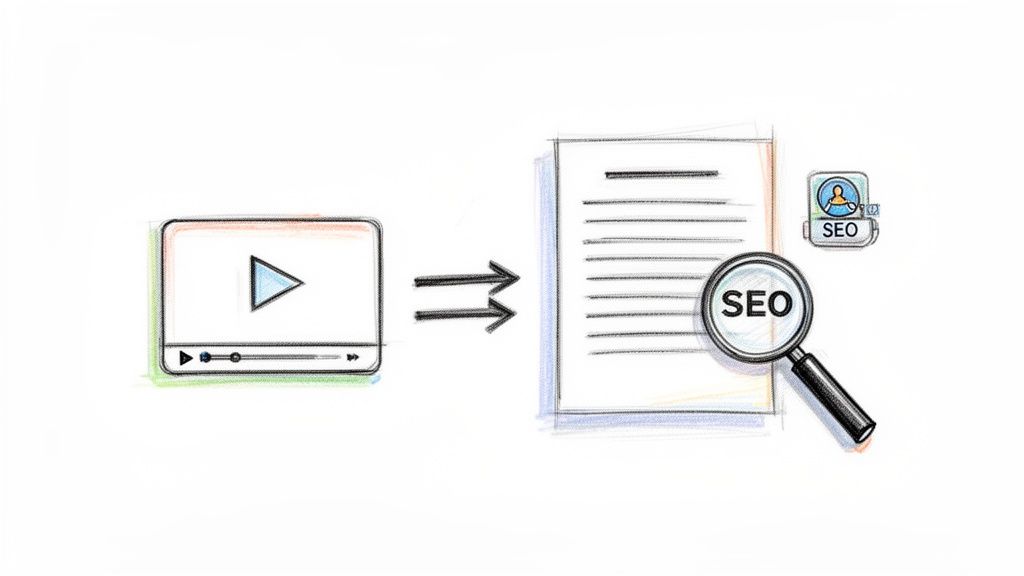
Ever wondered how to get the words from your video into a simple text document? It's easier than you think. You just upload your video file to an AI-powered transcription service, and within minutes, you have a complete text version. This simple process turns what you say into a format that's easy to search, share, and reuse, which is a game-changer for creators, students, and businesses alike.
Why Turning Video Into Text Is a Content Superpower
If you've ever felt like your video content is invisible, there's a good reason. Search engines can't watch videos or listen to audio—they read text. By converting your video's spoken words into a transcript, you’re basically handing Google a roadmap to understand and rank your content.
This single step can dramatically boost your video's SEO potential. Suddenly, all those valuable keywords you mentioned are on the page, ready to attract organic traffic that your video would have missed on its own.
Unlocking Accessibility and User Engagement
Transcription isn't just for search engines; it’s for people. Adding transcripts and captions makes your content accessible to everyone, including those with hearing impairments or anyone watching in a noisy (or quiet) environment.
And it's not just about accessibility. Lots of people simply prefer to read. In one survey, 25% of respondents admitted they read a transcript instead of watching the video, usually to save time or get the gist of the content quickly. Giving people a text option lets them engage with your material however they want.
Transcripts aren't just an accessibility add-on; they are a standalone piece of content that benefits all users by offering choice and convenience.
Repurposing Content and Boosting Productivity
A transcript is a content creator's best friend. Think about it: that one-hour webinar you recorded can be instantly repurposed into so much more.
- A detailed blog post: You can pull out all the key insights without having to sit through the entire recording again.
- Social media snippets: Grab powerful quotes or key takeaways for quick, shareable posts on Twitter or LinkedIn.
- A searchable archive: Turn your team meetings or training sessions into a knowledge base that anyone can reference later.
This approach squeezes every last drop of value out of a single piece of content, saving you a ton of time and effort. It's no wonder the global AI transcription market hit $4.5 billion in 2024 and is expected to reach $19.2 billion by 2034. This growth is fueled by the sheer volume of video content we're all creating every day. You can discover more insights about this market growth and how it’s shaping content strategy.
Ultimately, learning how to transcribe video to text online is more than just a technical skill. It's a powerful strategy for making your content more discoverable, inclusive, and versatile.
How to Choose the Right Online Transcription Tool
It's easy to get lost in the sea of online transcription tools out there. They all make big promises, but what really matters? The trick is to cut through the marketing fluff and focus on what will actually make your life easier. A tool that's perfect for a podcaster juggling interviews might be a terrible fit for a student trying to capture a lecture.
The first thing to look at is accuracy. Let's be real: no AI is flawless. But the best services can hit up to 99% accuracy when the audio is crystal clear. Of course, most real-world audio isn't that clean. You've got background noise, people talking over each other, and all sorts of accents. You need a tool that can handle that mess gracefully.
This is where many free or cheap options stumble. They spit out a jumbled transcript that takes you longer to clean up than if you'd just typed it out yourself. Paying a bit more for a high-accuracy tool almost always pays for itself in the time you save on editing.
What Features Actually Matter?
Beyond just getting the words right, think about what you’ll be transcribing day-to-day. The right features can make a world of difference.
- Speaker Identification: If you’re working with interviews, podcasts, or meeting recordings, this is a must-have. A good tool will automatically tag who’s speaking ("Speaker 1," "Speaker 2"), and the best ones let you assign names. This makes the final transcript a hundred times more readable.
- Language Support: Creating content for a global audience? Make sure your tool can handle more than just English. Check if it not only transcribes your video's original language but can also translate it. We've put together an extensive list of our to give you an idea of what's possible.
- Synchronized Editor: This is an absolute game-changer for editing. An interactive editor syncs the text transcript with your video's timeline. You can click on any word in the text, and it will instantly jump to that exact moment in the video. It makes finding and fixing errors incredibly fast and intuitive.
These kinds of features are becoming the new standard as more people rely on transcription. The market for these services is booming—it hit $0.67 billion in 2024 and is expected to more than double to $1.67 billion by 2033. This surge is fueled by everything from accessibility compliance to the simple demand for smart tools like in-browser editors. You can if you want to dig into the numbers.
AI vs. Human Transcription: The Big Decision
You'll also need to choose between a fully automated AI service and one that uses human transcribers. They serve different needs, and it's a classic trade-off between speed, cost, and perfection.
| Feature | AI-Powered Transcription | Human-Powered Transcription |
|---|---|---|
| Speed | Blazing fast. Think minutes, not hours. | Slow. Expect a 24-48 hour turnaround. |
| Cost | Super affordable, often just pennies per minute. | Much more expensive, charged by the minute. |
| Accuracy | Very high, but can struggle with poor audio. | The gold standard. As close to perfect as you can get. |
| Best For | Most everyday tasks, content creation, meetings. | Legal depositions, medical records, anything mission-critical. |
For the vast majority of people looking to transcribe video to text online, AI is the way to go. It strikes the perfect balance of speed, cost, and quality for everyday work. The technology has gotten so good that it’s the most practical choice for almost everyone.
Pro Tip: Don't ever pay for a service without testing it first. Look for a free trial and upload a short clip that's typical of what you work with. See how it handles your specific audio, accents, and industry jargon before you pull out your credit card.
Your Practical Video to Text Transcription Workflow
Once you’ve settled on a transcription tool, it’s time to get down to business. Having a repeatable process to transcribe video to text online is the key to getting clean, accurate results without sinking hours into manual fixes. And it all starts before you even think about uploading your file.
Your video file is the raw material, and just like in cooking, better ingredients lead to a better outcome. Simple tweaks can make a world of difference for the AI's accuracy—think reducing background noise, making sure speakers are close to the mic, and preventing people from talking over each other.
If your video is in a weird format, it's smart to convert it first. A quick trip to a free can switch it to a universally accepted format like MP4, which virtually every transcription service handles perfectly.
Getting Your Video Uploaded and Configured
With your video prepped and ready, the next move is getting it into the platform. Most tools have a simple drag-and-drop interface, so that part’s easy. The critical moment comes right after, when you're asked to configure a few settings that tell the AI what to listen for.
Don't rush this part. These initial choices are what separate a messy first draft from a nearly perfect one. This flowchart breaks down the key features to look for and dial in at this stage.
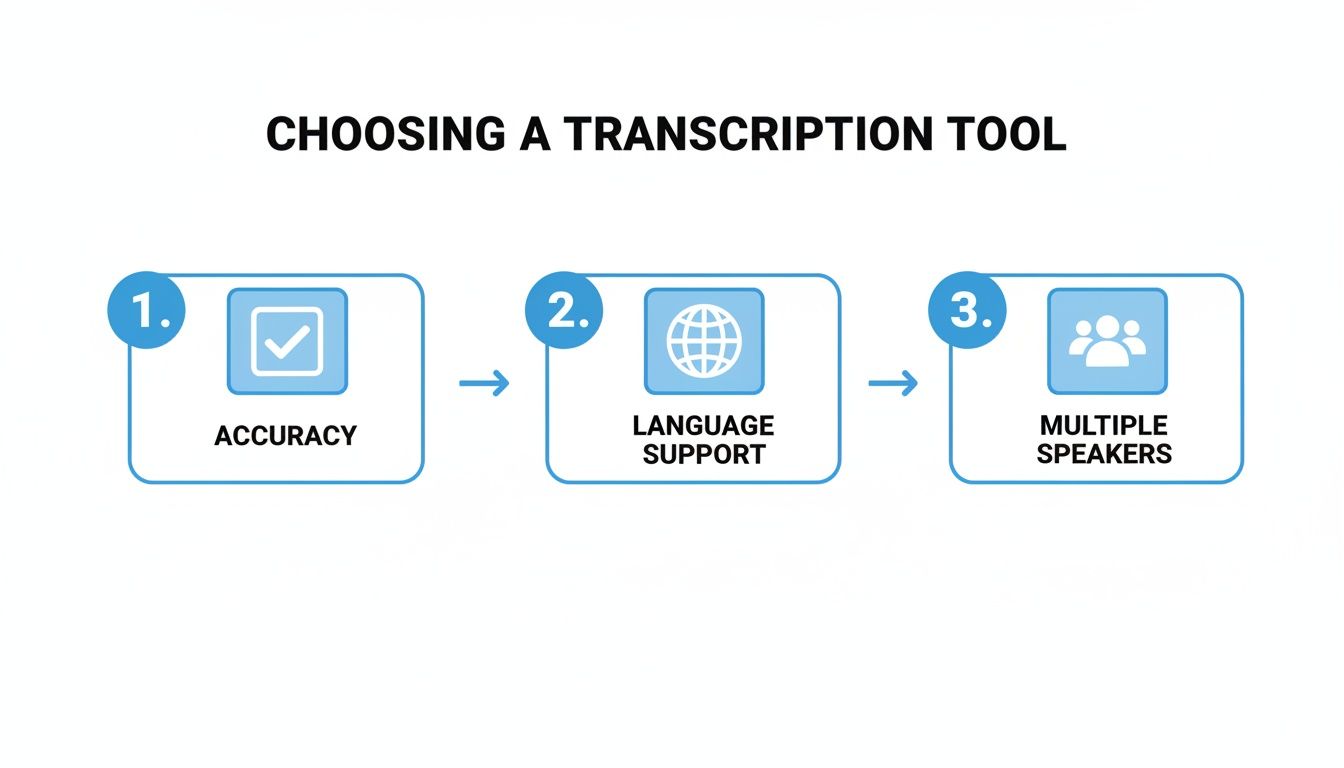
As you can see, getting the big picture stuff right—like the language and number of speakers—is fundamental. Spending thirty seconds here can save you thirty minutes of editing later.
Here's what you'll almost always need to set:
- Source Language: Be explicit and select the primary language spoken. Even if the AI boasts auto-detection, confirming it manually helps avoid embarrassing mix-ups, especially with different accents or dialects.
- Number of Speakers: If you have the option, tell the tool how many people are in the conversation. This gives the AI a massive head start in separating the voices and labeling who said what.
Pro Tip: Got a video full of industry jargon, acronyms, or unique company names? Some of the more advanced platforms let you upload a custom vocabulary. By feeding the AI these specific terms beforehand, you teach it how to spell them correctly, which saves you from making the same correction over and over again.
Refining the Transcript in the Synchronized Editor
After the AI works its magic, you'll get the first draft of your transcript. This is where the best tools really prove their worth with a feature called the synchronized editor. It's a game-changer. This editor links every single word of the text to its exact spot on the video's timeline.
Instead of fumbling between a video player and a text document, the interface lets you click any word in the transcript, and the video will instantly jump to that precise moment. This makes spot-checking and correcting mistakes incredibly fast.
Your editing pass should be a focused effort. I usually tackle it in this order:
- Fixing Wrong Words: First, I listen for words the AI just plain misunderstood. This is common with homophones (like "to" vs. "too") or any proper nouns.
- Assigning Speaker Names: Next, I swap out the generic labels like "Speaker 1" and "Speaker 2" for the actual names of the speakers. It makes the final transcript infinitely more readable.
- Adjusting Timestamps: For captions and subtitles, timing is everything. I'll quickly scrub through to make sure the text on screen aligns perfectly with the dialogue.
- Polishing Punctuation: Finally, I'll do a read-through to fix the punctuation. AI does a decent job, but it can't always capture the natural pauses and flow of a real conversation. Adding the right commas and periods makes a huge difference.
By following this simple workflow—prep, configure, then refine—you turn a daunting task into a smooth and manageable process. The result? A polished, professional transcript ready for whatever you need it for.
Squeezing Every Drop of Value from Your Transcript
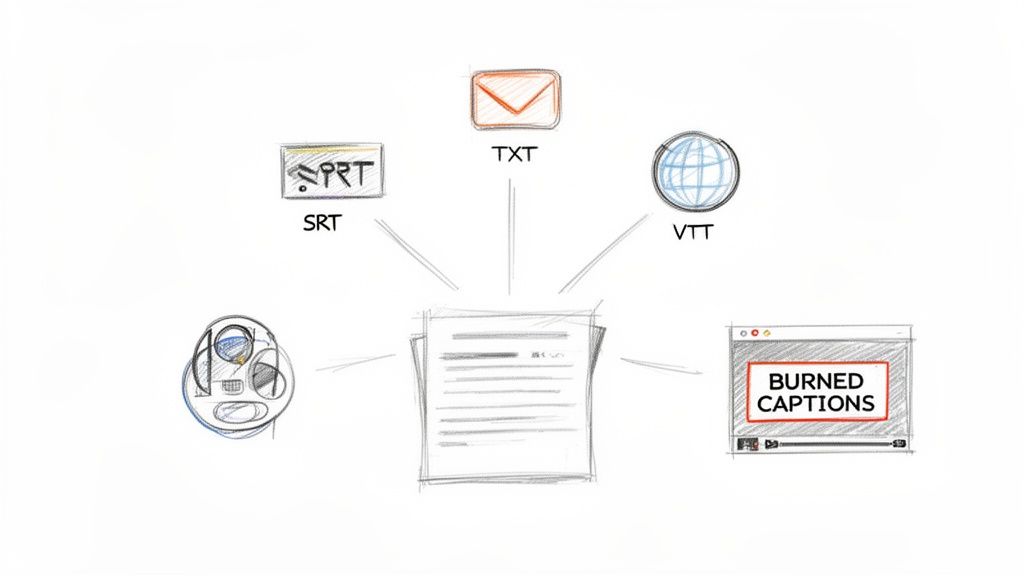
Once your transcript is polished and perfect, the fun really starts. Think of that text not as the final product, but as a lump of clay you can mold into a dozen different things for all sorts of platforms and audiences. Exporting isn't just about clicking "save"—it’s about choosing the right format to get the most mileage out of your hard work.
The format you pick really depends on what you want to do with the text. A simple .TXT file is perfect for dropping the content into a blog post or repurposing it for an email newsletter. But if you’re adding captions to a video, you'll need something more specialized.
Getting Your Caption Format Right
Caption files aren't all the same, and picking the right one is crucial for making sure they actually work where you post your video. These files do more than just hold the words; they contain the all-important timestamp data that synchronizes the text to the spoken audio.
Here are the main players:
- .SRT (SubRip Text): This is the king of caption formats. It’s the most universally accepted file type, working flawlessly on platforms like YouTube, Vimeo, and LinkedIn. If you're not sure which one to pick, SRT is almost always a safe bet.
- .VTT (WebVTT): This is the modern successor to SRT, built specifically for the web. It gives you more advanced styling options, like controlling font colors and on-screen positioning. This is a great choice if you’re embedding video on your own website and want the captions to match your brand's aesthetic.
When you transcribe video to text online with a solid tool, generating these files is usually just a one-click affair. That simple click saves you a massive headache, ensuring your captions look and behave exactly as they should.
I always think of the master transcript as the "single source of truth." From that one document, I can spin off a blog post, generate subtitles for three different platforms, and pull quotes for social media. It's all about working smarter.
Go Global with Quick Translations
Why keep your content locked to a single language? Many transcription platforms now have built-in translation tools that let you convert your English transcript into dozens of other languages with just a click.
Think about it: you could have Spanish or French subtitles for your latest marketing video ready in minutes, not days. This is a game-changer for reaching new markets without blowing your budget on traditional translation agencies.
The Undeniable Power of Burned-In Captions
For social media, burned-in captions (also called open captions) are non-negotiable. Platforms like Instagram, TikTok, and Facebook often autoplay videos on mute. Unlike a standard SRT file that a viewer can toggle on or off, burned-in captions are literally part of the video image itself.
They are always on screen.
This is huge, especially when you consider that a staggering 85% of Facebook videos are watched with the sound off. If your message is locked behind audio, most people will just scroll right by. Burning your captions directly into the video ensures your message lands, sound or no sound, dramatically boosting how many people stick around to watch.
Getting the Most Out of Your Transcripts: A Use-Case Guide
How you transcribe video to text online really depends on what you need to do with it. A podcaster’s workflow is worlds away from a researcher’s, and knowing how to tweak your approach for each project saves a ton of time and delivers far better results.
It’s all about matching the tool to the task. For instance, a student recording a lecture needs a word-for-word transcript to study from. A content creator, on the other hand, might just want the main talking points to spin into a new blog post.
Let's dig into how different people can squeeze every drop of value from their video transcripts.
For Students and Researchers
When you’re in academia, accuracy is king. Whether you're documenting interviews or capturing the nuances of a lecture, a verbatim transcript is non-negotiable. You need a record that’s completely faithful to the original audio, including all the "ums" and "uhs" that can be surprisingly important for qualitative analysis.
Here's a straightforward workflow that works every time:
- Nail Down Speaker Labels First: If you have multiple people in a recording, use a tool that automatically detects who is speaking. The very first thing you should do in the editor is assign the correct names. This step is critical.
- Lean on Precise Timestamps: Clickable timestamps are a lifesaver. They let you jump straight to a specific moment in the video to double-check a quote or make sense of a mumbled phrase.
- Export as Plain Text: A simple
.TXTor.DOCXfile is usually your best bet. It’s perfect for copying quotes into your research paper, pulling into analysis software like NVivo, or just hittingCtrl+Fto find keywords while studying.
By focusing on clean speaker separation and precise timestamps, researchers can create a reliable document that stands up to academic scrutiny and makes data analysis much smoother.
For Content Creators and Podcasters
If you create content for a living, your transcript is a goldmine for repurposing. The main goal here isn't just accuracy; it's about extracting value and turning your spoken words into SEO-friendly assets that can drive traffic from multiple platforms.
The transcription market is booming—projected to hit $7.33 billion by 2032—largely because creators are realizing that transcripts can boost search rankings by a whopping 20-30%. You can to see just how big this is for content strategy.
And for a deep dive, we have a whole guide on .
Your workflow should be built for speed and versatility:
- Generate an SRT File Immediately: Your first export should always be an SRT file. Upload it to YouTube or Vimeo to add closed captions, instantly making your content more accessible and engaging.
- Burn Captions for Social Media: For short-form video on Instagram Reels or LinkedIn, export a version with the captions burned directly into the video. It’s essential for reaching people who watch with the sound off.
- Create a "Clean Read" for Your Blog: Go back into the editor, remove all the filler words, and clean up the grammar. With a few tweaks, that raw transcript becomes a polished, SEO-optimized blog post.
For Business Professionals and Teams
In the business world, transcripts are all about creating a searchable, actionable record of conversations. Think meeting notes, customer feedback calls, or internal training sessions. You’re building a knowledge base that your team can tap into anytime.
Focus on features that bring clarity and drive action. AI summaries are fantastic for getting the key takeaways from a long meeting in seconds. Exporting as a simple text file lets you highlight action items, assign them to team members, and set deadlines—turning a conversation into a trackable part of your project plan.
Optimizing Transcription by Use Case
Different goals require different settings. Here's a quick cheat sheet to help you configure your transcription project for the best possible outcome based on your role.
| User Profile | Primary Goal | Recommended Export Format | Key Feature to Use |
|---|---|---|---|
| Student | Study Aid & Note-Taking | .TXT or .DOCX | Verbatim Transcription |
| Researcher | Qualitative Data Analysis | .TXT (with timestamps) | Speaker Diarization |
| Podcaster | Content Repurposing & SEO | .SRT and .DOCX | "Clean Read" Editing |
| Marketer | Social Media Engagement | .MP4 (with burned-in captions) | Burned-in Captions |
| Business Team | Actionable Meeting Records | .TXT or .PDF | AI Summaries |
Ultimately, the right settings will turn your transcript from a simple wall of text into a powerful asset, no matter what your project is.
Got Questions About Video Transcription? We've Got Answers
Still have a few things you're wondering about? Perfect. Let's dive into some of the most common questions people ask when they start turning their videos into text online. We'll clear up everything from how accurate you can expect the AI to be, to which file types play nicest with these tools.
Think of this as your quick-reference guide. We’ll get you the answers you need so you can feel totally confident tackling your next transcription project.
Just How Accurate Is AI Transcription, Anyway?
This is the big one, and the honest answer is: it all comes down to your audio quality. If you feed the AI a crystal-clear recording with distinct speakers, you can see accuracy rates hit as high as 99%. That's pretty amazing.
But let's be realistic. Most recordings aren't perfect. Things like background noise, heavy accents, or people talking over each other will naturally bring that number down. For most everyday tasks, though—like creating meeting notes or repurposing a video for a blog post—the initial AI transcript is more than good enough. A few quick edits in the synchronized editor will get it polished up in no time.
What Are the Best File Formats for Uploading?
To make your life easier and get the best results, it’s smart to stick with the most common, high-quality formats. Pretty much every online transcription service is built to handle these flawlessly.
- For Video: MP4 is the undisputed king. It’s the perfect blend of great quality and manageable file size, and you’ll never run into compatibility issues. MOV is another solid choice.
- For Audio: You can't go wrong with MP3. It's the universal standard for a reason—it keeps file sizes small without sacrificing clarity. If you're working with super high-fidelity audio, WAV is a great uncompressed option, too.
If your file is in some obscure format, take a moment to convert it first. It’s a simple step that can prevent a lot of headaches.
Trust me on this one. I’ve learned from experience that spending a few seconds converting a file to MP4 or MP3 saves a ton of frustration. It’s a quick pre-flight check that prevents upload errors and bad transcripts. It always pays off.
Can AI Actually Tell Different Speakers Apart?
Absolutely, and this is where a good transcription tool really shines. This feature is technically called speaker diarization, or speaker detection.
The AI analyzes the audio for unique voice patterns and automatically splits the dialogue, assigning labels like "Speaker 1" and "Speaker 2." You can then jump into the editor and easily replace those generic labels with actual names. This is a game-changer for interviews, podcasts, or team meetings. Without it, you'd just have a messy, confusing wall of text.
Ready to turn your videos into powerful text assets? Kopia.ai delivers fast, accurate, and affordable transcription with a smart editor that makes polishing your text a breeze.